


Share:


Table of Contents
- Shopify Flow automates routine tasks in Shopify stores, allowing users to create workflows without coding skills.
- The tool has gained widespread adoption, with over 1.1 billion automated workflows executed by eCommerce businesses, saving millions of hours.
- Workflows consist of three main components: triggers (events that start the workflow), conditions (rules that determine if the workflow continues), and actions (tasks performed when conditions are met).
- Shopify Flow is free for users on Basic, Grow, Advanced, and Plus plans, although some advanced features may have restrictions based on the plan.
- Users can automate various tasks, including order management, inventory tracking, customer segmentation, and marketing activities, using prebuilt templates or custom workflows.
- Regular monitoring and testing of workflows are essential to ensure they function correctly and adapt to changing business needs.
Shopify Flow is Shopify’s free automation app for running routine store tasks without writing code. You set a trigger, add a condition, and choose an action, and Flow handles the rest, whether that’s tagging a high-value order, sending a low-stock alert, or updating a customer profile.
The scale of adoption shows how much time this can free up. According to a Shopify report, over 3,600 ecommerce businesses ran 1.1 billion automated workflows in less than two years, saving an estimated 9.2 million hours.
For a growing store, tasks like tagging orders, checking inventory, and updating products may take only minutes each, but they add up fast.
In this guide, you’ll learn how Shopify Flow works, how to build your first workflow, and 15 practical workflows you can set up to save time and reduce manual work.
Shopify Flow is an eCommerce automation tool that lets you automate repetitive tasks in your Shopify store using predefined rules and conditions. Instead of doing the same actions manually every day, you can create workflows that automatically respond to events in your store.
For example, you can use Shopify Flow to:
- Tag orders worth more than $200.
- Send an alert when inventory falls below 10 units.
- Flag potentially fraudulent orders for review.
- Automatically organize products and customers.
- Notify your team when orders need special handling.
Shopify Flow uses a visual workflow editor, so you don’t need coding experience to create most automations.
How Does Shopify Flow Work?
Every Shopify Flow workflow is built around three main components:
1. Trigger: An event that starts the workflow, such as a new order, an inventory change, or a scheduled time.
2. Condition: A rule that determines whether the workflow should continue. For example, checking whether an order total exceeds $200.
3. Action: The task Shopify performs when the condition is met, such as adding an order tag or sending a notification.
For example, a simple order-tagging workflow might look like this:
Order created → Order total is $200 or more → Add “High Value” tag
Once the workflow is activated, Shopify Flow automatically checks incoming orders and applies the tag to qualifying purchases. You can also create more complex workflows with multiple conditions, actions, and integrations with compatible third-party apps.
Now that you know how Shopify Flow works, let’s explore some practical automations you can use in your store.
These workflows cover order management, inventory tracking, customer segmentation, marketing, and reporting. Most use Shopify Flow’s built-in capabilities, while a few require integrations with compatible apps.
Order and Fulfillment Automation
Managing incoming orders involves several repetitive tasks, from identifying priority orders to coordinating with fulfillment teams.
Here are five Shopify Flow workflows that can simplify order processing.
1. Automatically Tag High-Value Orders
The problem: You manually check incoming orders to identify high-value purchases that might need special attention.
The automation: Use Shopify Flow to automatically tag orders based on their total value.
For example:
- Trigger: Order created.
- Condition: Order total is $200 or more.
- Action: Add a “High Value” tag to the order.
This is the same workflow we created in the setup walkthrough.
You can use different spending thresholds to categorize orders or identify purchases that qualify for special packaging, priority handling, or additional customer service.
What you save: Time spent manually reviewing and categorizing orders.
2. Flag High-Risk Orders for Review
The problem: Reviewing every incoming order for potential fraud can be time-consuming, especially during busy sales periods.
The automation: Create a Shopify Flow workflow that identifies high-risk orders using Shopify’s fraud analysis.
For example:
- Trigger: Order risk analyzed.
- Condition: The order is classified as high risk.
- Action: Add a “Review Required” tag and send an internal notification.
You can also configure additional actions, such as holding fulfillment until the order has been reviewed.
This lets your team focus on potentially suspicious orders instead of manually checking every transaction.
What you save: Time spent reviewing low-risk orders while reducing the chance of overlooking potentially fraudulent purchases.
Tip: Avoid automatically canceling orders solely because they’ve been flagged. A manual review can help prevent legitimate customer orders from being canceled.
3. Notify Your Team About Special Orders
The problem: Custom products, personalized items, and certain wholesale orders require additional coordination with your fulfillment team.
For example, a customer might order a T-shirt with a personalized name that must be sent to a printing team.
The automation: Automatically notify the responsible team member whenever an order contains a product requiring special handling.
For example:
- Trigger: Order created.
- Condition: The order contains a product tagged “Personalized.”
- Action: Send an internal email with the relevant order details.
You can use similar workflows for fragile products, gift-wrapped items, or orders containing specific product categories.
What you save: Time spent manually identifying special orders and forwarding their details to your team.
4. Automatically Hold Orders That Need Approval
The problem: Some orders shouldn’t move directly to fulfillment.
For example, a custom-made product might require design approval before production, or a preorder might need to be held until stock becomes available.
The automation: Use Shopify Flow to place fulfillment orders on hold when they meet specific conditions.
For example:
- Trigger: Order created.
- Condition: The order contains a product tagged “Approval Required.”
- Action: Hold the fulfillment order.
Your team can then review the order, complete the necessary checks, and release the hold when it’s ready.
What you save: Manual coordination between order processing and fulfillment teams.
Make sure your fulfillment process supports holds and that someone is responsible for releasing them. Otherwise, orders could remain on hold longer than intended.
5. Tag Orders Based on Shipping Method
The problem: Orders with express delivery or other special shipping requirements can be difficult to identify when they’re mixed with regular orders.
The automation: Automatically tag incoming orders based on their selected shipping method.
For example:
- Trigger: Order created.
- Condition: The customer selected an express shipping method.
- Action: Add an “Express Shipping” tag and notify the fulfillment team.
This makes it easier for your warehouse staff to identify orders that require faster processing.
You can also create separate workflows for local pickup, international shipping, or other delivery methods.
What you save: Time spent sorting orders and checking delivery requirements manually.
Inventory and Product Automation
Inventory management becomes increasingly complicated as your product catalog grows.
Instead of repeatedly checking inventory and organizing products manually, you can use Shopify Flow to automate several routine tasks.
6. Receive Automatic Low-Stock Alerts
The problem: Checking product quantities every day to identify items that need replenishment can take considerable time.
The automation: Configure Shopify Flow to send a notification when inventory drops below a specific threshold.
For example:
- Trigger: Product variant inventory quantity changed.
- Condition: Available inventory falls to 10 units or fewer.
- Action: Send a low-stock alert to the inventory manager.
You can configure the workflow to send an alert only when inventory crosses the threshold, rather than sending a new notification after every subsequent sale.
What you save: Time spent checking individual product quantities and identifying items that need restocking.
For more details on managing inventory quantities and locations, see our guide to Shopify inventory management.
7. Automatically Hide Sold-Out or Discontinued Products
The problem: Products that are no longer available may continue appearing in your store’s catalog.
This is particularly common when selling seasonal products, limited-edition collections, or discontinued items.
The automation: Use Shopify Flow to change a product’s status when it meets specific inventory conditions.
For example:
- Trigger: Product variant out of stock.
- Condition: All relevant variants are out of stock across locations, and the product is tagged “Discontinued.”
- Action: Change the product’s status to Draft or Archived.
Shopify Flow also provides templates for hiding products when they sell out and republishing eligible products when inventory becomes available again.
What you save: Time spent manually identifying and removing unavailable products.
Important: Check inventory across all variants and relevant locations before hiding a product. One sold-out variant shouldn’t automatically make an entire product unavailable.
8. Automatically Tag and Organize New Products
The problem: As your catalog grows, manually assigning product tags can become repetitive.
The automation: Use Shopify Flow to automatically tag new products based on predefined conditions.
For example:
- Trigger: Product created.
- Condition: Product type is “T-shirt.”
- Action: Add a “Clothing” tag.
You can create similar workflows based on product vendors, titles, prices, or other available attributes.
Consistent tags can make catalog organization easier and support automated collections and merchandising workflows.
What you save: Time spent manually categorizing new products.
Keep in mind that the Product created trigger applies when a new product is added. Adding a variant to an existing product requires a different trigger.
9. Generate Scheduled Inventory Reports
The problem: Preparing weekly inventory reports often involves checking stock levels, identifying unavailable products, and compiling information for your team.
The automation: Use Shopify Flow’s scheduling and data retrieval capabilities to generate recurring inventory summaries.
For example:
- Trigger: Scheduled time, every Monday morning.
- Condition: The inventory query returns products that meet your out-of-stock criteria.
- Action: Send an internal email with the matching product details.
You can build this workflow using the Scheduled time, Get product data, and Send internal email steps.
Shopify Flow also provides a template for sending daily summaries of out-of-stock products.
What you save: Time spent manually collecting stock information and preparing recurring reports.
For larger catalogs, account for the number of records that Flow’s Get data actions can retrieve in a single run.
Customer Management and Marketing Automation
Shopify Flow can also help organize customer information and trigger marketing activities based on shopping behavior.
10. Automatically Identify VIP Customers
The problem: Identifying your most valuable customers manually becomes difficult as your customer base grows.
The automation: Create a workflow that automatically tags customers when they reach a spending threshold.
For example:
- Trigger: Order paid.
- Condition: The customer’s lifetime spending exceeds $500.
- Action: Add a “VIP” tag to the customer profile.
You can then use the tag to create customer segments for loyalty offers, exclusive product launches, or personalized marketing campaigns.
What you save: Time spent reviewing customer purchase history and maintaining VIP customer lists.
11. Identify Repeat Customers
The problem: You want to distinguish first-time buyers from returning customers, but manually checking purchase histories is impractical.
The automation: Use Shopify Flow to tag customers after they make a qualifying repeat purchase.
For example:
- Trigger: Order paid.
- Condition: The customer has completed at least two orders.
- Action: Add a “Repeat Customer” tag.
This makes it easier to organize customers based on their purchase history.
You can also use the resulting customer segments to plan loyalty campaigns or identify opportunities to encourage repeat purchases.
What you save: Manual customer segmentation and purchase-history checks.
12. Trigger Marketing Campaigns When Customers Join a Segment
The problem: Creating targeted marketing campaigns often requires manually identifying customers who meet specific conditions.
For example, you might want to reconnect with customers who haven’t made a purchase in the last 60 days.
The automation: Use Shopify Flow to detect when customers enter a predefined segment and initiate a relevant marketing workflow.
For example:
- Trigger: Customer joined segment.
- Condition: The customer belongs to your win-back segment and meets the campaign’s eligibility requirements.
- Action: Trigger an eligible marketing email through Shopify Messaging or a compatible marketing integration.
You can create similar workflows for VIP customers, new subscribers, or customers interested in particular products.
What you save: Time spent updating customer lists and manually initiating targeted campaigns.
Make sure your marketing workflows respect customer consent and applicable communication requirements.
13. Automate Post-Purchase Review Requests
The problem: Manually requesting reviews after every purchase is time-consuming. Sending requests too early can also frustrate customers who haven’t received their orders.
The automation: Combine Shopify Flow with a compatible product review app to initiate review requests after fulfillment or delivery.
For example:
- Trigger: An order is fulfilled.
- Condition: The order qualifies for a review request.
- Action: Wait for an appropriate period, then initiate a review request through a compatible review app.
If your fulfillment integration provides delivery events, you can use a delivery-based trigger instead.
What you save: Time spent tracking completed orders and manually contacting customers for reviews.
This workflow requires a review app with a suitable Flow action. If your review app doesn’t provide one, use its built-in review request automation instead.
Reporting and Operational Automation
Shopify Flow can also help track important business activities and share store information with other tools.
14. Get Notified About Large Discounts
The problem: Large discounts can sometimes be applied unexpectedly, potentially reducing profit margins.
The automation: Create a Shopify Flow workflow that alerts you when an order includes an unusually large discount.
For example:
- Trigger: Order created.
- Condition: The total discount amount exceeds $100.
- Action: Send an internal notification to the store administrator.
You can also configure notifications for specific discount codes or unusually high discount percentages.
What you save: Time spent manually reviewing orders for unexpected discount activity. This can be particularly useful during major promotional events when multiple discount campaigns are running.
15. Automatically Record Order Information in Google Sheets
The problem: Your team needs a shared record of important orders for internal reporting, but manually copying order details into a spreadsheet takes time.
The automation: Connect Shopify Flow with Google Sheets and automatically add rows when new orders meet your selected criteria.
For example:
- Trigger: Order created.
- Condition: The order value exceeds $500.
- Action: Add a row containing relevant order details to a connected Google Sheets spreadsheet.
You can record information such as the order number, order value, and order date.
To do this, connect your Google Sheets account to Shopify Flow and configure the Add row to spreadsheet action.
What you save: Time spent copying order information into spreadsheets.
This is useful for event-based reporting. However, it isn’t a replacement for exporting complete historical order datasets or performing large-scale data transfers.
Now that we’ve covered some useful automation ideas, let’s look at how to create your first workflow using Shopify Flow.
For this example, we’ll automatically tag orders worth $200 or more as “High Value.” It’s a simple automation that doesn’t require coding or additional integrations.
Step 1: Install Shopify Flow
Go to the Shopify Flow app in the Shopify App Store and install it.
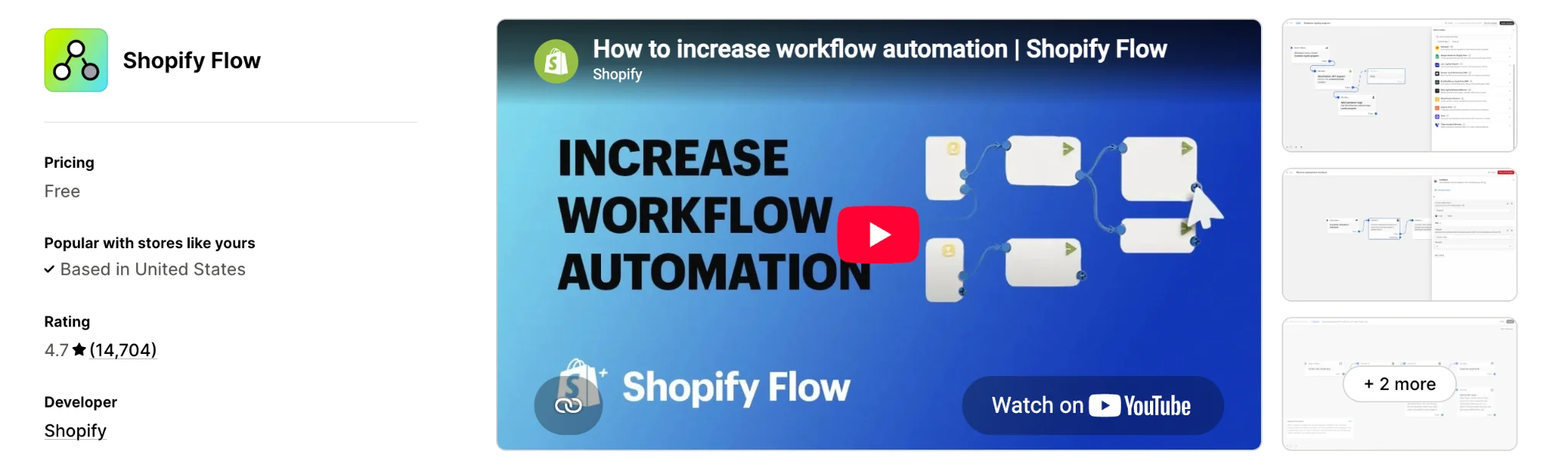
Once installed, access it through Shopify Admin → Apps → Flow.
Step 2: Create a New Workflow
- Open Shopify Flow and click Create workflow.
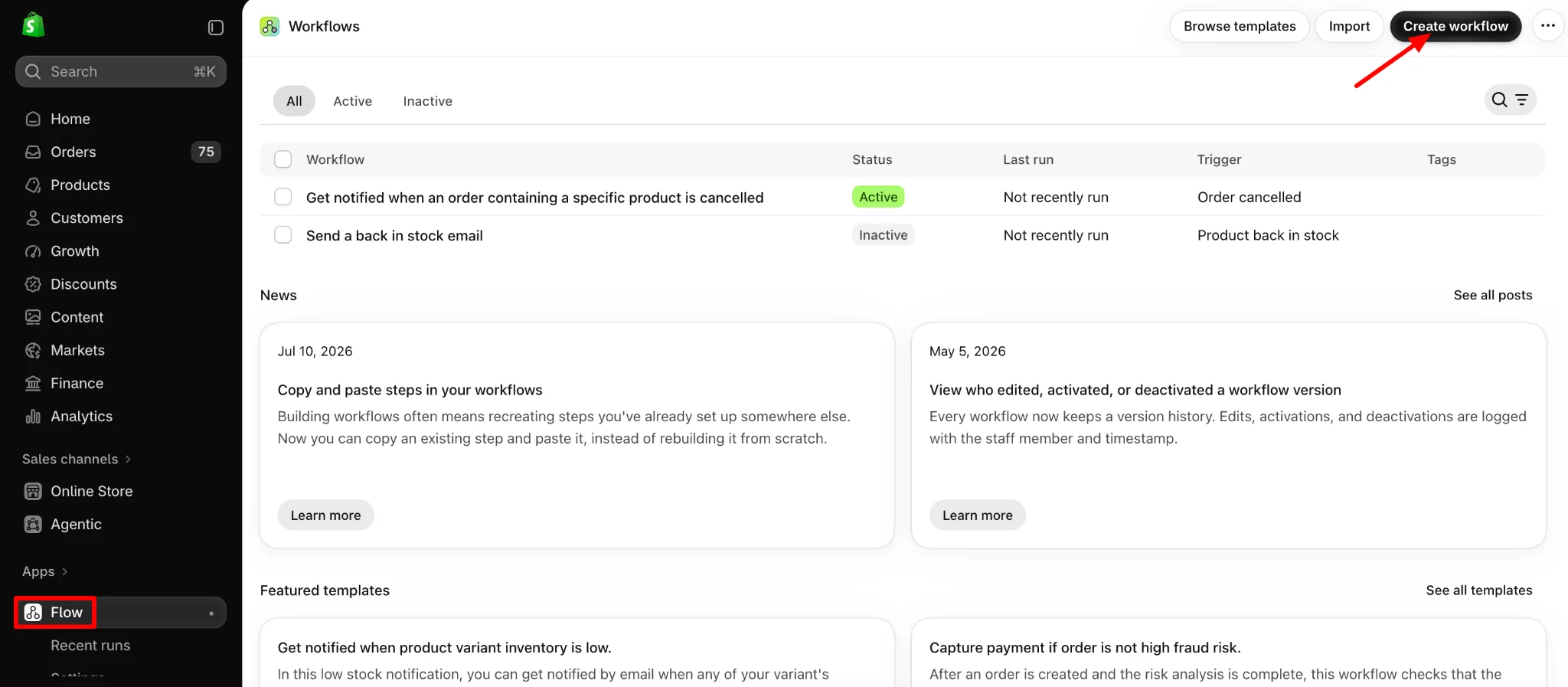
You can either choose an existing template or create your workflow manually.
For this example, select the option to create a workflow from scratch.
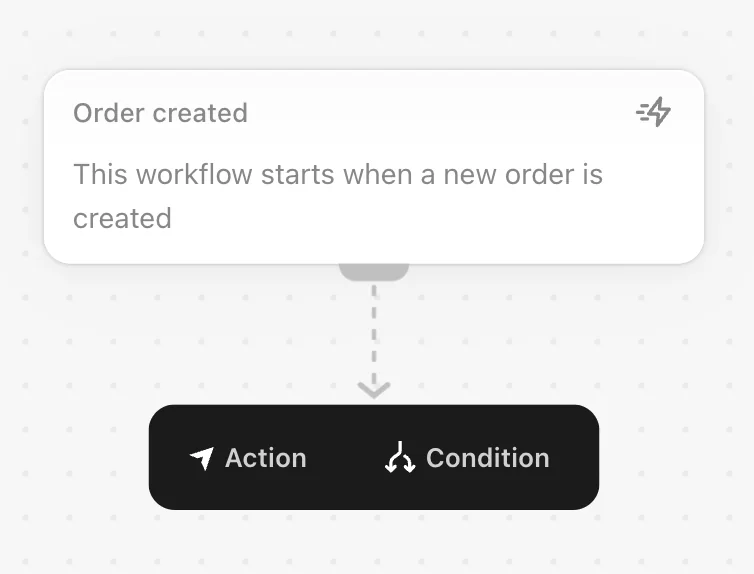
Step 3: Choose the Trigger
Every Shopify Flow workflow begins with a trigger.
- Click Select trigger and choose Order created.
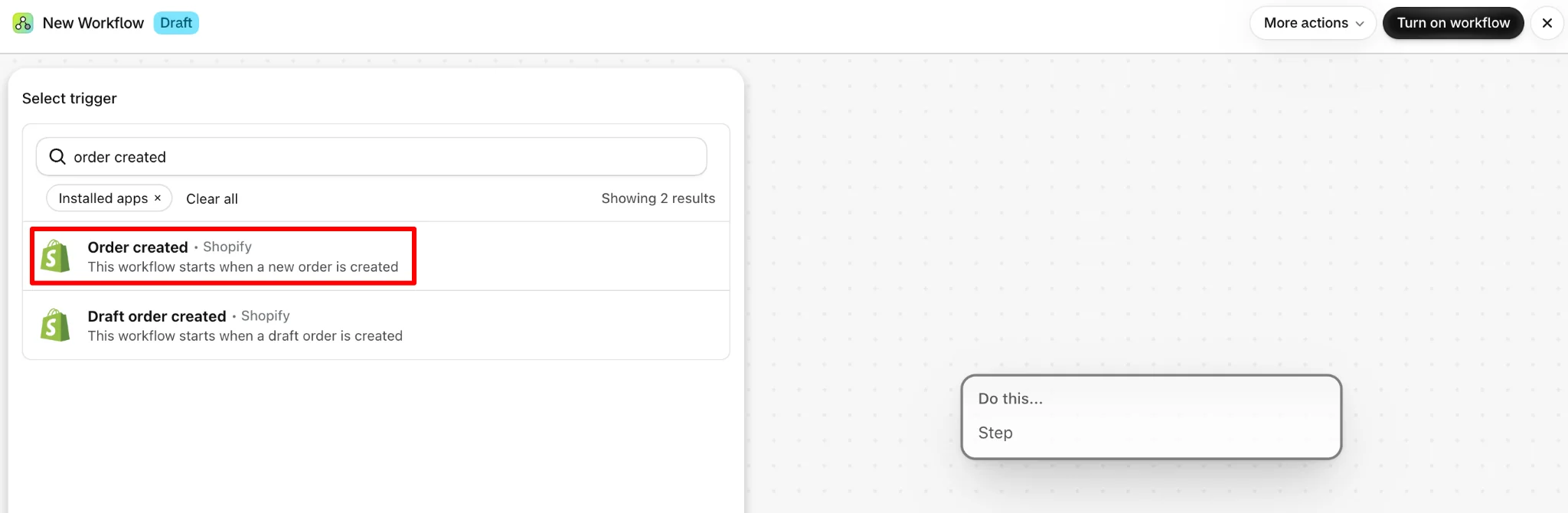
This tells Shopify to start the workflow whenever a new order is created.
Step 4: Add a Condition
Next, add a condition to identify high-value orders.
Configure the condition to check whether the order’s total price is greater than or equal to $200.
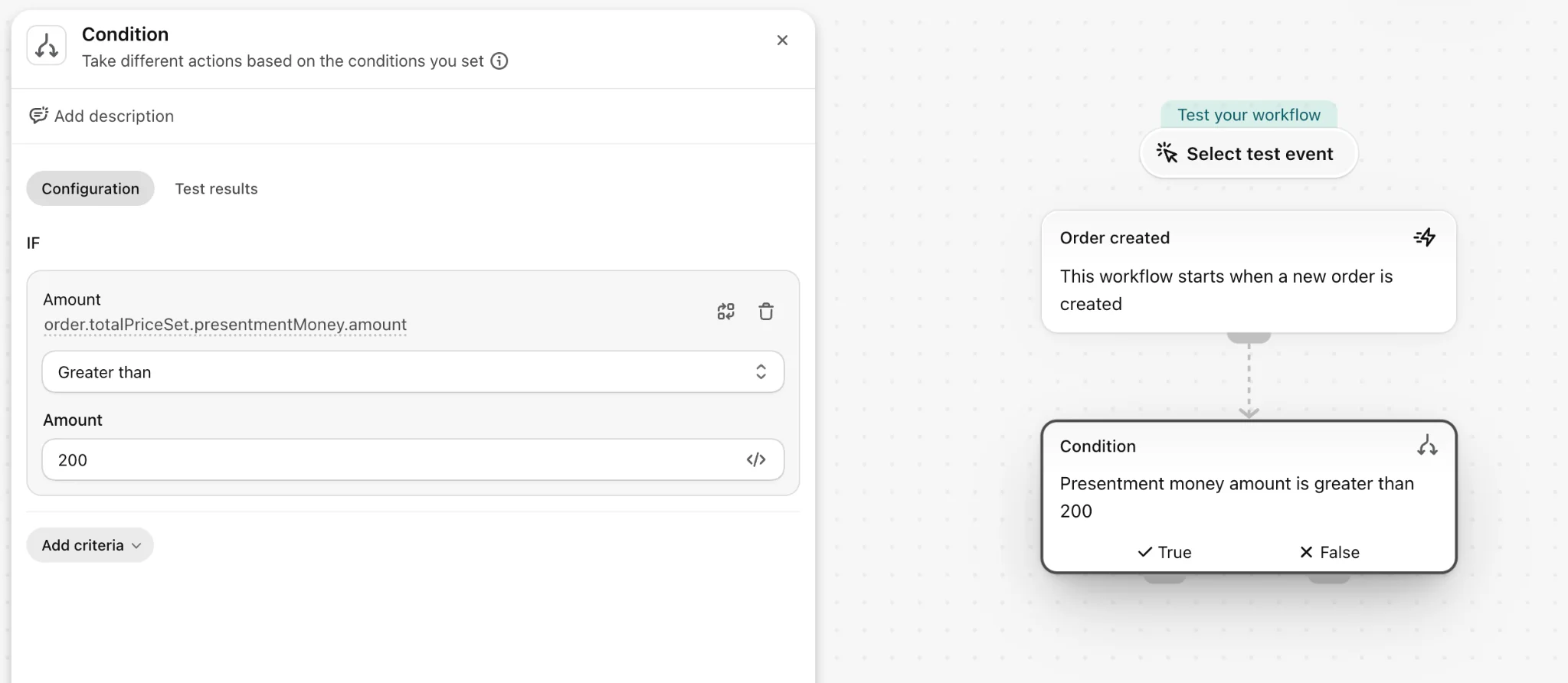
You can adjust this threshold based on what qualifies as a high-value order for your store.
Step 5: Configure the Action
Now choose what Shopify should do when the condition is met.
- Select the Add order tags action.
- Enter the tag name as “High Value.”
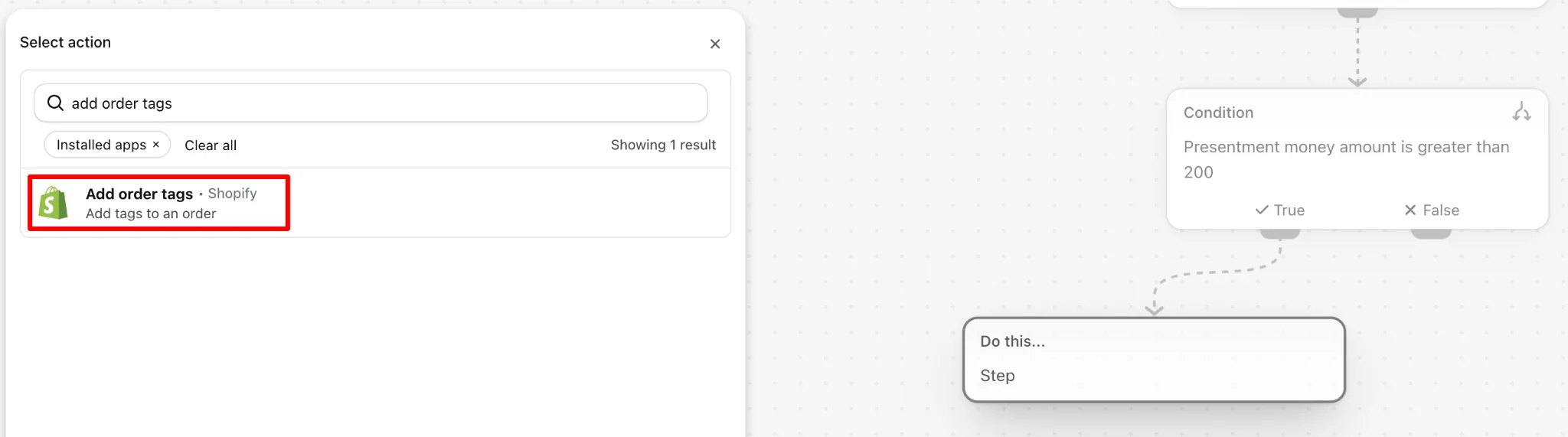
You can also add an optional action to send an internal email notification to your team.
Step 6: Test and Activate the Workflow
Before enabling the workflow, use Shopify Flow’s testing feature to check how it behaves with qualifying and non-qualifying orders. Test runs let you review the workflow logic without modifying live order data.
Once the conditions and actions are configured correctly, click Turn on workflow.
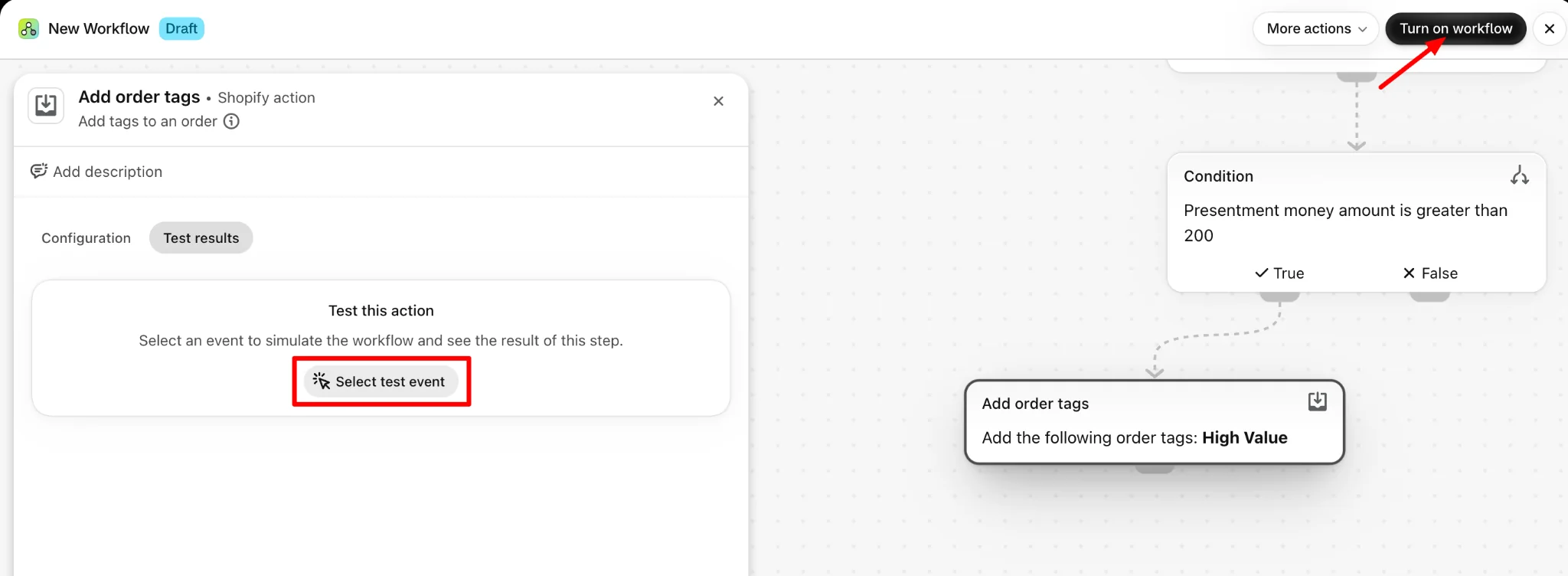
After activation, you can create test orders and review the workflow’s Recent runs to confirm that tags are applied as expected.
That’s it! Your Shopify store can now automatically identify and tag high-value orders.
You can use a similar process to create more advanced automations for inventory, customer management, and order processing.
You can also use Shopify Sidekick to help create workflows using natural-language instructions. Learn more about its capabilities in our Shopify Sidekick guide.
Shopify Flow can handle many routine operations, but it isn’t designed to perform every type of automation. Some tasks are better handled by Shopify’s built-in features or specialized third-party apps.
Recover Abandoned Checkouts With Shopify Messaging
Shopify Messaging lets you create automated abandoned checkout recovery emails for eligible shoppers. You can configure a workflow to send a reminder after someone starts checkout but leaves without completing a purchase.
Although these marketing automations can use Flow workflows behind the scenes, Shopify Messaging provides a more convenient starting point for configuring and managing recovery emails.
Schedule Discounts and Promotions
Shopify’s built-in discount settings let you schedule eligible discounts to start and end automatically. For example, you can create a Black Friday discount in advance and specify exactly when it should become active and when it should expire.
You don’t need to build a custom Shopify Flow workflow for standard scheduled discount activation.
For more advanced campaign scheduling or promotional activities, you may need additional tools.
Automate Product Imports, Exports, and Bulk Updates
Shopify Flow works well for event-based actions, such as adding tags or updating individual records.
However, it isn’t a dedicated bulk import/export tool.
If you regularly receive supplier files containing updated prices, product descriptions, or inventory quantities, a scheduled import/export app is generally more suitable.
For example, StoreRobo Import Export supports scheduled import and export jobs.
You can use it to automate recurring product data updates from supported sources such as URLs, Google Sheets, and FTP/SFTP servers, or schedule exports of products and other supported store data.
This is especially useful when managing large catalogs, working with multiple suppliers, or preparing recurring order and customer data exports.
Automate Shipping Updates and Customer Support
Shopify also provides built-in customer notifications for order confirmations and shipping updates.
Similarly, Shopify Inbox offers instant answers for common customer questions, such as return policies, shipping information, and order tracking. These tools can handle routine customer communication without requiring you to create a separate Flow workflow for every interaction.
For more extensive integrations between Shopify and external systems, tools such as Zapier or Make may also be useful.
Shopify Flow can save time, but incorrectly configured automations can create additional work or affect store operations. Here are some common mistakes worth avoiding.
Automating Processes That Don’t Work Properly
Before creating a workflow, make sure the underlying process is consistent and reliable.
For example, automatically tagging wholesale orders won’t work properly if your product and customer data isn’t organized consistently.
Start by defining clear rules for how the task should be handled.
Skipping Workflow Testing
A small mistake in a condition can cause incorrect actions.
For example, an inventory workflow could accidentally hide an entire product when only one variant is out of stock.
Use Shopify Flow’s testing features to check how your workflow behaves under different scenarios before activating it.
Creating Too Many Notifications
Not every automation needs to send an email.
If your team receives dozens of inventory alerts every day, important notifications can quickly get overlooked.
Consider using scheduled summary reports for non-urgent activities and immediate notifications for tasks that require attention.
Creating Overlapping Workflows
Multiple workflows performing the same task can sometimes cause unnecessary actions or conflicting changes.
For example, one workflow might automatically archive products while another attempts to republish them based on different conditions.
Review existing workflows before adding new automations.
Forgetting to Monitor Workflow Runs
A workflow that works today might not remain suitable as your store grows.
Inventory thresholds, customer segments, and fulfillment requirements can change over time.
Regularly review your workflows and check their execution history for errors or unexpected behavior. Also, be careful with workflows that update the same data that triggers them. Without appropriate conditions, these workflows can potentially trigger repeated executions.
Yes. Shopify Flow is a free automation app available on Shopify’s Basic, Grow, Advanced, and Plus plans. However, certain features are restricted by plan, and compatible third-party apps may have separate subscription fees.
Yes. Shopify Flow offers hundreds of prebuilt workflow templates for tasks such as order tagging, inventory alerts, fraud prevention, customer management, and fulfillment. You can browse the template library, select a relevant workflow, customize its conditions and actions, and activate it.
Some templates require additional apps or configurations before they can run.
No. Shopify Flow provides a visual editor that lets you create workflows using triggers, conditions, and actions. Many built-in Shopify automations can also be configured without coding. More complex integrations may require technical knowledge or third-party tools.
Yes. Shopify Flow has several limits depending on the feature and your Shopify plan.
For example, Shopify currently limits stores to 1,000 workflows, including active and inactive workflows. Get data actions can retrieve up to 100 resources at a time, while the Wait action supports delays of up to 90 days.
Workflow execution is also subject to API limits associated with your Shopify plan. For large-scale operations, you may need to optimize your workflows or use specialized apps.
Start with repetitive, rule-based tasks that don’t involve significant risk. Good examples include order tagging, low-stock notifications, and internal alerts. Once these workflows are running reliably, you can introduce more advanced automations.
There’s no fixed number. Start with a few workflows that solve your most time-consuming problems. Three well-configured automations that save time every day can be more useful than dozens of workflows you rarely monitor.
Not entirely. Automation can handle many repetitive operations, but activities involving customer disputes, strategic decisions, and unusual exceptions still require human involvement. The goal is to reduce routine work, not eliminate oversight.
Final Thoughts
You don’t need to automate every task in your Shopify store to see the benefits.
Start with the repetitive activities that take up the most time, whether that’s checking inventory, tagging orders, following up with customers, or updating product information.
Shopify’s built-in tools can handle many of these tasks, while third-party apps can help with more advanced requirements such as scheduled imports and exports, inventory synchronization, and external system integrations.
The key is to build workflows that are simple, reliable, and easy to maintain. Even a few well-configured automations can free up valuable time, allowing you to focus more on your products, customers, and business growth.


Subcribe to our newsletter


