Share:


Table of Contents
- Product bundling can significantly boost average order value by encouraging customers to purchase multiple items in a single transaction.
- There are three main types of bundles: fixed product bundles, multipack bundles, and mix-and-match bundles, each serving different customer needs.
- The Shopify Bundles app allows merchants to create fixed bundles and multipacks easily, while third-party apps are required for more complex bundling options.
- Effective pricing strategies for bundles should highlight savings while ensuring profitability, taking into account product costs and customer value.
- Monitoring bundle performance is crucial for optimizing sales, as it helps identify successful combinations and areas for improvement.
- Clear communication of savings and the bundling of complementary products enhance customer appeal and drive purchase decisions.
Imagine you’re shopping for skincare products online. You add a cleanser to your cart, then start looking for a moisturizer and serum. Instead of searching for each product separately, you find a complete skincare bundle containing all three products at a slightly lower price.
That’s product bundling in action.
For Shopify merchants, bundling related products can make shopping more convenient, encourage larger purchases, and help increase average order value (AOV). But creating bundles involves more than grouping a few products together. You also need to consider pricing, inventory tracking, and how customers will select their preferred items.
In this guide, we’ll explain how Shopify product bundling works, walk through creating bundles using Shopify’s free Bundles app, and share practical strategies for selling them successfully.
Product bundling is a sales strategy where two or more products are grouped and sold together as a single offer, often at a discounted price.
For example, a Shopify store selling coffee equipment could bundle a French press, coffee beans, and a measuring scoop into a starter kit. Customers can purchase the complete set instead of adding each item individually. The bundle might cost $55, while purchasing the products separately would cost $62.
For customers, the appeal is convenience and better value. For merchants, product bundling offers several advantages:
- Higher average order value: Encourages customers to purchase multiple products in one transaction.
- Better product discovery: Introduces shoppers to complementary products they might otherwise overlook.
- Improved inventory movement: Helps promote slower-selling products alongside popular items.
- Simpler shopping experience: Makes it easier to purchase products commonly used together.
Product bundling is one of several strategies for increasing average order value on Shopify. However, bundles don’t necessarily need a discount to be attractive. A thoughtfully curated collection can offer value simply by making the purchasing decision easier.
Before creating a bundle, it’s important to understand the different types available and which ones Shopify supports natively.
1. Fixed Product Bundles
A fixed bundle contains a predefined collection of products sold together.
For example, a skincare store could create a daily skincare routine containing a cleanser, moisturizer, and sunscreen. Customers purchase the complete collection, although they may be able to select from predefined variants, such as product sizes or fragrances.
Fixed bundles work particularly well for starter kits, gift sets, and products frequently purchased together.
2. Multipack Bundles
Multipacks contain multiple units of the same product.
For example, a clothing store could sell a three-pack of T-shirts, while a coffee brand might offer four bags of its bestselling blend.
Multipacks are especially useful for consumables and products customers regularly reorder.
3. Mix-and-Match Bundles
Mix-and-match bundles allow customers to choose the products they want from a predefined selection.
For example, a snack store might let customers build a box containing any six snacks from a collection of 20 products.
Unlike fixed bundles, customers control which products go into their bundle. This approach works well for personalized gift boxes, beauty products, snacks, and clothing collections.
Here’s how the three types compare:
| Bundle type | Example | Shopify’s native support |
|---|---|---|
| Fixed bundle | Cleanser + serum + moisturizer | Shopify Bundles app |
| Multipack | Three bottles of shampoo | Shopify Bundles app |
| Mix-and-match | Choose any four skincare products | Requires a compatible third-party solution |
Other promotional approaches include frequently bought together offers, quantity discounts, and buy-one-get-one promotions. Although these encourage customers to purchase multiple items, they aren’t necessarily bundles managed as a single product.
The simplest way to create fixed bundles and multipacks is by using Shopify Bundles, Shopify’s free first-party app. It’s available on all Shopify plans and lets you create bundles directly from your admin without coding.
For this tutorial, we’ll create a skincare bundle containing a cleanser, serum, and moisturizer.
Step 1: Install the Shopify Bundles App
First, install the Shopify Bundles app from the Shopify App Store.
- Log in to your Shopify admin.
- Open the Shopify App Store and search for Shopify Bundles.
- Select the app developed by Shopify.
- Click Install and complete the installation.
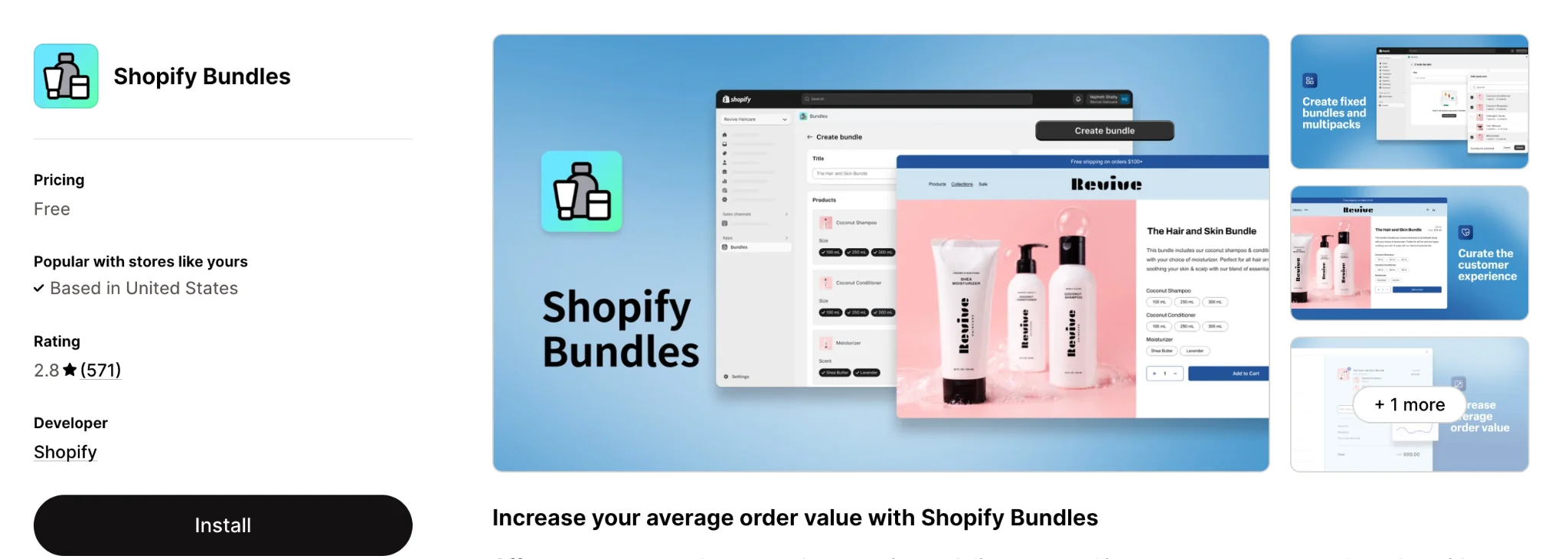
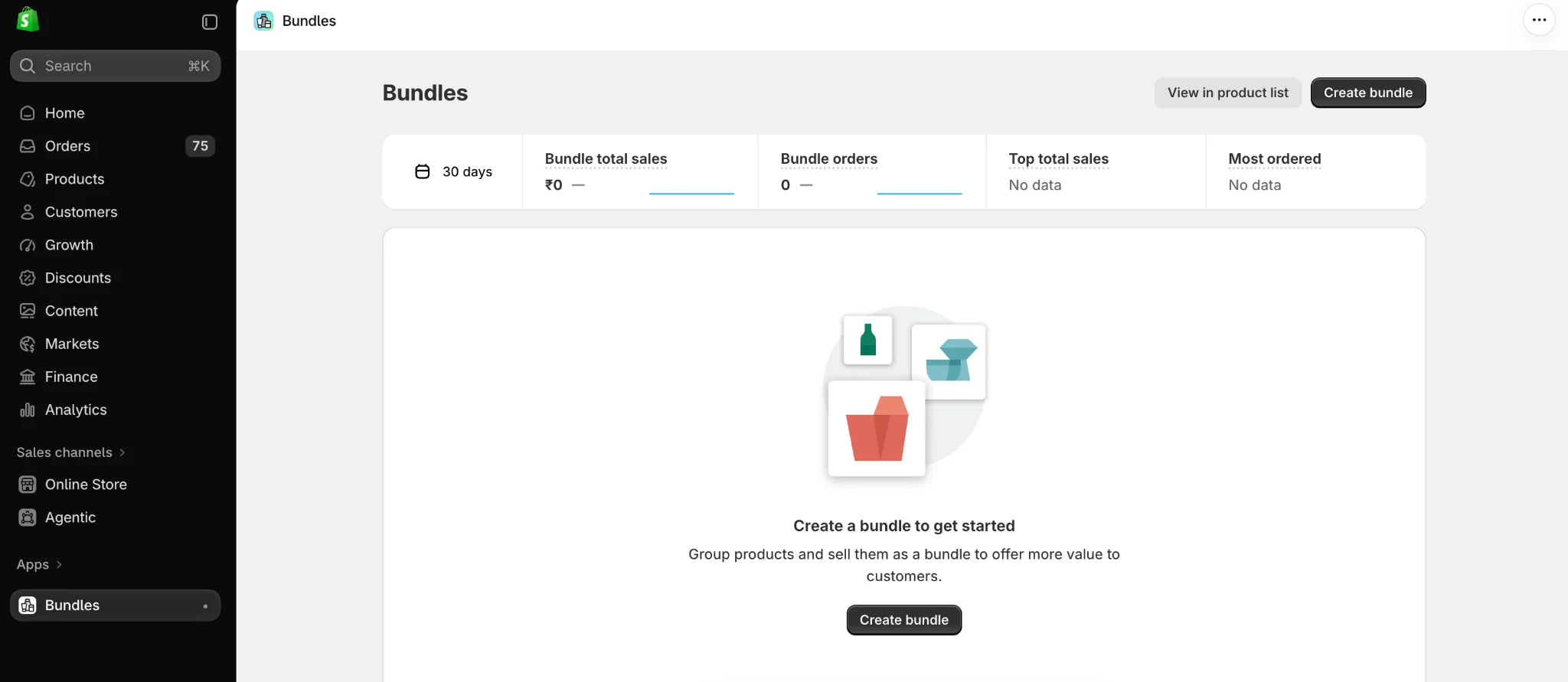
Once installed, you can access it under Apps > Bundles in your Shopify admin. Before proceeding, make sure the individual products you want to include in the bundle already exist in your store.
Step 2: Create a New Product Bundle
From your Shopify admin:
- Go to Apps > Bundles.
- Click Create bundle.
- Enter a descriptive bundle title, such as “Daily Skincare Essentials Kit.”
- Click Select products.
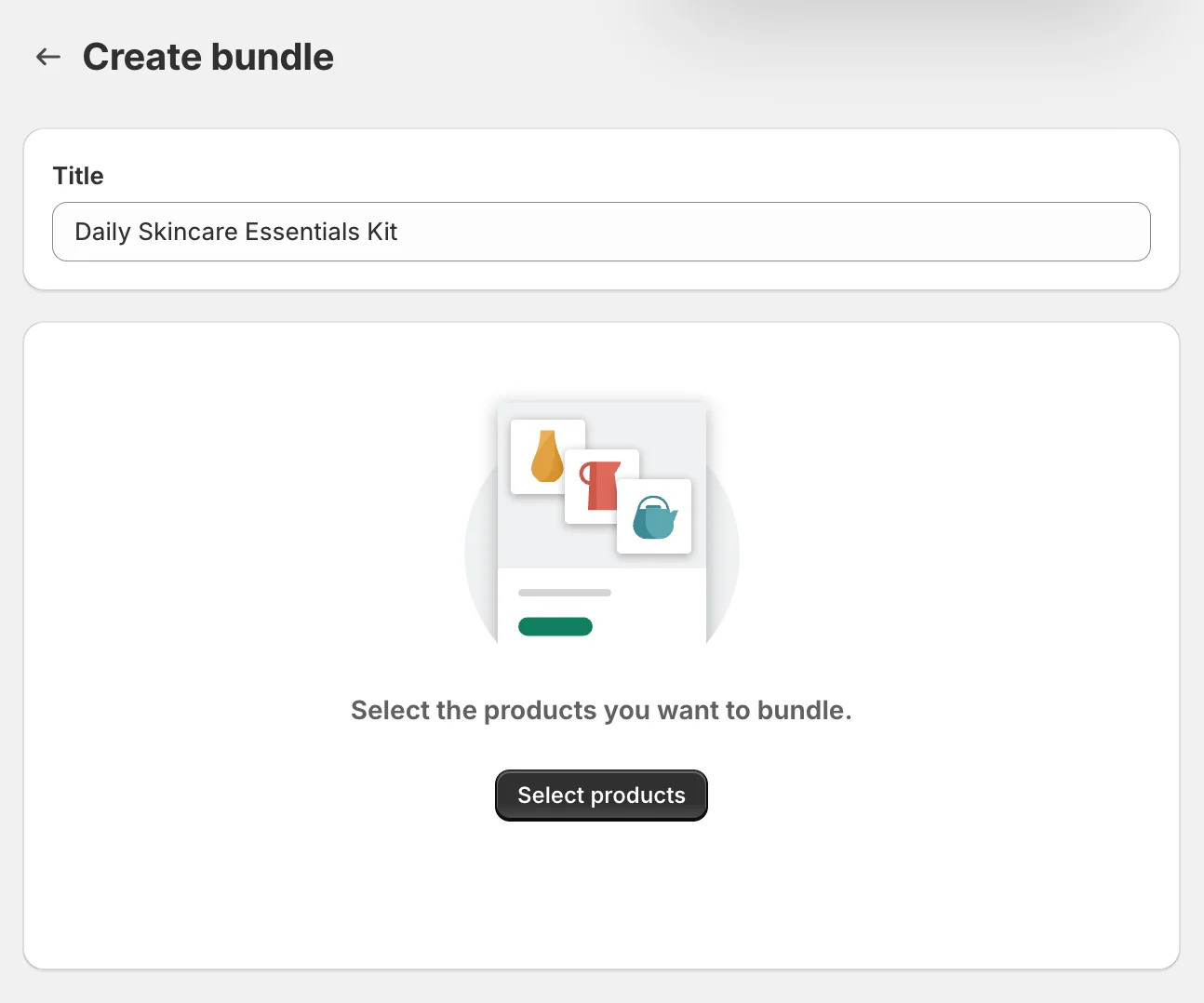
Shopify will display your existing products, allowing you to choose the ones to include.
Choose a name that clearly communicates what customers are purchasing. A descriptive title is generally more helpful than a generic name like “Special Bundle.”
Step 3: Add Products and Configure Variants
Select the cleanser, serum, and moisturizer from your product catalog, then click Select.
The selected products will appear in the bundle editor.
You can now configure the bundle by:
- Adjusting the quantity of each product.
- Selecting which product variants are available.
- Combining matching options, such as size, where supported.
- Duplicating products to create multipacks.
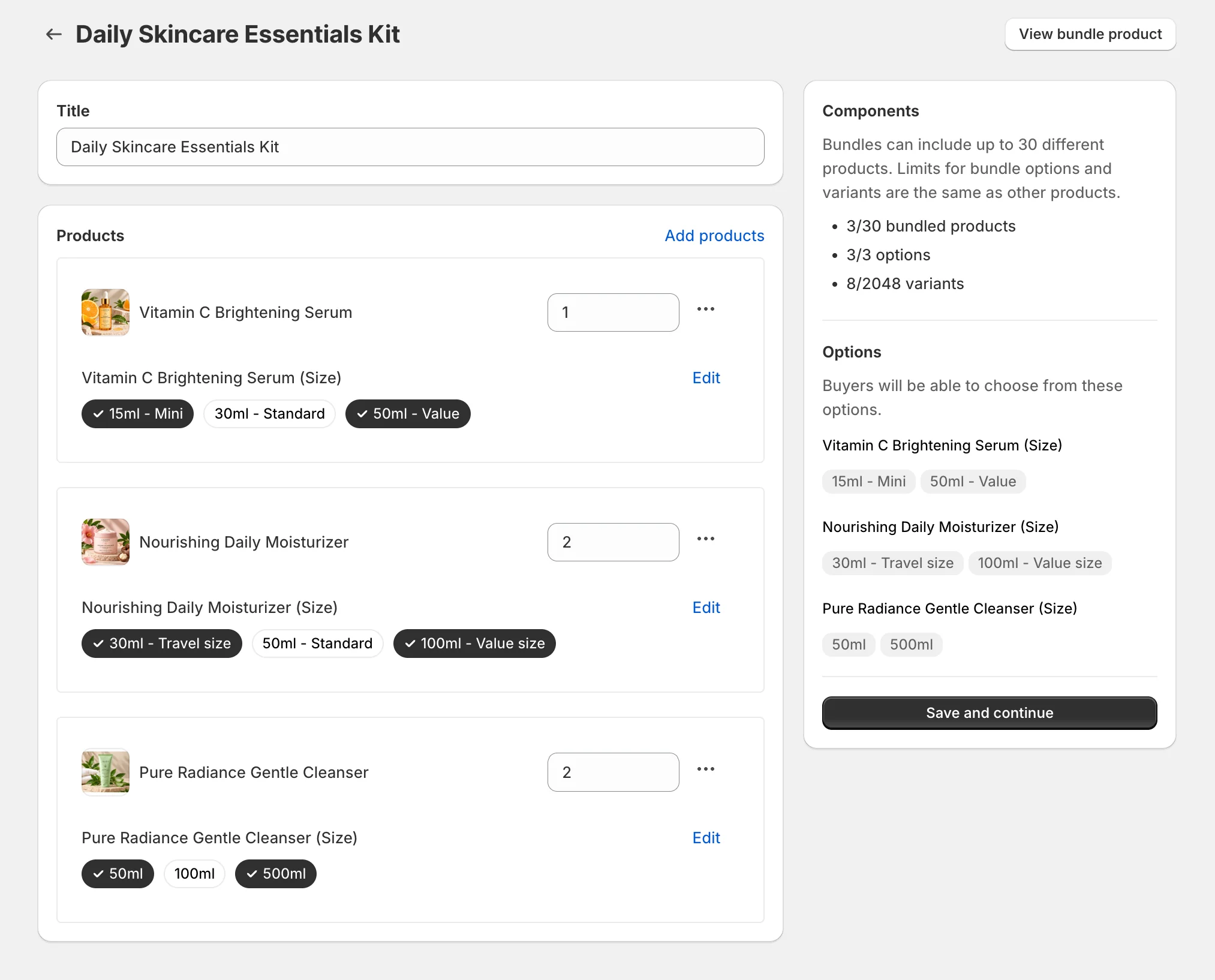
For example, if your skincare bundle includes a moisturizer available in two sizes, you can configure which sizes customers can select.
However, customers cannot freely replace the cleanser with an entirely different product using the native Bundles app. That requires a mix-and-match bundling solution.
Once you’ve configured the products, click Save and continue.
Step 4: Set the Bundle Price and Product Details
Shopify will open the product details page for your newly created bundle. Here, configure the bundle as you would a regular product listing.
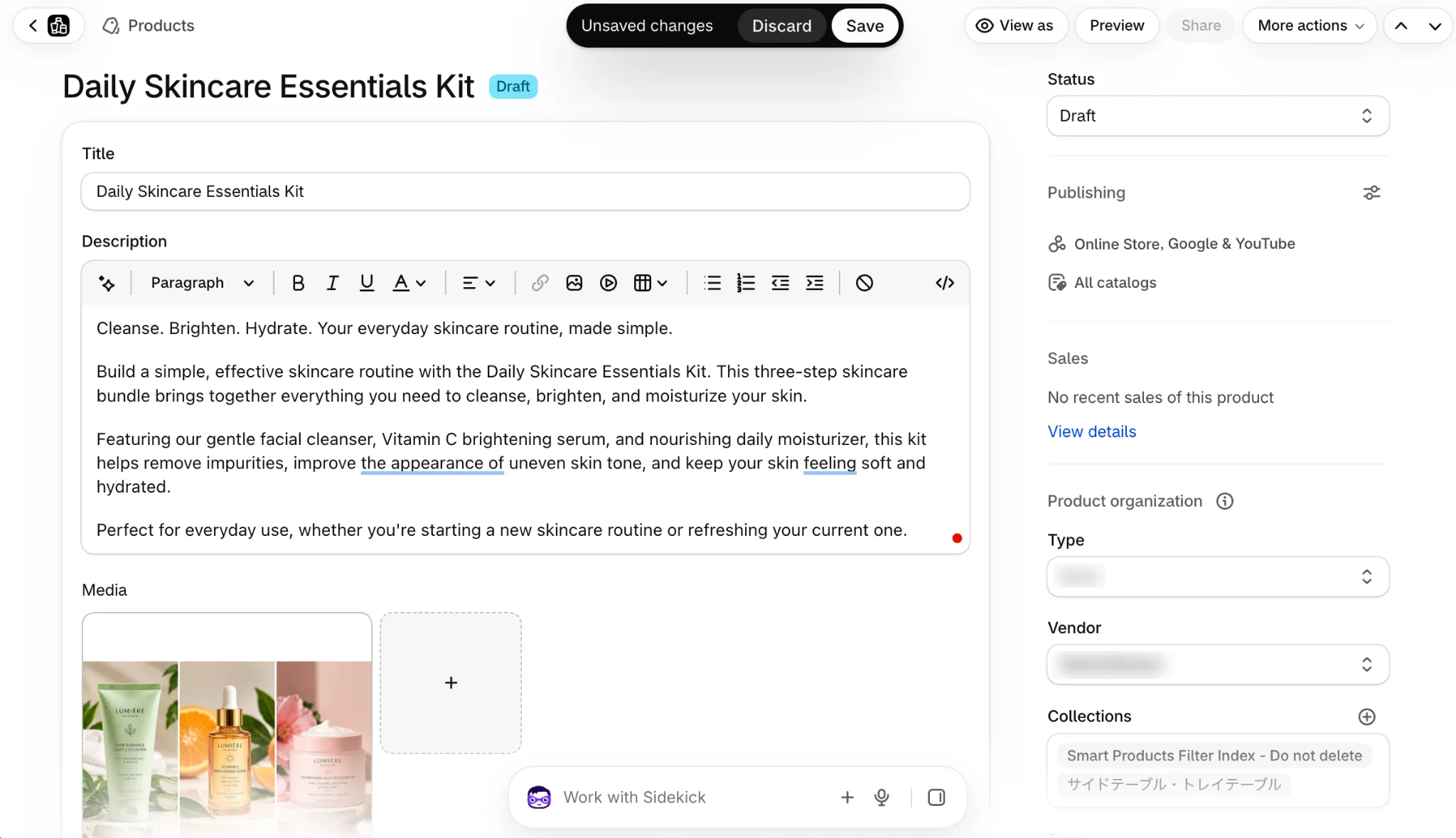
Add a clear product description, relevant images, pricing, and any other applicable details. For example, suppose your skincare products normally cost:
- Cleanser: $18
- Serum: $24
- Moisturizer: $18
The combined individual selling price is $60. You could price the bundle at $54, giving customers a 10% discount.
Make the savings easy to understand in the product description. Also explain what’s included, the quantity of each item, and any available variants. Use product images that show the complete collection rather than displaying just one component. This helps shoppers immediately understand the offer.
Important: Changing the price of an individual component later doesn’t automatically update the bundle price. You’ll need to review and adjust it separately.
Step 5: Publish the Bundle
New bundles are initially created with a Draft status.
To make the bundle available to customers:
- Open the bundle product details page.
- Review the title, description, images, and price.
- Under Publishing, select the appropriate sales channels.
- Change the product status from Draft to Active.
- Click Save.
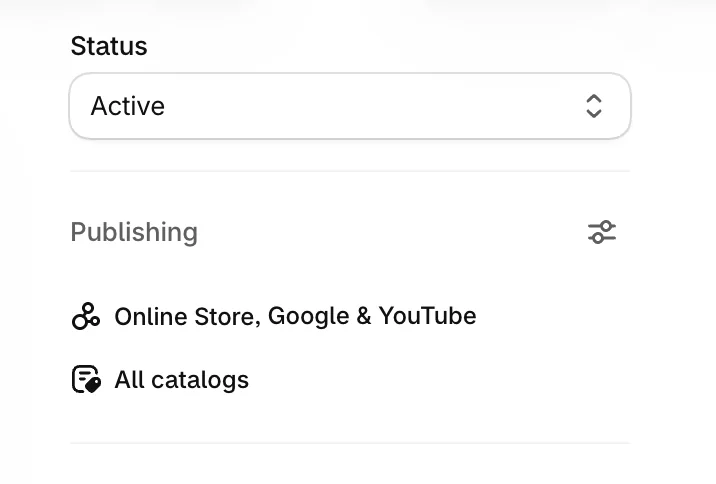
Your bundle can now appear on the selected sales channels, subject to their eligibility requirements. You can also add it to relevant collections or feature it on your homepage.
Step 6: Test the Bundle Before Selling
Before promoting your bundle, open its product page on your storefront.
Verify that:
- All included products are displayed correctly.
- Customers can select the intended variants.
- The bundle price and savings are accurate.
- The bundle can be added to the cart.
- The correct component products appear in the order.
- Available inventory is reflected accurately.
Place a test order to check how the bundle behaves during checkout and fulfillment. You can return to Apps > Bundles whenever you need to modify the components or quantities.
For additional configuration details, refer to Shopify’s official bundle setup guide.
You can manually sell a pre-packed collection of products as a regular Shopify product, but this isn’t the same as creating a Shopify-managed bundle.
For example, suppose you assemble a gift box containing a candle, soap, and greeting card. You could create a new product called “Self-Care Gift Box,” upload its images, set a price, and manage its inventory as a separate product. This approach works when you physically prepare and stock the gift boxes as individual products.
However, there are limitations.
Shopify won’t automatically deduct inventory from the individual candle, soap, and greeting card listings when someone purchases that regular product. You’ll need to manage the stock separately or use another inventory management solution.
For bundles assembled from shared inventory, Shopify requires a compatible bundles app to manage the component relationships.
Since Shopify Bundles is free, it’s generally a more practical option for standard fixed bundles and multipacks.
Shopify Bundles covers basic bundling requirements, but it isn’t designed for every promotional or customization scenario.
You may need a third-party app if you want customers to build their own bundles, apply advanced quantity-based promotions, or create more interactive shopping experiences.
Here’s a comparison:
| Feature | Shopify Bundles | Third-party bundling apps |
|---|---|---|
| Fixed product bundles | Yes | Generally supported |
| Multipacks | Yes | Generally supported |
| Mix-and-match bundles | No | Available in selected apps |
| Customer-selected bundle contents | Limited to configured options | Advanced customization available |
| Advanced bundle discounts | Limited | Depends on the app |
| Component-level inventory management | Yes | Depends on the app |
| Cost | Free | Free and paid options |
Apps such as Bundler, Fast Bundle, and BOGOS offer different approaches to bundling and promotional offers. However, their features, limitations, and pricing vary.
When evaluating an app, check whether it supports your preferred bundle type, inventory tracking, checkout configuration, and Shopify plan. Also consider how bundles will appear in orders and whether your fulfillment workflow can handle the individual components.
If your goal is simply to sell a skincare kit or three-pack of products, Shopify Bundles will usually be sufficient.
Shopify Bundles automatically calculates bundle availability based on the inventory of the individual products included.
For example, suppose you create a bundle containing one T-shirt and one pair of trousers. If you have 20 T-shirts and eight pairs of trousers in stock, Shopify can sell a maximum of eight bundles, since trousers are the limiting component.
When a customer purchases a bundle, Shopify updates the inventory of its individual components, helping prevent overselling.
However, inventory settings such as allowing purchases when products are out of stock can affect bundle availability. Shopify also calculates native bundle inventory using overall available stock rather than separately for each location.
For more details on stock tracking and managing multiple locations, see our guide to Shopify inventory management.
Inventory management is one of the most important considerations when selling product bundles.
If the same products are sold both individually and as part of a bundle, their available quantities need to stay synchronized.
Shopify Bundles calculates bundle availability based on the inventory of its individual components.
A successful bundle should offer attractive value to customers while maintaining a healthy profit margin.
The most straightforward approach is to compare the individual selling prices of the included products and offer a reasonable bundle discount.
Let’s return to our skincare bundle example.
| Pricing element | Amount |
|---|---|
| Total individual selling price | $60 |
| Bundle selling price | $54 |
| Customer savings | $6 |
| Combined product costs | $26 |
| Gross profit per bundle | $28 |
| Gross margin | 51.9% |
In this example, customers save 10% compared with purchasing the products separately. The store earns $28 in gross profit before shipping, payment processing, packaging, and other operating expenses.
But a discount isn’t always necessary.
For example, a curated gift set with attractive packaging and a convenient selection of products may justify its price without offering significant savings.
When setting bundle prices, consider:
- Product costs: Include the cost of every component.
- Packaging and fulfillment: Account for additional materials and assembly time.
- Customer value: Make the benefit of purchasing the bundle clear.
- Profitability: Ensure discounts don’t eliminate the additional profit.
You should also check how any automatic discounts or discount codes interact with the bundle price to avoid unintentionally offering excessive discounts. The goal is to increase order value without sacrificing overall profitability.
Simply creating a bundle doesn’t guarantee customers will purchase it. The products, pricing, and presentation all influence its effectiveness.
Here are five practical strategies to improve your results.
1. Bundle Products Customers Naturally Buy Together
Start by reviewing your existing order history.
Look for products that customers frequently purchase together or use for the same purpose. For example, someone buying a camera might also need a memory card and protective case. A customer buying running shoes might be interested in performance socks.
Bundling complementary products makes the offer feel more useful rather than forcing unrelated items together.
2. Make the Bundle Savings Clear
If you’re offering a discount, communicate it clearly.
For example, instead of displaying only a $54 bundle price, explain that the included products would normally cost $60 when purchased separately. Showing the individual value alongside the bundle price makes the benefit easier to recognize.
Avoid exaggerated savings claims or comparisons based on prices that customers wouldn’t normally pay.
3. Create Bundles for Specific Occasions
Seasonal events and shopping occasions are good opportunities to introduce relevant bundles.
Examples include holiday gift sets, back-to-school essentials, summer skincare kits, and travel accessories. These bundles help customers complete a particular shopping task with fewer decisions.
Plan seasonal offers early enough to prepare inventory, product images, and promotional campaigns before demand increases.
4. Promote Bundles Across Your Store
Don’t rely solely on customers finding your bundle through search.
Feature relevant bundles on your homepage, product pages, and collections. You can also use product recommendations to introduce customers to complementary items. For example, a customer viewing a cleanser could see a complete skincare bundle as an alternative.
If you’re considering recommendation-based merchandising, WebToffee’s guide to creating custom Shopify product recommendations explains how to display related products and frequently bought together suggestions.
Keep in mind that a product recommendation is not automatically a bundled product. It may simply encourage customers to add multiple individual items to their cart.
5. Monitor Bundle Performance
After launching your bundles, review how customers respond.
Shopify Bundles provides performance information such as bundle sales, orders, and top-performing bundles. You can also use Shopify Analytics to evaluate broader sales trends.
Pay attention to:
- Bundle revenue and number of orders
- Average order value
- Conversion rate
- Gross profit and profit margin
- Inventory movement
Compare performance before and after introducing bundles, while accounting for other promotions or seasonal changes.
If a bundle generates sales but has poor margins, reconsider its pricing. If customers rarely purchase it, review the included products, presentation, and offer.
Yes. Shopify Bundles is a free app developed by Shopify and is available on all Shopify plans. It allows merchants to create fixed product bundles and multipacks directly from the Shopify admin.
You can manually sell a pre-packed kit as a regular product. However, this doesn’t provide the automatic component-level inventory management of Shopify’s bundle functionality. To create Shopify-managed product bundles, you need a compatible bundles app.
The native Shopify Bundles app lets customers choose from configured product variants and options, but it doesn’t support fully customizable mix-and-match bundles.
For build-your-own bundles where customers select different products from a collection, you’ll generally need a compatible third-party app.
Yes. Shopify Bundles calculates available bundle quantities based on the inventory of the individual components and updates their tracked stock when bundles are sold. However, inventory settings such as continuing to sell when out of stock can affect how bundle availability is calculated.
Yes, Shopify merchants can offer subscription boxes and recurring product collections using compatible subscription solutions.
However, Shopify’s native Bundles app isn’t compatible with the Shopify Subscriptions app or subscription purchase options. If you want to sell recurring bundles, choose a subscription solution that explicitly supports your required bundling functionality.
Conclusion
Product bundling is a practical way to make shopping easier, introduce customers to complementary products, and encourage larger purchases on Shopify.
For basic fixed bundles and multipacks, Shopify’s free Bundles app provides a straightforward starting point. More advanced requirements, such as customer-built bundles and specialized promotions, may call for a third-party app.
Start with products customers already buy together, set prices that protect your margins, and make sure inventory is tracked accurately.
Once your bundles are live, monitor their performance and refine them based on customer demand. The most effective bundles aren’t necessarily the ones with the biggest discounts, but the ones that offer customers a clear reason to purchase the products together.


Subcribe to our newsletter