Share:


Table of Contents
- WooCommerce automation utilizes built-in features, plugins, and external tools to perform tasks automatically based on specific triggers and conditions.
- Key areas for automation include store operations, such as order management and inventory updates, as well as marketing efforts like abandoned cart recovery and customer engagement.
- Implementing automation can significantly reduce manual work, improve efficiency, and enhance customer satisfaction through timely communications and services.
- Store owners should start by automating high-impact tasks that are time-consuming or prone to errors, gradually expanding to more complex workflows as needed.
- While WooCommerce offers basic automation capabilities, advanced functions typically require dedicated plugins or integrations to fully leverage automation benefits.
- Regular monitoring and testing of automated workflows are essential to ensure they function correctly and meet business needs without causing conflicts.
Running a WooCommerce store involves more than processing orders and adding products. There are customer emails to send, inventory levels to monitor, invoices to generate, and product information to update across multiple sales channels.
These tasks might seem manageable when you’re processing a few orders a day. But as your store grows, doing everything manually can become time-consuming and increase the chances of errors.
That’s where WooCommerce automation comes in.
By automating repetitive tasks, you can reduce manual work, keep your store operations running smoothly, and spend more time growing your business.
In this guide, we’ll explore what WooCommerce automation is, 12 practical workflows you can implement, and how to get started using built-in features, plugins, and external tools.
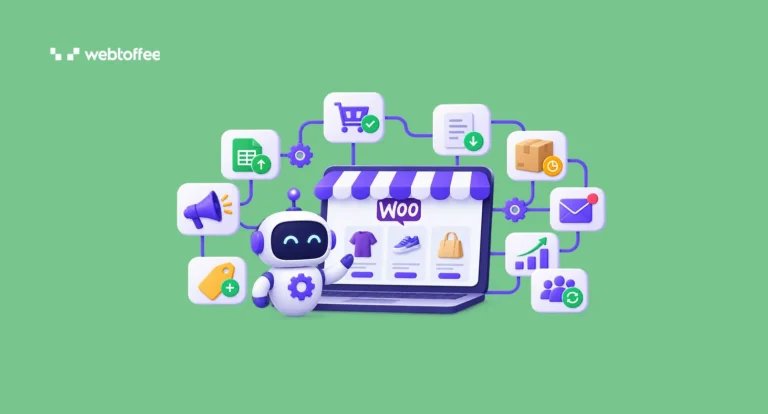
WooCommerce automation is the process of using built-in features, plugins, or external tools to perform repetitive store management tasks automatically.
Instead of manually sending emails, updating product information, or generating invoices, you configure workflows that perform these actions when specific conditions are met.
Most WooCommerce automation workflows involve three elements:
- Trigger: An event that starts the automation, such as a customer placing an order.
- Condition: A rule that determines whether the action should run, such as the order reaching a particular status.
- Action: The task performed automatically, such as generating an invoice or sending an email.
For example, when a customer’s order reaches the Completed status, an automation plugin can generate a PDF invoice and attach it to the corresponding order email.
The process runs without requiring you to handle each invoice individually.
WooCommerce includes some automation capabilities, such as transactional emails, inventory notifications, and scheduled background tasks. More advanced workflows can be implemented using extensions and integrations.
WooCommerce automation generally falls into two categories: store operations and marketing.
Store operations automation focuses on administrative tasks, such as inventory management, order processing, product updates, and reporting.
Marketing automation handles customer interactions, including abandoned cart reminders, welcome emails, product recommendations, and re-engagement campaigns.
Here’s a quick overview:
| Automation area | Examples | Primary benefit |
|---|---|---|
| Order management | Order notifications and status updates | Faster order processing |
| Invoicing | Automatic PDF invoice generation | Less administrative work |
| Inventory | Stock alerts and inventory synchronization | Better stock visibility |
| Product management | Scheduled imports and exports | Updated product information |
| Marketing | Cart recovery and welcome emails | Improved customer engagement |
| Reporting | Scheduled order exports | Easier data management |
| Customer retention | Follow-up and win-back emails | More repeat purchase opportunities |
You don’t need to automate everything immediately. Start with tasks that consume the most time or frequently cause errors.
Here are 12 practical WooCommerce automation examples you can use to simplify store management and improve customer experiences.
Store Operations and Management
1. Automate Order Routing to Fulfillment Services
When a customer places an order, the fulfillment team needs the relevant order details to begin processing it.
For stores working with external warehouses or third-party logistics (3PL) providers, manually transferring order information between systems can slow down fulfillment.
With a suitable WooCommerce integration, you can automatically send eligible orders to your fulfillment provider when payment is confirmed.
Example workflow:
- Trigger: A customer successfully pays for an order.
- Condition: The order meets the fulfillment provider’s requirements.
- Action: Send the order details to the connected fulfillment system and create a fulfillment request.
- Benefit: Reduce manual data entry and speed up order processing.
WooCommerce supports webhooks that notify external systems when certain events occur. Depending on your fulfillment provider, you can use webhooks, APIs, or a dedicated integration plugin to connect the systems.
Once configured, eligible orders can move into the fulfillment process without requiring you to transfer their details manually.
2. Generate and Send WooCommerce PDF Invoices for Free
Creating invoices individually can become a repetitive task, especially when your store processes dozens or hundreds of orders.
While WooCommerce provides order-related emails and a manual order details email action, it doesn’t generate downloadable PDF invoices by default.
You can automate this using the free version of the WebToffee WooCommerce PDF Invoices and Packing Slips plugin.
The plugin lets you automatically generate PDF invoices when orders reach selected statuses and attach them to the corresponding WooCommerce emails.
Example workflow:
- Trigger: An order reaches Processing or Completed status.
- Action: Generate a PDF invoice and attach it to the selected email.
- Benefit: Customers receive invoices without requiring manual preparation.
You can also configure invoice numbering, customize invoice templates, and include relevant billing information.
For detailed instructions, refer to our guide on how to send WooCommerce invoices automatically.
3. Automate Stock Replenishment Requests
WooCommerce includes built-in low-stock notifications, but receiving an alert is only the first step in replenishing inventory.
If your store manages hundreds of products, manually checking stock levels, identifying suppliers, and preparing purchase orders can take considerable time.
With an inventory or procurement automation tool, you can create workflows that initiate replenishment when stock reaches a predefined threshold.
Example workflow:
- Trigger: A product’s stock falls below its reorder point.
- Condition: The product has an assigned supplier and is eligible for replenishment.
- Action: Create a draft purchase order or send a replenishment request to the purchasing team.
- Benefit: Reduce manual stock monitoring and help prevent stockouts.
For example, a store selling electronics could configure a workflow to prepare a replenishment request whenever a popular accessory falls below 10 units.
The purchasing team can then review the request before placing an order with the supplier.
This goes beyond WooCommerce’s default stock alerts by automating the next step in the inventory replenishment process.
4. Schedule WooCommerce Product Imports and Exports
Updating hundreds of product records manually is time-consuming, especially when prices, descriptions, or stock quantities change frequently.
If your supplier regularly provides updated product files, you can automate their import into WooCommerce.
For example, imagine a store receiving an updated CSV inventory file every morning. Instead of uploading it manually, an automated workflow can import the file at a scheduled interval.
The WebToffee Product Import Export plugin for WooCommerce supports scheduled imports and exports using WordPress Cron or Server Cron.
Example workflow:
- Trigger: A scheduled import runs every morning.
- Action: Import updated product information from the configured file source.
- Benefit: Product data stays current without repeated manual uploads.
Depending on the import configuration, you can update prices, stock quantities, product details, and other supported fields.
You can also schedule product exports for reporting, backups, or sharing catalog information with external systems.
5. Automate Product Feed Updates for Shopping Channels
Selling through Google Shopping, Facebook, or other shopping channels requires keeping your product information consistent.
When prices or stock levels change in WooCommerce, outdated product feeds can result in inaccurate listings. Instead of manually regenerating feeds after every product update, you can schedule automatic refreshes.
The WebToffee WooCommerce Product Feed plugin supports scheduled feed generation and updates for supported shopping channels.
Example workflow:
- Trigger: A scheduled product feed refresh runs.
- Action: Regenerate the feed with updated product information.
- Benefit: Shopping channels can retrieve more current product data.
For example, if a product becomes unavailable in WooCommerce, its updated availability can be included in the next feed refresh.
Remember that regenerating a feed doesn’t necessarily update marketplace listings immediately. The shopping channel must still fetch and process the new data.
See our guide on creating WooCommerce Google Shopping product feeds for the complete setup process.
6. Automate Recurring Order Reports and Data Exports
Store owners regularly need order information for accounting, fulfillment, analysis, and recordkeeping.
WooCommerce Analytics provides built-in sales reports, filters, and CSV downloads. However, automatically delivering customized order data at recurring intervals generally requires an extension or integration. For example, your accounting team might need an export of recent orders every Monday.
Using an order export plugin, you can configure which orders to include, select the necessary fields, and schedule the export.
Example workflow:
- Trigger: A scheduled export runs every Monday.
- Action: Generate an order data file and transfer it to a configured destination.
- Benefit: Teams receive the required information without manually preparing exports.
The WebToffee Order Import Export plugin supports scheduled order exports with filtering and mapping options. This is particularly useful for stores that regularly exchange data with accounting, warehouse, or fulfillment systems.
You can learn more about exporting WooCommerce orders and the available export methods.
7. Streamline Returns, Refunds, and Restocking
Processing returns often involves multiple steps: receiving a request, checking eligibility, approving it, issuing a refund, and updating inventory.
Handling every stage manually can become inefficient as return volumes grow.
Automation tools can simplify parts of this process by checking predefined conditions, updating request statuses, and notifying the appropriate team members.
For example, the WebToffee EU Withdrawal Button plugin offers workflow automation for eligible withdrawal requests, including configurable approvals, refunds, and restocking.
Example workflow:
- Trigger: A customer submits a withdrawal request.
- Condition: The request meets the configured eligibility criteria.
- Action: Process the approved request according to the store’s refund and inventory settings.
- Benefit: Reduced administrative work and more consistent request handling.
Not every return should be processed automatically. Certain products may require manual inspection or verification before refunding or returning inventory to available stock.
For an implementation example, see our guide on automating WooCommerce withdrawal approvals, refunds, and restocking.
Marketing and Customer Engagement
8. Recover Abandoned Carts With Automated Reminders
Not every customer who adds products to their cart completes checkout. Some leave because of unexpected shipping costs, distractions, or uncertainty about their purchase.
Abandoned cart automation helps you reconnect with these shoppers through timely reminders.
A cart recovery tool can identify eligible abandoned carts and send follow-up emails containing the products left behind.
Example workflow:
- Trigger: An identifiable shopper leaves a cart without completing checkout.
- Condition: The cart remains abandoned after a configured delay.
- Action: Send an abandoned cart reminder with a link to return to checkout.
- Benefit: Recover potential sales that might otherwise be lost.
You can also create a sequence of reminders, with a second message sent only if the customer hasn’t completed the purchase.
The WebToffee eCommerce Marketing Automation app supports abandoned cart recovery workflows.
Check out our guide on setting up WooCommerce abandoned cart recovery campaigns.
9. Send Welcome Emails to New Subscribers
When someone subscribes to your store’s email list, it’s an opportunity to introduce your brand and encourage further engagement.
Instead of manually sending welcome messages, you can create an automated email sequence. A welcome email might introduce your store, highlight popular products, or include a first-purchase discount.
Example workflow:
- Trigger: A visitor subscribes through a signup form.
- Action: Send a personalized welcome email.
- Benefit: Build customer relationships immediately after signup.
You can also schedule follow-up messages introducing product categories or sharing helpful buying guides.
The WebToffee Marketing Automation app provides prebuilt workflows for creating welcome email campaigns.
Follow our tutorial on creating welcome email automation in WooCommerce for detailed instructions.
10. Automate Post-Purchase Emails and Product Recommendations
Customer engagement shouldn’t end once an order is completed.
Post-purchase automation lets you follow up with customers, thank them for their purchase, and recommend relevant products. For example, if someone purchases a coffee machine, you might recommend compatible coffee filters or accessories in a follow-up email.
Example workflow:
- Trigger: A customer completes a purchase.
- Condition: A configured follow-up delay has passed.
- Action: Send a thank-you email featuring relevant product recommendations.
- Benefit: Encourage repeat purchases and cross-selling opportunities.
Unlike standard transactional emails, these messages focus on building customer relationships and encouraging additional purchases.
You can create these workflows using an email marketing automation tool.
Our guides explain how to automate WooCommerce thank-you emails and send product recommendation emails.
11. Notify Customers When Products Return to Stock
When a popular product sells out, interested shoppers may leave your store and purchase elsewhere. Back-in-stock automation gives those customers a way to receive notifications when the product becomes available again.
Instead of manually contacting interested shoppers, the system tracks notification requests and sends emails when inventory is replenished.
Example workflow:
- Trigger: An out-of-stock product becomes available again.
- Condition: Customers have subscribed to notifications for that product.
- Action: Send a back-in-stock email.
- Benefit: Bring interested shoppers back to products they previously wanted.
A suitable automation tool can add notification signup forms to product pages and manage customer subscriptions.
For an example implementation, read our guide on setting up WooCommerce back-in-stock alerts.
12. Re-engage Inactive Customers With Win-Back Campaigns
Some customers purchase once and never return.
Rather than manually identifying inactive customers, you can use automation to reconnect with them after a period of inactivity.
For example, a store selling skincare products might send a reminder 60 days after a customer’s last purchase, provided they haven’t placed another order.
Example workflow:
- Trigger: A customer enters a post-purchase workflow.
- Condition: The customer hasn’t purchased again within the configured period.
- Action: Send a win-back email with relevant products or an incentive.
- Benefit: Encourage previous customers to return.
Win-back campaigns work best when they’re relevant to the products customers have purchased and their likely buying cycles.
You can follow our guide on creating WooCommerce customer win-back campaigns to get started.
Setting up WooCommerce automation doesn’t necessarily require coding. The exact process depends on the task and the tool you’re using, but most workflows follow a similar approach.
Step 1: Identify Repetitive Tasks
Start by identifying activities that take up a significant amount of time. These might include sending invoices, updating stock quantities, exporting order data, or following up with customers.
Prioritize tasks that are repetitive, follow predictable rules, and can be completed with minimal human judgment.
For example, automatically sending invoices is generally easier to implement than automating complex customer support decisions.
Step 2: Check WooCommerce’s Built-in Features
Before installing another plugin, check whether WooCommerce already supports the required functionality. For example, WooCommerce provides transactional emails, stock notifications, scheduled sale prices, and webhooks.
You can configure these through the relevant WooCommerce settings.
If your requirements involve conditional marketing sequences, external data synchronization, or custom workflows, you’ll likely need an extension.
Step 3: Choose an Automation Tool
Select a solution based on the task you want to automate.
Dedicated WooCommerce plugins can handle specific operations, while workflow automation platforms connect multiple applications and services.
Consider compatibility, ease of configuration, maintenance requirements, pricing, and the availability of logs or troubleshooting tools.
Step 4: Configure Triggers, Conditions, and Actions
Define when the workflow should start, what conditions must be met, and which action should occur.
For example:
- Trigger: Order status changes to Completed.
- Condition: The order is eligible for invoice generation.
- Action: Generate a PDF invoice and attach it to the configured email.
You may also need to configure scheduling intervals, field mapping, email templates, or integration credentials.
Step 5: Test and Monitor the Workflow
Test the automation before enabling it for actual customers.
Create sample orders, simulate the relevant triggers, and verify that the expected actions occur. After activation, periodically review execution logs, failed tasks, and customer-facing results.
Also, make sure multiple plugins aren’t performing the same automation, as this could result in duplicate emails or conflicting updates. For marketing workflows, respect customer consent and applicable data privacy regulations.
Tip: You can review WooCommerce’s background tasks under WooCommerce → Status → Scheduled Actions. This is useful when troubleshooting delayed or failed scheduled processes.
Not necessarily. WooCommerce includes built-in features that automatically handle routine tasks, such as sending transactional emails, notifying store owners about low stock, and scheduling product sales.
However, more advanced workflows, such as generating PDF invoices, scheduling product imports, recovering abandoned carts, and sending customer win-back emails, typically require additional plugins or integrations.
Depending on your requirements, you can choose between dedicated WooCommerce plugins and external automation platforms.
| Automation solution | Best suited for | Examples |
|---|---|---|
| Built-in WooCommerce features | Basic store operations | Order emails, low-stock alerts, scheduled sales |
| Dedicated WooCommerce plugins | Automating specific store management and marketing tasks | PDF invoices, scheduled product imports, abandoned cart recovery |
| External automation platforms | Connecting WooCommerce with other business applications | Syncing orders with CRMs, spreadsheets, or fulfillment systems |
Dedicated WooCommerce plugins are generally easier to configure for specific tasks. For example, WebToffee offers plugins for automating PDF invoice generation, product imports and exports, and customer email campaigns.
External automation platforms, such as Zapier, Make, and n8n, are useful when your workflows involve multiple applications. They can connect WooCommerce with accounting software, CRM systems, and other business tools.
The right choice depends on what you want to automate. Start with WooCommerce’s built-in capabilities and add plugins or integrations when your workflows require additional functionality.
Yes. WooCommerce includes built-in automation capabilities such as transactional emails, stock notifications, scheduled sales, and background tasks. More advanced workflows can be implemented using plugins, integrations, or custom development.
Yes. Several basic tasks, including order notifications and low-stock alerts, can be automated using WooCommerce’s built-in features. Free plugins may support additional workflows, although advanced scheduling, conditional logic, or integrations may require paid plans.
No. Many automation plugins provide prebuilt workflows and configuration interfaces that don’t require coding. However, custom API integrations or complex business rules may require technical expertise.
WooCommerce includes default features such as order emails, stock notifications, and scheduled sales. These handle specific tasks without additional plugins.
Automation workflows go further by performing configurable actions based on events, conditions, or schedules. For example, you can automatically generate PDF invoices, synchronize supplier data, recover abandoned carts, or initiate replenishment requests using suitable plugins and integrations.
Start with tasks that are repetitive and easy to standardize, such as customer notifications, invoice generation, stock alerts, and scheduled product updates. Once these workflows are reliable, expand into more advanced marketing and operational automation.
Conclusion
WooCommerce automation can make running an online store considerably easier by reducing repetitive administrative tasks and keeping important workflows running consistently.
From generating invoices and updating inventory to recovering abandoned carts and re-engaging customers, there are plenty of opportunities to save time without sacrificing customer experience.
The key is to start with a few high-impact workflows, choose the right tools, and monitor their performance.
As your store grows, you can gradually introduce additional automations to support your operations, improve efficiency, and create more opportunities for sales.


Subcribe to our newsletter