


Share:


Table of Contents
Sending invoices to your customers in WooCommerce is pretty straightforward, but the method you choose depends on how you want to manage your store.
By default, WooCommerce lets you send invoices manually through the Order Actions section. This works fine if you only process a few orders a day. However, if you want to save time and automate the process, using the Woocommerce PDF Invoices and Packing Slips plugin by WebToffee is a much better option.
In this guide, we’ll walk you through both methods step by step, including how to automatically email invoice PDFs in WooCommerce using the free plugin, so you can choose what works best for your workflow.
Key Takeaways
- WooCommerce allows you to send invoices manually via Order Actions or automate the process using a plugin.
- Manual invoicing works for low order volumes, but automation is ideal for saving time and scaling your store.
- You can automatically email WooCommerce invoices when an order reaches a selected status, such as Completed or Processing.
- The WebToffee WooCommerce PDF Invoices and Packing Slips plugin lets you auto-generate and attach an electronic invoice (PDF) to order emails with minimal effort.
When customers place an order in your WooCommerce store, they automatically receive an order confirmation email. Adding a PDF invoice to that email improves clarity and provides a complete billing record in one place.
Automatic invoicing allows your store to generate and email invoices once payment is confirmed. This keeps your billing process consistent while reducing manual workload.
Here’s why automatically sending customer invoices matters:
- Improves customer experience – Buyers receive a clear billing document immediately after purchase.
- Maintains accurate records – Each electronic invoice is stored with the order for easy tracking.
- Supports tax and accounting requirements – Proper invoicing simplifies reconciliation and compliance.
- Saves administrative time – Orders move through the billing workflow without extra steps.
- Strengthens brand presentation – Professionally formatted invoices reflect your store’s credibility.
- Supports invoice printing – Customers can download or print invoices directly from the email.
If you’re looking for how to email invoices in WooCommerce, configuring automatic invoice generation within your store settings is the most efficient approach.
To send an invoice email in WooCommerce, go to WooCommerce > Orders and open the order. In the Order Actions dropdown on the right, select “Send order details to customer” and click the arrow button. The customer receives an email with full order details instantly. To automatically send PDF invoices for every order, use a plugin like WebToffee PDF Invoices.
Method 1: Send WooCommerce Invoices Manually (Using the Default Feature)
If you prefer not to install additional plugins, WooCommerce includes a built-in option to send invoices directly to customers via email. While this method is simple and quick to use, it’s best suited for stores with a low order volume or basic invoicing needs.
Here’s how to do it:
Step 1: Go to WooCommerce > Orders
- Log in to your WordPress dashboard and navigate to WooCommerce > Orders.
This section displays a list of all customer orders, along with their status, total amount, and order details. Find the order you want to send an invoice to and click it.

This will open the order details page, where you can view customer information, purchased items, billing/shipping details, and order notes.
Step 2: Select “Send Order Details to Customer”
On the right-hand side of the order page, locate the Order Actions dropdown menu.
- Click the dropdown
- Select Send order details to customer

This option prepares an email that includes the order summary and sends it to the customer’s registered email address.
After selecting the option, click the arrow (▶) button next to the dropdown. This triggers the email instantly, and the customer will receive their order details in their inbox.
Limitations of the Default Method
While convenient, this approach has a few important limitations:
- No PDF attachment: The email only contains order details. There’s no downloadable invoice file
- Limited customization: You can’t fully customize the layout, branding, or structure of the invoice
- Manual process: You must send the invoice individually for each order
- Not ideal for scaling: As your order volume increases, this method can become time-consuming
Method 2: Automatically Attach PDF Invoices with WooCommerce Order Emails
If your store is growing, manually sending invoices for every order can quickly become repetitive and time-consuming. This is where using a dedicated plugin like WebToffee’s Woocommerce PDF Invoices and Packing Slips makes a big difference. It automates the entire invoicing process, saving time and making your invoices look more professional.
This plugin adds powerful features that WooCommerce doesn’t offer by default. With the right setup, you can:
- Automatically send invoices based on order status (e.g., processing or completed)
- Attach professional PDF invoices to emails
- Add your logo, branding, and business details
- Include custom fields like tax info or payment terms
- Set up sequential invoice numbering for legal and accounting compliance
In short, it helps you move from basic emails to a fully automated, branded invoicing system.
To automatically email invoice PDFs to customers after order completion, follow these steps:
Step 1: Install and Activate WebToffee WooCommerce PDF Invoices Plugin
- From your WordPress dashboard, go to Plugins > Add New Plugin.
- Search for “WooCommerce PDF Invoices” plugin by WebToffee in the search bar.
- Install and activate the plugin on your WordPress website.

After activation, the setup wizard will prompt you to enter your store details. These details appear on your invoices and form part of your electronic invoice layout.
Did You Know?
The WebToffee WooCommerce PDF Invoices and Packing Slips plugin has a 4.9 out of 5 stars average rating with 60,000+ Active installations.
Step 2: Choose WooCommerce Order Status to Automatically Send PDF Invoices
After activating the plugin, configure when WooCommerce should generate and attach the invoice PDF.
- Go to Invoice/Packing > Invoice from the WordPress sidebar menu.
- Switch on the Enable Invoice option.
- Choose a date for the invoice.
- Choose Completed as the order status to automatically create the invoice.
- From the Attach invoice pdf in WooCommerce Email, select the order status to automatically attach the PDF invoice.
- Enable the Show Print Invoice button for customers to let customers print invoices directly from the order email. This also allows them to print invoices from the order listing and order details pages.

Note: The order status selected for invoice creation must match the status selected for attaching invoices to email notifications.
Step 3: Choose an Invoice Number Format
Setting up a proper invoice number format helps you track and manage invoices efficiently.
- Choose a prefix and suffix for your invoice numbers (for example, INV or 2026).
- Define the invoice number length if you want padded numbers, such as 0001 or 0100.
- Set the starting number for invoice generation.

- Click on Update Settings to save the changes.
A custom invoice number example could look like: INV-0002-2026
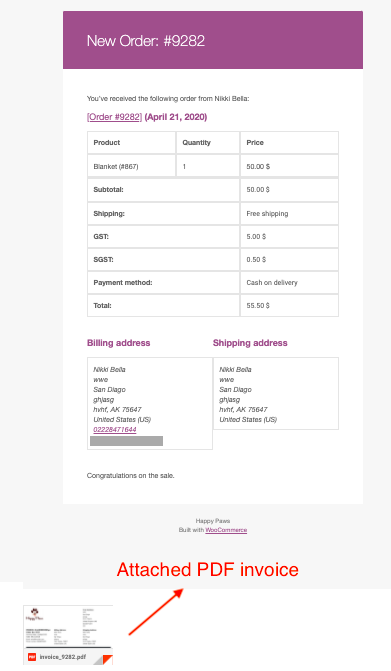
Once these settings are saved, WooCommerce will automatically generate the invoice and attach it to the order email when the selected order status is triggered. Customers will receive the invoice as a PDF attachment along with their order notification.
We’ve already covered how to automatically generate and attach invoice PDFs to WooCommerce order emails, but that’s only a part of what this invoice generator plugin can do. When paired with premium add-ons such as PDF Invoices & Packing Slips for WooCommerce and Customizer for WooCommerce PDF Invoices, you gain access to a wide range of advanced customization features.
These premium add-ons unlock both code-based customization and a block-based editor, allowing you to tailor every detail of your invoice layout. If you’d like a full walkthrough on customizing WooCommerce invoice PDFs, check out the detailed guide linked below.
WooCommerce Invoice Not Sending — Common Fixes
If your WooCommerce invoice emails aren’t being delivered, don’t worry—this is a common issue and is usually easy to fix. The problem often comes down to email settings, server configuration, or plugin-related issues. Here are the main things you should check.
1. Check WooCommerce Email Settings
Start by making sure invoice emails are enabled in your WooCommerce settings. Go to WooCommerce > Settings > Emails and look for Customer Invoice / Order Details. Ensure that this email is enabled and properly configured. If it’s turned off, WooCommerce won’t send invoices at all.
2. Check Spam or Junk Folder
In many cases, emails are actually sent but end up in the spam or junk folder. Ask your customer to check there first. This can happen if your store’s email lacks proper authentication or uses generic sender addresses like noreply@. Marking your email as trusted can help prevent this in the future.
3. Configure SMTP for Reliable Email Delivery
By default, WooCommerce relies on the server’s PHP mail function, which isn’t always reliable. Switching to SMTP can significantly improve delivery rates. You can use an SMTP plugin and connect it to a trusted email service like Gmail, Outlook, or SendGrid. This ensures your emails are authenticated and less likely to be blocked or lost.
4. Test for Plugin Conflicts
Sometimes, other plugins can interfere with WooCommerce email functionality. If you recently installed or updated a plugin, try disabling it temporarily and sending a test invoice. If the email goes through, you’ve likely found the issue. Re-enable plugins one by one to identify the conflict.
5. Verify Invoice Plugin Settings
If you’re using a plugin like WooCommerce PDF Invoices & Packing Slips by WebToffee, make sure it’s configured correctly. Check that invoice generation is enabled, the correct order statuses are selected, and email attachment settings are properly set up. Incorrect settings here can prevent invoices from being generated or sent.
6. Run a Test Email
After making any changes, place a test order and try sending the invoice again. This helps confirm whether the issue has been resolved and ensures everything is working as expected.
No, WooCommerce does not generate PDF invoices out of the box. By default, it only sends order details in a standard email format when triggered manually or automatically. To create and send PDF invoices, you’ll need a plugin like WooCommerce PDF Invoices & Packing Slips by WebToffee, which automatically generates professional PDF invoices and attaches them to emails.
To automatically send invoices, you can use a plugin such as WooCommerce PDF Invoices & Packing Slips. This plugin lets you generate invoices and send them automatically based on order status (e.g., Processing or Completed). Once configured, invoices are created and emailed to customers without any manual intervention.
WooCommerce offers basic email customization options in WooCommerce > Settings > Emails, such as editing the subject and heading.
However, for advanced customization, such as adding your logo, branding, and PDF attachments, you can use the WooCommerce PDF Invoices & Packing Slips plugin. It allows you to fully customize invoice templates and create professional, branded documents.
Customers usually pay the invoice during checkout. If the invoice includes a payment link, they can use that link to complete payment.
Automating how you email WooCommerce invoices helps standardize your billing workflow and improve communication with customers. Once configured, the system generates an electronic invoice and attaches it to the appropriate order email based on the selected status.
With the right setup, you can:
- Send customer invoices by email immediately after payment
- Maintain structured invoice numbering
- Support invoice printing directly from order emails
- Keep organized records for accounting and tax reporting
By using a reliable WooCommerce PDF invoice plugin, you can handle invoices by email without manual follow-ups or additional tools.
Now that you know how to email invoices automatically in WooCommerce, you can implement the setup and streamline your store’s invoicing process.
Thanks for reading!

Got any query? Please leave a comment or reach out to our support
Got any query? Please leave a comment or reach out to our support

Subcribe to our newsletter


Comments (5)
Stevendum
April 29, 2026
Добрый день! После включения, проходит юстировка, при попытке произвести измереня ип2 на измеряемый объект показания не выводятся на экран, не происходит измерений?что может быть не исптавенпреобразователь?
Hema
May 14, 2026
Thanks for reaching out.
There seems to be some confusion, as your comment was posted under our “How to Send Invoice Emails in WooCommerce” article and the issue described does not appear to be related to that topic or our plugin.
Could you please explain the issue in more detail and share relevant screenshots/photos of the problem? This will help us understand your concern better.
You may also reach out directly to our technical support team here so that any plugin-related issue can be investigated and resolved more easily.
Ravi
November 30, 2021
Invoice attachment is not working for custom order status emails. Please help
Hemen Derki
March 31, 2021
Hello!
I have a user role for whole sale clients. Is it possible to send the invoice automatically only to the whole sale juser role?
Mark
April 16, 2021
Hi Hemen,
Sorry to let you down, but currently we do not have any filters/options to achieve this.