


Share:


Table of Contents
A WooCommerce invoice payment link is a feature that allows businesses to add a "Pay Now" button to their PDF invoices, enabling customers to complete payments directly from the invoice without returning to the store. This functionality is crucial for enhancing the payment experience, particularly for B2B transactions, custom services, and stores that offer pay-later options, as it simplifies the payment process and reduces the likelihood of unpaid invoices.
- A WooCommerce invoice payment link provides a direct payment option for customers, streamlining the payment process.
- The "Pay Now" button can be displayed on invoices for specific order statuses such as Pending payment, On hold, or Failed.
- The WebToffee WooCommerce PDF Invoices plugin is commonly used to add payment links to invoices and facilitate automatic email invoicing.
- Invoice payment links are particularly beneficial for B2B stores, wholesale orders, and businesses that collect payments after service approval.
- Proper configuration of invoice templates and payment gateways is essential to ensure the payment link functions correctly.
- Clear labeling and instructions on invoices can enhance customer understanding and encourage timely payments.
Getting paid after sending an invoice should be simple for both you and your customers. With a WooCommerce invoice payment link, you can add a Pay Now button or a clickable payment link to your PDF invoices so customers can complete payment after receiving the invoice.
This is especially useful for stores that offer pay later, pay by invoice, B2B billing, wholesale orders, custom service pricing, manual orders, or post-delivery payments. Instead of asking customers to return to your store, find their order, and restart the payment process, you can send them an invoice with a direct payment link.
In this article, we’ll show you how to add a payment link to WooCommerce invoices using the WebToffee WooCommerce PDF Invoices, Packing Slips, and Credit Notes plugin. You’ll also learn how WooCommerce invoice payment links work, how they differ from pay by invoice, and how to fix common issues when the Pay Now link does not appear.
A WooCommerce invoice payment link is a clickable link or button added to a customer invoice. When the customer clicks the link, they are redirected to a secure payment page where they can complete the payment using the payment methods enabled on your WooCommerce store.
For example, if a customer places an order using a Pay Later option, the order may be marked as On hold. You can then send an invoice that includes a Pay Now link. Once the customer clicks the link and pays, WooCommerce updates the order status based on the payment result.
This makes invoice-based payments easier because the customer does not need to search for the order, contact your team, or manually request a payment link.
Pay by Invoice vs Invoice Payment Link in WooCommerce
The terms pay by invoice and invoice payment link are often used together, but they are not exactly the same.
| Feature | Pay by invoice | Invoice payment link / Pay Now link |
|---|---|---|
| Where it appears | At checkout | On the PDF invoice or invoice email |
| What it does | Lets customers place an order without paying immediately | Lets customers pay later from the invoice |
| Best for | B2B orders, wholesale buyers, approved customers, net payment terms | Collecting payment after an invoice is issued |
| Typical order status | On hold or Pending payment | Changes after customer completes payment |
| Customer action | Places the order first and pays later | Opens the invoice and clicks Pay Now |
| Example use case | A B2B buyer places an order and pays after internal approval | The store sends an invoice with a payment link after confirming the order |
In simple terms, pay by invoice is the payment arrangement, while an invoice payment link is the tool that helps the customer complete the payment later.
For WooCommerce stores, this combination is useful when you want to let customers place an order first and pay after the order is reviewed, approved, delivered, or priced manually.
Why Add a Pay Now Link to WooCommerce Invoices?
Adding a Pay Now link to your WooCommerce invoices can make the payment process faster and easier. It gives customers a clear next step upon receiving the invoice and reduces the need for manual follow-ups.
A WooCommerce invoice payment link can help you:
- Collect payments after sending invoices
- Reduce unpaid or delayed orders
- Offer a smoother payment experience for B2B customers
- Support Pay Later and invoice-based workflows
- Accept payments for manual or custom orders
- Make invoice emails more actionable
- Let customers pay using your store’s existing payment gateways
Instead of sending an invoice and waiting for the customer to ask how to pay, you can include the payment option directly inside the invoice.
You can add a Pay Now link to WooCommerce invoices using the WebToffee WooCommerce PDF Invoices, Packing Slips, & Credit Notes plugin.
Once enabled, the link appears on invoices for selected order statuses such as On Hold or Pending Payment, letting customers pay directly from the invoice email without returning to the store checkout. The plugin also helps you email WooCommerce invoices automatically, making the payment process faster and more convenient.
Here is a quick overview of the setup process:
- Install and activate the WebToffee PDF Invoices plugin.
- Go to Invoice/Packing > Invoice > Invoice Settings.
- Find the Payment Link section.
- Enable Show payment link on invoice.
- Select the order statuses for which the link should appear.
- Choose an invoice template that supports payment links.
- Save the settings and test the invoice.
Let’s go through the steps in detail.
Step 1: Install and Activate WebToffee PDF Invoices Plugin
You will need to install and activate the free version of the WooCommerce PDF Invoice, Packing Slips, Delivery Notes, and Shipping Labels plugin for the premium version of the plugin to get activated.
Follow the instructions given below to install and activate both plugins.
- On your WordPress admin console, go to Plugins > Add New.
- Search for ‘WooCommerce PDF Invoices, Packing Slips, Delivery Notes, and Shipping Labels’.
- Locate the WebToffee plugin and click on Install Now, and then on Activate.

- Now, click on Upload Plugin and choose the zip file that you received upon purchasing the WooCommerce PDF Invoices, Packing Slips and Credit Notes plugin.
- Once the upload is complete, click on Install Now. Then tap on Activate.
Step 2: Enable the Payment Link on WooCommerce Invoices
Now, to set up the ‘Pay Now’ link in the PDF Invoice email sent out to customers.
- From your WordPress dashboard, navigate to Invoice/Packing > Invoice using the left-hand menu. This will open the invoice settings window.
- Configure any general invoice settings for your store as needed.

- To set up the Pay Now link, scroll down to the Payment link section in the General tab.
- Check the box corresponding to the Show payment link on invoice. This will add a payment link near the payment method in the invoice.

Note: Make sure your active invoice template supports payment links. If the selected template does not include the payment link element, the Pay Now link may not appear on the invoice even after you enable the setting.
Step 3: Choose the Order Statuses for Payment Links
Next, select the order statuses for which the payment link should appear.
The available options include:
- Pending payment
- On hold
- Failed
For most invoice payment workflows, On hold and Pending payment are the most useful options.

For example, when a customer chooses Pay Later at checkout, the order may be placed on hold. You can then send the invoice with a Pay Now link so the customer can complete the payment later.
If you do not select any status, the plugin will use On hold as the default status.
After selecting the order statuses, click Update Settings to save your changes.
Step 4: Enable Pay Later at Checkout
If you want customers to place an order first and pay later, enable the Show pay later on checkout option.
This adds a Pay Later payment option to your WooCommerce checkout page. Customers can choose this option instead of paying immediately.
You can also customize the Pay Later option by editing:
- Title
- Description
- Instructions
This is useful for B2B stores, wholesale buyers, custom service providers, or stores that approve orders before collecting payment.
For example, you can change the title to: Pay by Invoice
And use a description like: Place your order now and pay later using the payment link sent with your invoice.
This makes the checkout option clearer for customers who are looking for a pay-by-invoice workflow.

This is how the Pay Later link will appear at the checkout.
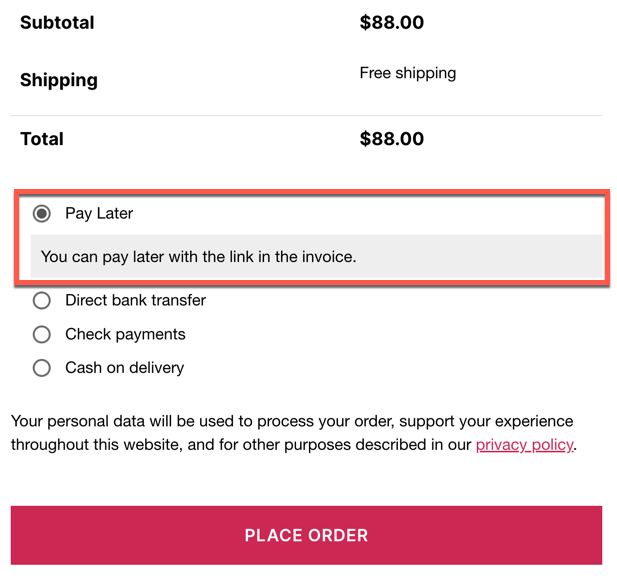
Users can now initiate payments by clicking the ‘Pay Now’ link on the invoice.
Step 5: Select an Invoice Template That Supports the Pay Now Link
To add the ‘Pay Now’ links to the invoice templates,
- Go to Invoice/Packing > Invoice > Customize.
- Click on Change template and select a layout that is suitable for you. You will have to select one among the three Premium templates (Premium Layout 1, Premium Layout 2, or Premium Layout 3) to avail of the ‘payment link’ option.
- Provide a template name.

- On the left-hand side of the screen, there are several options that you can enable, disable, or customize.
- Scroll down to the Payment Link option and make sure it is toggled on.
- Click on the Payment Link drop-down and change the label if required.
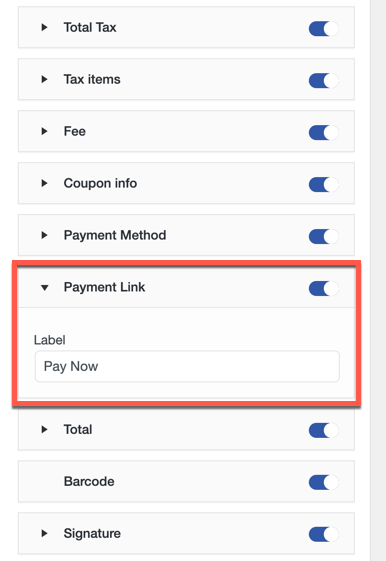
- Click on Save template or Save and activate to save the changes made to a template and reflect the changes.
Here is the invoice preview with the Pay Now link shown in the Customize tab.

If you have more than one template, click on the three horizontal lines and then tap on My templates.

You will be able to see all available templates there. You can activate, edit, or delete the templates from there.

When an order is placed using the Pay Later option at checkout, the order status automatically changes to On-hold. This order status will trigger adding the Payment link to the invoice.
When the customer receives the order invoice from the store, the Pay Now link will be added to it. Here is a sample of such an invoice.

When clicking on this link, the customer will be taken to the checkout, where they can use the available payment methods the store offers to complete the payment. When the payment is completed, the order status automatically changes from ‘On hold’ to ‘Completed’.

Also Read: How to Create a WooCommerce Custom Invoice
Who Needs WooCommerce Invoice Payment Links?
WooCommerce invoice payment links are useful for many types of stores, especially those that don’t take payment at the time of purchase. Here are a few examples where these links come in handy:
Custom Service Providers
Some businesses cannot confirm the final price until the service is completed or reviewed.
For example, a custom printing shop, repair service, design agency, or made-to-order product seller may need to send the invoice after confirming the final cost.
With an invoice payment link, the business can send the customer a PDF invoice and allow payment directly from that invoice.
B2B and Wholesale Stores
B2B buyers often need invoices for internal review, approval, or accounting before they make payment. A Pay Now link on the invoice lets them complete the payment once the invoice is approved.
This is useful for wholesale stores, distributors, manufacturers, suppliers, and businesses that sell to companies rather than individual consumers.
Stores That Accept Manual Orders
If you create orders manually from the WooCommerce dashboard, you may need a simple way to collect payment from the customer.
Instead of sending separate payment instructions, you can generate an invoice with a Pay Now link and email it to the customer.
Small Businesses Without a POS System
Small businesses that do not use a separate point-of-sale system can still collect payments professionally by sending WooCommerce invoices with payment links.
This works well for businesses that take orders by phone, email, WhatsApp, or in person but want to collect payment online.
Stores Offering Pay Later Options
If your store lets customers place orders first and pay later, invoice payment links make that workflow easier. Customers can place the order, receive the invoice, and complete the payment when they are ready.
In short, invoice payment links are a great solution for any WooCommerce store that needs to bill customers after the sale instead of during checkout.
Pro Tip: In B2B transactions, where invoices are often reviewed and approved in batches, adding a “Pay Now” button makes it easy for customers to complete payments as soon as they’re ready. It’s a perfect match for pay-later models, turning your invoice into a convenient, one-click payment tool.
Best Practices for WooCommerce Invoice Payment Links
To get the best results from invoice payment links, keep the payment experience clear and simple.
Use a Clear Payment Link Label
Use direct labels such as Pay Now, Pay Invoice, or Complete Payment. Avoid vague labels that may confuse customers.
Add Payment Instructions
If customers are using Pay Later or pay by invoice, add a short instruction at checkout and in the invoice email.
Example:
Your invoice includes a secure Pay Now link. Please use the link to complete payment after reviewing the invoice.
Enable the Right Order Statuses
Make sure the payment link appears for the order statuses you actually use. For most stores, this means enabling the link for On hold, Pending payment, or Failed orders.
Test the Link Before Sending Invoices
Always place a test order and confirm that the payment link redirects to the correct payment page.
Keep Payment Gateways Active
The Pay Now link depends on your WooCommerce payment gateways. Make sure at least one suitable payment method is active and working.
Use a Compatible Invoice Template
If the wrong template is active, the payment link may not appear. Choose a template that supports payment links and confirm that the Payment Link element is enabled.
Common Issues With WooCommerce Invoice Payment Links
1. Pay Now Link Not Showing on the Invoice
This usually happens when the selected invoice template does not support the payment link element.
How to fix it:
Go to Invoice/Packing > Invoice > Customize, choose a template that supports payment links, enable the Payment Link option, and save the template.
Also, check whether the order status is included in your payment link settings. If the order status is not selected, the link may not appear.
2. Pay Now Link Opens, but Payment Fails
This can happen if no payment gateway is enabled or if the selected gateway is not configured correctly.
How to fix it:
Go to your WooCommerce payment settings and confirm that at least one payment method is active. Then test the checkout process with a sample order.
3. Pay Later Option Not Showing at Checkout
If the Pay Later option does not appear, check whether the setting is enabled in the invoice plugin.
Also, review whether your checkout page, payment gateway setup, or theme customization is affecting the display of payment methods.
4. Customer Says the Payment Link Does Not Work
Ask the customer to open the latest invoice email and try the link again. If the issue continues, regenerate the invoice and confirm that the order status still supports payment links.
You should also test the payment flow from a different browser or incognito window to rule out customer-side browser issues.
Frequently Asked Questions
A WooCommerce invoice payment link is a clickable link or button added to a WooCommerce invoice. Customers can click the link to complete payment after receiving the invoice.
No. Pay by invoice usually refers to allowing customers to place an order without paying immediately. An invoice payment link is the link or button that lets them pay later from the invoice.
Once a customer makes a payment, you will usually receive a notification from your payment gateway, and the order status in WooCommerce will be updated accordingly.
The payment methods available depend on the payment gateway you have integrated with your WooCommerce store (e.g., PayPal, Stripe).
Yes, you can customize the appearance and text of the payment link on your invoices. Choose a preferred invoice template that supports the payment link option. Then, customize it as per your preferences.
Read our complete guide on customizing WooCommerce invoices for more information.
To automatically send PDF invoices to your customers, go to WooCommerce > Plugins and search for the “WebToffee WooCommerce PDF Invoices” plugin.
> Install and activate the plugin on your WordPress dashboard.
> Configure the plugin and choose the order status to generate and send PDF invoices.
For more information, refer to our guide: How to Create WooCommerce PDF Invoices & Packing Slips?
This usually happens when the wrong invoice template is selected. Even if the option is enabled, the active template may not include the Pay Now element.
Fix: Go to Invoice/Packing → Customize, choose a template that supports the Pay Now button, save changes, and regenerate the invoice.
This is usually due to payment gateway issues, such as no active gateway or unsupported payment methods. Ensure at least one payment gateway is enabled and properly configured, then test the checkout process.
Yes. With WebToffee’s WooCommerce PDF Invoices plugin, you can add a Pay Now link to invoices for selected order statuses. Customers can use that link to complete payment after checkout.
Streamlining your business operations is important to your success. Give your customers a simple payment option with the ‘Pay Now’ Link sent via email to help grow your business. Customer satisfaction is greatly improved when using the ‘Pay Later’ option. Maintaining customer satisfaction will also enable you to run a profitable business.
Hope this article helped you address your queries. Have more questions? Feel free to share them in the comments section below.

Got any query? Please leave a comment or reach out to our support
Got any query? Please leave a comment or reach out to our support

Subcribe to our newsletter





Comments (6)
Roy S.
May 7, 2025
Support …
I’ve successfully installed the FREE and PREMIUM upgrade so that I the “Pay Now” link shows up on the invoice. (Great!) However, when I create the order via WP Admin and place the order in “Pending” status so that I can send the invoice to the customer, when the customer clicks on the payment link it takes them to our site’s check-out page BUT the check-out page throws a validation warning that “Pending orders cannot be processed. Please contact for assistance”
What is limiting the ability for the Check-Out page to show that order and allow it to be paid for when as the adminstrator i’m using the plugin to create the pay now link.
Please advise.
Roy
Sanjai Valsan
May 7, 2025
Hi Roy,
Thank you for reaching out,
Regarding the issue you’re facing — WooCommerce usually restricts payments for orders in the “Pending” status, which is likely why you’re seeing the error message.
When testing this on our end, we were able to successfully use the “Pay Now” link for orders in “Pending payment” status. So, we recommend updating the order status to “Pending payment” before sending the invoice to ensure that the checkout page can process the order. This should allow your customers to complete the payment smoothly.
If the issue still persists after making this change, please don’t hesitate to reach out to our customer support team — we’ll be happy to assist further.
Arash Khalaj
March 18, 2024
Hi,
I want to use the custom payment links in my website’s invoices, but this feature does not show up in this plugin’s settings: WooCommerce PDF Invoices, Packing Slips, Delivery Notes and Shipping Labels.
Could you guide me about that? I’m using the free Version
Sanjai Valsan
March 20, 2024
Hi Arash Khalaj,
Thanks for reaching out!
The “Pay Now” option or the option to include custom payment links in invoices, is only available in the premium version of the plugin.
Milos
February 5, 2024
Hi, Pre-Sales question.
I am looking for a solution to automate WooCommerce invoices.
I need to add a payment link for “Pending Payment” orders. I see I can do it with your plugin, but I don’t know where that button will take me. To the website’s checkout page?
Also, is there an option to include the Invoice in some HTML form in email directly, and have that Pay Now button there?
Thanks
Sanjai Valsan
February 6, 2024
Hi Milos,
Thanks for reaching out!
Yes, on clicking the payment link (Pay Now), you’ll be redirected to the website’s checkout page, which lists all the payment methods. Here, the customer can pay for the order using any of the payment options.
Unfortunately, the plugin doesn’t provide an option to include invoices in emails in the HTML form.