Share:


Table of Contents
Need to create PDF invoices in WooCommerce? WooCommerce does not generate invoice PDFs for orders by default. You’ll need to set them up using an invoicing tool that can automatically generate and attach invoices to order emails.
In this guide, you’ll learn how to create PDF invoices in WooCommerce and generate packing slips for orders. We’ll walk through the complete invoice setup process, from configuring general settings to customizing invoice templates and enabling automatic invoice generation.
You’ll also see how to do this using WebToffee’s WooCommerce PDF Invoices and Packing Slips plugin, which lets you generate invoice PDFs and packing slips directly from your WooCommerce store.
Key Takeaways
- WooCommerce does not generate PDF invoices or packing slips by default.
- You can create PDF invoices in WooCommerce using an invoicing plugin.
- Invoice PDFs can be automatically generated and attached to order emails for a smooth customer experience and efficient order management.
- WebToffee PDF Invoices and Packing Slips plugin lets you generate and customize invoice PDFs and packing slips for orders.
Ready to get started on how to create PDF invoices in WooCommerce in detail? Let’s jump in!

A PDF invoice is a document that records the details of a completed order. It includes information such as the products purchased, quantities, prices, taxes, billing details, and payment information.
Online stores usually send PDF invoices to customers after an order is placed or completed. Customers can download or print the invoice for record keeping, warranty claims, returns, or accounting purposes.
WooCommerce doesn’t generate PDF invoices for orders. Store owners need to enable invoice generation using a WooCommerce extension or plugin that can automatically create and attach professional invoice PDFs to order emails.
A packing slip describes the contents of the package, including the products, the quantity of each product, and their weight. Packing slips are crucial to ensure the accurate delivery of products to customers. They also help facilitate product returns and avoid mixups and misdelivery of packages.
PDF invoices and packing slips play an important role in WooCommerce order processing. These documents provide clear records of each transaction and help both customers and store owners track order details, billing information, and shipment contents.
Below are some key reasons why WooCommerce stores generate PDF invoices and packing slips.
- Showcase your professionalism: Most online shoppers expect stores to deliver PDF copies of invoices, packing slips, and other documents. If you refuse to send PDF invoices, it will damage your brand reputation and reduce customer satisfaction. Sending out PDF invoices and packing slips for WooCommerce orders is a nice way to show your professionalism to your customers.
- Reduce operational and processing delays: Proper documentation of invoice PDFs and other shipping documents will ensure that your orders arrive on time and reduce errors, delays, and delivery issues.
- Increase efficiency in order management: PDF invoices can be automated with order emails. You no longer have to create invoices and manually send them via mail. Automating PDF invoice generation helps simplify the order management process and increase efficiency.
- Comply with legal requirements: Invoices also act as a legal document between sellers and buyers. Some countries have special tax laws that require businesses to add several fields on invoices and packing slips.
- Add branding elements: As we have mentioned earlier, invoices are the touchpoints between you and your customers. It has a great opportunity to add branding elements such as logos, slogans, verified badges, and other trust signals.
To create PDF invoices in WooCommerce, you need a plugin because WooCommerce does not generate invoice PDFs by default. In this setup, we’ll show you how to set up automatic PDF invoice generation and customize invoice templates using the WebToffee PDF Invoices and Packing Slips plugin.
Step 1: Install and Activate the WebToffee PDF Invoices Plugin
- From your WordPress dashboard, go to Plugins > Add New Plugin. Search for “WebToffee WooCommerce PDF Invoices.”
- Once you have found the plugin, click on Install Now and then activate the plugin.

Step 2: Configure the General Settings for PDF Invoices
If you are installing the plugin, you will be asked to enter your business details, such as Address, tax settings, etc. You can also configure this from the plugin’s general settings page.
- Go to Invoice/Packing > General tab.
- Enter the company details such as Name, Logo, Tax ID, etc.

- Provide the company address and location.
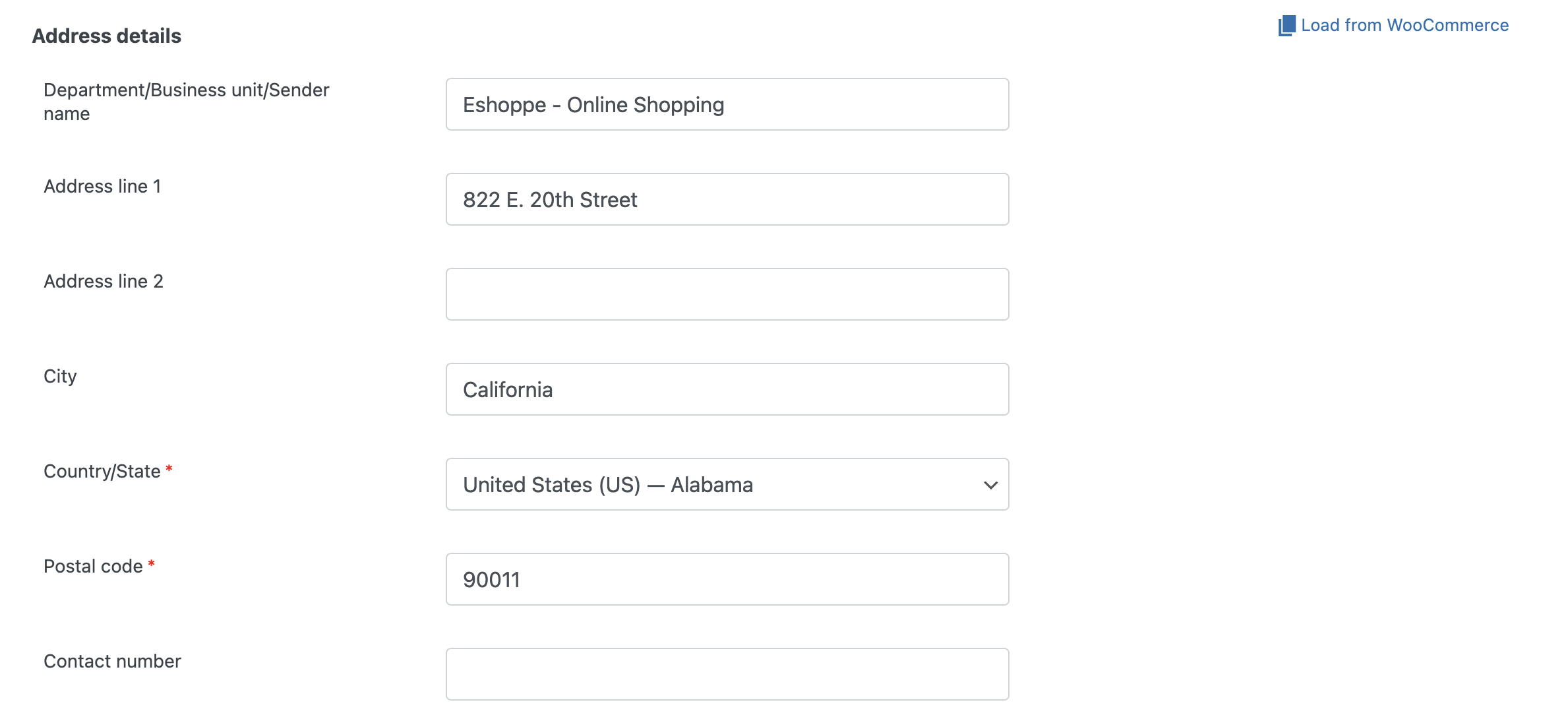
- Then, from the Advanced options, you can configure some advanced settings.
- Enable RTL support if required.
- Choose a PDF library for generating invoices.
- Then, choose to add a print button in invoices and packing slips.

After choosing the necessary settings, click on Update Settings to save the changes.
Step 3: Enable Automatic PDF Invoices Generation in WooCommerce
- Select the Enable Invoice button.
- Choose a date for the invoice.
- Select the order statuses to automatically generate the invoices.
- Enable the Attach invoice PDF to admin email checkbox to send PDF invoices with admin emails.
- Choose an order status email to attach PDF invoices to customer emails.

Step 4: Set the Invoice Number Format for WooCommerce Invoices
- Choose a number format for the invoice numbers with custom prefixes and suffixes.

- You can add custom numbers for invoices or choose order numbers as invoice numbers. Then, choose a length for the invoice number.
Step 5: Additional Fields and Advanced Settings
- You can also add additional fields, such as order meta, to invoices.
- Then, you have some advanced options such as create invoices for free orders and choose a file name format for the PDF file.
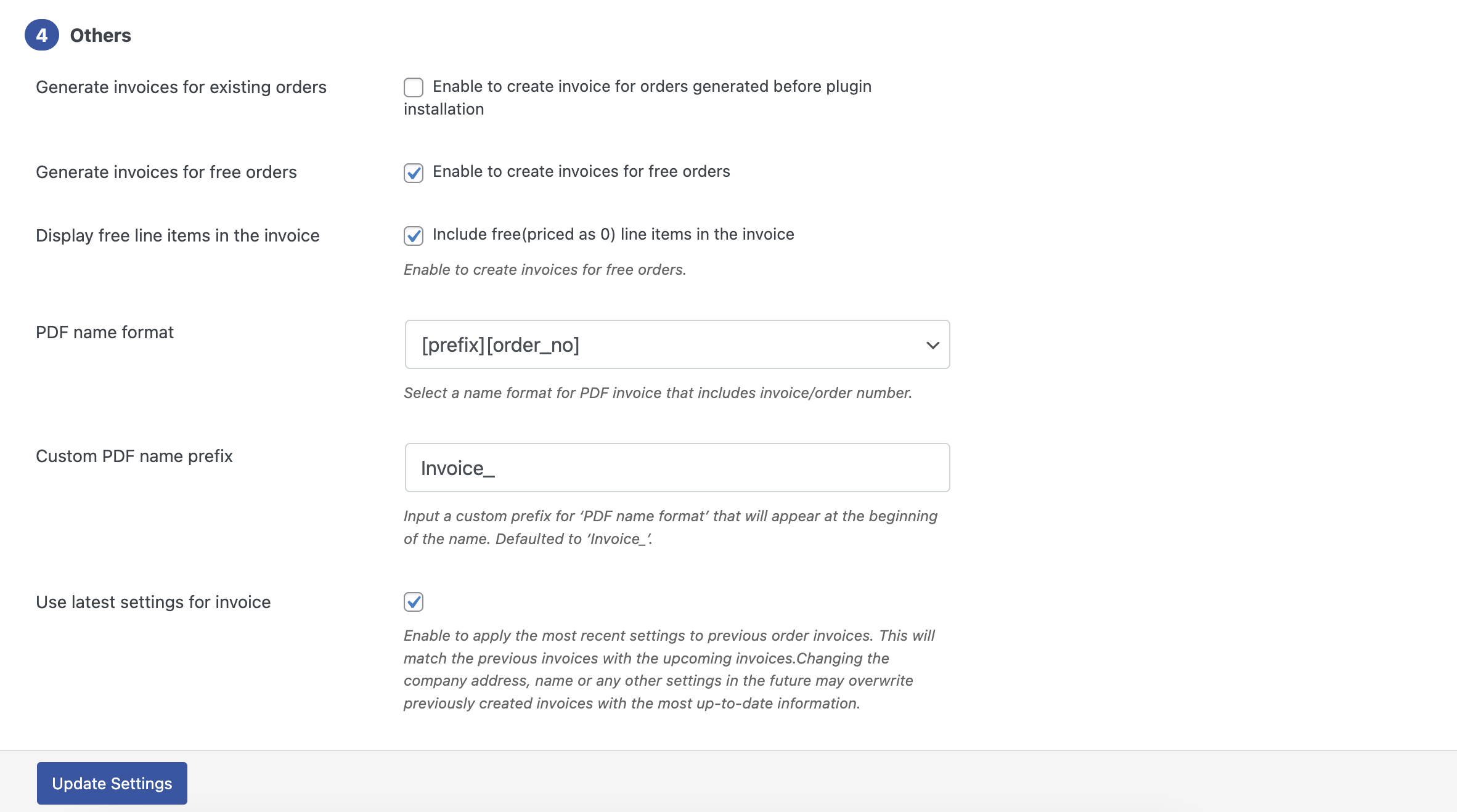
- Click on Update Settings to save the changes.

Step 6: Customize the PDF Invoice Template
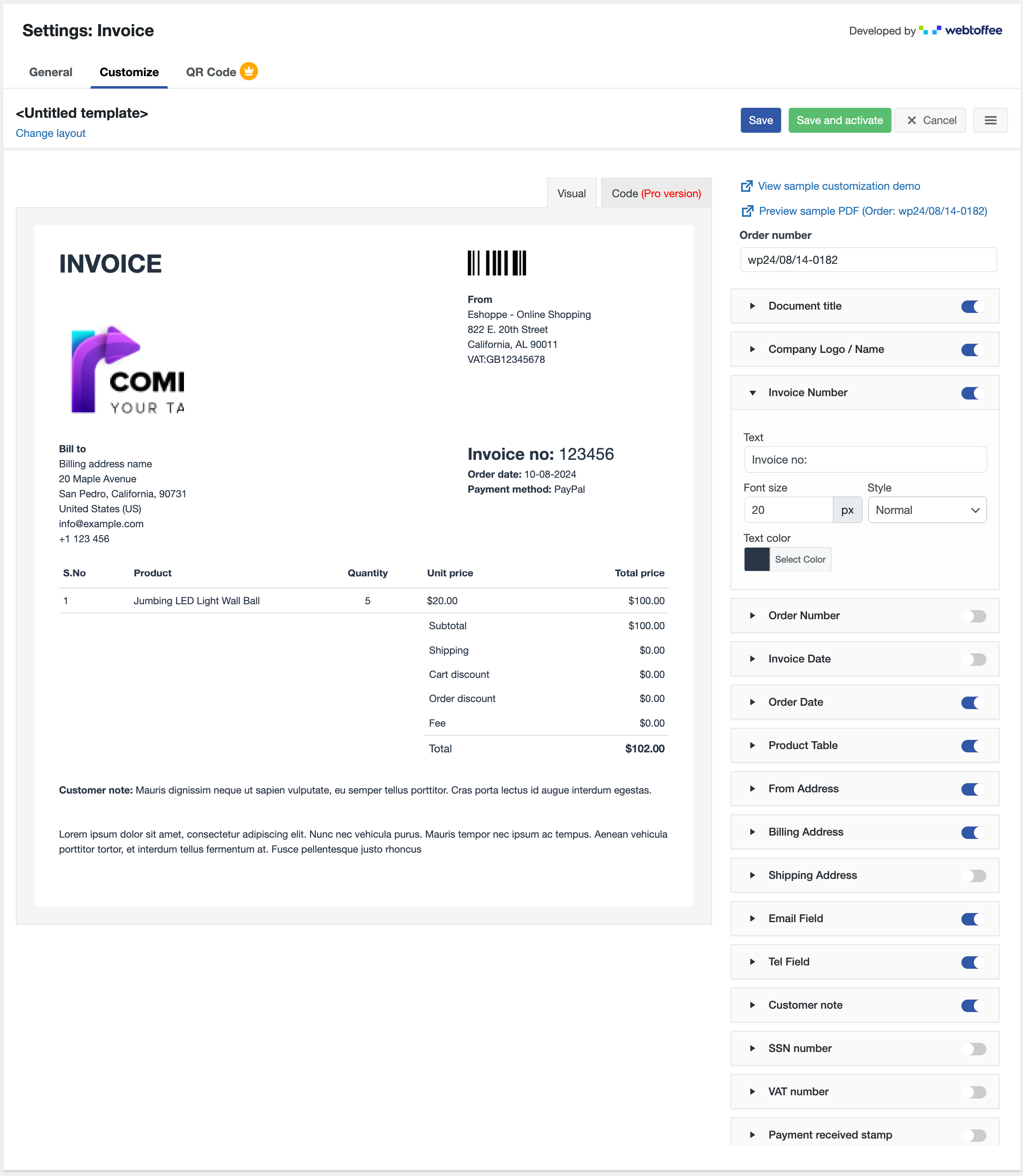
- Go to the Customize tab. From here, you can customize the PDF invoice template.
- Add or edit different fields in the invoice documents.
- You can change the text, color, and font size of the templates.
Also read: How To Customize WooCommerce Invoices?
Follow the below steps to create PDF packing slips for WooCommerce using the same invoice plugin.

- Step 1: Go to Invoice/Packing > Packing slip.
- Step 2: Choose whether to include product images, customer notes, and footer.
- Step 3: Click on Update settings to save the changes.

The free version of this PDF invoice plugin only offers limited options, to access advanced features, you can upgrade to the premium add-on. Now we will discuss about the premium features of the PDF invoices and packing slips add-on.
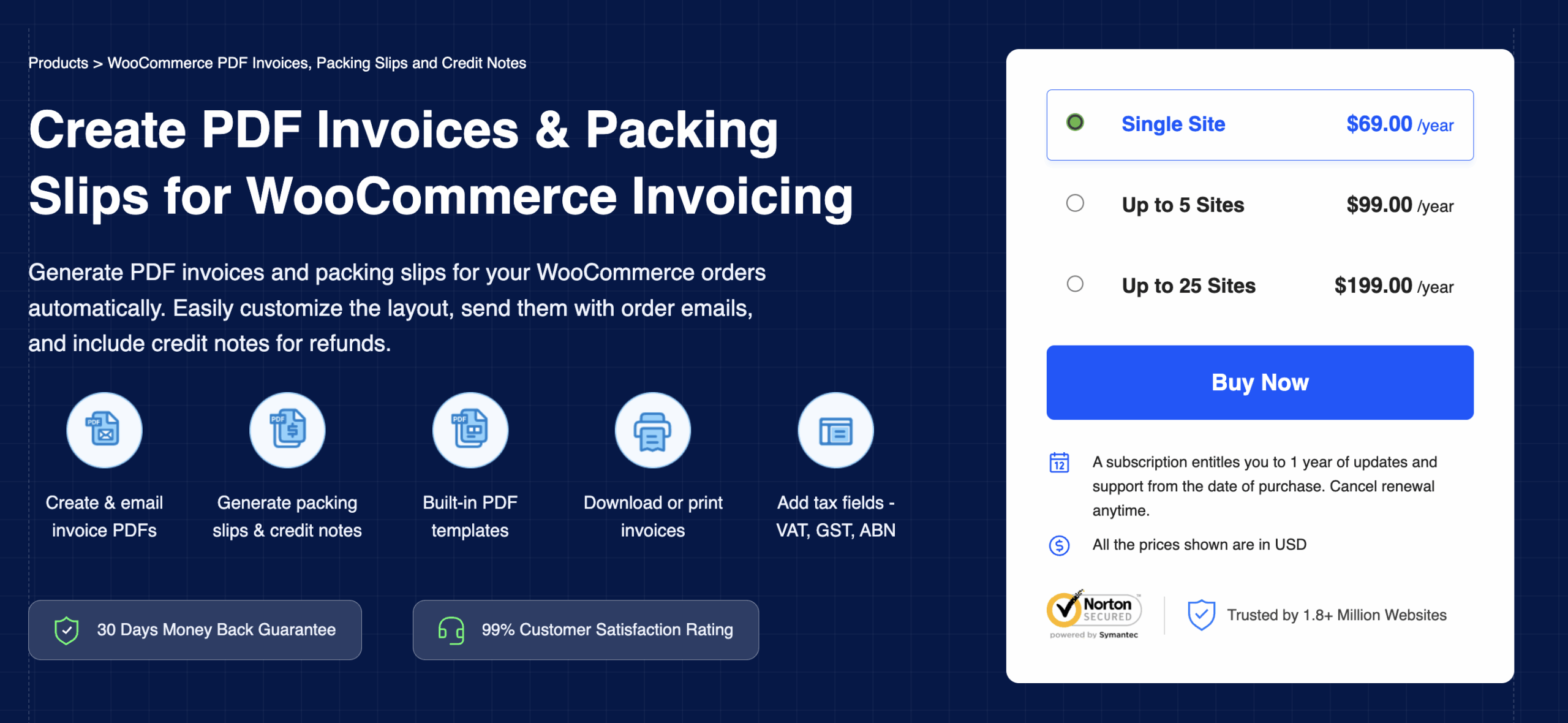
If you need more advanced invoice customization and automation, the WebToffee PDF Invoices and Packing Slips add-on extends the feature set of the free plugin used in this guide.
With the premium add-on, you can automatically generate PDF invoices, packing slips, and credit notes from WooCommerce while adding more advanced document customizations.
The plugin lets you add payment links to WooCommerce invoices, email WooCommerce invoices automatically, and accept payments from customers after sending out invoices. You can add tax fields to invoices and other documents, such as (SSN, VATIN, etc.) The premium add-on unlocks advanced customization options such as visual and code editors, premium invoice templates, and more.
Key features of the plugin:
- Auto-generate PDF invoices, packing slips and credit notes
- Attach the invoice PDF to WooCommerce order emails
- Generate invoices in UBL/XML e-invoice formats
- Bulk print invoices, packing slips, and credit notes
- Customize invoices using a drag-and-drop editor
- Add pay now links on invoices PDFs
- Set custom sequential numbering for invoices
- Add VAT, GST, and ABN to WooCommerce invoices
- Support multilingual and RTL invoice layouts
Other Premium WebToffee Add-ons
- WooCommerce Shipping Labels, Dispatch Labels and Delivery Notes – Generate shipping labels, dispatch labels, and delivery notes for WooCommerce orders.
- WooCommerce Address Labels – Create different types of address labels for shipping addresses, billing addresses, etc.
- WooCommerce Picklists Plugin – Automatically generate WooCommerce picklists when orders are placed.
- WooCommerce Proforma Invoices Plugin – Generate WooCommerce proforma Invoices and send them to your customers.
No. WooCommerce does not generate invoice PDFs by default. Store owners need to install a WooCommerce invoice plugin, such as WebToffee PDF invoice plugin, to create, generate, and attach PDF invoices to order emails.
The premium PDF Invoices and Packing Slips plugin by WebToffee offers advanced customization options such as visual and code editors and free templates; for additional customizations, get the premium customizer add-on for PDF invoices.
You can automatically send PDF invoices in WooCommerce by enabling automatic invoice generation in a PDF invoice plugin. Once enabled, the plugin generates invoices when specific order statuses are triggered and attaches the invoice PDF to the order email sent to customers.
Yes, you can print packing slips on WooCommerce using the WooCommerce PDF invoices and packing slips plugin.
You can bulk download WooCommerce invoices from the WooCommerce Orders page. Choose the orders you want to download PDF invoices and select download invoices from the Bulk actions dropdown.
Setting up PDF invoices and packing slips in WooCommerce helps streamline order documentation and makes it easier for customers to keep records of their purchases. Since WooCommerce doesn’t generate invoice PDFs, store owners need to enable this functionality using an invoicing solution.
In this guide, we walked through how to create PDF invoices in WooCommerce, configure invoice settings, and generate packing slips for orders. Once set up, invoices can be automatically generated and attached to order emails, making WooCommerce order management more efficient.
Tools like the WebToffee WooCommerce PDF Invoices and Packing Slips plugin allow you to automate invoice generation, customize document templates, and manage order documents from your WooCommerce dashboard.
That’s it! We hope this article has helped you learn how to create PDF invoices and packing slips in WooCommerce. If you have any questions, drop them in the comments section. We’d be happy to help you.


Subcribe to our newsletter