


Share:


Table of Contents
Creating a robust backup and recovery plan for WooCommerce stores is essential for safeguarding against unexpected disruptions such as server crashes, plugin failures, or human errors. A well-structured checklist ensures that all critical components of the store, including files, databases, and configurations, are backed up regularly, allowing for swift recovery and minimal downtime when issues arise.
- Regular backups are crucial for maintaining business continuity and protecting customer data.
- A comprehensive backup strategy should include website files, databases, and configuration settings.
- Choosing the right backup tools with WooCommerce compatibility and automation features enhances reliability.
- Testing backups regularly on a staging site ensures they can be restored effectively when needed.
- Implementing strong security measures for backup storage helps protect sensitive information and comply with data protection laws.
- Ongoing maintenance of backup processes is necessary to adapt to changes in store activity and technology.
Even the most dependable WooCommerce stores can run into unexpected hiccups. This handy checklist will guide you in creating a solid backup and recovery plan, ensuring you’re always ready for anything that comes your way.
Imagine waking up to find your entire site has disappeared due to a server crash, a faulty plugin update, or even a simple human mistake. It’s terrifying, isn’t it? Unfortunately, issues like server outages, malware attacks, and accidental deletions are more common than we’d like to believe. And when they strike, they can bring your business to a grinding halt.
That’s where a solid backup and recovery plan comes into play. Think of it as your store’s safety net. With regular backups, you can recover swiftly from any disaster—without losing sales, customers, or your peace of mind.
This checklist is for WooCommerce store owners, developers, and even beginners who want to protect their online business the smart way. Whether you’re just starting out or already running a busy store, this step-by-step guide will help you set up a reliable backup and recovery system, so you’re never caught off guard.

Before you start backing up your WooCommerce store, it’s important to make a proper plan. This ensures your backups are complete, consistent, and tailored to your store’s needs. Here’s what to cover:
1. Identify What Needs to Be Backed Up
- Website Files: Includes your theme, plugins, media uploads (like product images), and any custom code. These define how your site looks and functions.
- Database: This is the heart of your WooCommerce store. It contains all critical data—orders, customer details, product info, reviews, and settings.
2. Determine Backup Frequency
- Consider Store Activity:
- High-traffic stores with daily orders → Daily or real-time backups
- Small stores with fewer updates → Weekly backups may suffice
- Match with business impact: How much data can you afford to lose? If the answer is “not much,” back up more often.
Quick Tip: More frequent backups reduce data loss risk during unexpected failures.
3. Choose Between Manual and Automated Backups
- Manual Backups:
- Good for occasional use or one-time tasks (e.g., before major updates).
- Requires you to remember and execute the process.
- Automated Backups:
- Ideal for regular, hands-free protection.
- Schedule backups daily, weekly, or hourly depending on your needs.
4. Set Backup Retention Policies
- How many versions will you keep? Decide how long you want to keep past backups (e.g., last 7 days, 30 days, or more).
- Consider storage space vs. need for rollback. Keeping too many backups may eat up storage, but too few might not help if a problem goes unnoticed for weeks.
5. Evaluate Hosting Provider’s Backup Options
- Does your host provide backups? Many managed WordPress hosts offer daily or on-demand backups.
- Are they reliable and easy to restore? Not all hosting backups are easy to access or complete.
- Do you need an additional backup plugin or service? It’s often smart to maintain off-site backups separately from your hosting server.
Backup Essentials: What to Include
When backing up your WooCommerce store, it’s not enough to just copy the homepage or a few files. A complete backup must include all the key parts of your site, both visible content and behind-the-scenes configurations. Here’s a checklist of everything you should back up:
1. Database
- Orders: Every transaction made by customers including order history, payment details, and shipping info.
- Customer Information: User accounts, billing/shipping addresses, and contact details.
- Product Data: All product listings, attributes, variations, and stock status.
- Site Settings: WooCommerce settings, plugin options, permalinks, and site configurations stored in the database.
Think of your database as the brain of your store. If it’s not working, your store might load, but nothing will actually work as it should.
2. WooCommerce Files
- Plugins: Back up all active and inactive plugins, especially WooCommerce and related extensions.
- Themes: Your active theme (including any customizations) plus any installed themes.
- Uploads & Media: Product images, banners, downloadable files, and any media you’ve added via the WordPress Media Library.
These files define the look, feel, and features of your store. Missing them can break layouts or disable core functionality.
3. Core WordPress Files
WordPress Core Files: These include the fundamental files that make WordPress work (like index.php, wp-includes, and wp-admin folders).
Even though these can be downloaded again, having them backed up can save time, especially if you’re restoring to an exact previous version.
4. Configuration Files
- .htaccess: Controls server-level settings like redirects, permalinks, and security rules.
- wp-config.php: Contains database connection info, security keys, and other critical settings.
If these files are missing or misconfigured, your site might not load at all, even if everything else is intact.
5. Custom Code or Integrations
- Custom Plugins or Snippets: Any custom functions you’ve added for extra functionality (e.g., in functions.php or via a custom plugin).
- Third-Party Integrations: Code or configuration related to CRMs, email services, payment gateways, or external APIs.
If you’ve made any custom tweaks, backing them up ensures you won’t lose valuable development work or cause site errors after a restore.
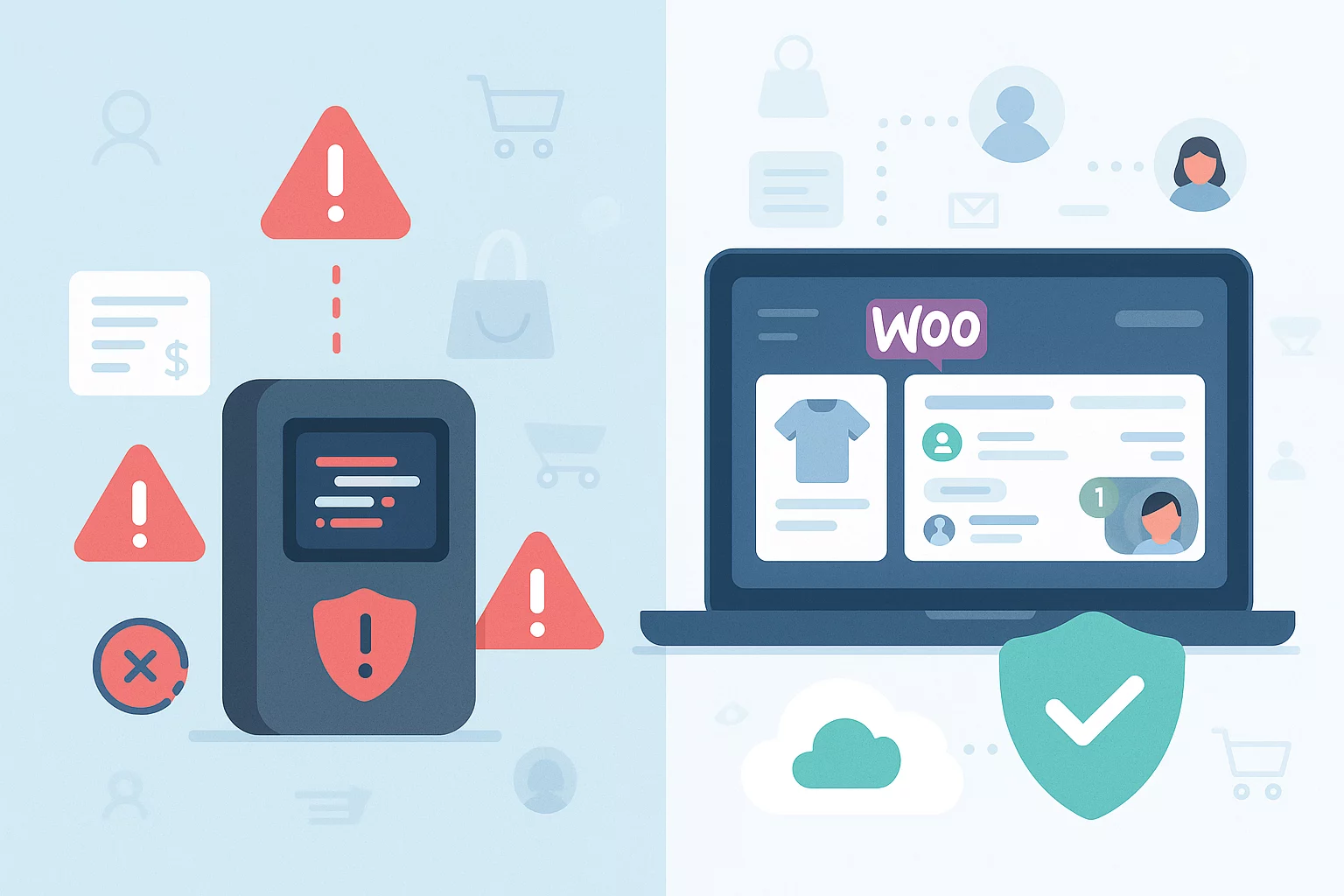
Not all backup tools are created equal—especially when it comes to WooCommerce. Since your store handles real-time orders, customer data, and dynamic content, you need a reliable backup solution that works specifically for eCommerce. Here’s how to choose the right one:
1. Compare Popular WooCommerce Backup Plugins
Start by exploring tried-and-tested plugins tailored for WordPress and WooCommerce:
- UpdraftPlus – One of the most popular free backup plugins with options for scheduled backups and cloud storage integration.
- Jetpack Backups – Offers automatic real-time backups with a simple restore process. Works well with WooCommerce.
- WebToffee WP Backup and Migration – A user-friendly plugin for backing up, cloning, and migrating WordPress sites. Offers scheduled backups, easy site duplication, and cloud storage support.
2. Look for Key Features
The right plugin should offer more than just basic backups. Look for:
- Incremental Backups: Only backs up what’s changed since the last backup—saves time and server load.
- Remote Storage Support: Ability to store backups in places like Google Drive, Dropbox, Amazon S3, or FTP.
- One-Click Restore Points: Let you quickly restore your site to a previous version without hassle.
- Scheduled & On-Demand Backups: Flexibility to automate backups or run them manually when needed.
WooCommerce stores change often, especially with new orders and customer data. These features protect your latest updates.
3. Ensure WooCommerce Compatibility
- Choose tools that specifically mention WooCommerce support. Not all backup plugins can handle the dynamic nature of eCommerce sites (e.g., real-time order changes during backups).
- Look for plugins that avoid locking the database during backups. This prevents downtime or failed transactions during the backup process.
4. Consider Staging Site Support
- Does the plugin allow you to create a staging site? This is a separate test version of your site where you can safely try restores or updates.
- Can you test a backup restore without affecting your live site? Staging helps verify that backups actually work—before disaster strikes.
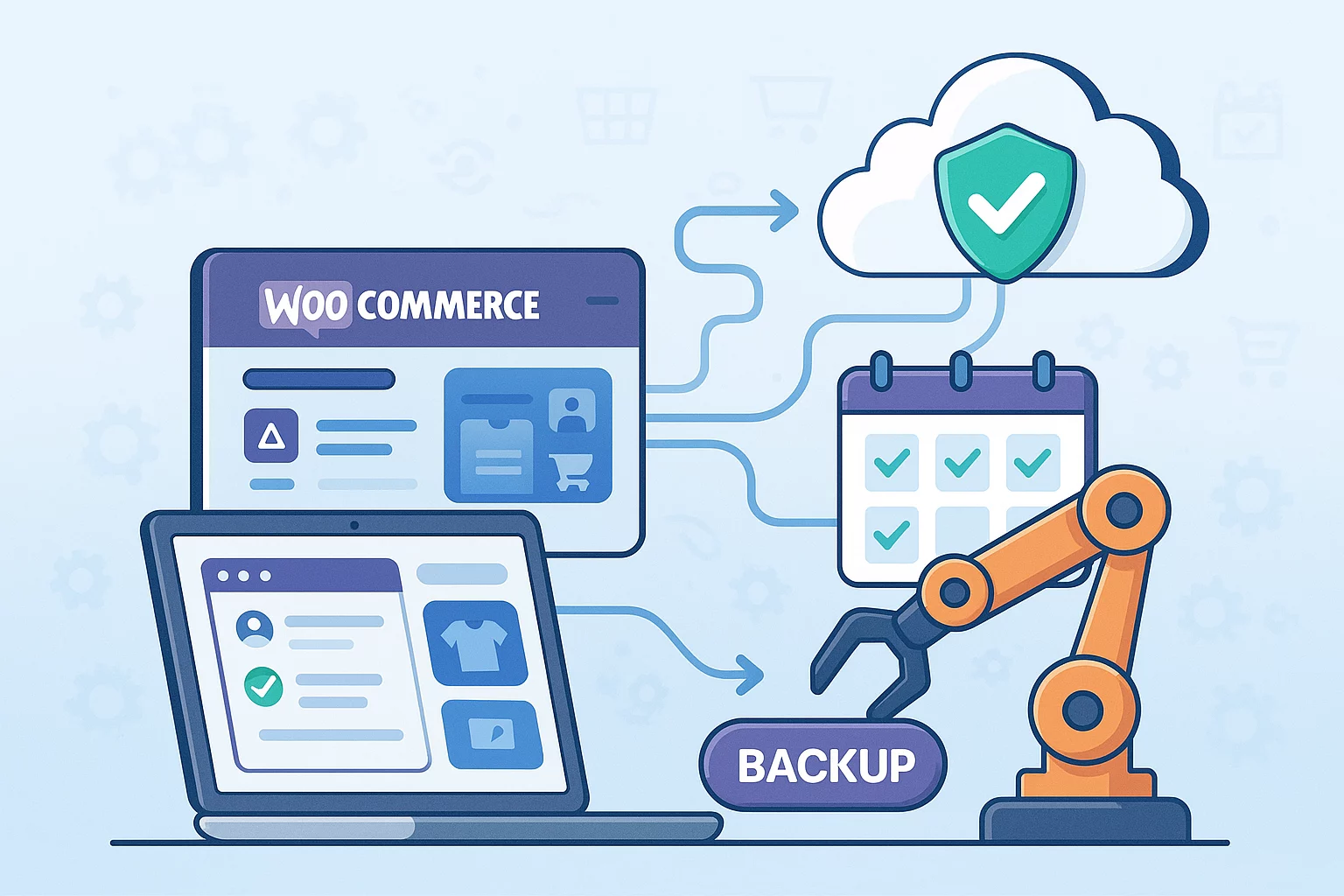
Once you’ve chosen the right backup tool, the next step is to automate your backups. This ensures your WooCommerce store is protected without requiring constant manual effort. Here’s what to do:
1. Set Automated Schedules
Choose a backup frequency that fits your store activity:
- Daily or real-time: For busy stores with frequent orders or updates.
- Weekly: For smaller stores with low update frequency.
- Monthly: For low-maintenance or informational sites.
Automated schedules mean you’ll never forget to back up, even during your busiest days.
2. Configure Notifications for Backup Success or Failure
- Set up email alerts or dashboard messages to know if a backup has succeeded or failed.
- Enable logging and error reports so you can quickly identify and fix issues.
3. Set Version Limits to Control Storage Size
- Limit the number of backups stored (e.g., keep only the last 5 or 10 backups).
- Automatically delete older versions to free up space in your cloud or server storage.
Storage can fill up quickly, especially with media-rich stores. Managing version limits keeps things clean and efficient.
4. Test Automated Backups Regularly
- Restore a backup to a staging or test site to verify that it includes everything needed.
- Check if orders, product data, and settings are intact after the restore.
A backup is only useful if it works. Testing gives you confidence that you can recover fully when needed.
Backup Storage Best Practices
Backing up your WooCommerce site is just the first step. Where and how you store those backups is just as important. Poor storage practices can make your backups useless or even put your data at risk.
Here’s how to store your backups smartly and securely:
1. Store Backups in Multiple Locations
Always keep at least two copies of your backups:
- One in the cloud (e.g., Google Drive, Dropbox)
- One on a local drive or an external hard disk
If one storage option fails (e.g., cloud account locked or a local disk fails), you have a backup for your backup.
2. Use Reliable Remote Storage Services
Choose trusted and stable cloud providers like:
- Google Drive
- Dropbox
- Amazon S3
- OneDrive
Reliable storage ensures fast access, better uptime, and fewer chances of data corruption or loss.
3. Encrypt Sensitive Data if Necessary
- Use encryption tools or plugins to secure backup files, especially if they include customer information or order data.
- Set strong passwords for access to cloud storage or backup archives.
Protects your business and customers from data breaches and complies with data protection laws like GDPR.

Creating backups is essential—but they’re only useful if they actually work when you need them. That’s why regular testing is a crucial (yet often overlooked) part of any backup and recovery plan. Here’s how to make sure your backups are reliable:
1. Schedule Regular Recovery Tests
- Perform restore tests monthly or at least quarterly, depending on how frequently your site changes.
- Simulate real-world scenarios like plugin failure, malware infection, or data loss, and see if the backup fully restores your site.
A backup that hasn’t been tested is a gamble. Regular testing gives you confidence that your recovery process works.
2. Use a Staging Site to Test Restores
- Always test on a staging site, not your live store, to avoid disrupting real customers, orders, or data.
- Many backup tools offer built-in staging environments, or you can create one manually through your hosting provider.
A staging site lets you safely experiment without affecting your live WooCommerce store.
3. Verify Database and Functionality After Restore
- Check if all customer data, orders, and product info are restored correctly.
- Test core features like cart, checkout, email notifications, and payment gateways.
- Ensure themes and plugins are active and working without errors.
4. Document Recovery Steps for Your Team or Client
- Write down the full restore process: where the backup is stored, how to access it, and how to restore it.
- Include screenshots or step-by-step instructions if possible.
- Share the documentation with team members or clients so they can act quickly if you’re unavailable.
Post-Recovery Checklist

Restoring your WooCommerce site from a backup is just the beginning. After recovery, it’s important to verify everything is working correctly to avoid issues that might go unnoticed but affect customers or sales. Use this checklist to make sure your site is safe, stable, and ready for business.
1. Confirm Basic Site Functionality
- Check the homepage and key landing pages for proper layout, content, and links.
- Test login/logout functions for both admin and customer accounts.
- Review product pages to ensure they load correctly with pricing, images, and variations.
2. Test WooCommerce Core Features
- Place a test order to make sure the checkout process works smoothly.
- Test the cart, coupon codes, shipping rates, and payment gateways.
- Confirm transactional emails (like order confirmation and customer notifications) are sent and received correctly.
3. Monitor Traffic and Performance
- Use tools like Google Analytics or Jetpack to track traffic levels and page load times.
- Watch for any sudden drops or slow performance, which might indicate hidden issues.
- Check server logs or use uptime monitoring tools to ensure everything is stable.
4. Revalidate Security and Plugin/Theme Updates
- Run a security scan to check for malware or vulnerabilities.
- Make sure all plugins and themes are updated to their latest safe versions.
- Reinstall security plugins or firewalls if needed (e.g., Wordfence, iThemes Security).
Security & Compliance Considerations
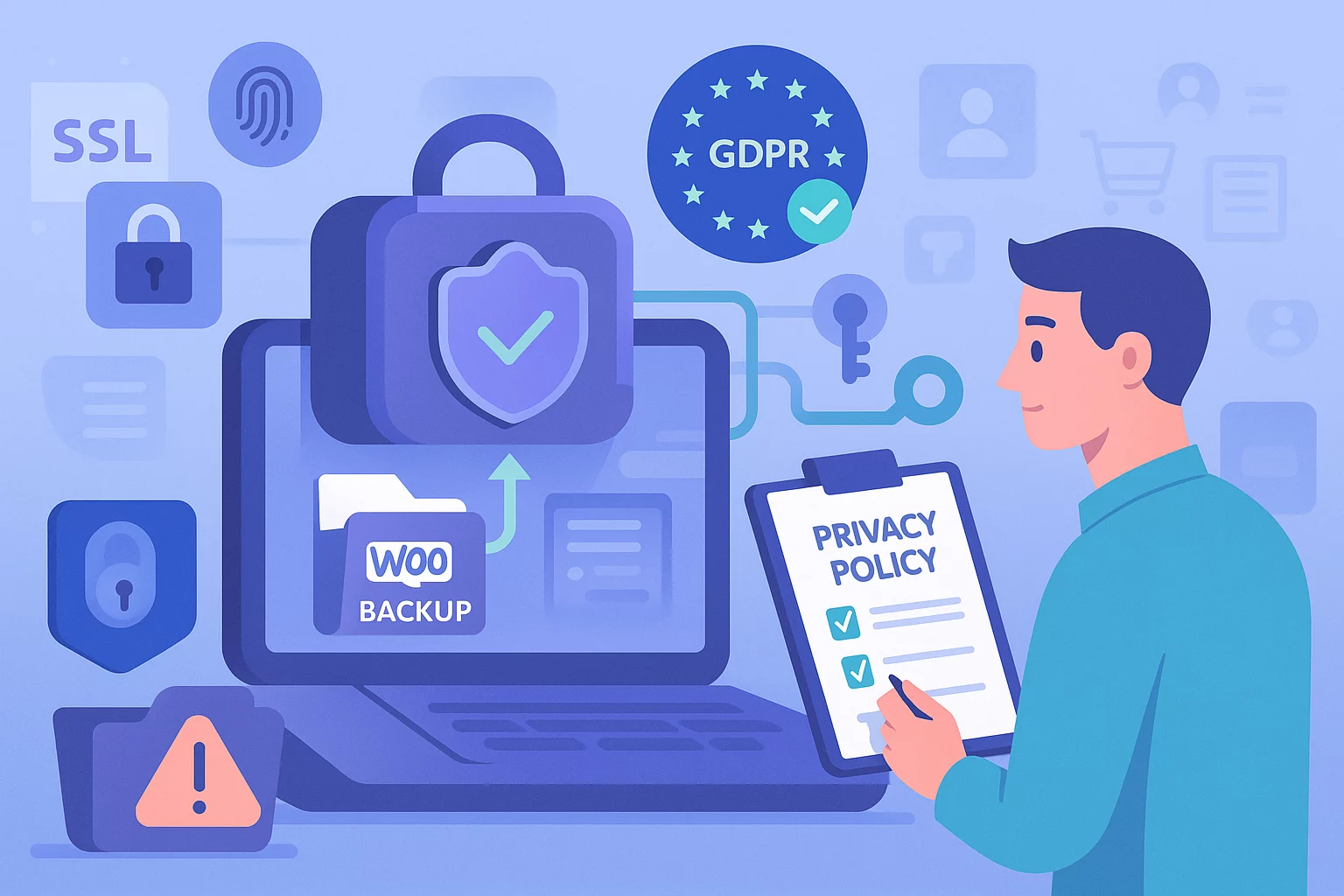
Backups are meant to protect your WooCommerce store—but they also store sensitive customer and business data. That’s why it’s important to follow security best practices and stay compliant with GDPR regulations. Here’s what to keep in mind:
1. Ensure Compliance with Data Protection Laws (e.g., GDPR)
- Only store necessary customer data in backups—avoid saving old or unnecessary personal info if not required.
- Clearly inform users (via your privacy policy) that their data may be stored in encrypted backups.
- If you’re storing or transferring data internationally, make sure it complies with regional rules (e.g., EU to US data handling).
2. Limit Access to Authorized Personnel
- Only allow access to backups for trusted users like admins or developers.
- Avoid sending backup links or files via unsecured channels (e.g., email without encryption).
- Use strong passwords and two-factor authentication (2FA) for backup tools and cloud storage accounts.
3. Use Secure Storage and Transfer Methods
- Store backups on encrypted, secure cloud services that support secure file handling (e.g., Google Drive, Amazon S3, Dropbox).
- Always use SFTP (Secure File Transfer Protocol) instead of regular FTP for moving backup files.
Ensure HTTPS is enabled if you’re accessing backups through a web dashboard.
Ongoing Maintenance
Backups aren’t something you “set and forget.” To ensure they’re always ready when you need them, you’ll need to check in regularly and keep everything running smoothly. Here’s what ongoing maintenance involves:
1. Review Backup Logs and Schedules Monthly
- Check your backup logs to confirm that scheduled backups are completing successfully.
- Look for any errors or skipped items in the backup process.
- Make sure the schedule (daily, weekly, etc.) still fits your store’s activity level.
2. Audit and Clean Up Old or Outdated Backups
- Remove older backup versions that are no longer needed to free up storage space.
- Keep only a reasonable number of restore points (e.g., last 7 or 30 days).
- Rotate backup copies if using local drives or limited cloud space.
3. Stay Updated on Plugin or WooCommerce Changes
- Monitor plugin and WooCommerce updates that might affect backup compatibility.
- Check if any updates add new database tables or change file structures, which your current backup tool may miss.
- Update your backup plugin if a newer version adds critical fixes or improved support.
Conclusion: Protect Your WooCommerce Store Before It’s Too Late
Regular backups are one of the most important safety nets you can have for your WooCommerce store. They protect your business from unexpected problems—whether it’s a plugin conflict, a server crash, or a simple human mistake.
Following a WooCommerce backup and recovery checklist helps ensure that your store’s files, database, orders, customer information, and settings are properly protected. With a reliable backup and recovery system in place, you can restore your store quickly and minimize downtime if something goes wrong.
Setting up this process today means you won’t be left scrambling when something goes wrong tomorrow. It gives you peace of mind, keeps your store running smoothly, and ensures your customers always get the best experience.
Ready to get started?
Explore trusted tools like our WP Backup and Migration and follow the checklist above to build a system that works for your store.


Subcribe to our newsletter


