Share:


Table of Contents
If you’ve ever tried setting up a Buy One Get One deal in WooCommerce, you’ve probably noticed something — there’s no BOGO option anywhere in the default coupon settings.
WooCommerce gives you percentage discounts, fixed cart discounts, and fixed product discounts. That’s it. For anything more dynamic, you need a plugin.
This guide covers everything you need to know about WooCommerce BOGO offers, what they are, when to use them, which type fits your situation, and how to set them up step by step using the Smart Coupons for WooCommerce plugin.
Key Takeaways:
- WooCommerce doesn’t support BOGO offers natively, you need a plugin to set them up.
- Buy One Get One offers are promotional deals where customers receive a free or discounted product when they purchase another.
- Smart Coupons for WooCommerce lets you create flexible BOGO deals like Buy 2 Get 1, Buy One Get One at 50% off, category-based giveaways, and more.
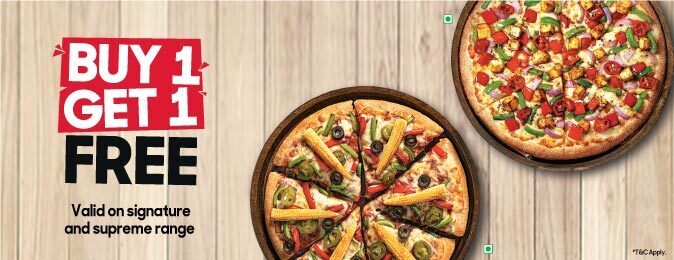
A WooCommerce BOGO (Buy One Get One) offer is a promotion where customers receive a product for free, or at a discount, when they buy something else from your store.
But BOGO is more flexible than the name suggests. It’s not just “buy one, get one.” It’s really a Buy X, Get Y at Z% off framework, where X, Y, and Z are all customizable. Some practical examples:
- Buy a bed, get a pillow for free
- Buy 2 items, get the cheapest one free
- Buy a shampoo, get a conditioner at 50% off
- Buy any 3 products, get 1 free from a specific category
That flexibility is exactly what makes BOGO one of the most effective promotional tools in eCommerce.
Why Do WooCommerce BOGO Offers Work?
BOGO deals tap into something most other discount formats don’t — the psychology of “free.” Even when the math works out the same as a percentage discount, the word free consistently drives higher conversion rates.
Beyond psychology, here’s why store owners lean on BOGO:
- Attracts new customers: A compelling BOGO deal is easier to promote than a generic 20% off.
- Increases average order value: Customers add more to their cart to qualify for the deal.
- Reduces cart abandonment: A free or discounted item waiting in the cart gives hesitant buyers a reason to complete the purchase.
- Clears slow-moving inventory: Pair a bestseller as the trigger with a slow-moving product as the giveaway. The bestseller drives the purchase; the slow product gets cleared.
- Drives faster decisions: Add a time limit to the offer, and the urgency compounds. BOGO with a deadline produces near-instant results compared to longer-cycle channels like PPC or social ads.
When BOGO is the wrong move:
BOGO isn’t always the right call. Watch out for these situations:
- Thin margins: If your product costs $16 and sells for $24, a Buy 1 Get 1 Free means $24 in revenue against $32 in product cost. That’s an $8 loss per transaction. Run the margin math before launching. BOGO works best on products with 50%+ gross margins.
- Too small a catalog: A 10-product store running storewide BOGO looks like a clearance sale, not a promotion.
- No follow-up system: BOGO gets customers to buy once. Without an email sequence or loyalty program behind it, you get a spike and then a return to baseline.
Choose Your BOGO Type Before You Build
This is the step most guides skip. Before you open the plugin, decide which type of BOGO deal actually fits your goal.
| BOGO Type | How It Works | Best Used When |
| Buy X Get X | Buy 1 T-shirt, get the same T-shirt free | Clearing inventory of a specific SKU, consumables |
| Buy X Get Y | Buy a shampoo, get a conditioner free | Cross-selling complementary products, introducing new items |
| Buy 2 Get 1 Free | Buy 3, pay for 2 | Increasing AOV while keeping margins healthier than a full BOGO |
| Buy X Get Y at 50% Off | Buy a jacket, get a scarf at half price | Margins too thin for a full freebie but you still want deal psychology |
| Category-Based BOGO | Buy from Category A, get something from Category B free | Large catalogs where product-to-product matching is impractical |
Pick the type that matches your goal. Then build.
WebToffee Smart Coupons for WooCommerce has a dedicated BOGO module that handles everything from simple Buy 1 Get 1 deals to complex conditional offers. To follow along, you’ll need WooCommerce installed and active, the Smart Coupons for WooCommerce premium plugin (the BOGO module requires the premium version), and at least two published products to test your offer.
Here’s how to set it up.
Step 1: Install and Activate the Plugin
After purchasing Smart Coupons for WooCommerce, download the plugin zip file from the My Account section. You’ll also receive a download link via email.
In your WordPress dashboard, go to Plugins > Add New Plugin, click Upload Plugin, select the zip file, then Install Now and Activate.
Step 2: Create a New BOGO Offer
Navigate to Smart Coupons > BOGO in your dashboard. This opens the dedicated BOGO module where you can set up and manage all your BOGO offers.
You’ll see two options: choose a preset BOGO template or create a Custom BOGO offer. For now, let’s walk through the custom setup so you understand how the settings work.Select the type of BOGO offer — Buy product X Get product X/Y — and assign a name that reflects the offer. Then click Continue.

Related Articles: 10 Best WooCommerce BOGO Coupon Plugins for 2026
Step 3: Configure the “Customer Gets” Section
This is where you define what the customer receives as part of the deal — the “Y” in Buy X Get Y. There are four options:
Customer gets Specific product(s)
This lets you hand-pick exactly which product is offered as the giveaway.
- Enter the product(s) in the Specific product(s) field. Adding more than one product unlocks additional options.
- Use the In quantity of field to set how many units of the free product the customer receives.
- Choose the pricing for the giveaway — Discount or Final price — and fill in the relevant details.

Customer gets Same product (Buy X Get X Free)
The customer receives the same product they purchased as the giveaway.
- Set the number of giveaway units in the corresponding field.
- Choose whether to offer it at a Discount or a Final price.
This is your classic Buy 1 Get 1 Free setup.

Customer gets Product from specific category
Great for stores with large catalogs. Customers can choose their giveaway from a defined set of categories.
- In the Specific Category(s) field, list the eligible categories.
- Use In quantity of to set how many items they can pick.
- Set the pricing — Discount or Final price.

Customer gets Any product from store
The most flexible option. Customers pick any product from your store as their giveaway.
- Set the quantity in the In quantity of field — for example, set it to 2 if you want customers to get two free products.
- Choose Discount or Final price for the giveaway.
This works well for high-AOV stores where giving customers choice increases the perceived value of the promotion.

Step 4: Configure the Trigger (the “X” in Buy X Get Y)
Now you’ll define what the customer needs to do to unlock the deal. The trigger can be based on quantity purchased or minimum spend.
Quantity-based trigger:
Select Buys quantities of and specify the minimum and maximum quantity required. For example, setting the range to “3 to 5” means the BOGO only fires when the customer has between 3 and 5 units in their cart.
Restricting to specific products or categories:
Click Add under the Customer buys section and choose between Product restrictions or Category restrictions.
For Product restrictions:
- Select Specific product(s) only and input the products.
- Enable Apply coupon only if all the selected products are in the cart if you want all listed products to be present before the offer activates.
- To exclude certain products, choose Any product(s) except and list them.
For Category restrictions:
- Use From specific categories only to specify which categories qualify.
- Use From any category except to exclude certain categories.
Under Optional conditions, you can layer in additional conditions like usage limits and allowed emails for more targeted campaigns.

Step 5: Configure the BOGO Application Settings
This controls how the offer actually gets applied at checkout.
- Choose how the offer should be implemented: Once, Repeatedly, or Custom. Configure the corresponding fields based on your choice.
- On the right-hand side, select the redemption method: Automatically or Through coupon code. Automatic application works well for sitewide promotions; coupon code redemption is better for email campaigns or targeted outreach.
- Choose which pages display the offer: Cart, Checkout, and/or My Account.
- Toggle the Schedule option to run the BOGO for a specific time window — always recommended to avoid deals running longer than intended.

Review everything, then click Save and Activate to launch the offer.
Using Pre-Built BOGO Templates
If you’d rather not build from scratch, Smart Coupons comes with four ready-made templates:
- Spend $100 Get any product @ $1
- Buy X Get X @ 50%
- Buy 2 Get a free gift
- Buy 2 Get the Cheapest One for Free
Each template is fully customizable. Pick the one closest to your goal and adjust from there.
Setting up Cheapest/Most Expensive item deals:
Select the Cheapest/Most Expensive BOGO type and click Continue.

In the Customer gets section, choose either Cheapest item in the cart or Most expensive item in the cart. Specify the quantity and pricing, configure the remaining settings, then click Save & Activate.

1. Running BOGO on thin-margin products: Do the math before you launch. A BOGO on a product with 30% gross margin will cost you money on every transaction. Aim for 50%+ margins on the trigger product before running any free-item deals.
2. Not setting an end date: Without a deadline, deals run indefinitely. Customers start treating the BOGO as normal pricing, and removing it generates complaints. Always use the Schedule option to set a start and end date. 7–14 days is a solid window for most campaigns.
3. Vague deal language: “Purchase qualifying items and receive complimentary products at adjusted pricing” is not how humans talk. Write it plainly: “Buy 1 T-Shirt, Get a Second Free.” Display it on the product page, cart, and checkout. Clarity converts.
4. Running BOGO with no follow-up: BOGO gets a customer to buy once. If there’s no email sequence, loyalty program, or post-purchase flow behind it, the spike fades within a week. BOGO should be the beginning of the customer relationship, not the whole thing.
5. Using Repeatedly without a cap: If you set the application to Repeatedly without a limit, customers can stack the deal indefinitely. Always pair repeat application with a usage limit so the offer scales within your margin tolerance.
BOGO Offer Ideas to Get You Started
Need inspiration? Here are a few real-world BOGO setups that work well across different store types:
- Introduce a new product: Make your bestseller the trigger and a new product the giveaway. The bestseller drives the purchase; the new product gets sampled for free. Skincare and supplements brands do this constantly.
- Cross-sell complementary items: Buy a shampoo, get a conditioner free. Buy a coffee maker, get a bag of coffee beans free. The giveaway should feel like a natural extension of the purchase.
- Clear slow inventory: Pair a fast-moving product as the trigger with a slow-moving one as the giveaway. The popular product carries the deal; the dead stock gets moved.
- Increase AOV on consumables: Buy 2 Get 1 Free on products people regularly restock (supplements, pet food, coffee) encourages customers to buy in bulk rather than waiting until they run out.
Promotional coupons are an effective way to drive purchases on your WooCommerce store. They incentivize both new visitors and existing customers to buy. BOGO coupons are among the most recognized and effective formats in eCommerce.
WooCommerce doesn’t support BOGO natively. You need a plugin like Smart Coupons for WooCommerce. Once set up, the offer automatically applies when the customer meets the trigger conditions — no manual intervention needed.
A common example: a clothing store offers “Buy any 2 tops, get a third at 50% off.” The trigger is 2 tops in the cart; the reward is a discount on the third. This increases average order value while keeping the margin impact manageable.
1. Display a banner on relevant product pages
2. Send a targeted email campaign to your list
3. Add the deal to your cart and checkout pages
4. Run a short social media post highlighting the offer with a clear end date
No. Smart Coupons lets you apply BOGO deals automatically when cart conditions are met. You can also require a coupon code if you want to restrict the deal to a specific audience, like email subscribers.
WooCommerce BOGO deals are one of the fastest ways to move inventory, increase average order value, and give customers a compelling reason to buy now rather than later. The key is picking the right type of offer for your situation, doing the margin math upfront, and making sure there’s a follow-up system in place to turn one-time BOGO buyers into repeat customers.
Smart Coupons for WooCommerce makes the setup straightforward — a dedicated BOGO module, preset templates, flexible trigger conditions, and automatic application. No coding, no workarounds.
Have questions about setting up your BOGO offer? Drop them in the comments.


Subcribe to our newsletter