


Share:


Table of Contents
Invoices play a bigger role in eCommerce than many store owners realize. Beyond being a payment record, a well-structured invoice reflects professionalism, builds customer trust, and keeps your store compliant with tax requirements. Yet, many WooCommerce store owners find themselves editing and adjusting invoice designs, wasting time that could be better spent running the business.
Reusable invoice templates simplify this process by giving you a ready-to-use framework that ensures speed, consistency, and accuracy. With a template in place, every WooCommerce invoice you generate will follow the same design, layout, and structure, making your brand look polished and reliable.
The WooCommerce PDF Invoice plugin offers both pre-built and customizable templates, allowing you to set up once and use the same invoice layout across all orders. This means you can focus on growing your store while your invoices remain professional and compliant in the background.
Without a consistent branded template, invoices often look mismatched, leading to confusion and extra work. Reusable invoice templates solve this problem by bringing order and efficiency to your invoicing process.

The biggest benefit is time savings. Instead of designing or tweaking invoices for every order, a reusable template lets you generate invoices with a consistent format. This reduces repetitive work and minimizes errors.
Consistency is another major advantage. Customers expect a uniform branded experience across every touchpoint, and invoices are part of that journey. By using the same design, logo, and layout in each invoice, you reinforce your brand identity and professionalism.
Reusable templates also provide flexibility. WooCommerce stores often serve different types of customers. With templates, you can prepare designs for specific cases, like one template for wholesale clients and another for retail buyers. This makes it easier to scale your invoicing as your store grows.
Finally, invoice templates help maintain professionalism. A branded bill with clear payment details builds trust and credibility with your customers. For stores managing hundreds of orders a week, reusable invoice templates become an essential feature.
Designing a reusable invoice template is only the first step. To fully benefit from it, you need automation so that invoices generate instantly whenever an order is placed. This is where the WooCommerce PDF Invoice plugin comes in. It connects your store’s order system with pre-built or customized templates and produces invoices automatically.

The free version of the PDF Invoice plugin already provides essential features. It includes pre-designed invoice templates, packing slips, and shipping labels that you can start using right away. Basic customization options using the visual editor, such as adding your store logo, font colour, and size, help keep invoices aligned with your brand.

For stores looking for more control, the premium version of the WooCommerce PDF Invoices and Packing Slips plugin unlocks advanced features. You can utilize advanced invoice templates for different customer groups, enable code customization, customize fields like tax IDs or product details, and generate additional documents such as credit notes.
To extend customization even further, the Customizer Add-on offers a block-based editor. This add-on lets you design invoice templates with drag-and-drop flexibility. Whether you want to rearrange fields, add custom text blocks, or adjust the overall layout, the add-on makes it simple.
Key features of the PDF Invoice & Packing Slips plugin at a glance
- Auto-generate PDF invoices and packing slips
- Attach the invoice PDF to order emails
- Create a UBL/XML e-invoice
- Add tax details to invoices
- Bulk print invoices and packing slips PDF
- Customize invoice layouts with a visual/code editor
- Set custom sequential numbering for PDF invoices
- Generate credit notes and attach them to refund emails
- Support multilingual and RTL invoices
- Built-in premium WooCommerce invoice templates
- Set custom filenames to invoice PDFs
By combining automation with reusable templates, you eliminate repetitive work while keeping invoices consistent and professional. The next step is to learn how to set up and reuse these templates inside WooCommerce, ensuring every invoice you generate is ready to go without extra effort.
Reusable invoice templates in WooCommerce help you save time and maintain a professional look across all order documents. With the WooCommerce PDF Invoice plugin, setting them up takes only a few steps.
As mentioned earlier, the free version of the plugin offers reusable invoice templates but is limited. With the pro version, you get access to advanced PDF invoice templates as well as the option to customize and save templates in a template gallery for future invoice automation.
We will be using the premium version of the WooCommerce PDF Invoice plugin to set up the WooCommerce reusable invoice templates.
Step 1: Install and Activate the WooCommerce PDF Invoice Plugin
Start by downloading and activating the WooCommerce PDF Invoice plugin. Once active, it adds new invoice and packing slip settings to your WordPress dashboard under Invoice/Packing.

Step 2: Configure WooCommerce Invoice General Settings
For branding purposes, this WooCommerce invoice plugin lets you upload your logo, business name, tax ID, return policy, and more in the general settings so you don’t have to re-upload them for each template. These settings become universal across all invoices and label documents.
- Go to Invoice/Packing > General Settings > General tab.
- Enter your business or shop details and upload the logo that should appear in your invoices and labels.

- Add address details manually or load them from WooCommerce.

- Review advanced options in the Advanced tab.
- Click Update Settings once done.
Next, navigate to Invoice/Packing > Invoice and toggle the Enable Invoices option. This will allow you to print, download, and email invoices. Don’t forget to click Update Settings.

Step 3: Customize WooCommerce Invoice
The plugin provides ready-made designs that you can apply instantly. In order to access these templates,
- Go to Invoice/Packing > Invoice > Customize tab.

- By default, one invoice template is selected. To change it, select Change template and choose from the available premium invoice templates.
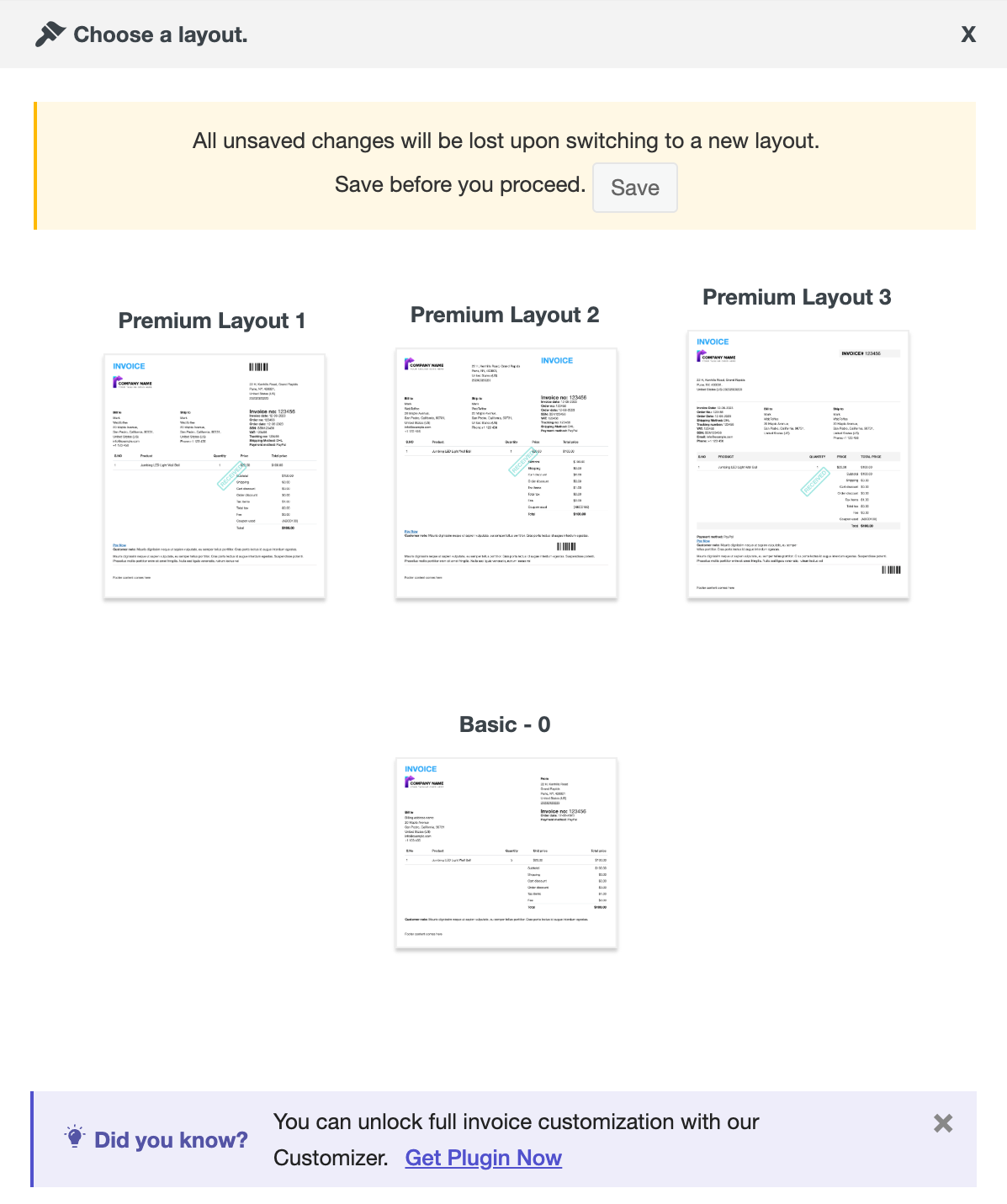
- Assign a name for the invoice template.
- On the right-hand side of the dashboard, configure various items such as document title, VAT number, and more.
- Once you have applied all the branding changes, click Save and activate.

That’s it! You have created reusable invoice templates for WooCommerce. You can also check the Advanced tab to add a custom logo for invoices or a custom footer. Click Update Settings to save changes.
Step 4: Save and Reuse the WooCommerce Invoice Template
Once customized, save the template so it applies automatically to all future invoices. You can also create multiple templates for different customer groups, such as B2B and B2C.
- Click the three-dot icon in the top right corner and select My Templates.

- From the popup window, choose the template you want to activate by clicking the check mark.

- To edit a template, click the pen icon corresponding to it.
Now that we’ve created and customized the WooCommerce invoice template, the next step is to automate invoice generation using this comprehensive WooCommerce PDF Invoice plugin.
Step 5: Automate WooCommerce Invoice Generation
The plugin allows you to automate invoice creation and attach them automatically to order emails.
- Go to Invoice/Packing > Invoice > General
- In the general settings, configure the invoice date.
- Select order statuses like “Processing” or “Completed” in the Automate invoice creation field to automatically trigger invoices.
- Select the same order status in the Attach invoice PDF to selected WooCommerce emails field to auto-attach invoices to emails.

- In the Invoice Number settings, configure the number format and length. You can choose between “Order number” or “Custom number.”

- Once reviewing the remaining invoicing settings, click Update Settings.
You have now successfully created, customized, and automated branded invoice generation in your WooCommerce store using reusable invoice templates.

Designing an invoice is not just about appearance – it is also about clarity, compliance, and customer experience. A few practical strategies can help you create templates that are both professional and functional.
First, keep the design simple and easy to read. Customers should be able to scan key details like order numbers, product names, and totals without effort. Avoid clutter and focus on a clean structure.
Next, make sure all required business details are present. This includes tax numbers, VAT or GST information, and your registered business address. Having these in place reduces disputes and keeps your invoices legally compliant.
Branding is also important. Adding your logo and using your store’s color scheme creates familiarity and reinforces trust with customers. Subtle branding helps maintain a professional image without distracting from essential information.
Another tip is to highlight payment terms. Whether you expect immediate payment or have a set credit period, stating it clearly on the invoice prevents misunderstandings later.
Finally, always test your WooCommerce invoice template before sending it to customers. Generate a sample invoice, review how it looks across different devices, and adjust as necessary.
Reusable invoice templates give WooCommerce store owners a simple way to save time, maintain brand consistency, and stay compliant with invoicing requirements. Tools like Zintego offer ready-made options that keep your logo, branding, and payment details intact across every invoice, helping build trust and credibility with customers. Instead of editing each invoice manually, WooCommerce invoice templates allow you to create one and use it repeatedly, keeping your documents professional and error-free.
With the WooCommerce PDF Invoice plugin, you get pre-built templates, full customization options, and the ability to duplicate designs for different needs. This makes invoice management faster and more reliable while freeing up time to focus on business growth.
Start creating reusable WooCommerce invoice templates today and give your store a professional edge.
That’s a wrap on this guide on setting up and automating invoices using reusable templates using a WordPress PDF invoice plugin. Hope you found the article helpful. Let us know your thoughts in the comments below.


Subcribe to our newsletter





