


Share:


Table of Contents
This guide covers everything you need to know about creating QR code coupons in WooCommerce. You’ll learn how to use the right plugins to generate scannable discount codes that make it easier for customers to redeem offers and help you boost conversions effortlessly.
Want to make your WooCommerce coupons easier to use and more engaging? QR code discounts might be just what you need.
With just a quick scan, customers can instantly access exclusive deals—no need to type in codes or remember coupon names. Whether you’re running an email campaign, sending out flyers, or printing packaging inserts, QR code coupons help you bridge the gap between online and offline promotions.
In this guide, we’ll walk you through how to generate QR code coupons in WooCommerce using powerful plugins that simplify the entire process. From setup to strategy, you’ll learn everything you need to turn scannable discounts into a high-converting marketing tool for your store.
Ready to set up QR code discounts in WooCommerce? Let’s jump in!
Key Takeaways
- Create QR code coupons in WooCommerce to offer scan-to-redeem coupon discounts and simplify the shopping experience.
- Auto-apply coupon via URL in WooCommerce lets customers skip coupon code entry and boost conversions.
- Use QR codes for promotions in WooCommerce across email, flyers, packaging, and in-store banners.
- Easily adopt QR code coupon marketing strategies for WooCommerce using an all-in-one coupon bundle.

QR code coupons are digital discounts that customers can unlock by simply scanning a QR code with their phone. Once scanned, they’re taken directly to a page where the coupon is auto-applied, and no need to type in codes or jump through hoops.
It’s a hassle-free way to deliver promotions. Whether you’re targeting first-time shoppers or rewarding loyal customers, QR code discounts make the entire checkout process faster, smoother, and more engaging.
Isn’t that an awesome way to drive repeat purchases and build customer loyalty?
QR code coupons aren’t just a fun gimmick; they’re a powerful tool to boost sales and simplify the shopping experience. By allowing customers to scan and instantly apply discounts, you remove the friction of manually entering coupon codes at checkout.
When paired with other deals like BOGO offers or welcome coupons, QR code discounts can help strengthen customer loyalty and increase repeat purchases.
Still on the fence? Here’s how QR code coupons can benefit your store:
- Bridge online and offline promotions: Add QR codes to print materials like flyers, brochures, product packaging, or event banners. A quick scan can lead customers straight to a discount on your store.
- Boost retention with email marketing: Include scannable coupon codes in your email campaigns for a seamless, personalized redemption experience that keeps customers engaged.
- Reduce cart abandonment: Make it easy for shoppers to claim offers by scanning instead of typing. You can even add QR code discounts to cart recovery emails to win back lost sales.
- Run location-based offers: Use QR code coupons as part of a location-aware marketing strategy. For example, trigger a flash-sale alert with a scannable discount when shoppers are near your physical store. It’s a great way to attract foot traffic and convert local interest into sales.
- Grow your email list: Want to collect more leads? Offer QR code discounts that require customers to enter their email before unlocking the coupon. This simple step helps you build a solid subscriber list for future promotions and remarketing.
All eager to try this feature in your WooCommerce store to see how well it works for you. But how are you going to do that in your store?
By adding the URL Coupons for WooCommerce plugin, you will be able to easily configure QR code coupons for your WooCommerce store.
QR Code discounts are perfect for offline promotions, packaging inserts, or quick mobile discounts. Here’s how to set up WooCommerce QR code discounts using the URL Coupons plugin.
1: Activate the QR Code Coupon Plugin
Once you install and activate the URL coupons plugin, head over to Marketing > Coupons > Add Coupon to set up WooCommerce QR code coupons. In the opening window, you can add the name of the coupon and its description.
Here we’re going to create a coupon that offers a 50% discount on purchases of shirts.

2: Configure the Discount Coupon
In the general tab, choose Percentage discount from the drop-down and add Coupon amount as “50”.

You can configure the QR code coupons by simply following the three steps given below.
3: Create QR Code Discounts
Your next destination is the URL options tab. Here in the unique URL field, you need to add a parameter that along with your site URL creates a unique URL. Once you enter that, you will be able to preview of the QR code.
Next, in the Select the products to be automatically added to cart upon scanning the QR code, choose a product(s) to be added automatically to the customer’s cart upon activating the coupon via URL or QR code. In this case, let us specify it as a “Shirt”. This means that when the customer scans the QR code to activate dscount, they’ll be redirected to the preset page with the discount automatically applied and the specified product will be added to their cart.
4: Set Up Coupon Redirect Links
Choose the redirect page after applying the coupon. In the after applying, redirect to field, you can choose the page of your WooCommerce store or custom URLs that you want your store visitors to redirect to once they scan the code. In the example, let’s choose the cart page to redirect to after scanning the QR code discount.
Next, enable the Display logo on QR code option, if you want to brand the QR code. To do this, simply upload your logo image.

Now you may click the download button below the QR code to download it. Click on Publish to save the QR code coupon discount.
It’s time for you to promote the newly created QR code coupon via different media platforms by adding the QR code to it. You can go with either online or offline promotions. When customers scan the QR code discount they will be redirected to the cart page of your WooCommerce store as you have configured earlier.
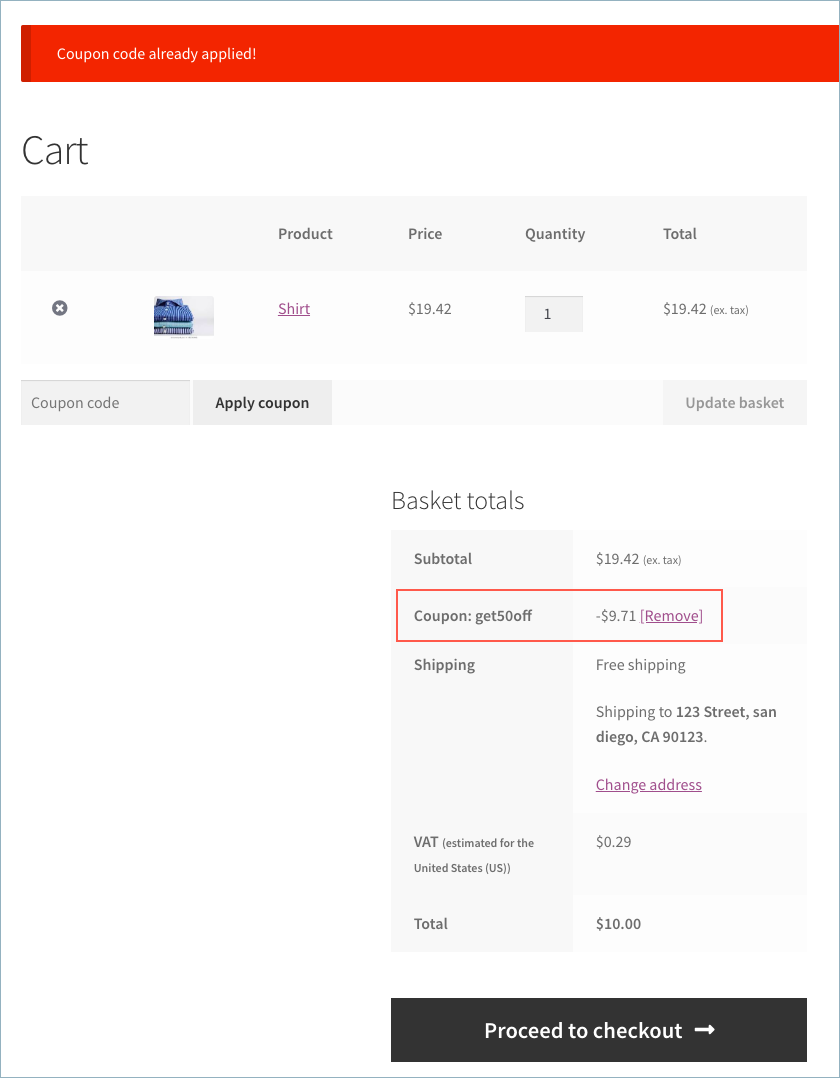
Here is a screenshot of the cart after scanning the above-created WooCommerce QR code discount. The coupon code has already been applied and is reflected in the total cost.
QR code discounts work best when they’re placed where your customers are most likely to scan and designed to grab attention. Here are some creative and effective ways to put them to work:
- Add them to your email campaigns: Embed QR code coupons in promotional emails so customers can simply scan and shop with the discount automatically applied. It’s perfect for flash sales, seasonal promos, and loyalty rewards. Just make sure the coupon link auto-applies to keep things frictionless.
- Feature them on social media: Drop QR codes in Instagram Reels, Facebook Stories, or TikTok videos to send viewers straight to a discounted cart or product page. This also works brilliantly when paired with influencer or affiliate marketing campaigns.
- Use them in print materials: QR codes printed on packaging, flyers, in-store posters, or receipts help you connect offline customers to exclusive online deals. It’s a great way to drive traffic from physical touchpoints to your WooCommerce store.
- Add them to product packaging: Tuck a thank-you card inside your orders with a QR code offering a discount on the next purchase. These surprise perks encourage repeat business and create a more memorable unboxing experience.
- Track performance and optimize: Always monitor how each QR code performs. Add UTM parameters to your URLs or use coupon usage reports to track which channels drive the most redemptions. This data helps you refine your QR code strategy and double down on what works best.
Pro Tip: Don’t forget about the design! A well-designed QR code stands out and is easier to scan. Use high contrast, avoid cluttered backgrounds, and add your logo to boost brand recognition.
Best WooCommerce Plugins for QR Code Discounts: WebToffee’s Coupon Bundle
If you’re looking to simplify your discount strategy while offering more personalized and engaging promotions, pairing Smart Coupons with WooCommerce URL Coupons is a smart move. While URL Coupons help remove friction by auto-applying discounts and directing shoppers to specific pages, the WooCommerce coupon plugin unlocks advanced coupon features like BOGO deals, free gifts with purchases, bulk coupon creation, and detailed cart rules.
With WebToffee’s WooCommerce Coupon Bundle, you can:
- Reward customers with free products for eligible purchases
- Generate and manage various WooCommerce coupon types
- Set smart conditions based on order value, cart contents, or user role
- Run dynamic BOGO and tiered discount campaigns
- Offer store credits and gift card coupons
- Redirect customers to custom URLs
- Add countdown timers and banners to highlight offers
- Assign add-to-cart items to coupon discounts
- And many more.
Here’s how to create one-time redeemable QR code coupons in WooCommerce:
- Install and activate the WebToffee’s WooCommerce Coupon Bundle.
- Navigate to Smart Coupons > Add coupon. Create a new coupon and configure the discount type and amount under the General tab.
- Go to the Usage limits tab and set the usage limit per coupon to “1”. This ensures the coupon is void after a single use.
- Next, go to the URL options tab. Provide a unique URL for the coupon.
- Specify the product(s) to be automatically added to the cart and choose the redirect page after the coupon is applied.
- Download and publish your one-time redeemable QR code coupon.
This way, you can easily create smart QR code coupons and discounts in WooCommerce. This powerful combination helps you create effective, engaging promotions that drive customer interaction and boost sales.
Just imagine how many more sales you make in your WooCommerce store by effectively applying the above coupon strategies to your store and combining them with QR codes.
You can create a QR code for a WooCommerce coupon using a plugin like URL Coupons by WebToffee. After setting up a coupon, the plugin help create a unique URL and QR code for the coupon. When scanned, the code automatically applies the discount and can redirect customers to a specific page or even add products to the cart.
Yes! With URL-based coupons, you can generate clickable coupon links that apply discounts. These links can be shared via email, social media, or as QR code discounts.
QR code discounts are a great way to connect online and offline promotions. They’re especially useful in print ads, packaging inserts, and in-store displays. Since customers can scan and redeem discounts instantly, QR coupons reduce friction, improve accessibility, and boost mobile engagement.
QR code coupons are a smarter, faster way to connect your customers with irresistible offers. By blending automation with ease of use, these scan-to-redeem discounts help streamline the shopping experience, cut down cart abandonment, and open up new marketing possibilities across both online and offline channels.
Whether you’re sending QR codes through email, adding them to packaging, or printing them on flyers, the impact is real and measurable. And with the right tools like WooCommerce URL Coupons and Smart Coupons, setting it all up is simpler than ever.
If you’re ready to boost conversions, delight your customers, and turn every scan into a sale, now’s the perfect time to start creating your own WooCommerce QR code coupons.
Give it a go, and watch how something as small as a square code can make a big difference in your store’s performance.


Subcribe to our newsletter


