Share:


Table of Contents
Turn your YouTube content into a shopping experience. Learn how to connect WooCommerce with YouTube Shopping using Google for WooCommerce and showcase products where customers are already watching.
Product discovery is shifting to video. Today, shoppers use YouTube to watch reviews, tutorials, Shorts, live demos, and product comparisons before making a purchase. As the world’s second-largest search engine, YouTube has become a major product discovery platform, with viewers watching more than 35 billion hours of shopping-related content last year alone.
For WooCommerce merchants, this creates a valuable opportunity to reach customers where they’re already spending time. With YouTube Shopping, you can connect your WooCommerce store directly to YouTube and showcase products in videos, Shorts, live streams, and your channel’s Shopping tab.
The process is made easier with the Google for WooCommerce extension, which connects your store to Google Merchant Center and syncs your product catalog across Google surfaces, including YouTube.
In this guide, we’ll walk you through what YouTube Shopping is, how Google for WooCommerce works, and how to set everything up so you can start turning video engagement into sales.
YouTube Shopping is a feature that lets merchants and creators showcase and tag products directly within YouTube content. Instead of simply watching videos, viewers can discover products while watching and click through to purchase them from the merchant’s online store.
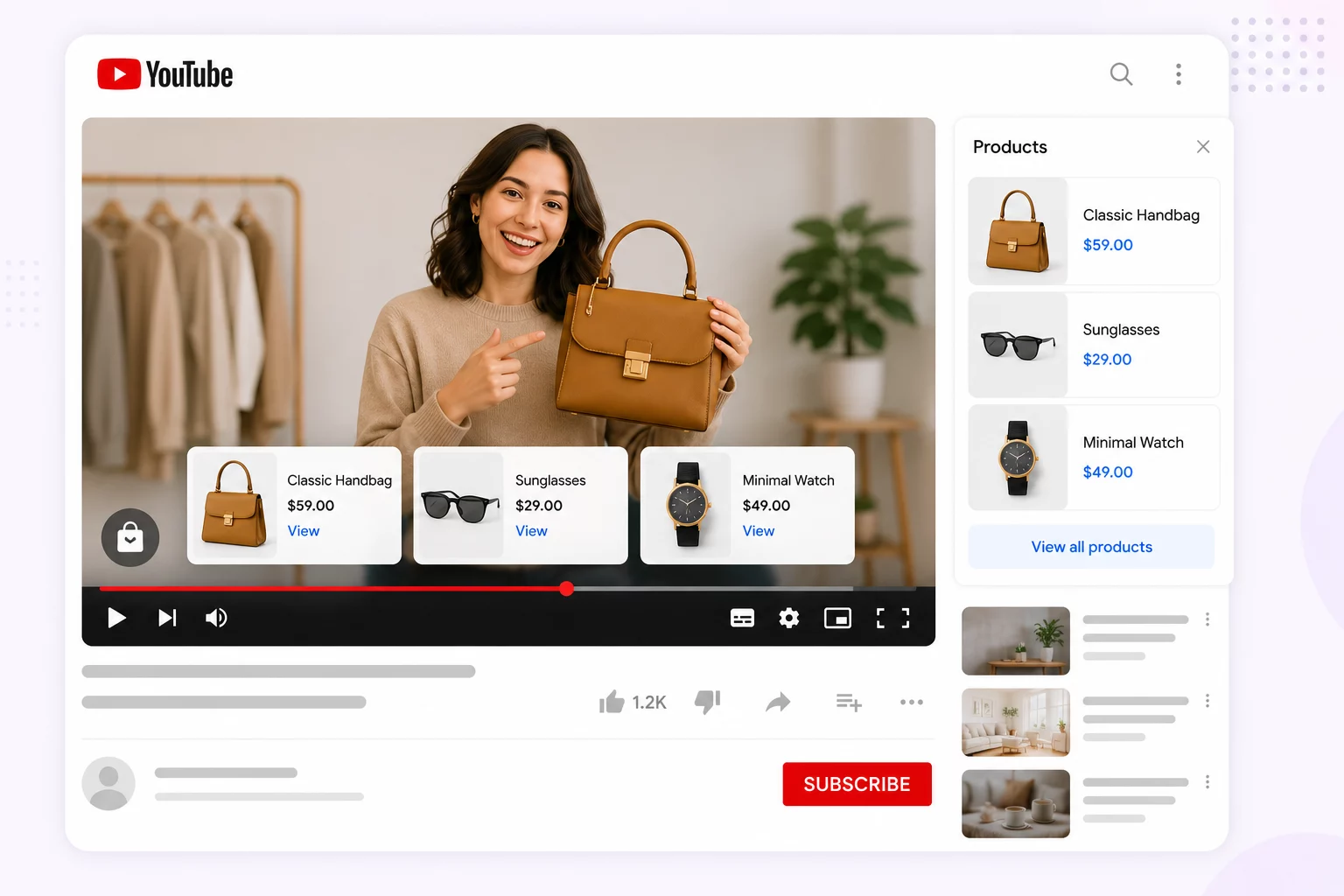
With YouTube Shopping, products can appear in:
- YouTube videos
- Shorts
- Live streams
- The channel’s Shopping tab
This makes YouTube more than just a video platform; it becomes a product discovery and shopping channel.
For eCommerce businesses, YouTube Shopping helps connect content with commerce. A customer watching a product review, tutorial, unboxing, or live demo can instantly explore the featured products without leaving the viewing experience.
For WooCommerce merchants, YouTube Shopping works by syncing your product catalog through Google Merchant Center using the Google for WooCommerce extension. Once connected, eligible products can be featured across YouTube content, helping turn video engagement into store traffic and sales.
Google for WooCommerce is the official WooCommerce extension that connects your WooCommerce store with Google Merchant Center and other Google services. It helps merchants sync their product catalog to Google so products can appear across Google Shopping, Search, YouTube, Gmail, Display, and other Google surfaces.

The plugin automatically sends important product data from your WooCommerce store, such as product titles, descriptions, prices, images, availability, and inventory, to Google Merchant Center. This makes it easier to keep product listings up to date across Google platforms without manually uploading feeds.
For WooCommerce merchants, Google for WooCommerce acts as the bridge between their store and Google’s shopping ecosystem. It also enables features like:
- Product sync with Google Merchant Center
- Free product listings on Google
- Google Shopping integration
- Performance Max campaign support
- Product visibility on YouTube Shopping
- Conversion tracking with Google Ads
In the context of YouTube Shopping, Google for WooCommerce is what allows your WooCommerce product catalog to become available on YouTube. Once connected, eligible merchants can feature products in videos, Shorts, live streams, and their channel’s Shopping tab.
Here’s how the setup works behind the scenes:
WooCommerce store → Google for WooCommerce → Google Merchant Center → YouTube Shopping
Google for WooCommerce acts as the connector between your WooCommerce store and Google’s shopping ecosystem. The plugin syncs your WooCommerce product catalog to Google Merchant Center, including product details such as titles, descriptions, prices, images, availability, and inventory.
Once your store, products, Merchant Center account, and YouTube channel meet Google’s eligibility requirements, those synced products can become available for YouTube Shopping.
This means products featured in your WooCommerce store can appear as shoppable product cards during YouTube video playback, inside Shorts, during live streams, and within your channel’s Shopping tab. When viewers click on these products, they are redirected to your WooCommerce store to complete the purchase.
Follow these steps to connect your WooCommerce store to Google and prepare your products for YouTube Shopping.
Requirements Before Setting up WooCommerce with YouTube Shopping
Before you begin, make sure you have the following:
1. A working WooCommerce store
Your store should have:
- Published products
- Accurate product titles and descriptions
- High-quality product images
- Correct prices
- Updated stock status
- Shipping settings
- Tax settings, where applicable
- Store policies such as refunds, returns, privacy policy, and terms
2. A Google Merchant Center account
Google Merchant Center is the platform where Google receives, reviews, and manages your product data. Google for WooCommerce can help you create or connect a Merchant Center account during setup.
3. The Google for WooCommerce extension
Install the official Google for WooCommerce extension from your WordPress dashboard or WooCommerce Marketplace.
4. An eligible YouTube channel
To use YouTube Shopping for your own products, your YouTube channel must meet certain eligibility requirements. These typically include:
- Being part of the YouTube Partner Program (YPP)
- Meeting YouTube’s required subscriber threshold or being an Official Artist Channel
- Not being marked as Made for Kids
- Not having a large number of videos marked as Made for Kids
- Not having active Community Guidelines violations or related policy issues
Since eligibility can vary based on factors like country, channel type, account status, and YouTube policy updates, it’s best to review the latest requirements in YouTube Studio or the official YouTube Help documentation before setting up YouTube Shopping.
Step 1: Connect Google for WooCommerce to Google Merchant Center
In the Google for WooCommerce setup screen, connect the Google account you want to use for Merchant Center and Google Ads.
WooCommerce’s setup documentation says you need to connect your Google account, agree to the terms, and grant the required permissions. It also notes that failing to grant the requested authentication scopes can prevent the extension from working properly.
For this:
- In your WP dashboard, go to Marketing > Google for WooCommerce

- Click Sell more on Google and sign in with your Google account
- Click the Google Connect button, agree to the terms, and sign in with your Google account. This connects your Google account with Google Merchant Center and Google Ads.

Important: You must grant all requested authentication scopes/permissions. Failure to grant all of them will prevent you from using the extension.
If you already have a Merchant Center account, Google for WooCommerce can detect it and allow you to connect it. If you do not have one, you can create a new account during the setup process.
Verify that your account details and account IDs are correct. If the details are correct, click the Connect button next to your Merchant Center and Ads account IDs. If the fetched account is incorrect, update it manually to the correct ID. You can find the respective account IDs in your Google account.
Step 2: Configure Product Listings
In Google for WooCommerce, configure the settings required to send your WooCommerce products to Google.
a. Choose Target Audience
Select your target country or countries. Your eligible and approved products will be shown in all supported countries. Your store should already have the appropriate shipping and tax rates for potential customers in your selected locations.
b. Set Up Shipping Rates
You have three options for shipping rates:
- Recommended: Automatically sync my store’s shipping settings to Google. This allows the plugin to automatically synchronize your WooCommerce shipping settings with Merchant Center, so any changes you make in WooCommerce are submitted automatically.
- My shipping settings are simple. I can manually estimate flat shipping rates: You’ll need to enter estimated shipping rates for all countries in your target audience.
- My shipping settings are complex. I will enter my shipping rates and times manually in Google Merchant Center.
c. Shipping Times
You must also enter an estimated shipping time in days for all countries in your target audience. If you don’t, the Save changes button will remain disabled, and you won’t be able to proceed.
d. (Optional) Create a Google Ads Campaign
You can set up a Performance Max campaign during onboarding. You can get started right away or skip it and complete the setup first. Note that you will need to set up billing information on newly created Ads accounts to complete the campaign setup.
Once done, click Complete Setup, and you’ll see a confirmation that your setup is finished.
Step 3: Connect Your YouTube Channel
Once you’ve updated the extension, go to Marketing > Google for WooCommerce > Settings to connect your YouTube channel.
- In that Settings page, look for the YouTube section
- Click Connect YouTube Channel
- Sign in with the Google account associated with your YouTube channel
- Grant the necessary permissions
- Select your YouTube channel from the list and confirm
Your WooCommerce product catalog (already synced to Merchant Center) is now the source for all YouTube Shopping tags.
Step 4: Review & Optimize WooCommerce Product Feed
Your product feed is only as strong as your WooCommerce product catalog. Before relying on YouTube Shopping, review your products carefully.
Product titles: Use clear, searchable titles. Include important details such as brand, product type, variant, color, size, material, or key feature where relevant.
Example:
Instead of: Classic Hoodie
Use: Men’s Classic Cotton Hoodie – Black
Product descriptions: Write descriptions that help both shoppers and Google understand the product. Avoid thin, duplicate, or overly promotional descriptions.
Product images: Use high-quality images that clearly show the product. Since YouTube is a visual platform, product images should match the expectations set by your videos. For video-based product demonstrations, background removal can also help create cleaner visuals that keep the focus on the product.
Prices and availability: Keep prices, sale prices, and stock status accurate. One of the benefits of Google for WooCommerce is that synced product data keeps inventory and pricing consistent across listings.
Product identifiers: Where available, add product identifiers such as:
- GTIN
- Brand
- MPN
These help Google understand your products and match them correctly across shopping experiences.
Step 5: Tag Products in YouTube Content
After your store is connected, you can start tagging products across four surfaces:
1. Long-Form Videos
2. YouTube Shorts
3. Channel Shopping Tab
4. Live Streams
YouTube’s tagging guidelines say products should be easily identifiable, prominently featured, meaningfully related to the content, and used as intended.
Refer to this YouTube help documentation to tag products when uploading a new video.
Step 6: Verify Everything is Working
Go to Google Merchant Center and check your product listings. Make sure your products are approved, active, and free from policy issues, disapprovals, or pending updates.
Next, open YouTube Studio and choose a video with tagged products. Preview the video to confirm that the product shelf appears correctly and that the products are visible to viewers.
Then, click the product links shown in the product shelf. Make sure each link takes users to the correct product page on your WooCommerce store.
The next step is to make sure your product feed stays accurate and optimized. YouTube Shopping relies on the product data submitted to Google Merchant Center, so any mismatch in titles, prices, images, stock status, or product attributes can affect how products appear to shoppers.
While the Google for WooCommerce extension handles the basic product sync, you can use an additional WooCommerce product feed extension to gain more control over how your product data is shared across different sales channels.
The WooCommerce Product Feed Plugin by WebToffee supports 25+ sales channels, including Google Merchant Center, Facebook, Instagram, TikTok, Pinterest, Bing, and more. It helps you generate optimized product feeds directly from your WooCommerce store with key product details such as titles, descriptions, prices, images, stock availability, categories, and product identifiers.

This is especially useful when you want to customize feed attributes, map WooCommerce fields to channel-specific requirements, exclude selected products, or maintain cleaner and more accurate product data.
By keeping your product feeds complete and optimized, you can improve product approval chances and ensure your products are displayed correctly across Google surfaces, YouTube Shopping, and other supported sales channels.
Yes. WooCommerce products can be sold on YouTube by connecting your store to Google Merchant Center using the Google for WooCommerce extension. Once connected, eligible products can appear in YouTube videos, Shorts, live streams, and the Shopping tab, allowing viewers to discover and purchase products directly from your WooCommerce store.
YouTube Shopping itself is free to use for eligible merchants and creators. However, you’ll need a WooCommerce store, a Google Merchant Center account, and a connected YouTube channel that meets YouTube Shopping eligibility requirements. Optional paid advertising campaigns through Google Ads may involve additional costs.
Yes. Google Merchant Center is required for YouTube Shopping because it stores and manages your product data. Your WooCommerce products are synced to Merchant Center through the Google for WooCommerce extension, making them available for product tagging and display across YouTube content.
Yes. Eligible merchants and creators can tag products in YouTube Shorts. Once your WooCommerce store is connected through Google Merchant Center and YouTube Shopping is enabled, you can feature and tag products directly in Shorts to help viewers discover and shop your products more easily.
Conclusion
YouTube Shopping is still fairly new for many WooCommerce stores, which gives early adopters a great chance to get ahead of the competition. By connecting your WooCommerce store to YouTube through Google for WooCommerce, you can turn your videos, Shorts, and live streams into opportunities for product discovery and sales.
But setting it up is only the beginning. To get better results, keep your product feed updated with accurate titles, images, prices, and stock information. A WooCommerce Product Feed plugin can help you manage and optimize your product data more easily for Google Merchant Center and YouTube Shopping.
After setup, spend some time tracking how your products perform in YouTube Studio and Google Merchant Center. See which videos drive the most clicks and which products get the most attention, then adjust your content and product tagging strategy over time. With consistent optimization and engaging content, YouTube Shopping can become a valuable sales channel for your WooCommerce store.


Subcribe to our newsletter