With WebToffee’s WooCommerce PDF Invoices, Packing Slips, and Credit Notes plugin, resetting plugin settings helps troubleshoot and remove unintended changes. It also gives users a fresh start, preventing confusion or mistakes from earlier customizations. Users can use the debug module to reset the general plugin settings, document type settings, and templates. To reset the plugin settings to default:
- Activate the Debug module.
- Reset Settings.
Step 1: Activate the Debug module
To activate the debug module:
- Navigate to Invoices/Packing > General Settings
- Append ‘&debug‘ to the general settings URL as shown below.

- Refresh the page.
The debug module will appear as a new tab as shown below:

Step 2: Reset settings
To reset the plugin settings to default:
- Navigate to the newly created Debug tab.
- Under the Debug tab, head to Reset all settings to default option.
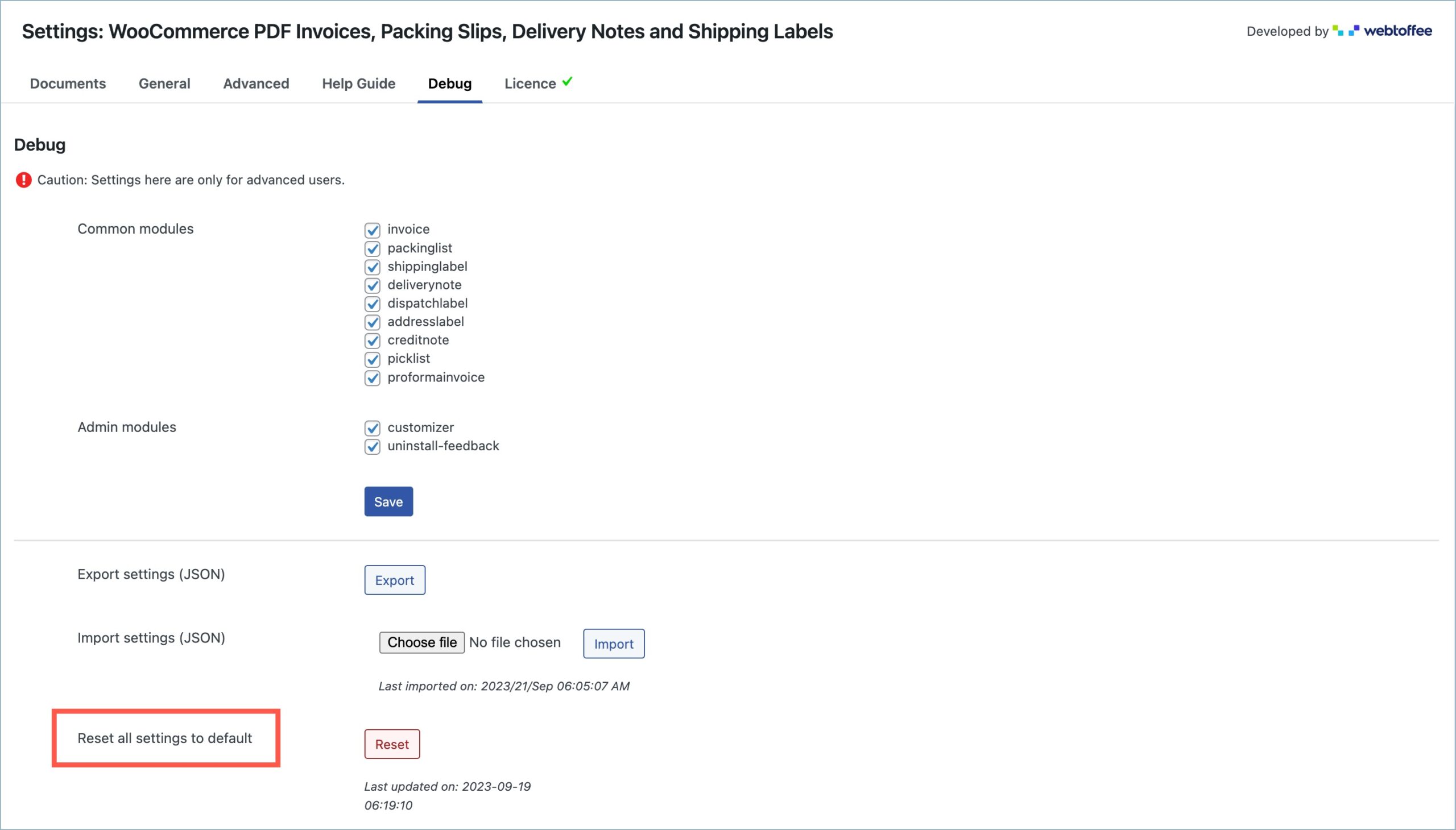
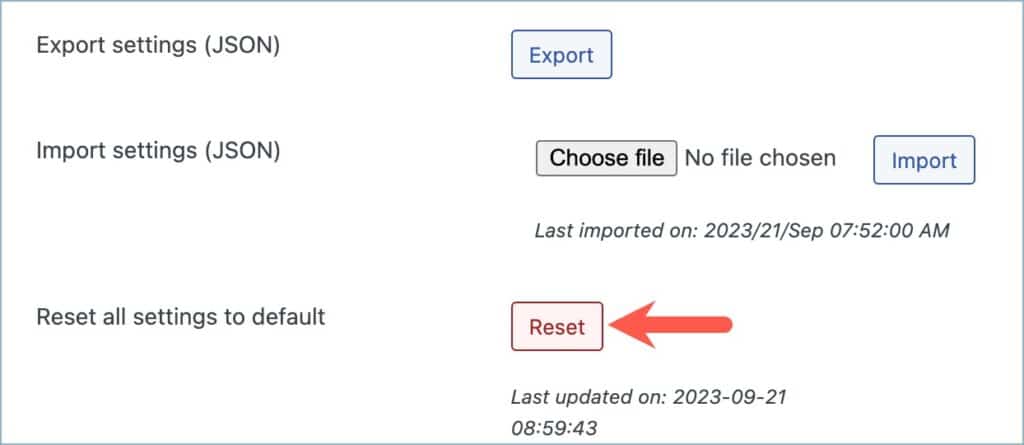
- Click on Reset.
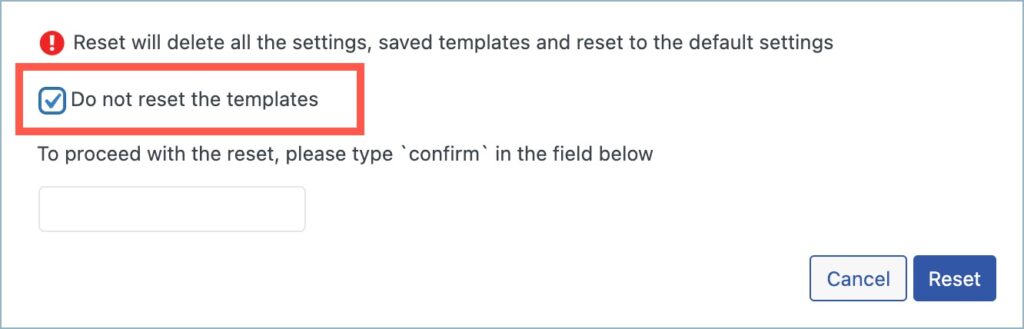
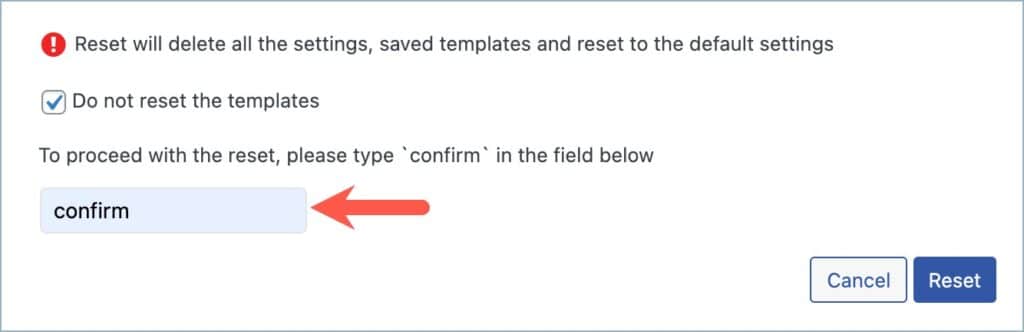
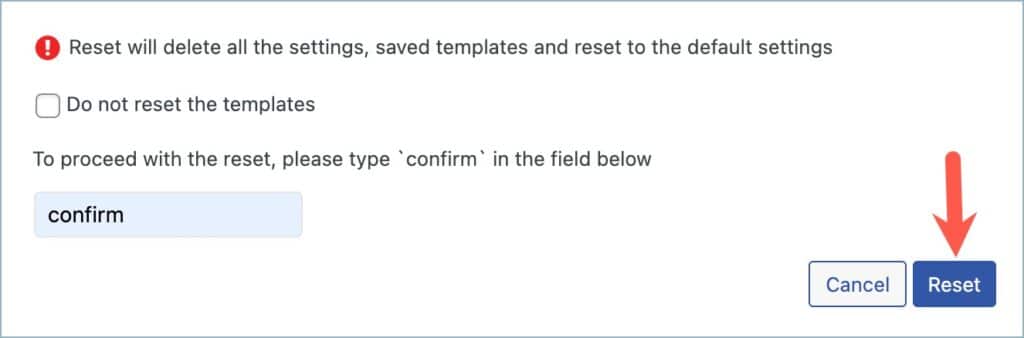
Upon clicking ‘Reset‘, a dialog box will pop up, featuring a checkbox to preserve templates and a text field for confirmation.
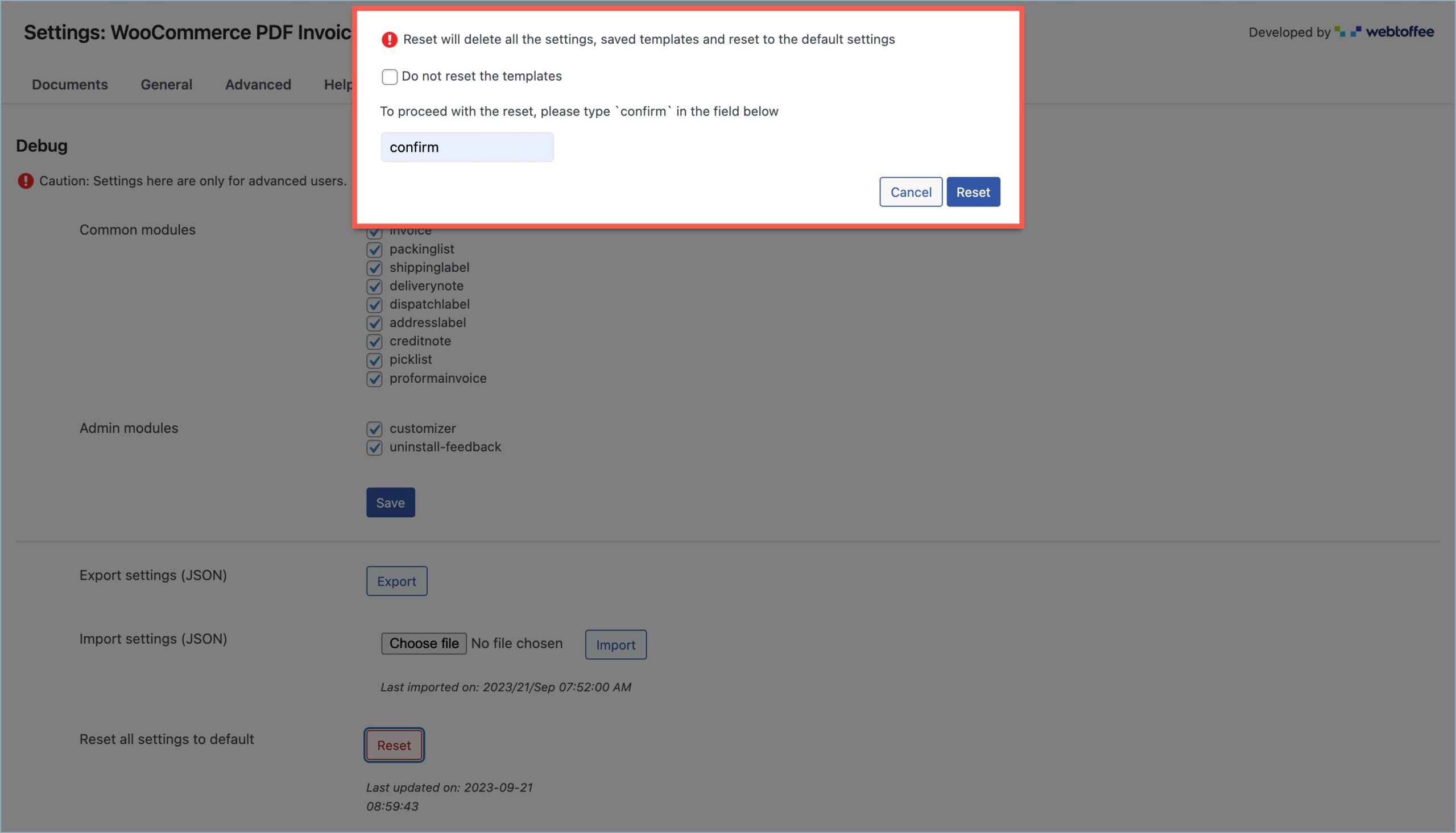
- Mark the checkbox to preserve the templates. Leave it unchecked to reset them.
- Type ‘confirm’ in the text field provided.
- Click on Reset.
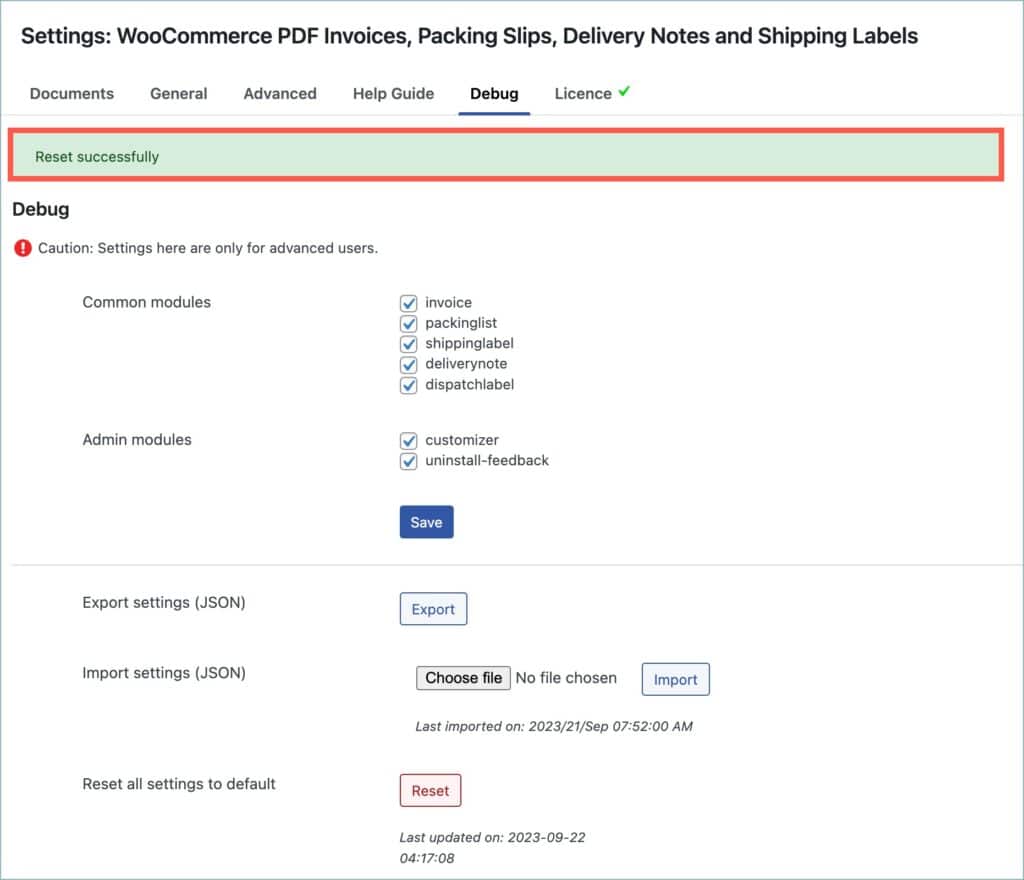
After a successful reset, the plugin will display a ‘Reset successfully‘ message.