


Start selling the products by creating your own Facebook shop. Integrate your WooCommerce store products with Facebook using the WebToffee Product Feed plugin by editing the mapped category from the product category settings. This allows you to update how your store categories are mapped to Facebook catalog categories.
Category Mapping
As a new user, one can map the Facebook Category with the Store Categories all in one go. Under Facebook Category, map the required categories and save the mapping.
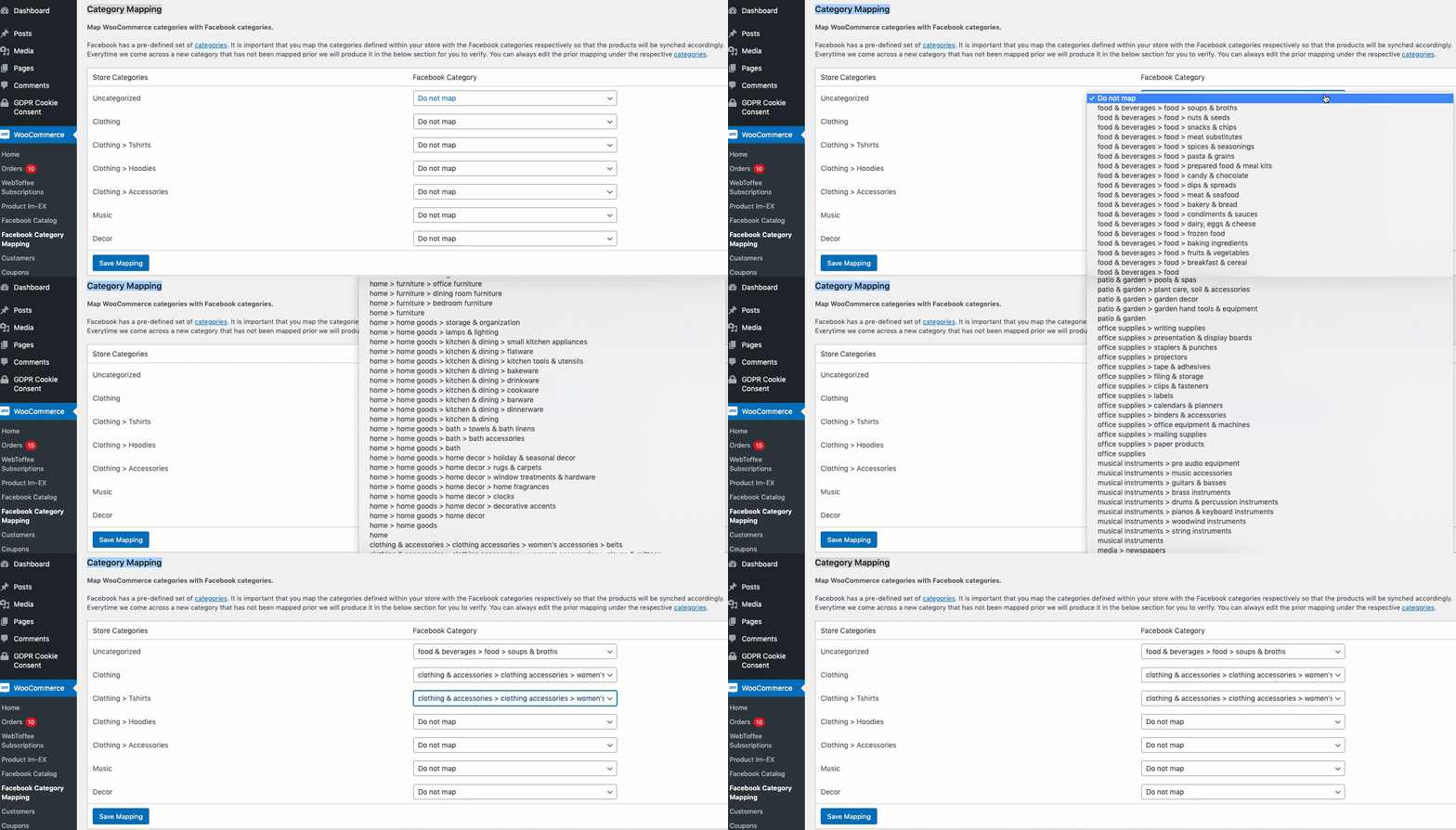
Category Mapping during product synchronization
Another method to map the categories on connecting to your FB account is during product synchronization. To map in this method :
- Navigate through WooCommerce > Facebook Catalog.
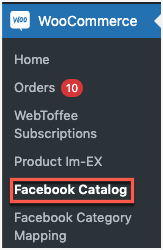
- Under Manage Connection, connect to your Facebook account.
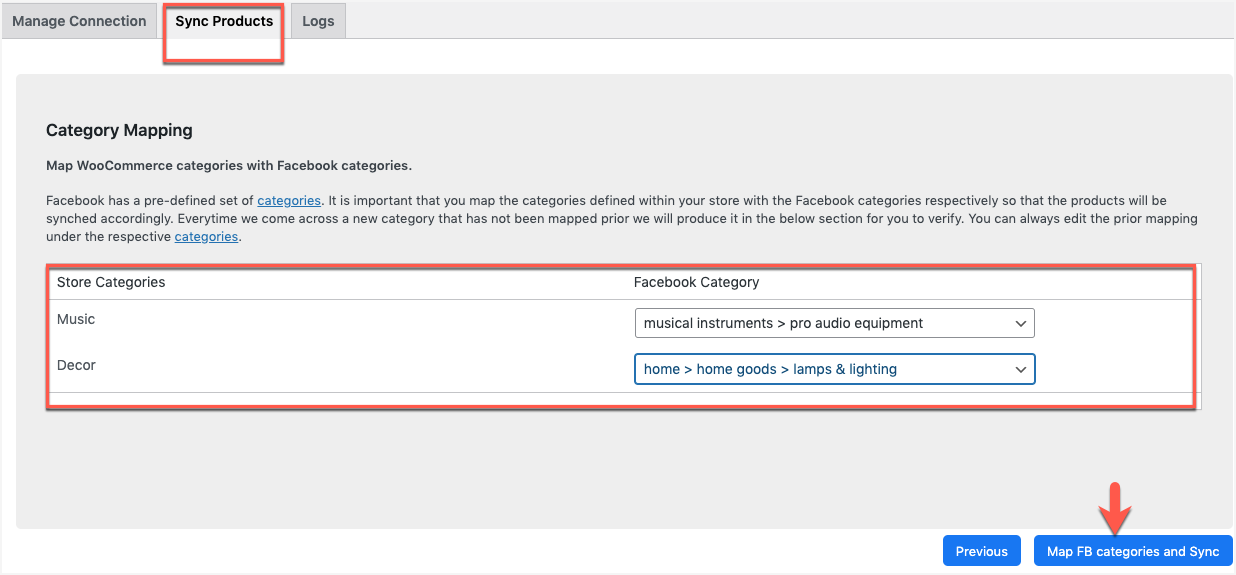
- Move to the Sync Products tab and filter the products.
- Click on Next and do the necessary category mapping.

- Click on Map FB categories and Sync to finish.
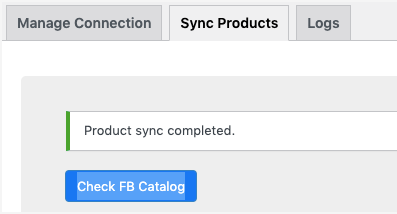
- Check the FB catalog to view the changes.

Modifying Category Mapping
To modify the mapped categories:
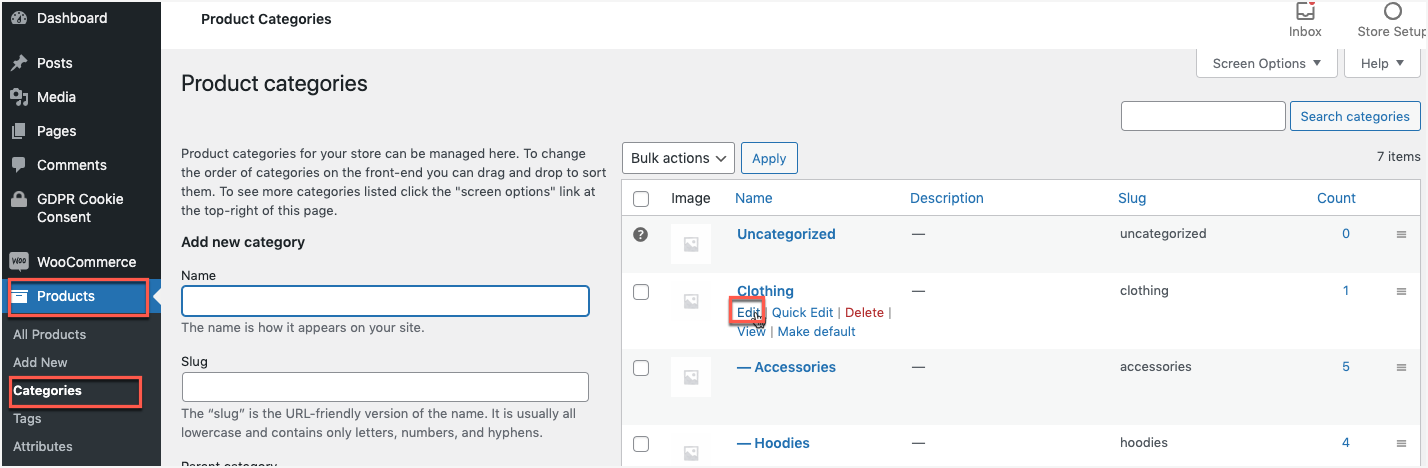
- From the WP admin panel, navigate to Products>Categories.
- Edit the category you want to modify.

- In the Edit category page, select the required category under Facebook Category.
- Click on Update to save changes.
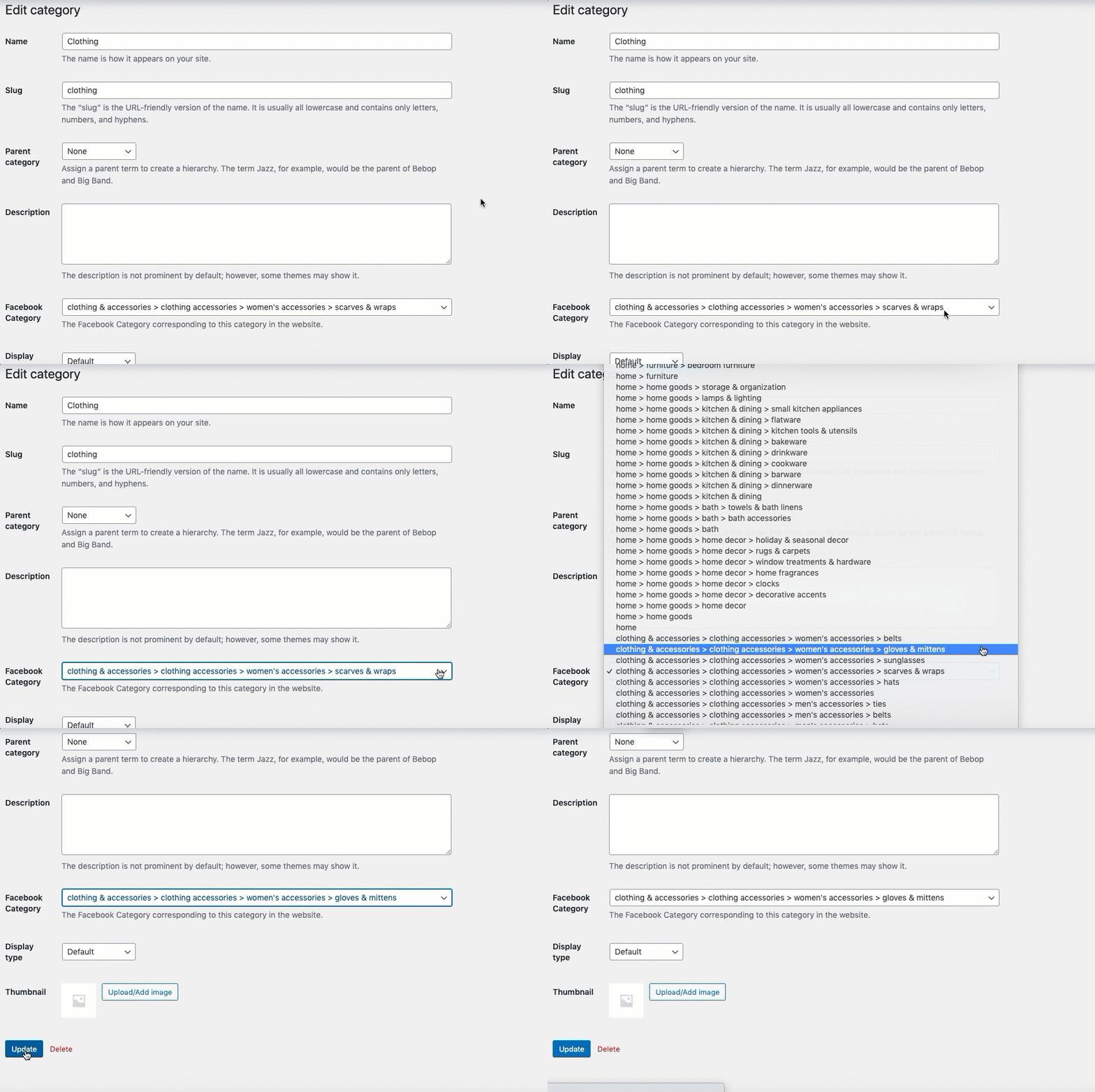
Thus, the Facebook mapped categories have been modified successfully.
