


Product feeds for sales channels that do not require category mapping can be generated using the WooCommerce Product Feed Plugin by WebToffee. The process involves configuring feed settings, mapping attributes, and generating the feed.
Quick steps to generate a product feed:
- Fill in the required details for creating a new feed.
- Map the attributes.
- Generate the feed.
List of sales channels without category constraints
- Idealo Shop
- Google Local Product Inventory
- Google Promotions
- Google Product Reviews
- Buy on Google
- PriceRunner Shop
- Skroutz Shop
- Vivino feed
On successful installation and activation, the WebToffee Product Feed menu will appear on the admin dashboard as shown. Click on Create new feed.
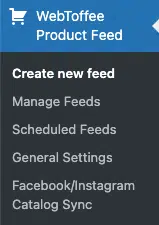
Generating feed without Category mapping
Step 1: Create a new feed
This step enables to create new feed for the required channel.
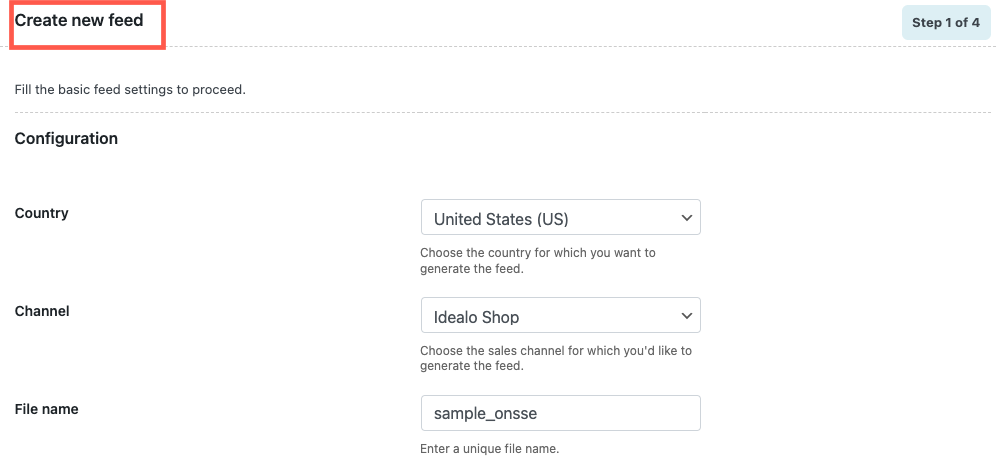
- Under Configuration, configure the basic feed settings. The below added image shows configurable options in step 1 with the channel as Idealo Shop.
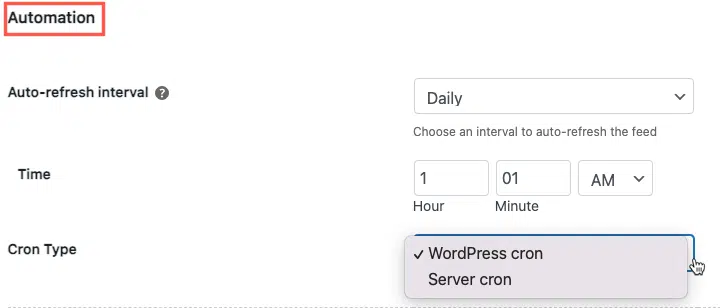
- Under Automation, specify the Auto-refresh interval and Cron Type.
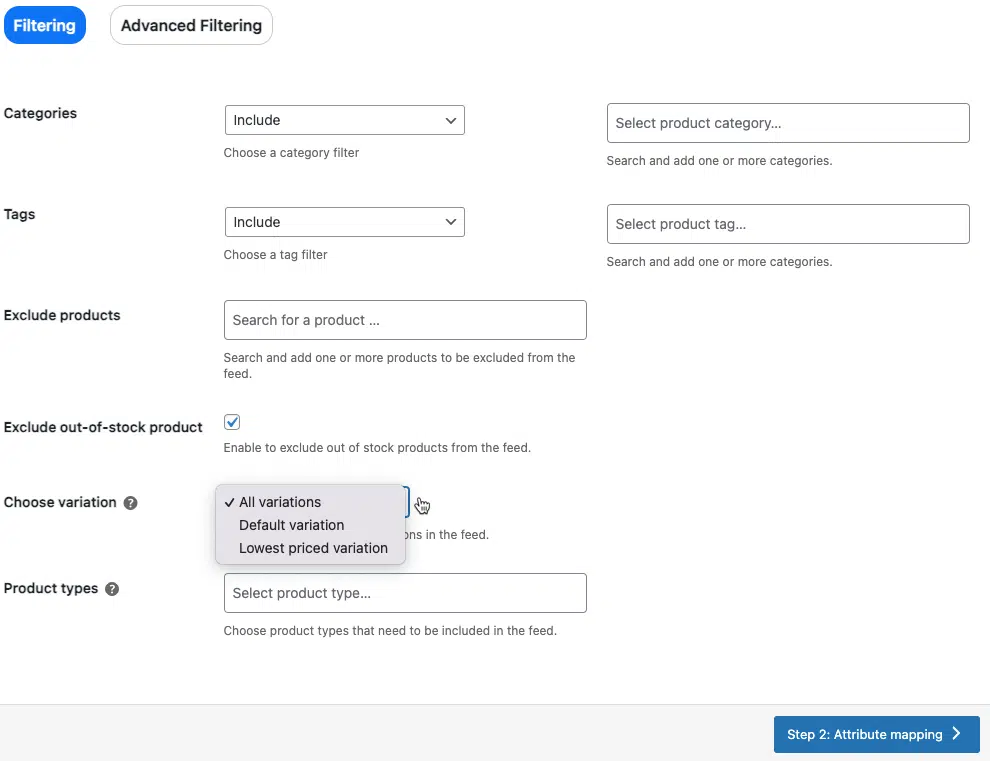
Next comes Filtering and Advanced Filtering. This section includes or exclu store products from feed based on several criteria.
- Under Filtering, filter the data based on the available options.
- Under Advanced Filtering, specify the conditions as required. The below-added images shows creating a feed having product ID 10.
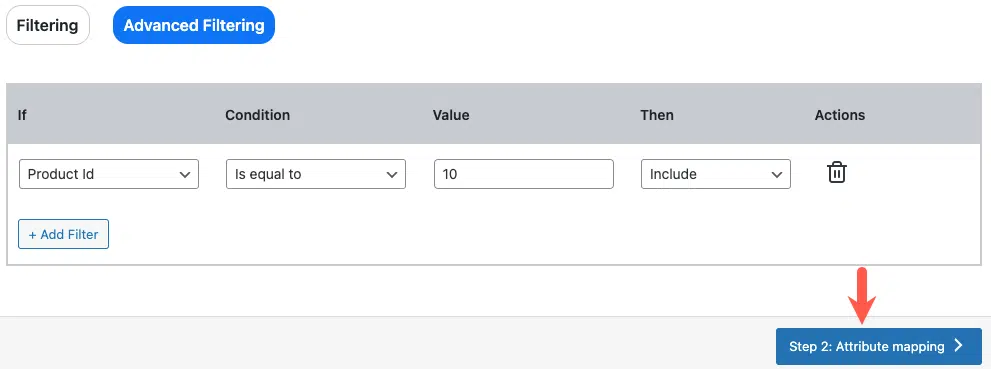
Once all the basic feed settings are done, click on Step 2: Attribute mapping.
Step 2: Attribute mapping
Store owners can choose the corresponding WooCommerce Product Fields for the chosen channel’s attributes. The required fields will be auto-mapped. The Attribute mapping page of the Idealo Shop is given below.
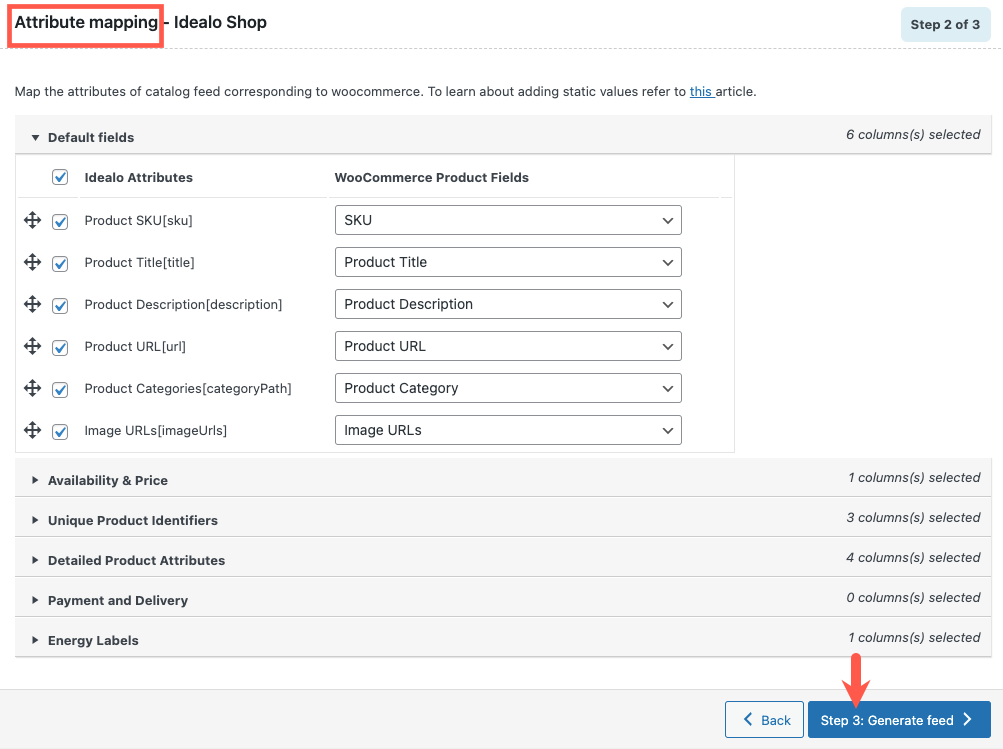
Once the attributes are mapped, click on Step 3: Generate feed.
Step 3: Generate feed
This is the final step in creating the feed. Specify the required details and click on Generate to finish.
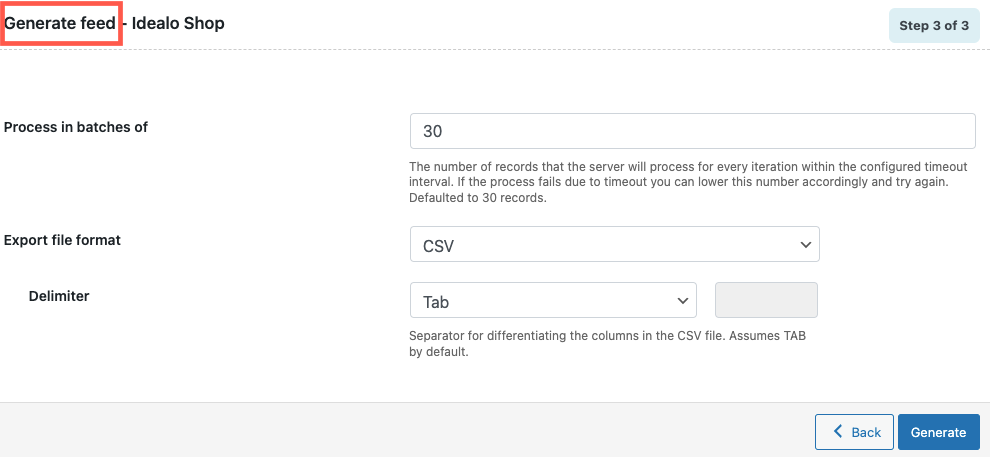
For a detailed step-wise procedure, refer to Creating new feed. On successful feed generation, a pop-up will appear as shown below.
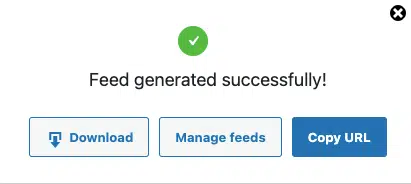
Copy URL for later use. This URL can be used to set up the feed in the respective business account.
