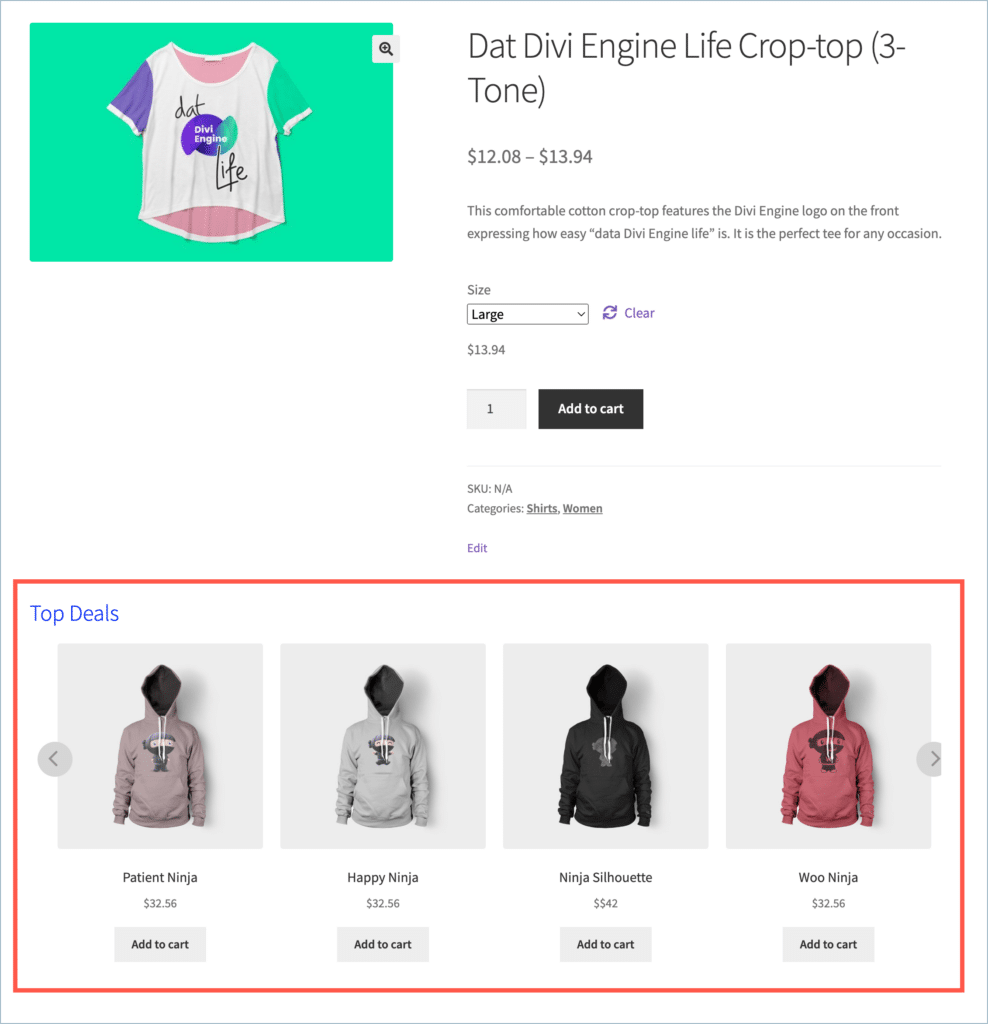
The WebToffee WooCommerce Product Recommendations plugin provides precise control over your recommendation widgets by filtering items by price range. To configure this, navigate to WooCommerce > Product Recommendations > Create New Recommendation and select the ‘Create your Own Recommendation’ and access the ‘Product to be recommended’ section within your campaign settings. From here, you can define specific price thresholds using ‘Greater than,’ ‘Less than,’ or range-based filters to ensure customers see suggestions that match their spending preferences or to target high-value upsell opportunities.
Setting up recommendations
To begin:
- From the WordPress dashboard, navigate to WooCommerce > Product Recommendations.
- Click on Create new recommendation.

- From the recommendation templates page, select Create your own product recommendation.
- Configure the recommendation as needed. For detailed information on how to customize your recommendation, refer to the article, Generic Steps to Create a Custom Product Recommendation.
Recommend products above a specific price point
After configuring the recommendation as required:
- Scroll down to the Product to be recommended section.
- Select the Product price option from the drop-down.
- To display the products above a specified price point as recommendations, select the option “Greater than or equal” from the 2nd drop-down.
- Specify the price point in the text field as shown:
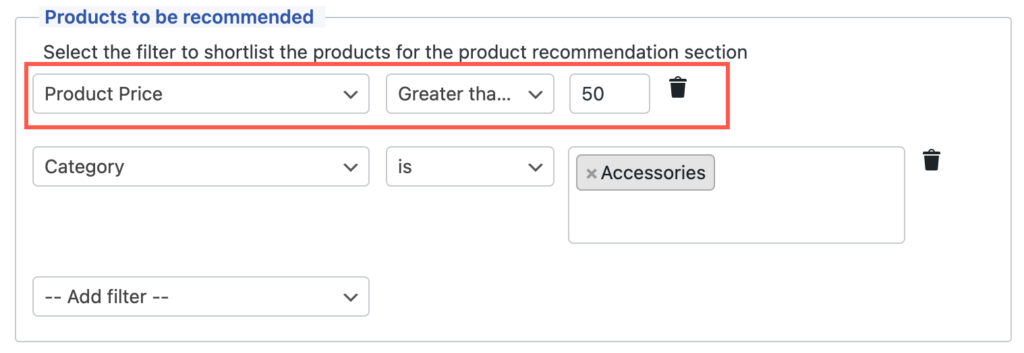
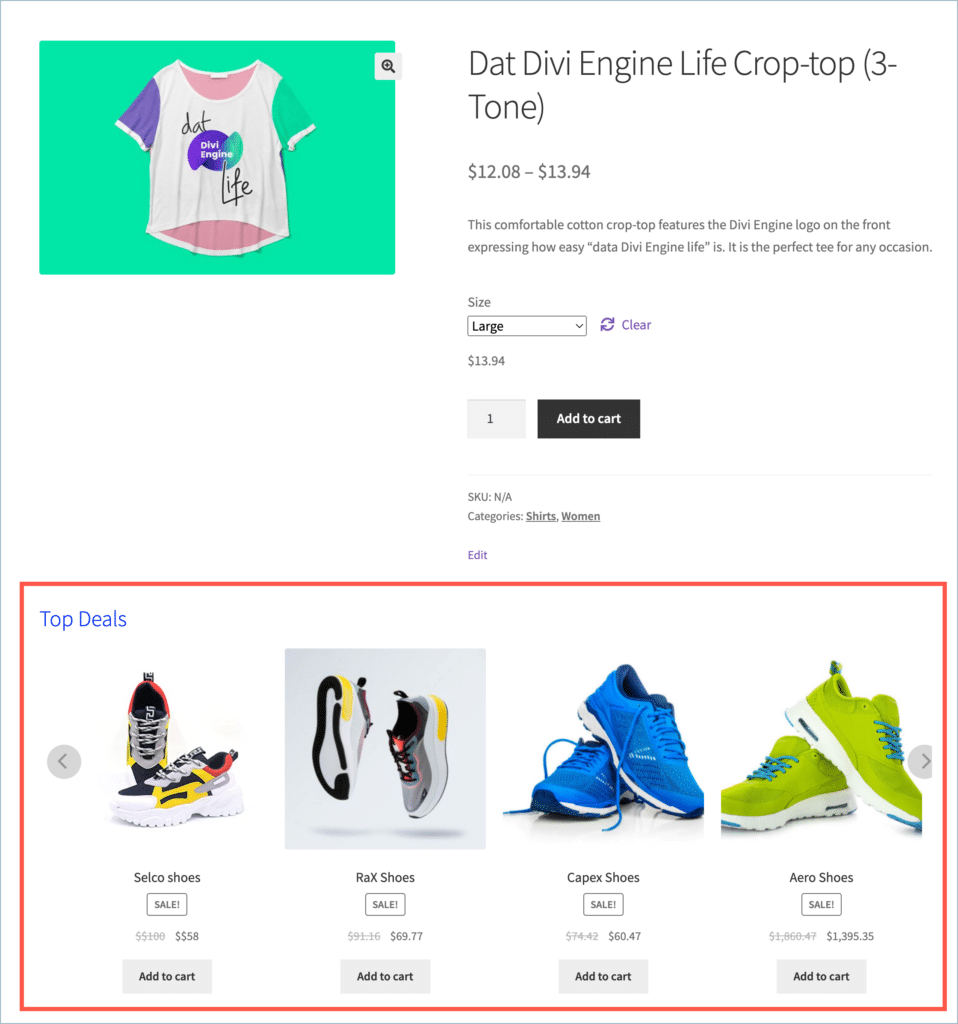
- Save changes. In the example shown, the recommendation section will display products from the Accessories category with a value of $50 or more.
Recommend products below a specific price point
After configuring the recommendation as required:
- Scroll down to the Product to be recommended section.
- Select the Product price option from the drop-down.
- To display the products below a specified price point as a recommendation, select the option Less than from the 2nd drop-down.
- Specify the price point in the text field as shown:
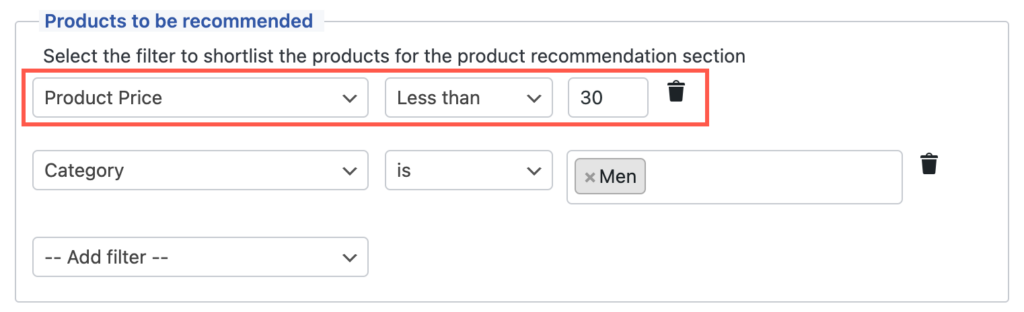
- Save changes. In the example shown, the recommendation section will display products from the Men’s category with a value of $30 or less.
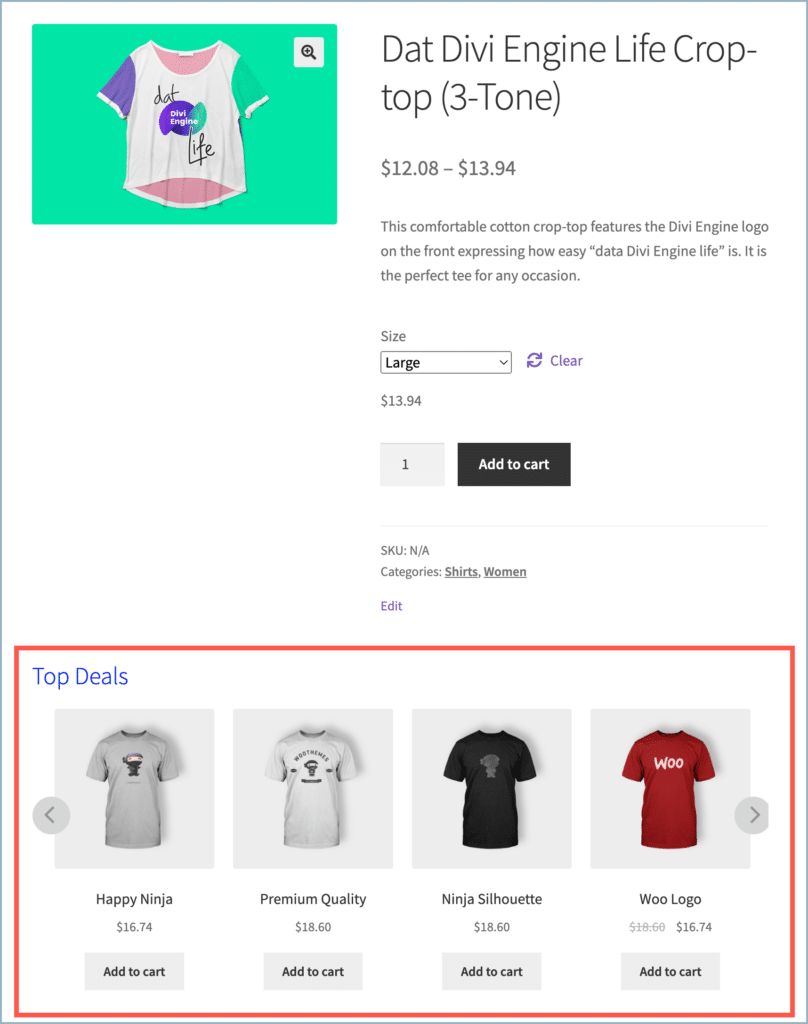
Recommend products within a specific price range
After configuring the recommendation as required:
- Scroll down to the Product to be recommended section.
- You need to set upper and lower limits to display recommendations within a specific price range.
- First, select the Product price option from the drop-down.
- Set the lower limit by selecting the option Greater than or equal from the 2nd drop-down.
- Specify the lower limit in the text field as shown below.
- Add another filter by selecting the same Product price option as shown below.
- Set the upper limit by selecting the option Less than from the 2nd drop-down.
- Specify the upper limit in the text field as shown below.
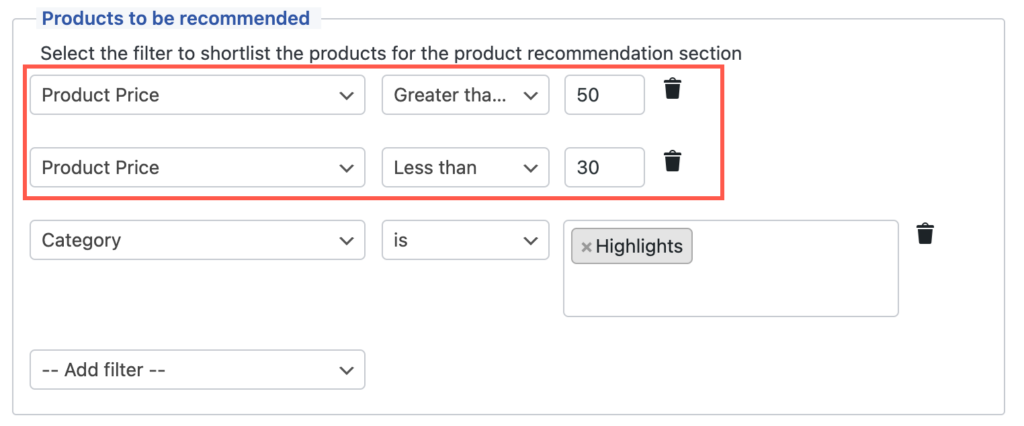
- Save changes. In the example shown, the recommendation section displays products from the Highlights category in the $30-$50 price range.