The WebToffee URL Coupons for WooCommerce plugin simplifies your marketing by creating shareable links and QR codes that automatically apply discounts at checkout. To begin, navigate to Marketing > Coupons in your WordPress dashboard and open the ‘URL options’ tab within any coupon. From here, you can generate a unique URL, choose a custom redirection page, and even automatically add specific products to the customer’s cart when the link is clicked.
Features offered
- Unique URL linked with coupons.
- QR code for each URL created.
- Redirect to the custom page after applying the coupon.
- Add a product to the cart by clicking the link.
- Add your logo to the QR code
Getting started
- Begin by installing and activating the plugin.
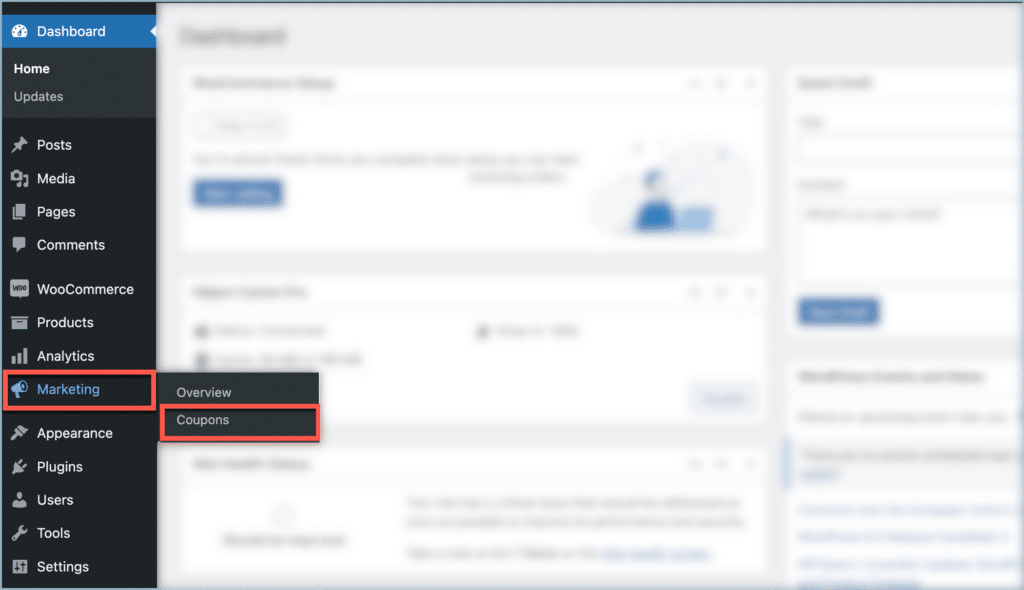
- From the WordPress dashboard, navigate to Marketing > Coupons.
Setup and configuration
The default WooCommerce Coupon data meta box contains the configuration options for URL Coupons.
- To create a new URL coupon, click on Add coupon.
- To embed an existing coupon with a URL, click on the coupon to edit.
- Under the Coupon data meta box, navigate to the URL options tab.
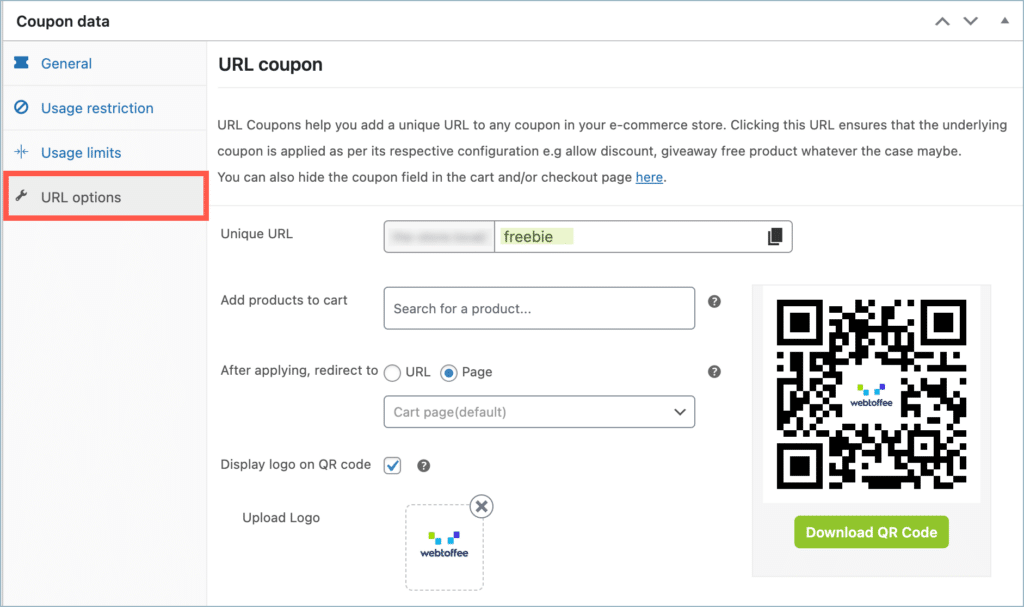
- Unique URL – The website URL is in the first half, and it can’t be changed. In the 2nd half, key in a unique character to identify the coupon. This will create a unique coupon URL.
- The coupon will be in the format <site_url>/<unique_character>. For example: https.www.mysite.com/freebie.
- Add products to cart – Clicking the URL coupon will automatically add the selected products to the cart.
- After applying, redirect to – By default, upon applying the coupon through the URL coupon, the system will automatically redirect the user to the cart. You can select an alternative page accordingly.
- URL – Redirects visitor to the inputted URL.
- Page – List the available pages inside the store. The URL coupon will redirect visitors to the selected page upon clicking.
- Display logo on QR code – Enable to app your logo in the QR code.
- Upload Logo – Upload your brand logo.