Share:


Table of Contents
In online shopping, convenience is everything, especially when customers expect their orders to arrive on a schedule that works for them. Giving customers the option to choose their preferred delivery date can significantly improve their experience and reduce delivery-related confusion.
In a typical WooCommerce shop, determining the delivery date and time is difficult. It is common for online stores to require custom fields on their checkout pages, and the delivery date is one of the most preferred custom fields.
For example, your WooCommerce website checkout page must contain a delivery date section if you run an online grocery or bakery shop that delivers products to customers on their convenient date.
Using the WooCommerce PDF invoice & packing slips plugin, you can let customers know when they will receive their products or allow them to select a preferred delivery date that will work for them.
In this article, we’ll go over how to add an extra delivery date field in the WooCommerce checkout page so your customers can select the required delivery date.
Key Takeaways:
- Letting customers choose their preferred delivery date enhances their shopping experience and helps reduce delivery-related confusion.
- Adding a delivery date field to the checkout page is especially important for time-sensitive businesses like grocery and bakery shops.
- Using tools like the WooCommerce PDF Invoices & Packing Slips plugin, you can display or collect delivery date information directly at checkout, streamlining customer communication and order management.
Most customers want to add delivery dates before a product is delivered in front of their doors, or they want to know the exact delivery date while making a purchase.
By using this technique, you can improve the credibility of your store in their eyes. Moreover, there’s a good chance that customers who are confused will abandon their shopping carts at the checkout and make their purchases somewhere else that does offer a delivery date choice.
The following points justify why it’s crucial to display the WooCommerce delivery date:
- Convenience: The key to adding comfort to your customers is to go above and beyond to show that you are willing to work around their busy schedules. It is essential to include the delivery date choice when placing an order to let your clients receive the product at their convenience.
- Security: Customers appreciate the additional level of protection that WooCommerce delivery dates offer. Using this feature, a customer can let the delivery person know when they will be available to receive the order. A distributor can avoid the possibly harmful risk of leaving the package with a neighbor or on the doorstep by scheduling the delivery.
- Customer Satisfaction: You may gain your customers’ trust by being a reliable and trustworthy seller. Make sure you display the delivery dates so customers can choose their desired date. At the end of the day, a satisfied customer is also a committed one.
- Time-saving: The addition of delivery dates also helps to ensure efficiency and saves both the customer and the delivery time.
To add a custom delivery date field to your WooCommerce checkout page, start by installing and activating the WooCommerce PDF Invoices & Packing Slips plugin by WebToffee from the WordPress plugin repository.
Important: Before installing the premium version of the plugin, make sure you have the free WooCommerce PDF Invoice & Packing Slip plugin installed and activated on your store. This free version is required for the premium features to function correctly.
You can follow this guide to learn how to install the free version of the plugin.
Step 1: Add Delivery Date Field to Checkout
- From the WordPress dashboard, go to Invoice/Packing > General Settings > Advanced.
- Click on the button Add/Edit Custom Field and inside the Checkout Field Inserter, provide a Field Name and Meta Key for the ‘delivery date’ field. Additionally, enter the placeholder text if required and specify whether the field is mandatory.
- Click on Save to save the settings. The custom field has now been added to the checkout page.

This will automatically add the delivery date field under the “Add additional fields on checkout page” section.

- Make any other necessary changes and click on Update Settings.
This would add the delivery date field to the checkout page of your WooCommerce store.

After adding a custom field, such as the delivery date, to the WooCommerce checkout page, you can also display it on order invoices.
Follow the steps below to show custom fields on order documents:
- Go to Invoice/Packing > Invoice > Advanced.
- Head to the Order meta fields option.
- From the dropdown, select Delivery Date (delivery_date).
- Click Update Settings.

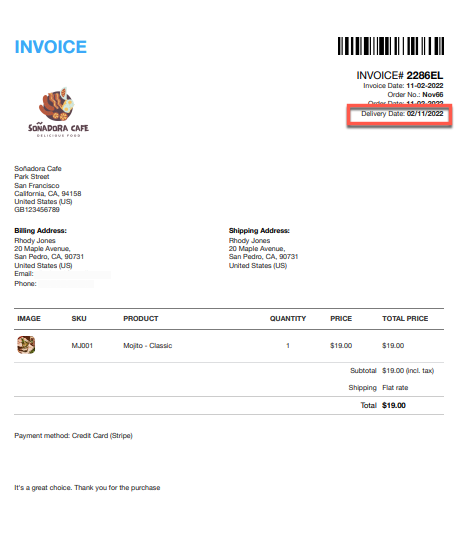
This will add the custom field Delivery Date (delivery_date) to the appropriate section of the invoice.
Sample Invoice
A sample PDF Invoice with a delivery date field will look like this, as shown below:
Custom checkout fields are additional input fields added to the WooCommerce checkout page to collect extra information from customers, such as tax IDs, delivery date, or special notes.
Yes, with the correct plugin settings—like adding the custom field—the selected delivery date can be shown on invoices, helping improve order management. Check out how to display custom fields on your WooCommerce invoices.
While the basic field allows date selection, adding time slots may require an additional plugin or custom development depending on your delivery process.
If customers cannot add or acquire an estimated delivery date, they often leave the store with an empty cart. Because of this, the WooCommerce delivery date is essential for increasing your conversion rate and overall earnings.
Hope this article led you in the right direction. If you have any queries, comment below.


Subcribe to our newsletter