


Share:


Table of Contents
Holiday sales aren’t just about offering big discounts; they’re about being fully prepared for the massive rush that’s coming your way. During this season, traffic spikes, shoppers compare dozens of options in seconds, and any mistake in your product data can send potential buyers straight to a competitor. That’s why having an accurate, well-organized WooCommerce product catalog matters just as much as the deals you offer.
Your WooCommerce product catalog plays a huge role here. Everything from pricing and inventory to product descriptions, images, variations, and categories needs to be clean, updated, and consistent. If your catalog is messy or outdated, it affects how your products appear on your website, in ads, and across marketplaces, which directly impacts your sales.
This is where exporting and bulk editing your catalog becomes incredibly useful. Instead of updating products one by one, you can fine-tune hundreds of items at once, make quick changes for holiday campaigns, fix data issues in bulk, and ensure your entire store is ready for peak season.
It’s a fast, efficient way to get your WooCommerce store holiday-ready without the usual stress.
Key Takeaways:
- Shoppers move fast during peak season, and even small errors in product information can push them toward competitors immediately.
- A clean, consistent product catalog directly impacts visibility and conversions.
- Bulk editing is the most efficient way to prepare your catalog for the holiday rush.

Before you start editing your WooCommerce product catalog, it’s helpful to step back and get everything organized. A little preparation now saves you a lot of stress when holiday traffic spikes.
1. Audit Your Current Catalog
Start by taking a close look at what you already have. Identify products that aren’t performing well, old seasonal items, or SKUs you no longer want to promote. These can be excluded from your holiday lineup.
Next, review the essentials: stock levels, pricing accuracy, variation details, and categories. This helps you catch any inconsistencies or missing data before you begin your bulk edits.
Getting your catalog clean at this stage ensures everything works smoothly once the holiday promotions go live.
2. Define Holiday-Specific Changes
Now, think about what needs to change specifically for the holiday season. You may want to group certain products into seasonal categories like “Holiday Gifts,” “Winter Collection,” or “Stocking Stuffers.”
You might also plan pricing strategies such as percentage discounts, bundle deals, or adding express shipping labels for last-minute shoppers.
Variations matter too. Highlight best-selling colors or sizes, and consider hiding low-stock or rarely purchased variants to keep your store focused and efficient.
3. Set Your Export & Edit Strategy
Before you export your catalog, decide what you want to work on. Use filters such as product category, stock status, or price range to export only the items you need. This keeps your file manageable and focused.
Choose the file format you prefer, usually CSV or Excel, and make sure you understand the column structure so the data aligns correctly when you import it back into WooCommerce. And finally, always back up your current catalog. If anything goes wrong during editing or importing, you’ll have a safe version to restore from.
It’s a simple step that can prevent a major headache later.
Once your catalog is planned and ready, the next step is exporting the data you want to edit. This process becomes much easier when you focus on the right products, choose the right format, and ensure your export includes everything you need for bulk editing.
To do this efficiently, you’ll need the right tool. WebToffee’s Product Import Export for WooCommerce makes exporting your product catalog fast, flexible, and accurate. While WooCommerce does offer a basic built-in export option, it’s limited because it can’t filter specific products or customize which fields are exported.
That’s why we’ll be using the WebToffee plugin for this process. Before you begin, make sure the plugin is installed and activated.
Step 1: Select Product as Post Type to Export
Once the plugin is installed,
- Go to and navigate to: WebToffee Import Export (Pro) > Export from your WordPress dashboard. This is where you’ll configure which products to export and how the file should be structured.
- Select Product as the post type.
Then proceed to the next step.

Step 2: Choose the Export Method
You’ll typically choose Quick Export for a fast, full export, or Advanced Export for detailed control.
For holiday prep, Advanced Export is best because it lets you filter specific products.

Step 3: Apply Filters
Use filters to export only the products you want to edit. You can filter by:
- Product status (published, draft, private, etc.)
- Product type (simple, variable, grouped, etc.)
- Category
- Tags
- Stock status (In Stock, Out of Stock, On Backorder)
- Price range

These filters help you isolate products that need seasonal updates, pricing changes, or stock adjustments.
Step 4: Map Columns for the Export File
Choose which product fields should be included in your export file. You can also drag and reorder columns in the exported file to match your editing style.

Step 5: Configure Advanced Export Options
Before completing your export, you’ll have a few final settings to fine-tune. These options help ensure the export process runs smoothly based on your server’s capabilities.
- First, select the export file format, such as CSV (most widely used) or Excel (XLS).
- Next, choose the delimiter for your CSV file. This is the character used to separate columns in the exported file. Common options include commas, semicolons, or tabs.
- Enter an export file name, define an export location, and the batch export count, which determines how many products will be processed in a single iteration before the server pauses.

Once everything looks good, simply click Export to generate your WooCommerce product catalog file. The plugin will process your selected products, apply all your filters and settings, and provide a downloadable file you can start editing right away.
Step 6: Verify Your Export File
Before you begin editing:
- Check that all required columns are present
- Ensure SKUs and product IDs match
- Confirm variation rows are aligned with their parent product
- Scan for missing values or formatting issues
This quick verification step helps avoid import errors later.
Bulk Editing Your Exported File

Once you’ve downloaded your product export file, you can open it in any spreadsheet editor such as Excel, Google Sheets, or Numbers. From there, you can make bulk changes across multiple products at once, updating hundreds of rows in minutes rather than editing each product individually inside WooCommerce.
Make your changes by updating prices for multiple products at once, adjusting stock levels in bulk, or modifying categories, tags, and descriptions across groups of items, all directly within your spreadsheet.
After applying your edits, take a moment to review the values, formulas, and formatting to ensure everything looks correct. Once you’re satisfied, save the file in the proper format (CSV or Excel) so it’s ready to be imported back into your store.
This is where the real efficiency of bulk editing comes in, especially during the holiday rush.
Common Bulk Edits for Holiday Readiness
Update Prices for Holiday Promotions
Holiday deals often require coordinated price drops across entire product categories. In your spreadsheet, you can easily apply percentage-based discounts like 10% off or update sale prices for selected SKUs. This helps ensure your promotional pricing is accurate and consistent before the sale begins.
Adjust Stock Levels for Seasonal Demand
Inventory can move quickly during the holidays. Your exported file gives you a clear view of stock quantities across all products and variants. You can flag items with low stock, correct inconsistencies, or hide out-of-stock variations in bulk to prevent overselling and improve customer experience.
Modify Categories and Tags for Seasonal Visibility
Seasonal categories and tags help customers and search engines find the right products faster. In your export file, you can bulk-assign categories such as “Holiday Gifts,” “Bundle Deals,” or “Winter Collection.”
Updating product tags like “Holiday,” “Gift,” or “Limited Time” also boosts visibility across your store and marketing channels.
Update or Remove Variation Options
Some variations may not be relevant or available during holiday sales. Maybe certain colors are sold out or specific sizes aren’t popular this season. Using your spreadsheet, you can remove, hide, or update variation rows in bulk so customers only see the most relevant options.
Add Holiday-Specific Metadata
Metadata updates can elevate how your products appear in search results and on marketing feeds. Your export file makes it easy to add holiday-related fields, such as:
- Gift wrapping availability
- Express shipping options
- Holiday-exclusive tags
- Promo labels or event markers
Adding these in bulk helps all your holiday-ready products display the correct information across your store and advertising platforms.
After finishing all your bulk edits in the spreadsheet, the next step is to bring those changes back into WooCommerce safely. Importing correctly ensures your store displays accurate pricing, stock, variations, and holiday-specific updates across all your channels.
Using the WebToffee Import Export (Pro) plugin, you can safely re-import everything with full control over mapping, filters, and advanced settings.
Here’s how to do it smoothly and without disruptions.
Step 1: Select Product as Post Type
- Begin by navigating to: WebToffee Import/Export (Pro) > Import.
- Choose Product as the post type.
- Proceed to the next step.

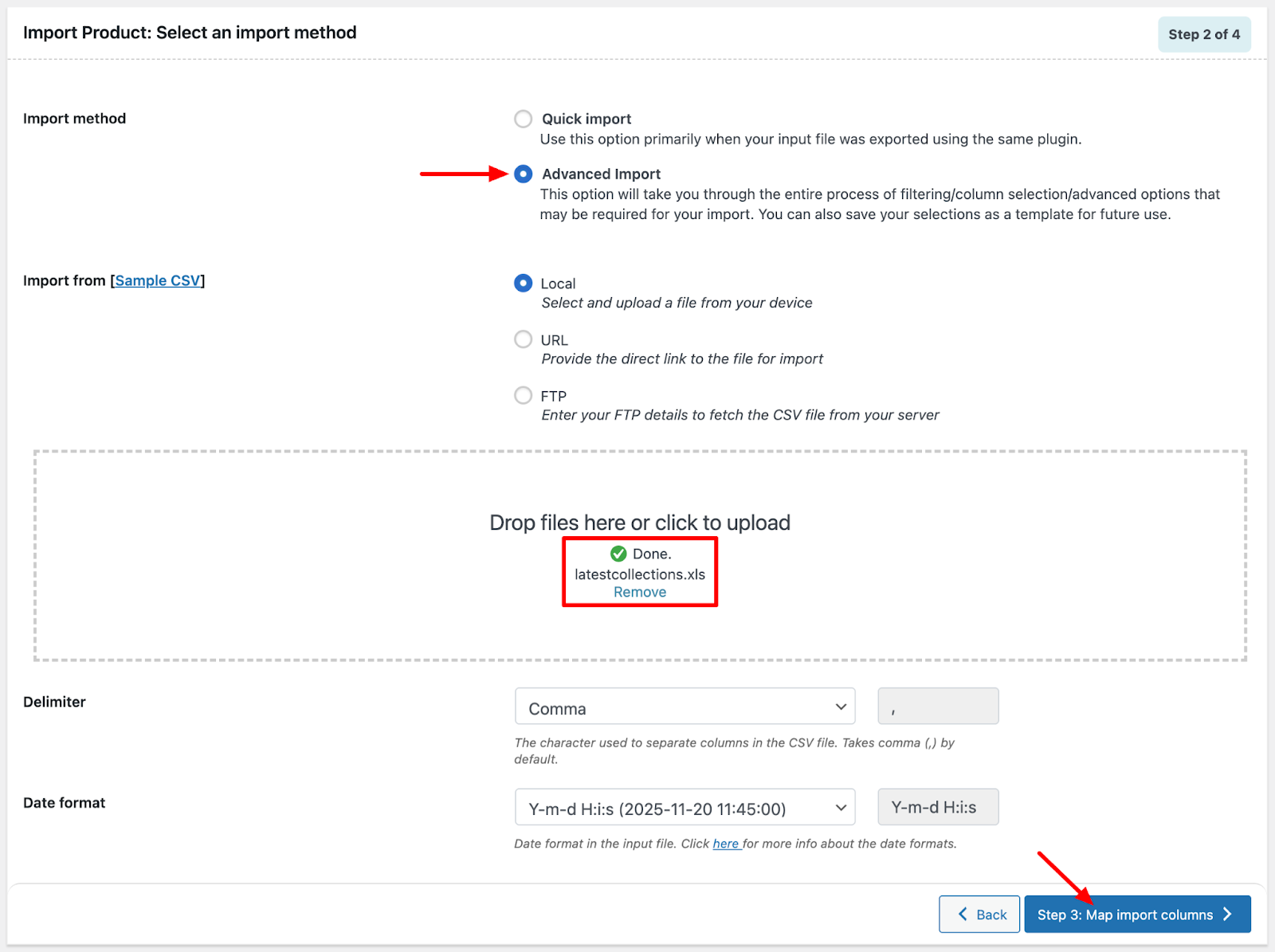
Step 2: Select an Import Method
- Here, select Advanced Import to access filtering, column selection, and more detailed controls.
- In the import from option, choose Local to upload your updated CSV/XLS file directly from your computer.
- Proceed to the next step.
Step 3: Map & Reorder Import Columns
After uploading your edited CSV file, you’ll arrive at the Column Mapping screen. This step helps the plugin understand how the data in your file should match WooCommerce product fields.
Here’s what you can do on this screen:
1. Select the Columns You Want to Import
The plugin automatically detects the column headers in your file and displays them alongside the corresponding WooCommerce fields.
You can choose which columns you want to import and which ones you want to leave out. This is useful when your file contains extra fields that shouldn’t overwrite existing product data.
2. Reorder Columns If Needed
If the column order in your file is different from the plugin’s expected structure, you can rearrange them here. This ensures that each value, such as price, stock, or SKU, imports into the correct field.
3. Skip Fields You Don’t Want to Update
Some data, like SKU or product titles, may not need any changes. Simply set those fields to Skip so the importer ignores them and leaves the existing values unchanged.
If your file format is the same as your previous exports (same columns, same order), you can simply move forward without updating any mappings.

Make Quick Edits With Formulas
The column-mapping screen also includes a Transform option that allows you to apply simple formulas to modify values during import. This is especially helpful during holiday sales when making bulk price adjustments or stock updates.
You can access this by clicking the pencil icon against the product fields.
Here are a few examples:
A. Adjust Prices in Bulk
Increase the regular price by a fixed amount
Formula: [ {regular_price} + 10 ]
How to do it: In the mapping screen, select the Regular Price field. Enter the formula in the Evaluation Field box. This adds 10 to every product’s current regular price during import.

B. Update Stock Quantities
Increase stock by 5 units
Formula: [ {stock} + 5 ]
How to do it: Map your stock column and in the evaluation field, add this formula. During import, each product’s stock quantity will automatically increase by 5.

C. Modify Text Fields
Append “Holiday Sale” to product titles
Formula: {post_title} Holiday Sale
How to do it: Choose the Product name field and enter this value in the evaluation field. This keeps the original title and adds “Holiday Sale” at the end (e.g., Winter Jacket Holiday Sale).

Add a prefix to product descriptions
Formula: Limited Offer: {description}
How to do it: Map the Description field and enter the prefix followed by the placeholder. This adds “Limited Offer:” to the beginning of every product description.
These formulas let you clean, adjust, and enhance your product data as you import it, saving time and removing the need for manual spreadsheet edits.
Step 4: Configure Advanced Import Options
When bulk-updating your product catalog, this step lets you control how the imported data interacts with the products already in your store. The key options here help ensure your updates apply correctly without creating duplicates or overwriting the wrong fields.
You can control precisely how your bulk updates apply to existing products using a few key settings:
- Choose to update existing products based on SKU or ID
- Decide if you want to import new products or skip them during the update
- Set rules for handling ID conflicts, such as skipping or assigning a new ID
- Enable “update even if empty” if you want specific fields, like old tags or seasonal labels, to be cleared during import.

If your catalog contains related items, you can:
- Use SKU matching to reconnect up-sells automatically, cross-sells, and grouped products
And for catalog cleanup, you can:
- Use the Delete non-matching products from store option to remove products that aren’t present in your import file. Useful for phasing out old or seasonal items
You can also adjust the batch (records per iteration) based on your server performance. If imports time out, lowering this value often helps.
Once all settings are configured, click Import/Schedule > Import
The plugin will process the file and update your WooCommerce product catalog according to the rules you set.
Step 5: Validate Changes & Live Store
After the import completes, take a moment to review your live store.
Check for:
- Updated prices and promotional badges
- Correct stock levels
- Accurate variation visibility
- Updated categories and tags
A quick post-import scan helps catch issues before customers see them.
Schedule Updates During the Sale Period
Holiday sales often require real-time adjustments, especially when stock moves fast or when you introduce new promotions mid-campaign.
Using scheduled imports/exports can help automate:
- Price drops
- Stock adjustments
- Category or tag updates
- Seasonal product rollouts
Automation ensures your store stays accurate without you having to constantly monitor every detail manually.
For this, go to Import > Schedule from the advanced options section.

From the schedule window,
- Give a Schedule name.
- Choose a Schedule type: WordPress Cron or Server Cron
- Next, set the Interval on how often it should run – daily, weekly, monthly, or a custom interval.
- Pick a Start time for the automatic export.
- Click Schedule Now to activate the automation.

Keeping Your Catalog Optimised During the Holiday Period
Once your updated catalog is live, the work doesn’t end there. Holiday sales move fast, and your product data needs to keep up. Staying proactive during the sale period helps you maximise conversions while avoiding stock issues, listing mismatches, or missed opportunities.
Monitor Performance in Real Time
Keep an eye on how products are performing throughout the holiday rush. Track your best sellers, identify slow-moving items, and watch for patterns like high return rates or customer inquiries.
This insight helps you make timely adjustments, such as promoting trending products or fixing details on underperforming ones.
Apply Additional Bulk Edits Mid-Sale
Holiday sales often require quick changes. You might need to increase stock on fast-selling items, introduce new variants, or adjust pricing and sale durations based on demand. Since you already have your export/import workflow set up, you can push these mid-sale updates in bulk without disrupting your store.
Sync With Marketplaces and Ad Feeds
During peak sales, product feed accuracy is crucial. Make sure your catalog stays synced with platforms like Google Shopping, Meta, TikTok, etc., so your ads always show the correct price, availability, and variations. Even minor mismatches can cause disapprovals or wasted ad spend, so periodic feed checks are worth it.
Tools like WebToffee’s Product Feed for WooCommerce can help keep this data aligned with optimized product feeds that sync automatically, reducing the risk of inconsistencies during the busiest shopping periods.
Clean Up After the Sale Ends
Once the holiday season wraps up, clean up your catalog to get your store back in regular mode. Remove or archive seasonal products, revert temporary categories or tags, and reset any promotional metadata you added for the sale. This keeps your catalog organised and ready for the next campaign.
Preparing your WooCommerce catalog for the holiday season isn’t just about updating a few prices; it’s about ensuring every piece of product data is accurate, consistent, and ready to support the heavy surge of shoppers.
The workflow is simple but powerful: export your catalog, make bulk edits, import your updates, deploy the changes, and continue monitoring throughout the sale period. This approach gives you full control while preventing common holiday pitfalls like mismatched prices, incorrect stock, missing variations, or outdated categories.
By streamlining your product updates with a structured bulk-editing process, you save hours of manual work, minimize errors, and keep your store competitive during the busiest shopping season of the year. Plus, with the right tools and preparation, your WooCommerce catalog becomes a strong foundation for a smooth, successful holiday sale.


Subcribe to our newsletter





