Share:


Table of Contents
Managing discount codes in Shopify is simple, until you need them in bulk. Shopify doesn’t offer a one-click export, but with the right approach, you can quickly export all your discount codes for reporting, sharing, or backup.
Discount codes are like digital gold for your Shopify store, boosting sales, rewarding loyal customers, and fueling marketing campaigns. But what happens when you need to gather them all in one place? Maybe you’re analyzing which codes performed best, sharing them with your team, or simply keeping a backup. You open Shopify expecting an easy Export All button… but it’s nowhere to be found.
Frustrating? A little. Impossible? Not at all.
While Shopify does offer an export feature, it’s limited and may not allow you to export all your discount codes to a CSV file. However, there are ways to get the job done efficiently. In this guide, we’ll walk you through the best methods to export your discount codes in bulk, without the headache of copying and pasting.
Let’s dive in!
Key Takeaways:
- Shopify’s default export feature is limited, but using the StoreRobo Import Export app allows you to bulk export discount codes efficiently in a structured CSV file.
- With StoreRobo, you can customize your export, apply filters, schedule exports, and choose specific discount code details to include in your file.
- Bulk exporting discount codes helps with performance tracking, marketing management, data backup, and seamless sharing with your team or partners.
Understanding Shopify Discount Codes
Shopify discount codes are promotional tools that help store owners attract customers, increase conversions, and reward loyalty. These discounts can be applied at checkout and are commonly used in marketing campaigns, seasonal sales, and customer retention strategies. Before exporting discount codes in bulk, it’s important to understand the different types of discounts Shopify offers and how they are managed within the platform.
Types of Shopify Discounts
Shopify supports several discount types, each designed to serve a specific business goal:
Percentage discounts reduce the total order value by a set percentage, such as 10% or 25%. These are widely used during sales events and promotions because they scale automatically with the order value and are easy for customers to understand.
Fixed amount discounts subtract a specific amount from the order total, for example, $10 off or ₹500 off. These discounts work well for encouraging minimum purchases or promoting higher-value orders.
Free shipping discounts remove shipping costs at checkout, which is often a strong incentive for customers to complete their purchase. Free shipping discounts can be applied site-wide or limited to specific regions, products, or order values.
Exporting discount codes in bulk might not seem like a big deal—until you actually need to do it. Whether you’re running promotions, tracking performance, or managing marketing campaigns, having all your discount codes in one place can make things much easier.
Here are some common scenarios where bulk exporting Shopify discount codes can be incredibly useful:
1. Analyzing Discount Code Performance: If you’re running multiple promotions, you’ll want to know which discount codes are performing best. Exporting your codes to a CSV file allows you to track how often they’ve been used, their redemption rate, and their overall impact on sales.
2. Sharing with Your Marketing Team: Your marketing team might need access to a list of active discount codes to include them in email campaigns, ads, or social media promotions. Instead of manually copying each one, you can quickly export them and share the file.
3. Managing Expiry Dates & Usage Limits: Discount codes often have expiration dates or usage limits. Exporting them helps you review which ones are still valid and which need to be updated or replaced. This prevents customers from trying to use expired codes, which can lead to frustration.
4. Syncing with External Tools: If you use third-party analytics or CRM software, you may need to import your discount codes for deeper analysis. Exporting them in bulk makes it easy to integrate with platforms like Google Sheets, HubSpot, or Mailchimp.
5. Backing Up Discount Code Data: Accidental deletions or system errors can sometimes lead to lost discount codes. Keeping a backup file ensures you always have a reference in case you need to restore or recreate it.
6. Distributing Codes to Partners or Influencers: If you’re working with influencers, affiliates, or brand partners, you might need to provide them with a batch of discount codes. Instead of generating new ones manually, exporting existing codes in bulk makes the process more efficient.
7. Migrating to a New Shopify Store or Platform: If you’re switching Shopify stores or migrating to a different eCommerce platform, exporting your discount codes ensures you don’t lose important promotional data during the transition.
Where Discount Codes Are Stored in Shopify
All discount codes and automatic discounts are managed within the Discounts section of your Shopify admin dashboard. Here, you can view active, scheduled, and expired discounts, along with details such as usage limits, validity dates, and performance metrics.
However, while Shopify allows you to create and manage discounts easily, it does not provide a built-in option to export all discount codes in bulk, making third-party tools or API-based methods necessary for large-scale exports.
Shopify does offer a way to export discount data, but the functionality is limited and may not cover all use cases, especially when dealing with large volumes of discount codes. Depending on your needs, you can use Shopify’s native export option or apps like StoreRobo to export discount codes in bulk.
In the following sections, we’ll walk through the two methods so you can choose the most effective approach.
A. Exporting Discount Codes Using Shopify Admin
If you only need to export a small number of discount codes, Shopify’s built-in export option can get the job done. Follow these steps:
- Log in to your Shopify admin dashboard and navigate to Discounts.
- Use filters or search to narrow down the discount codes you want to export (active, expired, or specific campaigns).
- Click the Export button at the top of the Discounts page.
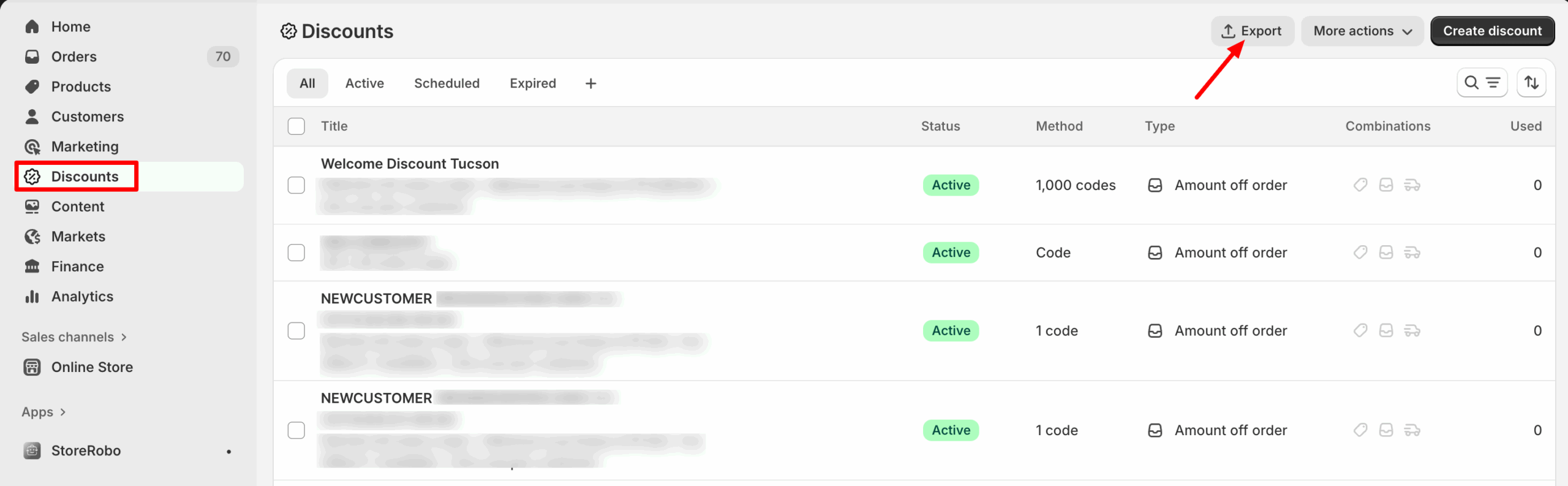
- Next, choose what you want to export – all discounts, selected discounts, or the current filtered view.
- Select CSV format, then click Export discounts to download the file to your device.

Once exported, you can open the CSV file in Excel or Google Sheets to review discount codes, usage limits, and validity dates.
This approach is ideal if you’re working with a small number of discount codes, need a quick snapshot for internal reporting, or want a simple backup. For stores with frequent promotions, large code volumes, or advanced filtering needs, more scalable methods, such as import export apps, are recommended and covered next.
B. Bulk Exporting Discount Codes Using StoreRobo Import Export App
If you’ve used Shopify’s default export feature, you probably know its limitations. But instead of relying on that, we’ll introduce you to a powerful Shopify Import Export app that allows you to import and export all types of Shopify data, including discount codes, effortlessly.
We believe this tool is a must-have for every Shopify store looking to streamline data management. Follow the steps below to export discount codes from Shopify:
Step 1: Install StoreRobo Import Export App
To get started with bulk exporting discount codes, you’ll need to install the StoreRobo Import Export app from the Shopify App Store. Since StoreRobo operates on a freemium model, you can choose a plan that best fits your store’s needs.
The free version allows you to import and export up to 10 discount codes, which is great for testing the features. If you need to export a larger number of discount codes, you can explore the premium plans for unlimited exports and additional functionalities.

Once the app is installed, you’re ready to move on to the next step
Step 2: Choose Shopify CSV Template
- After installing the app, go to the Export section of StoreRobo App from your Shopify admin account.
- Choose Shopify CSV as the export template.
- Click on Proceed.

Step 3: Choose Shopify Discounts to Export
- In the Select Data section, choose Discounts from the dropdown menu.
- Under the Discounts section, select the columns you want to export. By default, all essential columns are checked. If needed, expand the Basic Columns section to view all available fields and select or deselect specific columns based on your requirements.
- Use the Filters option to narrow down the discount codes you want to export. You can add custom filters based on specific criteria such as discount ID, status, or expiry date.

- If you need to export the file to an external server, enable the Export file to FTP/SFTP option.
- Choose the file separator format (Comma, Semicolon, Tab, Space, or Other) to structure your CSV file properly.
- Optionally, you can Save preset to store your column and filter selections for future exports, ensuring a consistent format each time.

- Once everything is set, click Export to download the discount codes or schedule the export for later.

Once the export job is complete, you can download the discounts CSV file.

You can share this CSV file with your marketing team to analyze the performance of discount codes and plan future promotions.
Also Read: How to Bulk Import Shopify Discounts?
Best Practices for Managing Exported Discount Codes
Exporting discount codes is only the first step. How you organize, store, and reuse those codes plays a crucial role in maintaining campaign clarity, preventing misuse, and protecting revenue. Following these best practices will help you manage exported Shopify discount codes efficiently and safely.
Organize Codes by Campaigns
Always group exported discount codes based on campaigns, promotions, or use cases. Use clear naming conventions in your CSV or spreadsheet, such as Black Friday 2026, Influencer Program, or Email Abandoned Cart.
Adding columns for start date, end date, discount type, and target audience makes it easier to track performance and avoid confusion between active and expired codes.
Secure Sensitive Discount Data
Discount codes are valuable assets and should be treated like sensitive business data. Limit access to exported files by storing them in secure, permission-controlled folders.
Avoid sharing raw CSV files over unsecured channels, and ensure only authorized team members can view or edit discount information. This helps prevent unauthorized usage or accidental leaks that could impact revenue.
Maintain Version Control and Backups
Create backups every time you export or update discount codes, especially before running major promotions. Use versioned file names (for example, discount-codes-summer-sale-v2.csv) or cloud storage with version history enabled.
This allows you to roll back to a previous version if data is lost, overwritten, or mistakenly altered.
Re-import or Reuse Codes Safely
If you plan to reuse discount codes or recreate them in Shopify, double-check that expired or one-time-use codes are not unintentionally reactivated. Validate usage limits, validity dates, and eligibility rules before reuse.
When importing codes via apps or APIs, test with a small batch first to ensure accuracy and avoid customer-facing errors during live campaigns.
Yes! With the StoreRobo Import Export app, you can use filters to export only active discount codes based on status, expiration date, or usage limits.
Yes, StoreRobo offers a freemium plan that allows you to export up to 10 discount codes. If you need to export more, you can upgrade to a premium plan for unlimited access.
Your discount codes will be exported in CSV format, which can be opened in Excel, Google Sheets, or imported into other tools.
Yes! The StoreRobo app allows you to schedule exports, so you can automate the process instead of manually exporting discount codes each time.
Exporting Shopify discount codes in bulk might seem tricky at first, but with the right approach, it’s a breeze. While Shopify’s built-in export options have their limitations, using a powerful import-export app like StoreRobo makes the process seamless. Whether you’re tracking performance, managing promotions, or backing up discount data, having a structured CSV file of your discount codes can save time and improve efficiency.
By following the steps in this guide, you can easily export your discount codes, customize your export settings, and share the data with your team or external partners. Plus, with the ability to filter and schedule exports, you’ll never have to deal with manual copy-pasting again!
So, why struggle with limitations? Start using the StoreRobo Shopify Import Export app today and streamline your discount code management like a pro!


Subcribe to our newsletter