


Share:


Table of Contents
Learn how to create combo offers in WooCommerce using the WebToffee Smart Coupons plugin.
Ever been tempted by a “Buy 1, Get 1 Free” deal or a bundle that saves you 30%? You’re not alone. Combo offers are irresistible because they give shoppers more value for less, and that’s exactly what drives conversions.
But for WooCommerce store owners, creating these combo deals isn’t always straightforward. The default coupon system is limited, and setting up BOGOs, bundles, or category-based discounts often requires multiple plugins or custom code.
In this guide, we’ll show you how to create WooCommerce combo offers step by step—without writing code or paying for expensive tools. With the free Smart Coupons for WooCommerce plugin by WebToffee, you’ll be able to launch effective combo deals like BOGOs, product bundles, and more—right from your WordPress dashboard.
Key Takeaways
- Major benefits of creating WooCommerce combo offers include improving product visibility.
- Types of combo offers include BOGO (Buy One Get One) deals and product bundles.
- A step-by-step guide to creating combo offers in WooCommerce using the Smart Coupons plugin.
WooCommerce combo offers bundle products together at discounted prices. These offers encourage customers to purchase multiple items at once. These include attractive BOGOs, product bundles, or complementary products.
Businesses are still employing these special offers due to their undeniable benefits. It can help you rapidly increase your sales and can significantly improve customer satisfaction.
Quick Tip: A well-crafted WooCommerce combo offer should trigger immediate action. It’s all about making them an offer they can’t refuse. Even if a visitor is just browsing, a compelling WooCommerce combo offer should entice them to purchase on the spot.
Major Benefits of Using Product Bundles in WooCommerce
WooCommerce product bundle deals allow you to club multiple products together, creating a single, attractive sales offer. This marketing strategy is widely used to attract new customers and retain existing ones. Here are some of the major benefits of offering product combos in WooCommerce:
Improves Customer Loyalty
Your customers remain loyal to your store if they receive a good shopping and delivery experience and if the offers you provide are truly beneficial. A combo offer can help fulfill both of these. It makes customers feel special while also providing a good shopping experience, helping you connect more effectively with them.
Improves the Product Visibility
A digital shopper always looks for discounts and coupon offers. So, offering combo deals or bundle discounts ensures that your customers make note of your store. Also, such offers help you move the low-performing products to the front, when combined with a well-received item in your store.
Combining Products Moves Dead Stock
Some products in your store might be selling at a slower pace than other items in your store. So to make these stock move faster, you can bundle it with another product (preferably an item in high demand) and offer it as a WooCommerce product combinations.
More Sales
When you offer a tempting price for grouped products that is lower than its sum total, users will take notice. This improvement in customer interaction can help you boost sales in your WooCommerce store. Moreover, adding a combo coupon will generate more benefits as customers will now be tempted to buy more products.
And More Sales!
Combo promotions are especially effective during holiday and seasonal sales. They encourage customers to purchase multiple items during peak festive times. Combo promotions provide them added value making them more likely to buy.
Quick Tip: You can make the WooCommerce combo offers more beneficial by combining high-performing products with low-performing ones.
You can set up different types of combo offers in WooCommerce. We will be looking into offering WooCommerce combo offers using advanced WooCommerce coupons. To do this, you will need an additional coupon plugin as the default WooCommerce coupon functionality is limited.
We will be using the Smart Coupons for WooCommerce free plugin for our combo deal setup. It is the most popular coupon plugin in WooCommerce and has all the features that you require to set up combo offers, BOGO coupons, conditional coupon discounts, and more.
Related Articles: Create WooCommerce Coupons Using the Smart Coupons Plugin
Below are some of the most popular WooCommerce combo discounts (discussed using use cases) that you can set up using this WooCommerce coupon plugin. But before that, first install and activate the free WooCommerce combo offer plugin in your WordPress account. You can do so by navigating to WooCommerce admin account > Plugins > Add New.
1. Buy 2, Get 1 Free: Same Product Combo Deal
Creating combined product offers with BOGO coupons does not require any technical expertise. In this case, you can offer a giveaway when customers add two specified products to their cart. Let’s create the combo coupon for ‘Buy two packs of cookies and get one free’ here.
To create a coupon,
- Go to Marketing > Coupons and click on Add coupon.
- Provide the coupon name as ‘Cookie COMBO offer’.
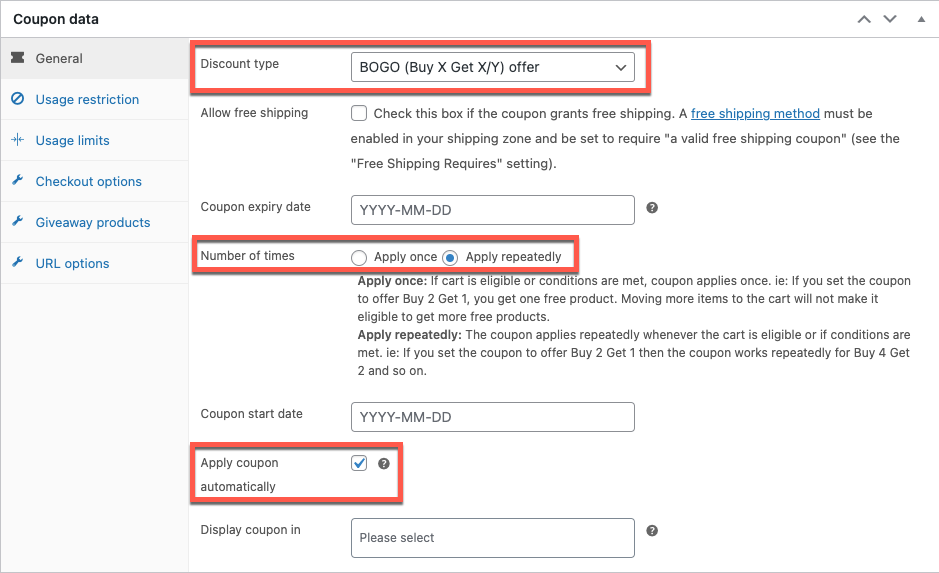
- Go to the Coupon data widget > General tab.
- Select the Discount type as BOGO (Buy X Get X/Y) offer.
- Select the Number of times as Applied repeatedly. However, if you want the user to utilize this offer only once during checkout, keep the default configuration.
- Check the box corresponding to the Apply coupon automatically.
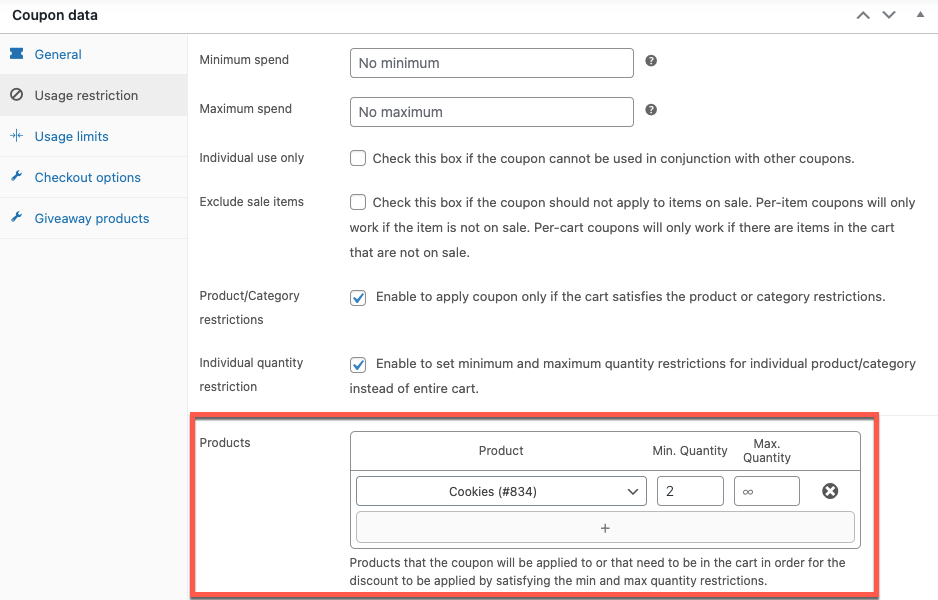
- Go to the Usage restriction tab.
- Check the Individual quantity restriction checkbox.
- In the Products field, select the cookies as the product and set the minimum quantity as 2.
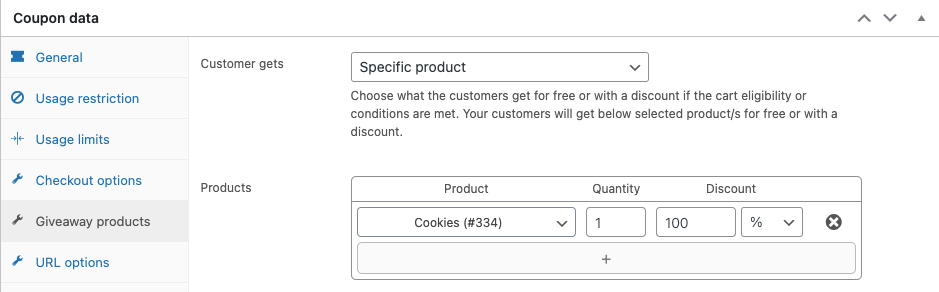
- Go to the Giveaway products tab.
- Select the same product under the option Product and set the Quantity as 1 and Discount as 100%.
- Click on Publish.
This will add a combo coupon to your store. Now, when your customer adds a ‘Cookie’ to their cart, the same item will be added as a free item.

Related Articles: WooCommerce BOGO Coupons: How to Create Buy One Get One Free Offers?
2. Buy 1, Get a Different Product Free: Cross-Sell Combo Offer
You can entice customers by offering a different product for free. This strategy is particularly effective for cross-selling related items. Offering a combination of products with a discount can be highly appealing. Let’s create the coupon for ‘Buy an iPhone, get a charger free’ here.
To create the BOGO coupon,
- Create a new coupon in your WordPress admin console.
- Name the coupon ‘iPhone Charger Combo’.
- Go to Coupon data > General and change the discount type to BOGO.
- Configure the coupon to be applied only once and enable it to auto-apply itself to the cart.
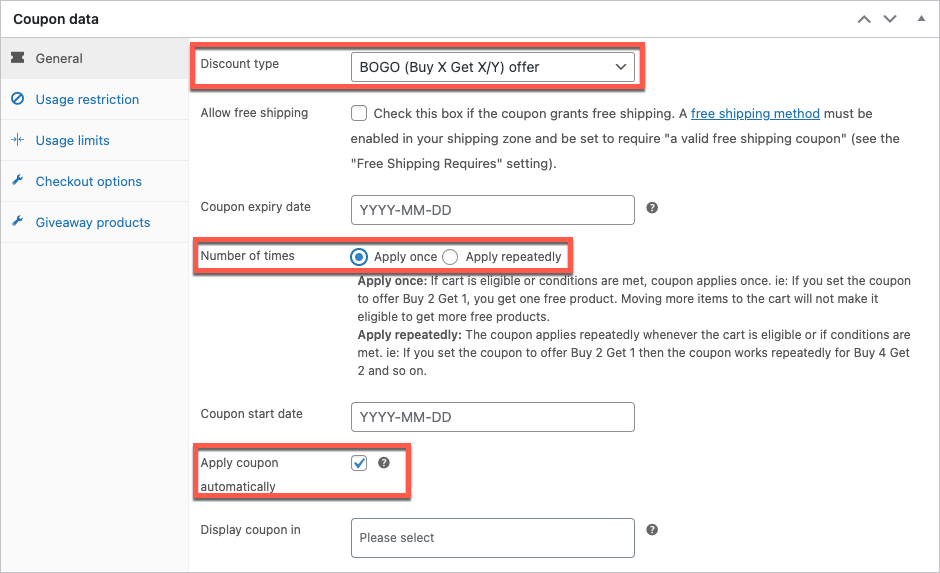
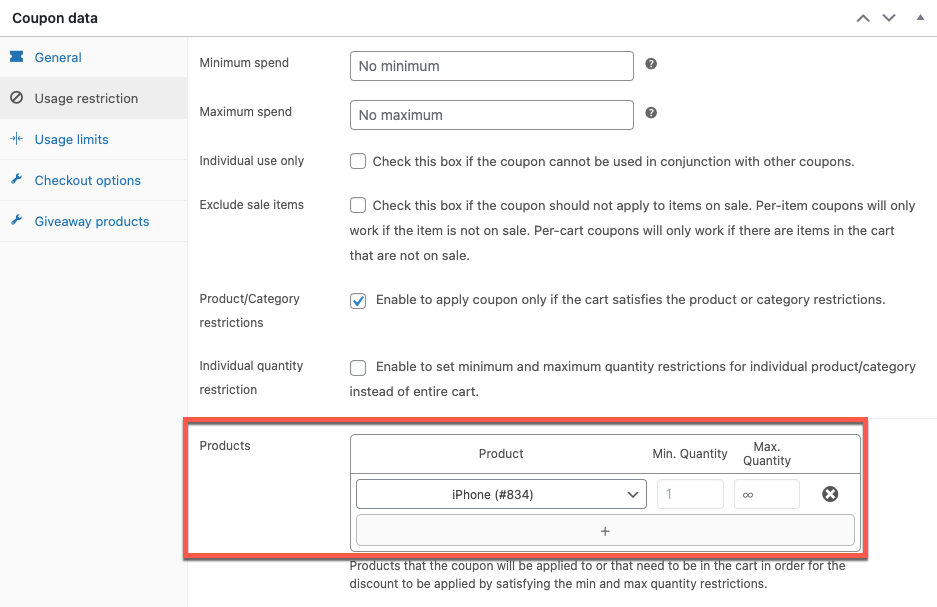
- In the usage restrictions, select the product as iPhone.
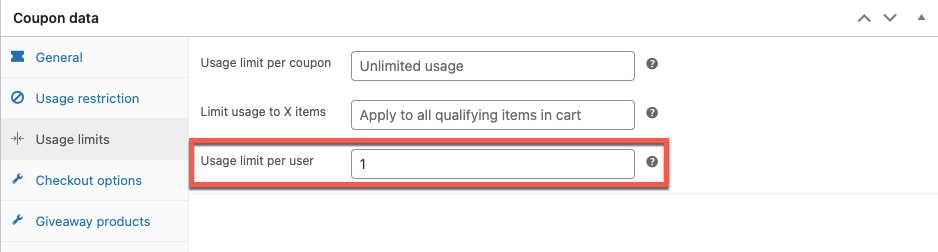
- Go to the Usage Limits tab and set the usage limit per user as 1. This is to make sure that a single user can only utilize this offer once.
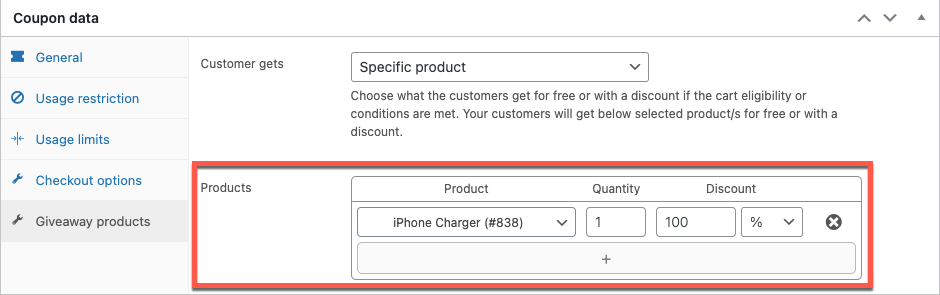
- Now, configure the charger as the giveaway product.
- Publish the BOGO coupon.
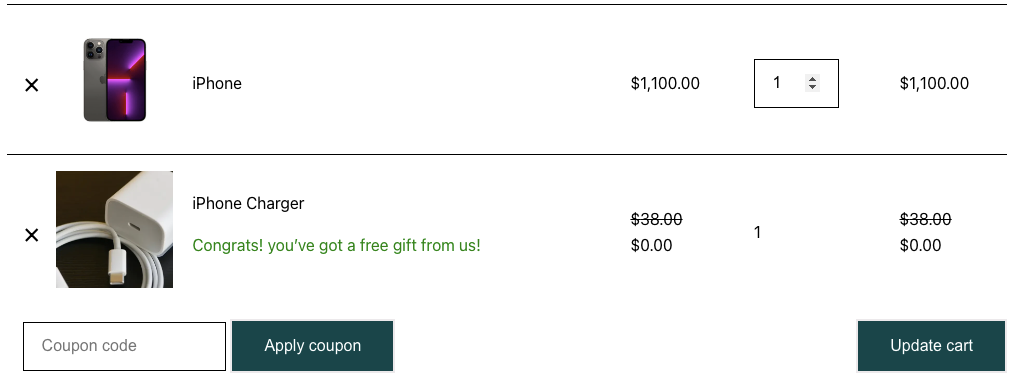
When your customer adds the iPhone to the cart, the charger will also be automatically added to the cart and at a full discount.
Related Articles: 10 Best WooCommerce Buy One Get One Free Plugins for 2024
3. Bundle Multiple Products at a Discount: Grouped Combo Deal
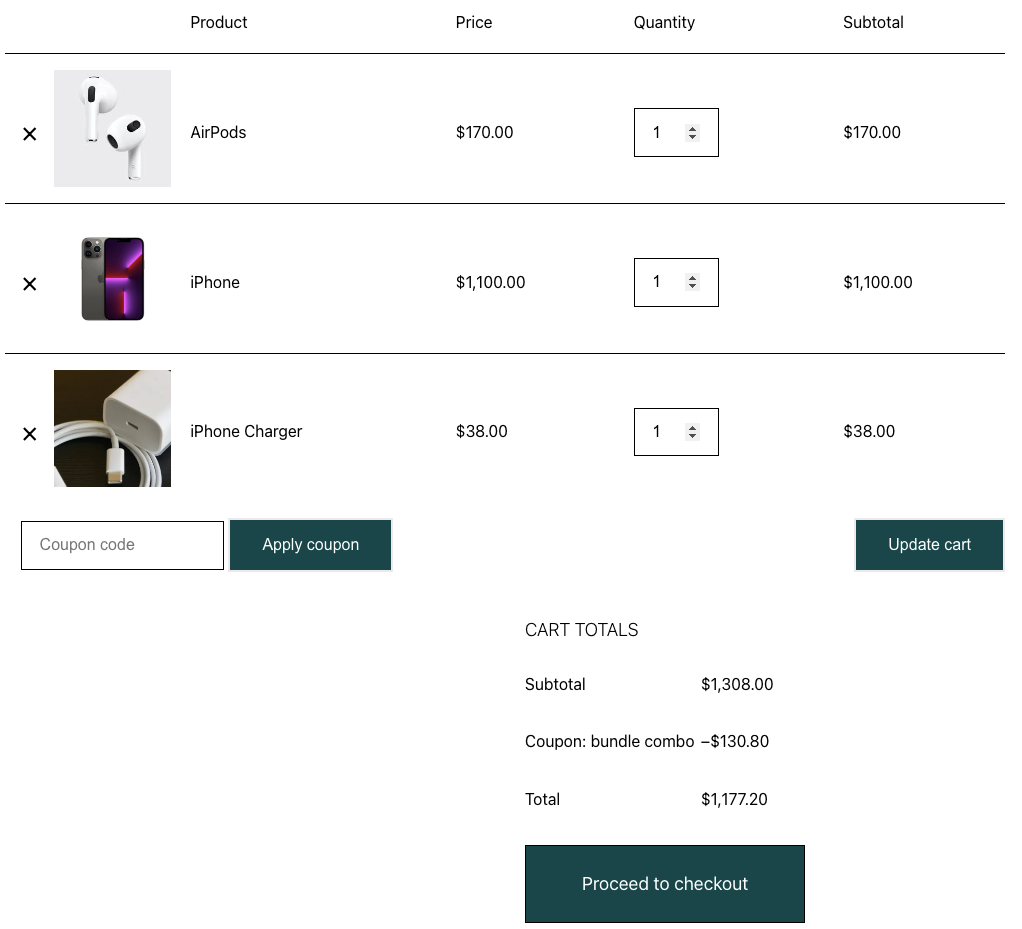
You can offer product bundles at a discount using this plugin. This is particularly effective for promoting low-performing products by pairing them with high-demand items. Combining them with high-performing products boost visibility for slower-moving products and increases overall sales. Let’s create the coupon for ‘Get an iPhone + Charger + AirPods at 10% off’ here.
A bundle product combo discount should be applied in both of the following cases:
- When the user purchases the ‘grouped product’ in your store that contains all the items in the bundle. In our example, this would be a grouped product containing the iPhone, charger, and AirPods.
- When the user purchases all the products individually.
Let’s learn how to set up such grouped product deals with coupons. But, before that, we will look into how to set up a WooCommerce bundle product.
To create a grouped product in WooCommerce,
- Go to Products > Add New.
- Name the product as ‘iPhone Bundle’.
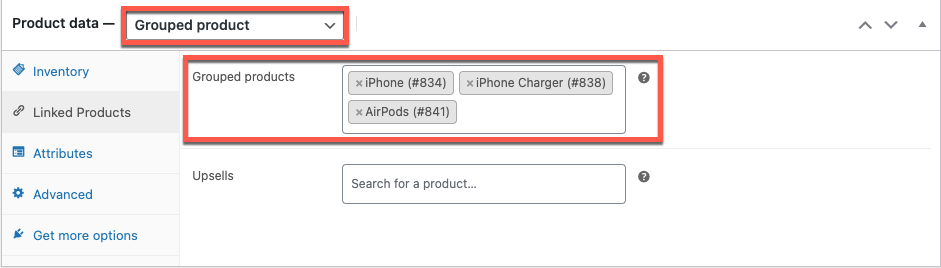
- Go to the Product data widget and change the Product type to the Grouped product.
- In the Linked Products tab, mention all three products.
- Publish the product.
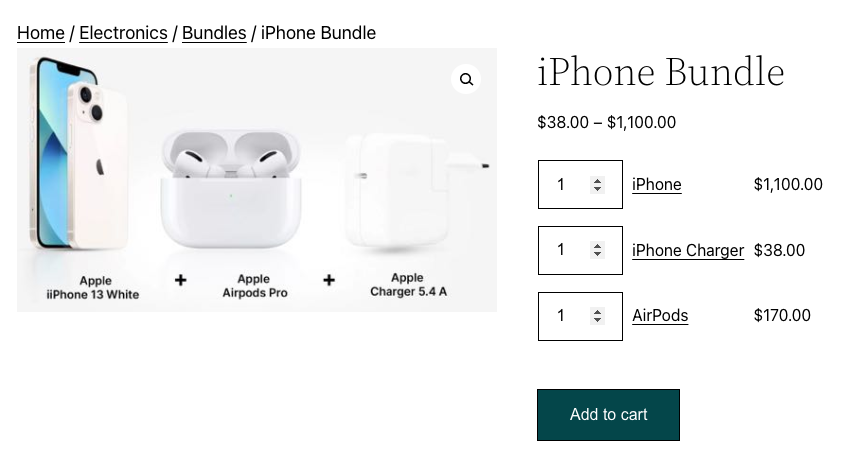
The product would look like this.
Now, to apply discounts to grouped products in WooCommerce,
- Go to Smart Coupons > Coupons and create a new coupon.
- Name the coupon ‘Bundle combo’.
- Change the discount type of the coupon to a percentage discount and set it as 10%.
- Enable the coupon to be applied automatically.
- Under usage restrictions, specify each product in the bundle individually. Then, set the product condition to All from the below section.

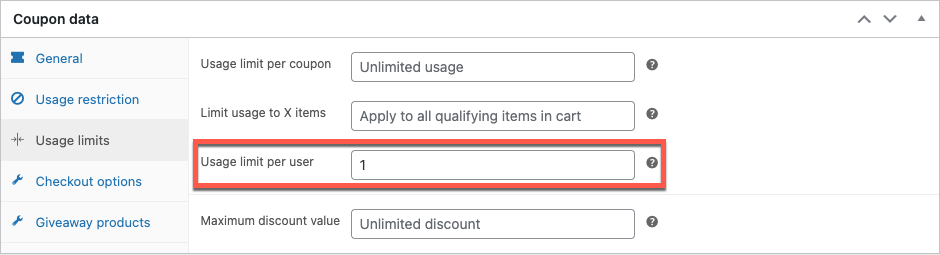
- Set the usage limit per user as 1.
- Publish the coupon.
Related Articles: Display WooCommerce Related Products: Upsells, Cross-sells, & More
4. Mix & Match from Categories: Category-Based Combo Discount
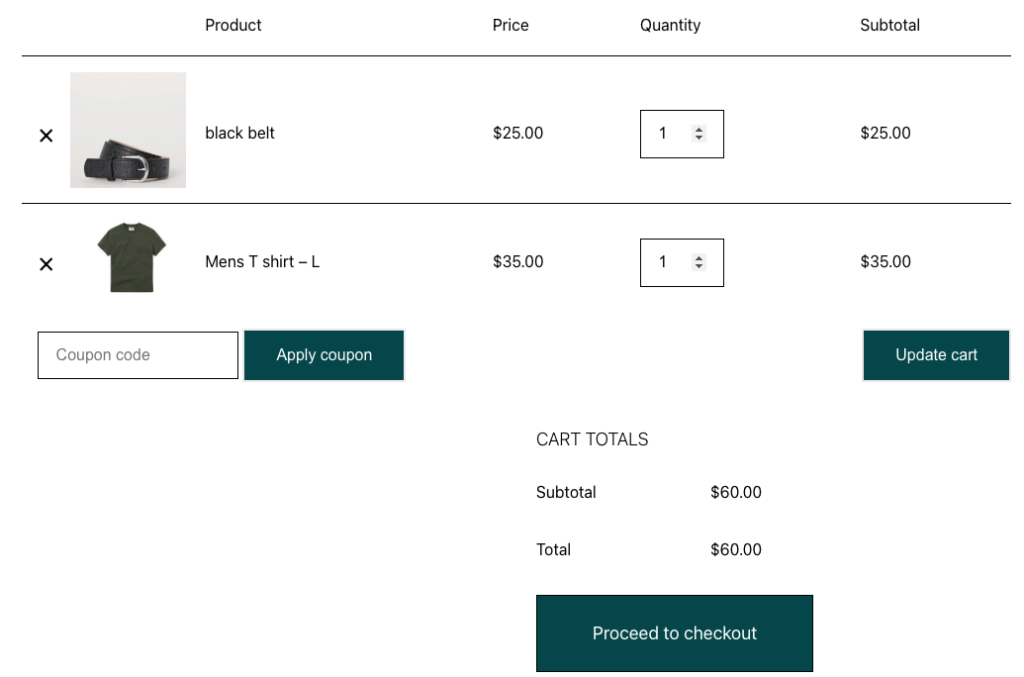
You can encourage customers to buy more by offering discounts on products from different categories. Here’s how to create a bundle coupon where customers get a 10% discount when they buy one product from Category A and one from Category B:
- Create a new coupon and name it ‘Category combo.’
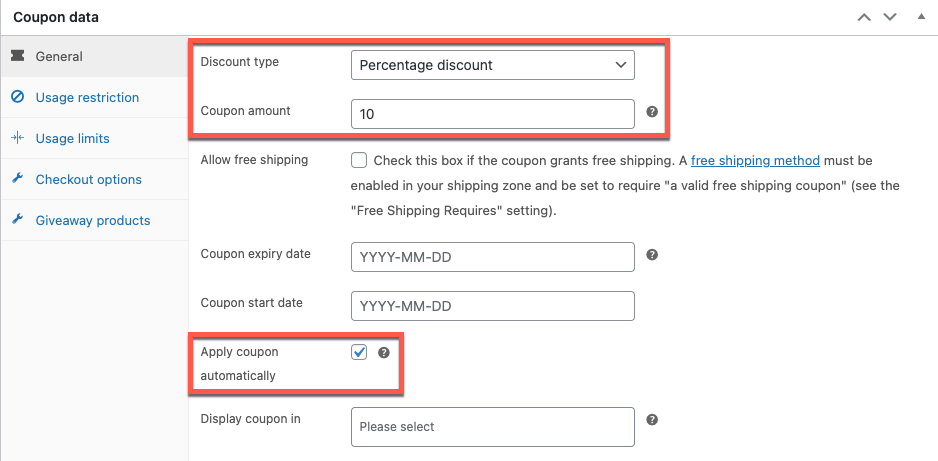
- Set the coupon as a percentage discount coupon offering a 10% discount.
- Set the coupon to be applied automatically.
- In the Usage restriction tab, scroll down to Product Categories.

- Publish the coupon.
When your customer adds one product from both categories, the combo discount will automatically be applied to the customer cart.
Related Articles: Display ‘Customers Also Bought’ Product Bundles in WooCommerce
These scenarios are just the starting point. To unlock more advanced combo promotions for your WooCommerce store, consider upgrading to the premium version. Smart Coupons for WooCommerce Pro offers a wealth of advanced features that enable you to run highly effective coupon promotions.
1. WebToffee Smart Coupons
WebToffee Smart Coupons is a powerful WooCommerce coupon plugin that supports a wide range of discount strategies, including combo offers. It’s available in both free and premium versions.
The free version of this WooCommerce Coupon plugin lets you create basic BOGO and bundle deals with limited configurations—perfect for small stores just getting started. If you’re looking to set up advanced combo rules like tiered discounts, conditional giveaways, and dynamic banner promotions, the premium version unlocks all of that and more. It’s a highly rated, beginner-friendly solution ideal for stores of all sizes.
2. Flycart Discount Rules Plugin
The Flycart Discount Rules plugin offers an intuitive and rule-based approach to running discount campaigns in WooCommerce. With this plugin, you can create a variety of combo offers, including percentage discounts, fixed price bundles, BOGO deals, and category-specific promotions.
Its user-friendly interface makes it easy to set up complex conditions like cart subtotal-based rules or product-specific triggers. The plugin also supports dynamic messaging on product and cart pages, helping to increase offer visibility and boost conversions. It’s ideal for store owners looking for flexibility without needing to code.
3. Advanced Coupons for WooCommerce
Advanced Coupons for WooCommerce extends the core WooCommerce coupon functionality with powerful marketing features. You can easily set up combo offers such as “Buy X, Get Y” deals, product bundles, and cart condition-based discounts.
It also includes features like auto-apply coupons, URL-based coupons, and cart notices to nudge purchases. The plugin is designed with both flexibility and usability in mind, making it suitable for growing stores that want to implement more sophisticated promotions without relying on custom development.
4. ELEX WooCommerce Dynamic Pricing and Discounts Plugin
The ELEX Dynamic Pricing and Discounts plugin is a comprehensive tool for setting up complex pricing rules and combo discounts. It supports product-specific, category-based, and cart-level discounts, as well as advanced combo deals like BOGOs and group pricing.
One standout feature is its ability to create unlimited discount rules with priority settings, allowing you to manage overlapping offers easily. With detailed rule customization and flexible targeting, this plugin is ideal for large stores or those running frequent promotional campaigns across multiple product lines.
5. YITH WooCommerce Dynamic Pricing and Discounts
YITH Dynamic Pricing and Discounts plugin gives you full control over WooCommerce pricing strategies. From straightforward combo deals to complex tiered discounts and role-based pricing, this plugin covers it all. You can create offers that target specific users, set conditions based on quantity, product combinations, or time-limited campaigns.
The plugin includes a clean backend interface, multiple discount types, and detailed scheduling options—perfect for stores wanting to automate seasonal or targeted promotions. It integrates well with other YITH plugins, making it a strong choice for multi-feature WooCommerce environments.
Creating combo offers in WooCommerce involves bundling products and applying discounts to encourage customers to purchase multiple items. For instance, you can pair slow-moving products with the popular ones customers are already interested in and offer them bundle discounts.
A bundle offer in WooCommerce involves grouping products bought together and applying a discount. You can create advanced product bundles with the frequently bought together plugin from Webtoffee.
Conclusion
Combo offers, discounts, and special deals are more than just sales tactics—they’re powerful strategies to enhance customer satisfaction, build loyalty, and drive repeat purchases. When used strategically, these offers can help you clear out slow-moving inventory, increase average order value, and create a compelling shopping experience that keeps customers coming back.
Setting up combo deals in WooCommerce doesn’t have to be complicated. With the right tools, you can easily configure BOGO deals, product bundles, and category-based discounts to match your marketing goals. Start experimenting with different types of offers today and turn casual browsers into loyal customers.


Subcribe to our newsletter


