Share:


Table of Contents
Custom shipping labels in WooCommerce allow businesses to tailor their shipping documentation to better reflect their brand and operational needs. By utilizing plugins, store owners can create labels that fit specific packaging, incorporate branding elements, and enhance the overall customer experience, making them essential for effective fulfillment and brand consistency.
- Custom shipping labels enable businesses to adjust size, layout, and branding elements to match their packaging and printers.
- Plugins like the WooCommerce Shipping Labels plugin facilitate the creation and customization of shipping labels directly from WooCommerce orders.
- Custom labels improve operational efficiency by reducing printing errors and accommodating different packaging types and printing formats.
- Incorporating branding elements on shipping labels enhances customer trust and reinforces brand identity during the delivery process.
- Thoughtfully designed labels balance branding with carrier requirements, ensuring clarity and scannability for smooth logistics.
- Custom shipping labels transform a logistical necessity into a strategic tool for enhancing customer experience and encouraging repeat purchases.
Custom shipping labels let you go beyond the default WooCommerce format — adjusting label size, layout, and branding elements like your logo, colors, and custom messages, so the label matches your packaging, printer, and brand rather than a fixed template.
You can create and customize shipping labels in WooCommerce using a plugin such as the WooCommerce Shipping Labels plugin. Once the free base plugin is active, the premium version adds custom label sizing, multiple labels per sheet, and a visual/code editor for templates — all managed from Invoice/Packing > Shipping Label.
This guide walks through installing the plugin, setting up custom label sizes, and customizing your label templates step by step.
What Are Shipping Labels?
Shipping labels do more than move a package from point A to point B. They carry routing data for carriers, order details for warehouses, and, often overlooked, brand signals for customers. The label on the box is one of the few physical touchpoints a customer interacts with, which makes it surprisingly influential.

At a functional level, shipping labels include essentials like the destination address, return address, tracking barcode, and carrier instructions. When generated correctly, they keep fulfillment fast, reduce carrier rejections, and limit manual fixes during dispatch. When designed thoughtfully, they also reinforce trust. That matters, especially when research shows that 41% of consumers are more likely to purchase again when packaging reflects consistent branding. The label is part of that experience.
For a full breakdown of what a label includes and how it works, see our guide on what shipping labels are and how they work.

Custom shipping labels start to matter when fulfillment stops being uniform. As soon as your store handles variation, products, packaging, printers, or branding, fixed labels become friction points instead of helpers. This is where customization turns from a “nice-to-have” into an operational advantage.
Here are the situations where custom labels for shipping make a measurable difference.
You Ship Using Different Packaging Types
Boxes, padded mailers, tubes, and flat packs all demand different label dimensions. A one-size label often wastes space or forces awkward scaling. With custom label size options, labels fit the package instead of the other way around, improving scannability and presentation.
You Print Labels on Different Paper Formats or Printers
Not every store prints from a single setup. Thermal printers, A4 sheets, label rolls, and shared office printers behave differently. Custom size label printing helps match shipping label layouts to the exact sheet or roll format, reducing misalignment and reprints. Even details like “how many labels on a sheet” matter when you’re printing in batches.
Your Products Require Clear Handling Instructions
Fragile items, temperature-sensitive goods, or regulated products need visible instructions. Customizable labels let you add handling notes, internal references, or product cues without cluttering carrier information. This reduces fulfillment mistakes while keeping labels carrier-compliant.
You Want to Reduce Printing Errors and Wasted Paper
Default templates often force trial-and-error printing. Slight misalignment leads to clipped barcodes or unreadable addresses. Custom shipping labels lets you define exact dimensions and spacing upfront, which cuts paper waste and saves time.
Your Branding Needs Consistency Across Shipments
Shipping labels may look functional, but they still represent your brand. Custom shipping labels with logo placement, typography control, and layout consistency help reinforce professionalism. They also align the unboxing experience with the rest of your store, which subtly improves repeat purchase intent.
Taken together, these use cases highlight an important shift. Shipping labels are no longer just logistical artifacts. They are flexible tools that support accuracy, branding, and efficiency.
WooCommerce handles orders well, but it does not offer native tools for creating custom shipping labels. By default, store owners are limited to rigid layouts or carrier-generated labels that leave little room for flexibility. That gap is usually filled with a shipping label plugin that gives control over size, layout, and customizations.
This is where a dedicated WooCommerce shipping labels generator, such as WebToffee’s WooCommerce Shipping Labels, Dispatch Labels, and Delivery Notes plugin, becomes useful. It lets store owners create shipping labels that align with their packaging, printers, and fulfillment workflow.
Used by 70,000+ WordPress users, the plugin focuses on features that solve common shipping label limitations without adding unnecessary complexity. Its core features include:
- Automate shipping label generation and printing right from WooCommerce orders
- Create multiple shipping labels to support bulk shipments
- Define a custom label size that matches your packaging or printer setup
- Customize labels using built-in templates instead of starting from a blank layout
- Add store details, logos, order information, and handling notes where required
- Print custom shipping labels individually or in bulk
- Generate related documents such as dispatch labels and delivery notes alongside shipping labels.
Once the basics are in place, setting up custom shipping labels in WooCommerce is straightforward. The steps below walk through enabling label generation, defining custom label size, customizing layouts, and printing shipping labels without disrupting your order fulfillment flow.
Prerequisites
Ensure the free PDF Invoices, Packing Slips and Shipping Labels plugin is installed and activated in your WordPress dashboard. You will be able to access the premium plugin settings only if the free version is active. For this:
- Go to Plugins > Add New Plugin.
- Search for the “WooCommerce PDF Invoices plugin” by WebToffee in the search bar.
- Once you find the plugin, click on Install Now and then activate the plugin.

- If you are installing this plugin for the first time, you will be asked to enter some information such as store address, tax details, etc.
- Once you enter the necessary information, the plugin will generate all necessary documents, such as PDF invoices, delivery notes, and shipping labels.
Step 1: Install & Activate the WooCommerce Shipping Labels Plugin
After purchasing the plugin, you can download the plugin ZIP file from the My Account section. You will also receive an email with the link to download the plugin file.
Next, open your WordPress dashboard and go to Plugins > Add New Plugin. Click on Upload Plugin to upload the plugin file. Then, install and activate the plugin to automate and create shipping labels.
Step 2: Create Custom Shipping Labels
To enable shipping label generation settings, go to Invoice/Packing > Shipping Label. You can access all shipping label settings, such as custom size labels, deciding how many labels on a sheet, customizing labels, and more.
- In the General tab, enable Multiple labels option to create multiple shipping labels per page.
- In the Set number of labels in one row option, enter the number of labels per row. This lets you control how many labels appear on a single sheet.
- Set the Shipping label size option to Custom. This enables the plugin to set up and print custom-size labels in WooCommerce.
- In the Custom size field, enter the required height and width for your shipping labels.
- To add order-related information, include it using the Order meta fields option.

Step 3: Configure Shipping Label Printing
You can also control when the option to print a shipping label becomes available.
- In the Show ‘Print Shipping Label’ button for selected order statuses setting, choose the order statuses for which the Print Shipping Label button should appear. For example, you may want the printing option to appear only after an order reaches a particular fulfillment status.

- After reviewing the settings, click Update Settings to activate the changes.
You have now created custom-size shipping labels that match your printing and fulfillment requirements.
Next, let’s look at how to customize shipping labels to better suit your store’s shipping and branding needs.
Creating a custom-size label determines how the label fits your packaging and printer. Customizing the label, on the other hand, lets you control how the information appears.
With the plugin, you can select different templates, change the layout, add handling instructions, and modify label elements using either a visual editor or code editor.
Step 1: Choose a Shipping Label Template
To customize labels in WooCommerce, switch to the Customize tab to access shipping label customization settings.
- Click Change template. In the popup window, you can access premium shipping label layouts. Choose a template that supports your requirements.

- If you want to add important notes such as Fragile, Keep dry, or This side up, you can use Pro Layout 4 or customize the template using the code editor.

Step 3: Customize the Label Layout and Content
Once a template is selected, customize labels using the visual editor options on the right-hand side. All the customizable elements in the template are available here. From there, you can enable/disable or edit the element properties.
Any changes made can be dynamically previewed from the visual editor in the middle.

If you need more advanced control over the template, switch to the code editor and modify the layout as required.
This gives you more flexibility when the standard template options are not enough.

- After updating the template, give it a name and click Save and activate to apply the shipping label template across all orders.
That’s it. You have successfully set up custom shipping labels in WooCommerce and automated the shipping label generation process.
Sample Shipping Label
Below is a sample shipping label generated for a WooCommerce store.
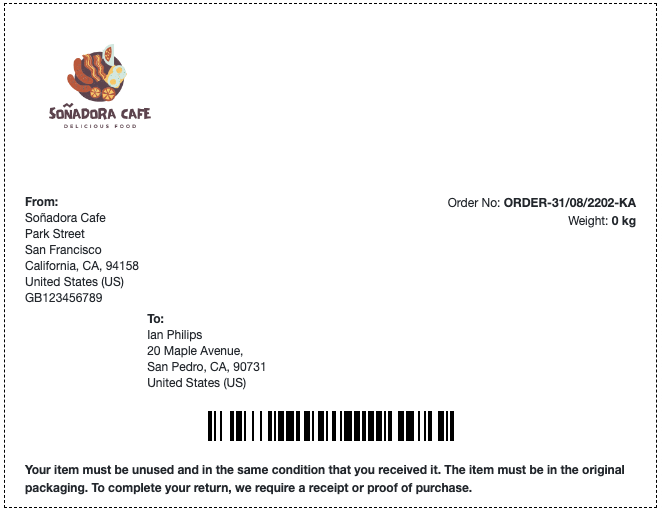
Once an order reaches the configured status, the Print Shipping Label button will be enabled. You can:
- Bulk print shipping labels from WooCommerce > Orders by selecting orders and choosing Print shipping label from the Bulk actions dropdown, or
- Print shipping labels individually by opening an order and clicking the print icon in the Invoice/Packing meta box.
You have now successfully set up custom size shipping labels, automated shipping label printing, and customized labels to include important information such as handling instructions. For stores that ship daily, that consistency saves time and avoids fulfillment errors.

We also have an add-on to power you with advanced customization options. The Customizer Add-on for WooCommerce PDF Invoices helps you customize the following plugins:
- WooCommerce PDF Invoice, Packing Slips, and Credits Notes Plugin
- WooCommerce Shipping Labels, Dispatch Labels & Delivery Notes Plugin
- WooCommerce Picklists Plugin
- WooCommerce Proforma Invoices Plugin
With this advanced customizer plugin, you can easily customize WooCommerce invoices, packing slips, credit notes, shipping labels, and more using the drag-and-drop editor. You can also customize page properties such as padding, background color, text size, line spacing, text color, etc.
The plugin gives you more control over each field in the documents. You can edit fields individually without affecting other fields in the document. It also provides a block-wise code editor for more control. You can instantly preview the documents with the last placed order on your WooCommerce store.
Key features of this add-on:
- Customize different documents and labels
- Drag-and-drop editor
- Block wise code editor
- Customize page properties
- Smart preview with last orders
Custom shipping labels are labels whose size, layout, and content can be adjusted to match your packaging, printer, and branding needs, instead of using fixed templates.
You need a plugin that lets you create shipping labels, define custom label size, customize layouts, and print labels directly from orders.
Yes. With customizable labels, you can add your store logo, business details, and order information to create custom shipping labels with logo support.
Yes. Plugins that support custom size label printing allow you to define exact label dimensions based on packaging or printer type.
This depends on your paper format. Advanced label plugins let you set how many labels are on a sheet, helping align labels correctly and reduce printing errors.
No. WooCommerce can create orders and invoices, but creating and customizing shipping labels requires a dedicated plugin.
Shipping labels rarely get the attention they deserve, yet they sit at the intersection of logistics, branding, and customer experience. Fixed templates often work only until product types, packaging, or order volume change. That’s when the limitations begin to show.
Custom shipping labels give store owners the flexibility to match labels to real-world shipping needs. The ability to control custom label size, adjust layouts for different printers, add handling notes, and maintain brand consistency reduces errors and improves how orders leave your warehouse.
It’s also important to keep carrier requirements in view. Customization should support clarity and scannability, not interfere with it. Well-designed labels balance brand elements with carrier-compliant formatting, ensuring packages move smoothly through delivery networks.
When implemented thoughtfully, custom shipping labels are no longer just operational details. They become reliable fulfillment tools and subtle brand touchpoints that support repeat purchases and smoother shipping workflows.
Thanks for reading!


Subcribe to our newsletter