


Share:


Table of Contents
Managing product visibility across multiple sales channels can be tricky, especially when your inventory changes frequently. Whether you’re selling through Google Shopping, Facebook, or TikTok, keeping your product data accurate is crucial for both customer satisfaction and ad performance. One common mistake many store owners make? Promoting products that are no longer in stock.
Ever clicked on a product ad only to find it’s out of stock when you reach the store? Frustrating, right? Now imagine your customers facing the same experience on your WooCommerce store. It not only creates a poor shopping experience but also wastes ad spend and can trigger disapproval from platforms like Google Merchant Center.
When your feed includes unavailable products, ad platforms may still display them, leading to wasted clicks, reduced trust, and lower quality scores. The good news? You can easily fix this by excluding out-of-stock products from your WooCommerce product feeds.
In this article, we’ll show you how to do it step by step using the WooCommerce Product Feed Plugin, so your ads stay accurate, efficient, and conversion-ready.
Key Takeaways:
- Excluding out-of-stock products ensures you’re only promoting items that customers can actually buy, maximizing the return on every ad click.
- Keep your shoppers happy and build trust by showing only products that are available and ready to ship.
- Prevent disapprovals or warnings from platforms like Google Merchant Center by keeping your product feeds accurate and up-to-date.
When your ads or listings showcase products that aren’t actually available, everyone loses — your customers, your ad budget, and your brand credibility. Here’s why filtering out-of-stock products from your WooCommerce product feeds is a must:
Better Customer Experience
Nothing frustrates a shopper more than clicking on an ad only to find the product unavailable. By showing only in-stock items, you create a smoother, more reliable experience that keeps customers coming back instead of bouncing away.
Ad Platform Compliance
Platforms like Google Merchant Center and Meta Commerce Manager have strict policies against advertising unavailable products. If your feed includes out-of-stock items, you could receive warnings, disapprovals, or even temporary account suspensions. Keeping your feed clean ensures your listings remain active and compliant.
Optimized Ad Spend
Every click costs money. Promoting products that can’t be purchased is literally throwing that money away. Excluding unavailable items helps you focus your budget on products that can actually convert, improving your ROI and ad efficiency.
Improved Data Accuracy
Clean data is the foundation of effective marketing. When your feed reflects your real-time inventory, ad platforms display the correct product details, prices, and availability. This leads to more accurate analytics and smarter decisions.
Example: If you run Google Shopping ads and keep out-of-stock products in your feed, you risk receiving “Disapproved – Out of Stock” warnings. This can lower your account’s quality score and reduce how often your ads appear, directly impacting visibility and sales.

Most product feed plugins allow you to set filters or rules to decide which products appear in your feed. For example, you can include only “In Stock” items or exclude those marked as “Out of Stock” or “On Backorder.”
Typically, the process looks like this:
- The plugin syncs with your WooCommerce store’s product database.
- It checks the stock status of each item.
- Based on your selected filters, it automatically includes or excludes products in the feed.
However, the WebToffee WooCommerce Product Feed Plugin takes this a step further. Instead of manually setting up filters, it offers a one-click option to instantly exclude out-of-stock products. This simple yet powerful feature saves you time and effort, ensuring that your feeds display only products that are available for purchase.
How to Exclude Out-of-Stock Products Using the WooCommerce Product Feed Plugin
Follow these easy steps to ensure your WooCommerce product feeds include only available products.
Start by installing the WebToffee WooCommerce Product Feed plugin. Once installed, activate the plugin and you’ll find the WebToffee Product Feed option in your WordPress dashboard.
Step 1: Create a New Product Feed
- Go to WebToffee Product Feed > Create New Feed to set up your feed.
Select your preferred channel, such as Google Shopping, Facebook (Meta), Pinterest, or TikTok. Each platform comes with a ready-made template, so you don’t have to worry about formatting or required fields.
Next, configure the basic details of your feed. Select the target country where you plan to market your products, give your feed a clear name, set the auto-refresh interval to determine how often it updates, and choose the cron type (WordPress or Server) based on your store’s size and performance needs.

Step 2: Set Up Filters to Exclude Out-of-Stock Products
In this step, you’ll decide which products appear in your feed. The Filter Products section gives you complete control over what gets included, helping you create clean, accurate, and targeted product feeds.
To start, scroll down to the filtering section and simply toggle the Exclude out-of-stock product option on. With this enabled, the plugin will automatically remove all unavailable products, ensuring that only items currently in stock are added to your feed. This saves time and helps you avoid showing unavailable products on your ad platforms.
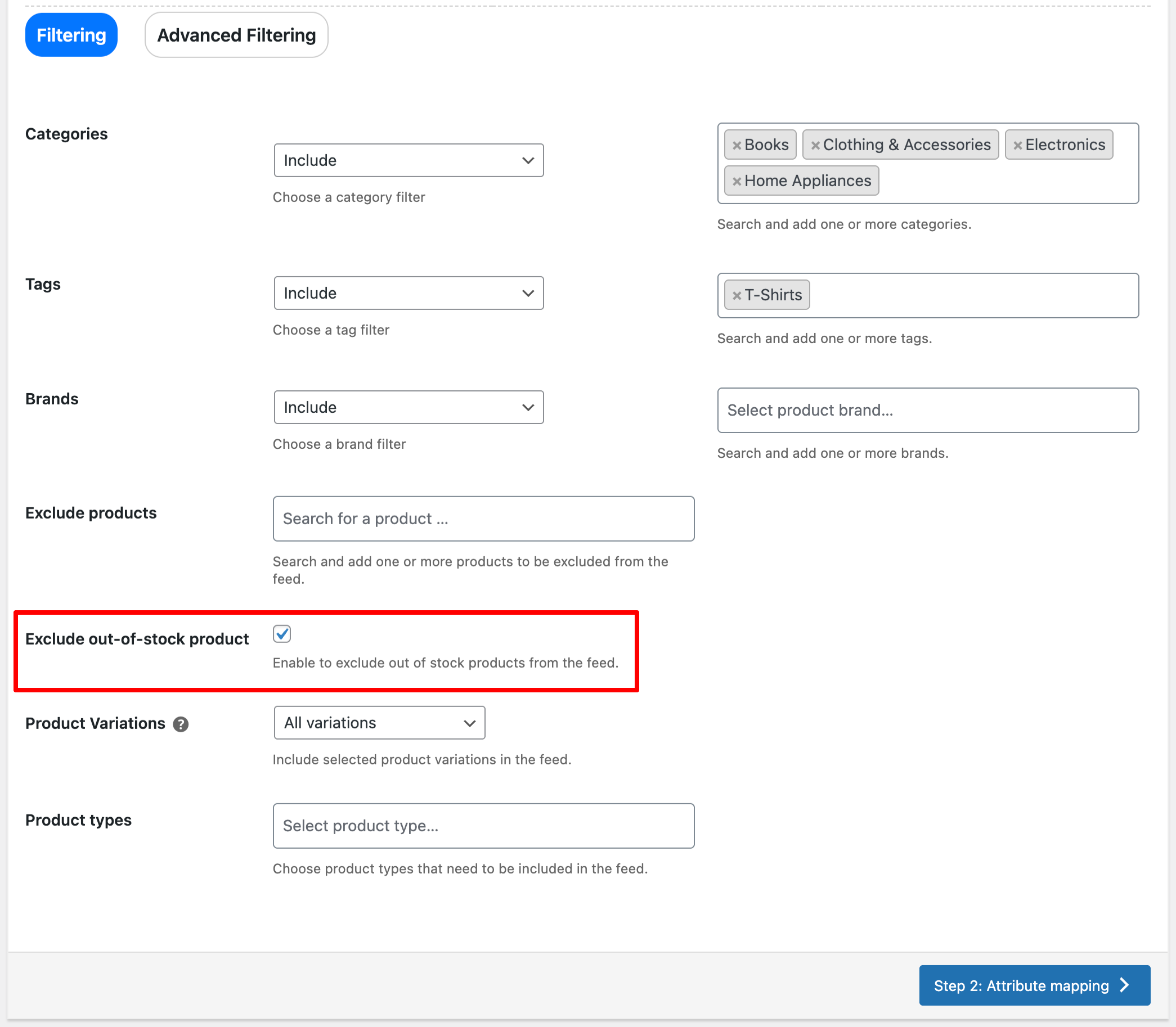
You can also take things a step further by applying additional filters. For example, you can:
- Exclude specific categories (e.g., seasonal or clearance items).
- Filter by product tags to include only certain collections.
- Select specific product types, such as simple, variable, or grouped products.
These filter options give you flexibility to fine-tune your feed based on your marketing goals, whether you’re promoting a specific range or maintaining a fully dynamic, stock-aware catalog.
Step 3: Map Product Attributes and Categories
Next, you’ll need to map your store’s data to the required feed attributes. The plugin automatically connects key WooCommerce fields such as product title, SKU, price, and image to their corresponding feed attributes, ensuring all essential details are accurately included.

You can also map your store categories to standardized product categories used by sales and advertising platforms. This helps ensure your products are displayed in the right places, improving their visibility and relevance across channels.

With the WebToffee WooCommerce Product Feed Plugin, this mapping process is quick and intuitive. You can easily assign attributes and categories using simple dropdown menus, ensuring your feed is accurate, complete, and ready for submission.
Step 4: Generate the Feed
In the final step, select your batch count to define how many products are processed simultaneously, and choose the export file format, such as XML, CSV, or TXT, based on your platform’s requirements.
Once you’re ready, click Generate to create your product feed file.
The plugin will automatically create a feed that excludes all out-of-stock products. This ensures that only available, purchasable items are included, keeping your ads clean and compliant across all sales channels.

After the feed is generated, you’ll see it listed on the Manage Feeds page within your WordPress dashboard.
If you’ve set up a feed auto-refresh schedule, the plugin will automatically update the feed at regular intervals, for example, daily or twice a day, to reflect any changes in stock status. That means when an item goes out of stock or comes back in, your feed stays accurate without any manual effort.
This automated update process ensures your marketing campaigns always promote the right products, helping you maintain trust, avoid ad disapprovals, and get the best performance from every feed.
Advanced Tips & Best Practices
- Include Backorder Items: If you allow backorders, include them in your feed to keep sales steady. Please ensure that delivery times are clearly stated.
- Test Before Submitting: Always preview your feed to check for missing attributes, wrong prices, or out-of-stock items before submitting to ad platforms.
- Use Filters & Mapping: Take advantage of the plugin’s filters and attribute mapping for better control and cleaner, more relevant feeds.
- Keep Feeds Updated: Regularly refresh your feed to maintain accuracy, boost SEO, and improve marketplace visibility.
Troubleshooting Common Issues
Even with automation in place, occasional hiccups can occur, especially when dealing with changing stock levels. Here’s how to handle the most common problems related to out-of-stock products in your WooCommerce product feeds:
Out-of-Stock Products Still Appearing in the Feed
If unavailable products are still showing up, start by verifying that the “Exclude Out-of-Stock Products” option is enabled in your feed settings. Next, regenerate the feed to ensure the latest stock data is applied. Sometimes, cached versions of old feeds may still include outdated product data, so it’s a good idea to clear the plugin or site cache and refresh your feed URL.
Also, double-check your WooCommerce inventory settings. Products marked as “Hidden” or using custom stock statuses may not be recognized by default filters. Ensuring that your stock management settings are consistent across all products helps the plugin correctly identify which items to exclude.
Feed Not Updating Automatically
If your stock changes frequently but the feed isn’t updating as expected, confirm that WP Cron (or Server Cron) is active and running properly. The scheduled update feature depends on cron jobs to fetch new product data and refresh feeds automatically.
If cron is disabled or misconfigured, your feed might not reflect the latest stock status.
Feed Shows Old or Outdated Data on Ad Platforms
Sometimes, even after updating your feed, ad platforms like Google Merchant Center or Meta Commerce Manager may still display outdated listings. This usually happens when the platform hasn’t fetched your new feed yet.
To fix this, resubmit your feed URL or trigger a manual fetch from the platform’s settings. You can also clear the platform’s feed cache to ensure the latest version is used.
Conclusion
Keeping your product feeds accurate and up to date is crucial. By excluding out-of-stock products, you not only create a cleaner, more reliable feed but also improve your customers’ shopping experience and protect your ad performance across channels.
With the WebToffee WooCommerce Product Feed Plugin, managing this is effortless. Just a few clicks and your feeds automatically stay in sync with your store’s inventory. No manual updates, no wasted ad spend, and no frustrated customers.
Hope this article helped you understand how to exclude out-of-stock products from your WooCommerce product feeds easily.
If you have any questions or tips of your own, feel free to share them in the comments below. We’d love to hear from you!
Yes. If you allow backorders in your WooCommerce store, those products can still be included in your feed even if their stock quantity is zero. The WebToffee WooCommerce Product Feed Plugin gives you full control.
You can choose whether to include or exclude backorder items based on your sales strategy. This is helpful if you still want customers to place orders while waiting for stock to be replenished.
Absolutely. The plugin supports both simple and variable products. It checks the stock status of each variation individually, ensuring that only variations marked as “In Stock” are included in your feed. Out-of-stock variations are automatically excluded, so you don’t have to manage them manually.
Yes. Once you enable the “Exclude Out-of-Stock Products” option, it remains active for all scheduled or auto-refreshed feeds. Each time your feed is updated, whether daily, weekly, or on a custom schedule, the plugin automatically filters out any products that have gone out of stock since the last update. This ensures your feeds always stay accurate and current without any manual effort.

Got any query? Please leave a comment or reach out to our support
Got any query? Please leave a comment or reach out to our support

Subcribe to our newsletter





Comments (2)
Alix
May 13, 2026
I have installed the free feed but there was no check box to exclude out of stock items. The screenshot of the set up steps in this article does not match the one I see – missing the inventory filter
The woocommerce store uses a feed from Lightspeed Retail X.
Yuval
May 14, 2026
Hi Alix,
Thank you for reaching out. The option to exclude out-of-stock products is currently available in the Pro version of the WooCommerce Product Feed plugin. That is why the inventory filter shown in the article is not visible in the free version.
You can check the Pro version here.