Share:


Table of Contents
Product images are crucial for Google Shopping listings, as they significantly influence shopper engagement and decision-making. Adhering to Google's specific image requirements is essential for ensuring product visibility in ads and listings, especially with the upcoming changes mandating a minimum image size of 500 × 500 pixels across all categories by January 31, 2027.
- Google currently allows minimum image sizes of 100 × 100 pixels for non-clothing products and 250 × 250 pixels for clothing until January 30, 2027.
- From January 31, 2027, all images must meet the new minimum size requirement of 500 × 500 pixels.
- High-quality images of around 1500 × 1500 pixels are recommended to ensure clarity across various platforms and devices.
- Images should fill 75% to 90% of the frame, avoiding promotional overlays, watermarks, or unrelated props.
- Each product can have one main image, up to ten additional images, and one optional lifestyle image, all submitted through specific attributes in the product feed.
- Regular audits of your WooCommerce catalog are necessary to identify and replace any undersized images before the enforcement of the new requirements.
Google has specific rules for images submitted through your product feed. An image that is too small, difficult to crawl, or covered with promotional text may prevent a product from appearing in Shopping ads and free listings.
An important change is also approaching. From 31 January 2027, images submitted through the image_link and additional_image_link attributes must be at least 500 × 500 pixels across all product categories. Until then, the older minimums of 100 × 100 pixels for non-clothing products and 250 × 250 pixels for clothing products can still be used.
This guide explains the current Google Shopping image requirements, the 2027 update, and how WooCommerce product, gallery, lifestyle, and variation images should be submitted to Google Merchant Center.
| Requirement | Until 30 January 2027 | From 31 January 2027 | Recommended practice |
|---|---|---|---|
| Minimum size for non-clothing products | 100 × 100 px | 500 × 500 px | Around 1500 × 1500 px or higher |
| Minimum size for clothing products | 250 × 250 px | 500 × 500 px | Around 1500 × 1500 px or higher |
| Maximum resolution | 64 megapixels | 64 megapixels | Use the highest quality available |
| Maximum file size | 16 MB | 16 MB | Compress images without making them blurry |
| Recommended product coverage | 75%–90% of the image | 75%–90% of the image | Leave enough space for automatic cropping |
| Main product images | One | One | Show the clearest view of the product |
| Additional product images | Up to 10 | Up to 10 | Show other angles, details, and usage |
| Lifestyle image | Optional | Optional | Use a natural or real-world setting |
| Lifestyle image minimum | 600 × 600 px | 600 × 600 px | Use a high-resolution contextual image |
Google is increasing the minimum image resolution for the image_link and additional_image_link attributes to 500 × 500 pixels.
The change applies to:
- All product categories
- Shopping ads
- Free listings
- Main product images
- Additional product images
Merchant Center may already display an “Image too small for upcoming enforcement” warning for images that meet the current minimum but are smaller than 500 × 500 pixels.
Google may automatically optimize certain smaller images, which can prevent immediate disapproval. However, merchants should not depend on automatic optimization. The safest approach is to audit your WooCommerce catalog now and replace images below 500 × 500 pixels before the deadline.
Do not audit only your best-selling products. Older products, imported catalogs, and rarely used variations are often where undersized images remain hidden.
Use Merchant Center and your exported product feed to perform a complete audit.
Check Merchant Center Warnings
To find affected products,
- Sign in to Google Merchant Center and go to Products
- Open the Needs attention tab
- Select View history.
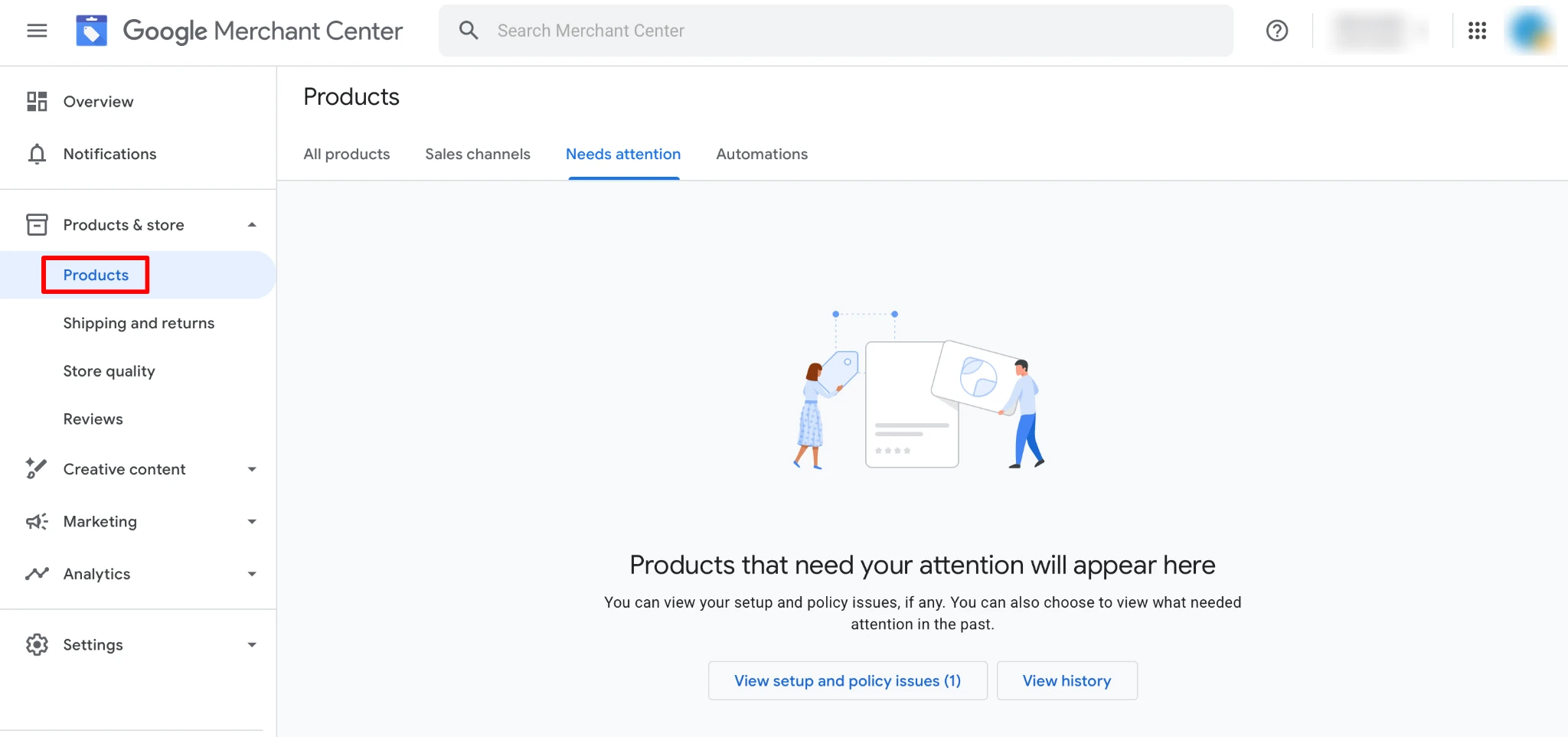
Look for image-related warnings, particularly:
- Image too small for upcoming enforcement
- Image resolution optimizations applied
- Image too small
- Image not crawlable
- Unsupported image type
You can open the warning to see the affected products or download a list for a larger catalog.
After correcting the images and resubmitting the feed, changes may take approximately 24–72 hours to appear in Merchant Center.
Inspect the Exported Product Feed
Download the latest version of your product feed and review these attributes:
- id
- title
- image_link
- additional_image_link
- lifestyle_image_link
- item_group_id
As you review the feed, look for:
- Empty image fields
- URLs containing dimensions such as 150×150 or 300×300
- Duplicate images across color variations
- Unsupported file extensions
- Gallery images used as the main image
- URLs with multiple redirects
- Temporary access tokens
- HTTP URLs
- Blocked or inaccessible image paths
WooCommerce gives you several places to add product images. However, Google does not treat every image in the same way. The images need to be submitted through the correct product-feed attributes.
WooCommerce Product Image and image_link
The Product Image, also called the featured image, is the main image displayed on an individual WooCommerce product page. In most WooCommerce product-feed setups, this image is submitted through Google’s required image_link attribute.
Google accepts only one value for image_link. This is the primary image that may appear in Shopping ads and free listings.

Your main image should give shoppers the clearest possible understanding of what they are buying. It should normally:
- Clearly show the complete product
- Use a clean background
- Match the submitted product variation
- Avoid unrelated accessories
- Avoid promotional overlays or watermarks
- Remain clear when cropped or resized
For example, if you sell a coffee machine, the main image should clearly show the coffee machine itself. An image showing only a cup of coffee would not accurately represent the product being sold.
WooCommerce Product Gallery and additional_image_link
WooCommerce Product Gallery images can be submitted through additional_image_link.
Google allows up to 10 additional images per product. These images are optional but can help shoppers understand the product before visiting your store.
Gallery images may show:
- Different angles
- Close-up details
- Packaging
- Included accessories
- The product in use
- The product in a real-world setting

Additional images generally need to follow the main image rules, although Google allows more flexibility. They can focus on a feature, show part of a bundle, display the complete multipack, or show packaging contents.
For a camera bundle, the main image should show everything included in the offer. Additional images can separately show the camera body, lens, carrying bag, battery, and other accessories.
Note: You do not need to use all 10 available slots. Only submit images that help shoppers understand the product.
Lifestyle images and lifestyle_image_link
The optional lifestyle_image_link attribute is intended for contextual images showing the product in a natural or realistic setting. It can help shoppers imagine how the product might look or function in their own lives.
Examples include:
- Clothing worn by a model
- Furniture arranged in a room
- Cookware used in a kitchen
- Outdoor equipment at a campsite
- Home décor in a styled interior
- A complete product set shown together

Lifestyle images are mainly used for free listings. They must be at least 600 × 600 pixels, and only one image URL can be submitted through the attribute.
Lifestyle images are mainly used for free listings. Google requires them to be at least 600 × 600 pixels, and only one value can be submitted through the attribute. They must not contain promotional text, prices, watermarks, artificial borders, or calls to action. The lifestyle image should still keep the product as the main focus. A heavily staged scene where the product is difficult to identify is unlikely to be useful.
In WooCommerce, there is no default field specifically named “Lifestyle Image”. Depending on your feed setup, you may need to store the image URL in a custom field and map that field to lifestyle_image_link.
Note: Do not assume that every WooCommerce gallery image will automatically be treated as a lifestyle image. Gallery images are normally mapped to additional_image_link, while lifestyle_image_link is a separate attribute.
Variable products require particular attention. If a product is available in different colors, patterns, or materials, the image submitted for each variation should match that variation.
For example, imagine that a WooCommerce product has three color options: Blue, Green, and Black. The blue variation should use an image of the blue product. The green variation should use an image of the green product, and the black variation should use an image of the black product.
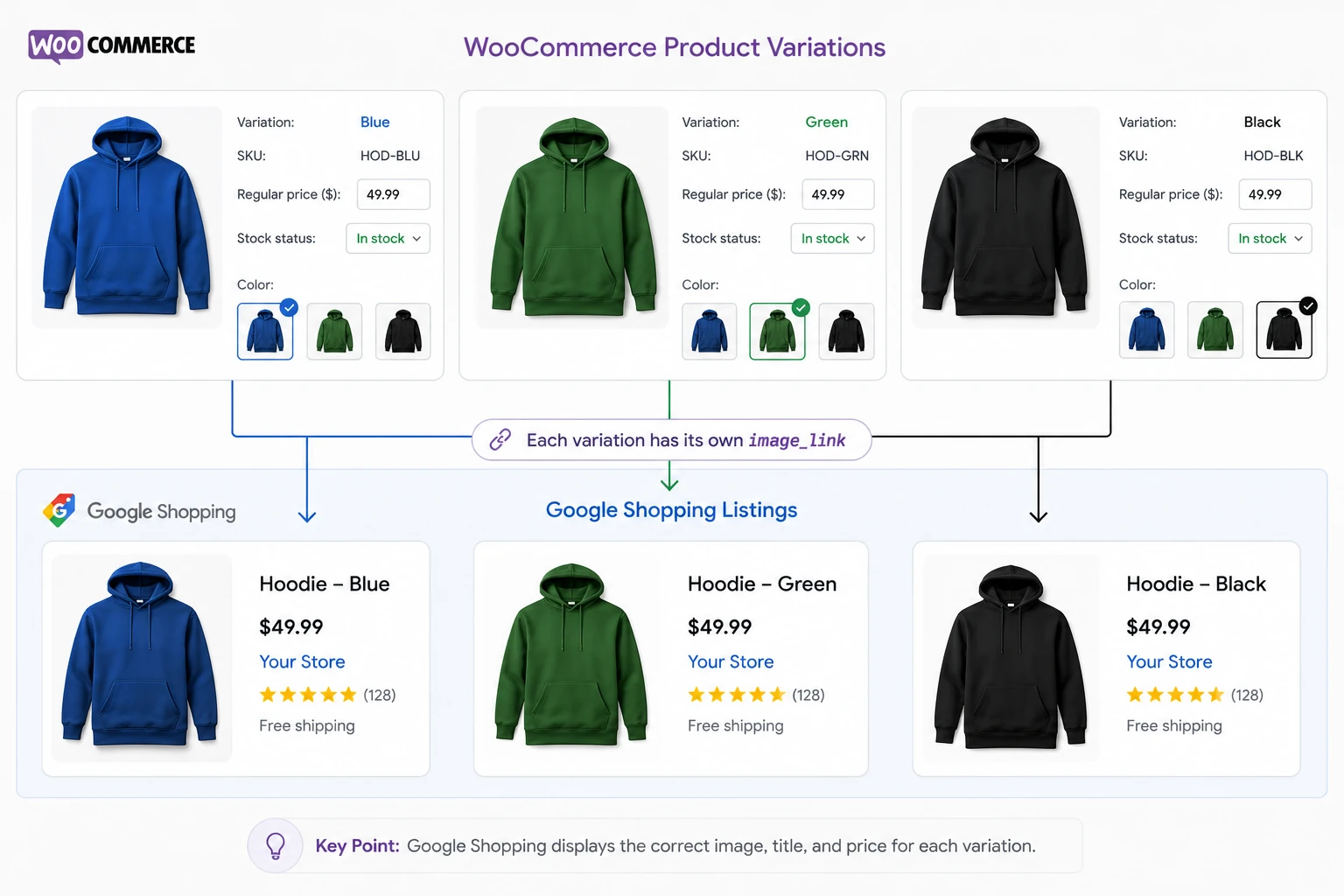
Do not submit an image containing all three colors as the main image for each variation. Google recommends showing only the specific color variation being submitted.
The same image can usually be reused for size variations when the product looks identical.
Before generating your product feed, check that every important variation has:
- A matching variation image
- The correct color, material, or pattern
- A working landing-page URL
- A unique feed ID
- The correct item_group_id
Image size is one of the most important Google Shopping image requirements.
Current Minimum Image Sizes
Until 31 January 2027, Google allows:
- At least 100 × 100 pixels for non-clothing products
- At least 250 × 250 pixels for clothing products
- At least 500 × 500 pixels for YouTube Shopping ads served on televisions
From 31 January 2027, the minimum becomes 500 × 500 pixels for all products submitted through image_link and additional_image_link.
Recommended Image Size
Meeting the minimum requirement does not necessarily mean that the image is ideal.
Google recommends providing images of approximately 1500 × 1500 pixels or higher, where possible. A larger source image can remain clearer when Google adjusts it for different devices, layouts, and listing formats.
For a new WooCommerce store, it is sensible to create product images at 1500 × 1500 pixels or larger from the beginning. Using an AI image generator will let marketing teams generate product images at the desired resolution. This gives you a consistent catalog and reduces the need to replace images later. This gives you a consistent catalog and reduces the need to replace images later.
Maximum Image Size
A product image cannot be:
- 64 megapixels
- 16 MB
Megapixels are calculated by multiplying the image width by its height. A 4000 × 4000-pixel image contains 16 million pixels, or 16 megapixels, and remains within the limit.
Avoid Enlarging Thumbnails
Do not take a 200 × 200-pixel thumbnail and simply resize it to 500 × 500 pixels.
The resized image will not contain the detail of a high-resolution original and may appear blurred or pixelated. Use the original product photograph wherever possible.
For the main image_link and additional additional_image_link attributes, Google supports:
- JPEG or JPG
- PNG
- WebP
- GIF
- BMP
- TIFF
The file extension should match the actual format of the image. A PNG file using a .jpg extension may trigger an unsupported image type error.
However, Google’s current documentation for lifestyle_image_link does not list WebP among the supported lifestyle-image formats, so check the specification before using it for that attribute.
Google does not receive the image file directly from WooCommerce in a standard feed. Instead, the product feed normally contains the public URL of the image.
The URL submitted through image_link, additional_image_link or lifestyle_image_link must:
- Begin with http or https
- Point directly to a supported image
- Be publicly accessible
- Be crawlable by Google
- Use correctly encoded spaces and symbols
- Remain stable while the image is in use
Google’s documentation allows image URLs of up to 2,000 characters. The URLs should also comply with RFC 3986 formatting.
Make Sure Google Can Crawl the Image
An image may display correctly on your WooCommerce product page but still be inaccessible to Google. Common causes include:
- A robots.txt rule blocking Googlebot-Image
- A firewall or security plugin blocking crawlers
- Hotlink protection
- Expired CDN URLs
- Login-protected image directories
- Broken image URLs
- Temporary query parameters
- Rate limiting on the hosting server
Open the image URL in a private browser window to confirm that it can be accessed without logging in.
You should also make sure that Googlebot and Googlebot-Image are not blocked by your robots.txt configuration.
Use Stable URLs
Avoid image URLs that change every time the feed is generated.
A stable URL allows Google to crawl and reuse the image without repeatedly processing it. URLs containing changing timestamps, temporary access tokens, or session information can cause unnecessary recrawling or image errors.
Use a New URL When Replacing an Image
When you replace an existing product image, Google recommends submitting a new and unique image URL.
A new URL generally signals that the image has changed and can trigger a recrawl within approximately three days. If you replace the file but keep exactly the same URL, Google may take up to six weeks to detect and recrawl it.
A simple way to create a new URL is to give the replacement file a new filename before uploading it to WordPress.
For example:
Old image: blue-running-shoe.jpg
Replacement image: blue-running-shoe-2026.jpg
Google recommends that the product fill between 75% and 90% of the complete image.
If the product is too small, shoppers may not be able to understand what is being sold. If it fills the entire frame, important parts may be cropped when Google adjusts the image for different placements.
A well- framed image should:
- Show the complete product
- Keep the product as the focal point
- Leave a small amount of space around the edges
- Remain clear at thumbnail size
- Avoid cutting off important details

A white background is recommended, but it is not compulsory for every main product image.
Google recommends either:
- A solid white background
- A transparent background
- A clean, staged background that keeps the product clearly visible
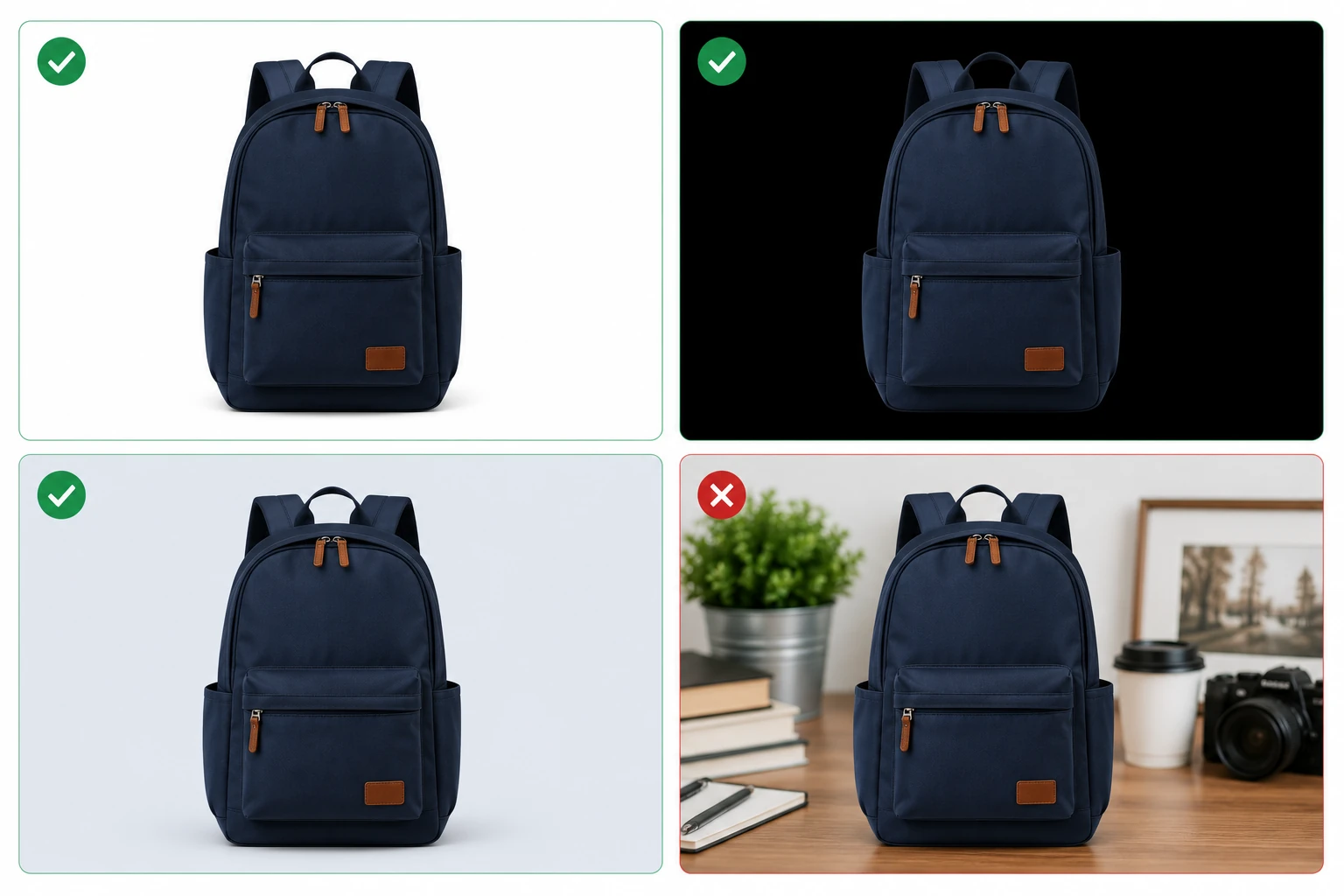
A white background is popular because it removes distractions and works well across different Google layouts. It is especially useful when the product itself has several colors or detailed features. However, a clean contrasting background can sometimes make a light-coloured product easier to see.
Be careful with transparent images of white or very light-coloured products. Google warns that transparent images may sometimes appear against a black background, making the product difficult to see.
The background should support the product, not compete with it.
Google wants shoppers to see the actual product rather than an advertisement created inside the image.
Your main product image should not contain:
- Calls to action such as “Buy now”
- Prices or discount percentages
- Free delivery messages
- Promotional claims such as “Best” or “Cheapest”
- Watermarks
- Added brand logos
- Retailer names
- Barcodes
- Artificial borders
- Large blocks of padding
- Placeholder graphics
- Images that do not show the actual product
A manufacturer’s logo that is physically printed on the product is acceptable. An extra logo added over the image is not.
Do Not Use Unrelated Products as Props
The main image should not include products that are not part of the offer.
If you sell a handbag, avoid surrounding it with shoes, sunglasses, and jewelry unless all those items are included in the purchase.
Simple staging may be acceptable, but shoppers must be able to understand exactly what they will receive.
Do Not Use Placeholders
A placeholder image, such as “Image coming soon” does not show shoppers what they are buying.
If the product does not have a valid image yet, it is better to exclude it temporarily from the feed than submit a placeholder and risk a disapproval.
Do Not Add Borders
Google may display images against different backgrounds and within different layouts. Artificial borders can interfere with those designs.
Do not use a border or thick padding to make a rectangular image appear square.

Google permits images created using generative AI, but the images must contain metadata indicating that AI was used.
Google specifically refers to IPTC Digital Source Type metadata, including values such as TrainedAlgorithmicMedia, CompositeSynthetic, and AlgorithmicMedia. Merchants should not remove this embedded metadata from AI-generated images.
The image still needs to meet the normal Google Shopping image requirements. It must accurately represent the product and must not mislead customers about:
- Colour
- Shape
- Size
- Material
- Included accessories
- Features
- Actual appearance
Understand: AI can be useful for creating a lifestyle setting or improving a background, but the final image should not make the product look materially different from what the customer will receive.
Some products need additional consideration.
Clothing and Fashion Products
For clothing, Google recommends showing products worn by people.
If you use a full-body photograph, avoid cropping the model’s head or feet. If you sell a single item, such as a shirt, make sure that the shirt remains the main focus.
Non-clothing fashion products such as shoes, handbags, and accessories should generally be shown alone in the main image. Additional images can then show the item being worn or used.
Product Bundles
If you submit a product using the is_bundle attribute, the main image should show all the products included in that bundle.
For example, the main image for a camera bundle should show the camera, lens, battery, charger, and carrying case if they are all included.
Additional images can show each item separately or highlight particular details.
Multipacks
For a product submitted using the multipack attribute, Google recommends showing a single unit in the main image.
An additional image can show the complete multipack.
For example, the main image for a six-pack of soap can show one bar clearly. A gallery image can show all six bars together.
Product Packaging
If you use packaging as the main product image, show it as a three-dimensional object.
A flat image showing only the front design of the box may not give shoppers enough information about the physical product.
Additional gallery images can show:
- The back of the packaging
- Product contents
- Included components
- Instructions
- Measurements
- Nutritional or material details
Hardware, Software, and Vehicle Parts
Google normally requires an actual product image rather than a generic illustration.
However, limited exceptions exist for products in certain hardware, vehicle parts, and computer software categories. Software products may also use an appropriate software logo or icon.
Check the applicable Google product category before relying on one of these exceptions.
Until 31 January 2027, the minimum size is 100 × 100 pixels for non-clothing products and 250 × 250 pixels for clothing products. However, merchants should now use images of at least 500 × 500 pixels to prepare for the upcoming requirement. Google recommends images of around 1500 × 1500 pixels or higher, where possible.
Product images should not include promotional text such as prices, discounts, free-delivery messages, or calls to action. Google also prohibits overlays such as watermarks, extra logos, and retailer names unless the branding is physically part of the product.
You can submit one main image through image_link and up to 10 additional images through additional_image_link. You can also submit one optional lifestyle image through lifestyle_image_link.
Yes. A product-feed solution can submit each WooCommerce variation as an individual product entry with its corresponding variation image. This is especially important for color, pattern, and material variations.
If you replace an image but keep the same URL, Google may not immediately detect the change. Uploading the corrected image under a new filename creates a new URL and can prompt a faster recrawl. Google says a new URL is normally crawled within around three days, while an image changed under the same URL may take up to six weeks to be detected.
You can use the same image when the variations look the same, such as a shirt available in several sizes. If the variations look different, such as blue, red and green versions of a product, each variation should use a matching image.
The image may be:
– Too small
– Blocked from Google’s crawler
– In an unsupported format
– Using an incorrect file extension
– Missing from the product feed
– Connected to the wrong variation
– Covered by promotional content
– Submitted through a broken or temporary URL
Open the product in Merchant Center, inspect the submitted image URL, and check the Needs attention section for a specific warning.
Wrapping Up
Product images do more than make a WooCommerce store look attractive. They help Google understand your products and help shoppers decide whether to click a listing.
The most important step for merchants in 2026 is to prepare for the new 500 × 500-pixel minimum, which will be enforced from 31 January 2027. Replacing undersized images now gives you time to review the full catalog without rushing close to the deadline.
Aim for images of around 1500 × 1500 pixels or higher, keep the product clearly framed, avoid promotional overlays, and assign accurate images to every important variation. Your featured Product Image should be mapped to image_link, while useful gallery images can be submitted through additional_image_link.
Finally, check the generated product feed rather than assuming that every WooCommerce image has been mapped correctly. A clean product page does not always mean that Google is receiving the right image URLs. Regularly reviewing your feed and the Merchant Center Needs attention section can help you identify problems before they affect product visibility.


Subcribe to our newsletter