Share:


Table of Contents
This blog post provides a step-by-step guide to import and export discounts in Shopify. Learn how to migrate your discount lists from one store to another or export them to a CSV file.
Offering discounts is a common strategy in eCommerce to attract customers and increase sales. Shopify allows you to create different types of discounts, such as fixed or percentage discounts, BOGO discounts, and free shipping offers.
You may need to create multiple types of discount campaigns for your store. However, creating multiple discounts one by one is tedious. With the StoreRobo Import Export App, you can import the discounts from a CSV file to your Shopify store. If you don’t have an input file with discounts, you can use a demo CSV file to add the discount data and then import it to your Shopify store.
StoreRobo also lets you export discounts from one store and import them to another. If you have multiple Shopify stores and want to migrate your discounts from one store to another, StoreRobo can help you with that, too.
In this article, we will show you how to import and export discounts in Shopify using the StoreRobo app.
Let’s dive in.
Key Takeaways:
- Shopify does not natively support bulk discount import via CSV — you need a third-party app.
- StoreRobo Import Export App lets you import, export, and migrate discounts seamlessly between Shopify stores.
- Importing discounts from a CSV file saves time when running large-scale promotions or switching stores.
This is one of the most common questions store owners ask — and the short answer is no.
Shopify does not provide a built-in option to bulk import discounts via CSV. While Shopify allows you to create discounts manually through the admin panel (one at a time) or generate bulk discount codes within a single discount campaign, it does not support uploading a CSV file containing multiple discount campaigns or discount codes and having them automatically populate your store.
This is a significant limitation for:
- Stores running large promotions that require hundreds of unique discount codes
- Merchants migrating from another platform (WooCommerce, BigCommerce, etc.) who want to bring existing discount codes across
- Businesses with multiple Shopify stores that want to replicate the same discount structure without manual re-entry
- Agencies managing stores that need a repeatable, scalable workflow for discount setup
To work around this limitation, you need a third-party app. The StoreRobo Import Export App fills this gap directly, allowing you to import discounts from a CSV file, export them from any store, and migrate them between stores — all without touching the Shopify admin manually.
Shopify Discount CSV Format: Required Fields and Template
Before importing discounts to Shopify via StoreRobo, your CSV file needs to be structured correctly. Using the wrong column names or missing required fields will cause import errors or result in discounts not being created properly.
Here’s a column-by-column breakdown of the standard Shopify discount CSV format used by StoreRobo:
| Column | Description | Required | Example Value |
|---|---|---|---|
| title | The internal name of the discount campaign | Yes | SUMMER20 |
| code | The discount code customers enter at checkout | Yes (for code-based discounts) | SUMMER20OFF |
| status | Whether the discount is active or inactive | Yes | active / inactive |
| discount_type | Type of discount | Yes | percentage / fixed_amount / free_shipping / buy_x_get_y |
| value | The discount value (percentage or fixed amount) | Yes | 20 (for 20%) or 10.00 (for $10 off) |
| value_type | How the value is applied | Yes | percentage / fixed_amount |
| minimum_requirement | Minimum order condition | No | none / subtotal / quantity |
| minimum_subtotal_amount | Minimum cart value to trigger discount | Conditional | 50.00 |
| minimum_quantity_amount | Minimum item quantity to trigger discount | Conditional | 2 |
| once_per_customer | Limit one use per customer | No | true / false |
| usage_limit | Total number of times the discount can be used | No | 100 |
| applies_to | What the discount applies to | No | all / specific_products / specific_collections |
| starts_at | Discount start date and time | No | 2024-06-01T00:00:00 |
| ends_at | Discount expiry date and time | No | 2024-06-30T23:59:59 |
Since Shopify does not provide a native CSV import option for discount codes, you can use StoreRobo to bulk import discount codes into your Shopify store.
Follow the below steps to import discounts to Shopify using a CSV file.
Step 1: Upload the Import File
- Go to the Import section from the Home page of the StoreRobo app.
- You have four different methods for importing data to Shopify. The first method is the Local import, which uses a CSV file from local storage. The second method allows you to import the file from a Public URL, then you have the option to import data from an external FTP server.
- Additionally, you can directly import data from a WooCommerce store by connecting with WooCommerce API.
- For this tutorial, we will be using the Local import method. Upload the CSV file containing the discount data.

Step 2: Select Discounts as Data Type
- In this step, select Discounts as the data type, then click Upload to upload the discounts file.

Step 3: Import or Schedule the Discount Import
You can import the discounts immediately or schedule the import for a later date.
Use immediate import when you want the discount codes to be created right away. Use scheduled import when you are preparing a campaign in advance and want the discounts to be imported closer to the campaign launch date.

- Click on Import to import the discounts right away.
- Once the import is complete, you can see a detailed log report of the import job.

By following these steps, you can seamlessly import and export discounts in Shopify. This helps you efficiently manage your store promotions and drive sales growth. With the right tools and strategies in place, you’ll be well-equipped to maximize the potential of your Shopify store
As we said in the introduction, we will be using the StoreRobo Import Export app to export discounts in Shopify. After installing and activating the app on your Shopify store, follow the below steps:
Step 1: Choose an Export Template
Go to the Home page of the StoreRobo app and choose Shopify CSV as the export template.

Click on Proceed to continue to the next step.
Step 2: Select the Data Type
In this step, select the data type as Discounts from the drop-down.

- Expand the Discounts option and choose the required data fields you want to export.

- Use the checkboxes to add or remove any data fields in the export. (We recommend that you keep the applied checkboxes as is to avoid any errors while importing.)

- Then, you can add different filters to specifically export any data from your store. You can filter data based on ID, title, status, created time, updated time, discount started time, and ended time.
- After choosing the necessary filters, click on Export to export the discounts.
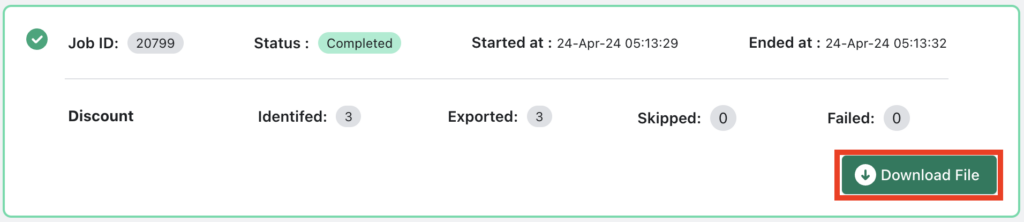
- Once the export job is completed, click on the Download File button to download the export file. The file will be downloaded as a .zip file, which contains the discounts CSV file.
We are only halfway through the process. Now, let’s see how to import discounts to Shopify using the CSV file.
How to Migrate Discounts When Moving Your Shopify Store
Moving to a new Shopify store — whether you’re rebranding, consolidating multiple stores, or migrating from another eCommerce platform — means your discount codes need to come with you. Recreating them manually is not practical at scale, and losing them entirely means losing the promotional infrastructure you’ve already built and communicated to customers.
Here’s how to handle discount migration cleanly using StoreRobo.
Migrating Discounts Between Two Shopify Stores
If you’re moving discounts from one Shopify store to another, for example, consolidating a regional store into your main store, the process is straightforward:
- Export discounts from the source store using the steps in the export section above
- Download the CSV file from StoreRobo
- Install StoreRobo on the destination store
- Import the CSV file into the destination store using the bulk import steps above
Because the export file already follows the correct format, no additional reformatting is needed. All discount codes, types, values, usage limits, and expiry dates transfer across intact.
Yes, but not natively through Shopify admin. Shopify lets you export discount codes to CSV, but it does not allow importing discount codes using CSV files. You can bulk import discounts using StoreRobo.
Yes. When exporting discounts with StoreRobo, use filters such as created date, updated date, start date, end date, status, or title to export only the discounts you need.
Yes. Shopify allows you to export discount codes from the Discounts page in your Shopify admin. You can export all discounts, selected discounts, the current page, or a filtered search.
Yes. Export discounts from the source store, clean and format the CSV file, and import the discount data into the destination store using StoreRobo.
Yes. StoreRobo supports exporting Shopify discount data to an external FTP or SFTP server. Add your server credentials, connect the profile, and enable export to FTP/SFTP during the export process.
Importing and exporting discounts allows you to transfer your discount lists from one store to another or keep a backup of your discount codes in a CSV file. With StoreRobo, you can seamlessly import and export any type of data within Shopify. It lets you import and export products, collections, customers, and discounts.
We hope this article has helped you learn how to import and export discounts in Shopify using the StoreRobo app. If you find this to be helpful, please share your feedback in the comments section below.


Subcribe to our newsletter