Share:


Table of Contents
Digital advertising thrives on data, but increasingly strict privacy laws mean advertisers must balance tracking with user consent. Microsoft’s Universal Event Tracking (UET) tag helps advertisers using Bing Ads collect conversion and remarketing data.
In 2024, Microsoft rolled out UET Consent Mode, a framework that ensures UET operates in accordance with each visitor’s consent preferences. From May 5, 2025, onward, businesses serving users in the European Economic Area (EEA), the United Kingdom, and Switzerland must implement this consent-aware tracking or risk losing their conversion data.
This article explains what UET Consent Mode is, why it matters, how it differs from other consent frameworks, and how you can implement it on your WordPress website.
Key Takeaways:
- Microsoft UET Consent Mode ensures your UET tag respects each visitor’s consent choice, which becomes mandatory for businesses serving users in the EEA, UK, and Switzerland.
- Unlike Google’s Consent Mode, Microsoft doesn’t offer fallback conversion modelling—if users deny consent, no tracking data is collected.
- Implementing UET Consent Mode with a CMP like the WebToffee GDPR Cookie Consent plugin helps maintain compliance, preserve accurate conversion tracking, and build trust with privacy-conscious users.
UET Consent Mode is a Microsoft Advertising feature that controls how the Universal Event Tracking tag behaves when a user accepts or declines advertising cookies. With Consent Mode enabled, UET can adjust its data collection practices depending on each visitor’s choice.
When a user grants consent to advertising cookies, the UET tag behaves as expected and sends full conversion and remarketing data to Microsoft Ads. If the user denies consent, the tag either doesn’t fire or collects only minimal information needed for fraud detection.
This binary behaviour is governed by a single parameter called ad_storage, which can be either “granted” or “denied.” Each UET event also includes an asc (ad storage consent) parameter; a value of “G” indicates granted and “D” indicates denial. When consent is denied, only aggregated or anonymized data is recorded, preventing unauthorized tracking and ensuring compliance.
Unlike Google’s Consent Mode, which uses multiple parameters such as ad_storage, analytics_storage, and functionality_storage, Microsoft’s framework uses just one. This simplified structure makes implementation easier, but also means there is no fallback conversion modelling.
With Google, even when users deny ad cookies, conversion modelling helps fill data gaps. Microsoft does not provide such modelling: advertisers must either obtain consent or accept data loss. Consequently, UET Consent Mode functions more like a switch: consent granted means full tracking; consent denied means no tracking.
Consent Mode is triggered when a user visits your website. A consent banner provided by your Consent Management Platform (CMP) asks the user to opt in or out of marketing cookies. The CMP stores the user’s choice (e.g., in a first‑party cookie) and exposes it to your tag management system. From there, your UET setup must perform two key actions:
- Set a default state: When a user first lands on a page before any interaction, your implementation should assume a default consent of denied. This prevents UET from firing prematurely. In some cases, you may set a short timeout (e.g., two seconds) to wait for a consent update before deciding whether to fire the tag.
- Send an update when consent changes: If a user accepts the consent banner, your CMP should immediately set ad_storage to granted and trigger the UET tag. If consent is withdrawn later, the UET tag must stop firing and remove any cookies it sets.
The UET script responds to these commands by adjusting its behaviour. In basic mode, the tag does not send events until consent is granted; in advanced mode, it sends limited data without storing the click ID, then updates when consent is granted.
Cookies Used by UET Consent Mode
When operating normally, UET sets three cookies:
| Cookie name | Type | Purpose | Consent behaviour |
| _uetvid | First‑party | Stores a unique user ID across sessions for remarketing and analytics | Only set after consent |
| _uetsid | First‑party | Stores a session ID to identify a single session | Only set after consent |
| MUID | Third‑party (set by Bing.com) | Unique Microsoft User ID used across Microsoft services | Only read in a limited manner when consent is denied |
With UET Consent Mode, the cookies may appear but remain empty or null if the user denies consent. This ensures that you do not collect personally identifiable information without permission.
Adopting Microsoft UET Consent Mode offers several advantages beyond mere legal compliance:
- Regulatory alignment: Implementing consent signals helps businesses comply with the GDPR, DSA, CCPA, and other data privacy laws. Non‑compliance can lead to heavy fines, suspension of ad accounts, or loss of remarketing capabilities.
- Data accuracy and modeling: Consent mode ensures you only collect data from users who have opted in, yielding a dataset with fewer anomalies. Although Microsoft doesn’t provide modelled conversions like Google, focusing on opted‑in users gives clearer signals for campaign optimization.
- Optimized campaigns: Consent mode lets advertisers continue using conversion tracking and remarketing for users who grant permission, improving bidding strategies and return on ad spend. Without consent, the UET tag stops collecting, but you may still import offline conversions or leverage first‑party data to supplement your campaigns.
- Trust and transparency: Showing a clear consent banner and respecting user choices builds trust with your audience. Consumers are increasingly aware of data privacy, and companies that demonstrate transparency stand out in competitive markets.
Any business that uses Microsoft Ads and serves users in the EEA, UK, or Switzerland must enable UET Consent Mode. However, evidence from advertisers suggests you should enable it even if your primary audience is outside these regions.
Cases have surfaced where conversion data drops to zero despite targeting users in other regions. The best practice is to implement consent for all users and adjust the default state to comply with local regulations.
The following sections describe how to implement UET Consent Mode using the WebToffee GDPR Cookie Consent plugin for WordPress. We assume that you’ve already added the UET script to your website and configured the tag in your Tag Manager.
Step 1: Install WebToffee Cookie Consent Plugin
- After purchasing the plugin, you’ll receive an email to download the plugin file.
Log in to your WordPress dashboard and go to Plugins. - Click on Add New and upload the plugin file.
- Then, install and activate the plugin on your WordPress dashboard.
Step 2: Enable GDPR Cookie Banner
- After activating the plugin, go to Cookie Consent settings from the sidebar menu.
- Choose GDPR as the consent law.
- Then enable the cookie banner.
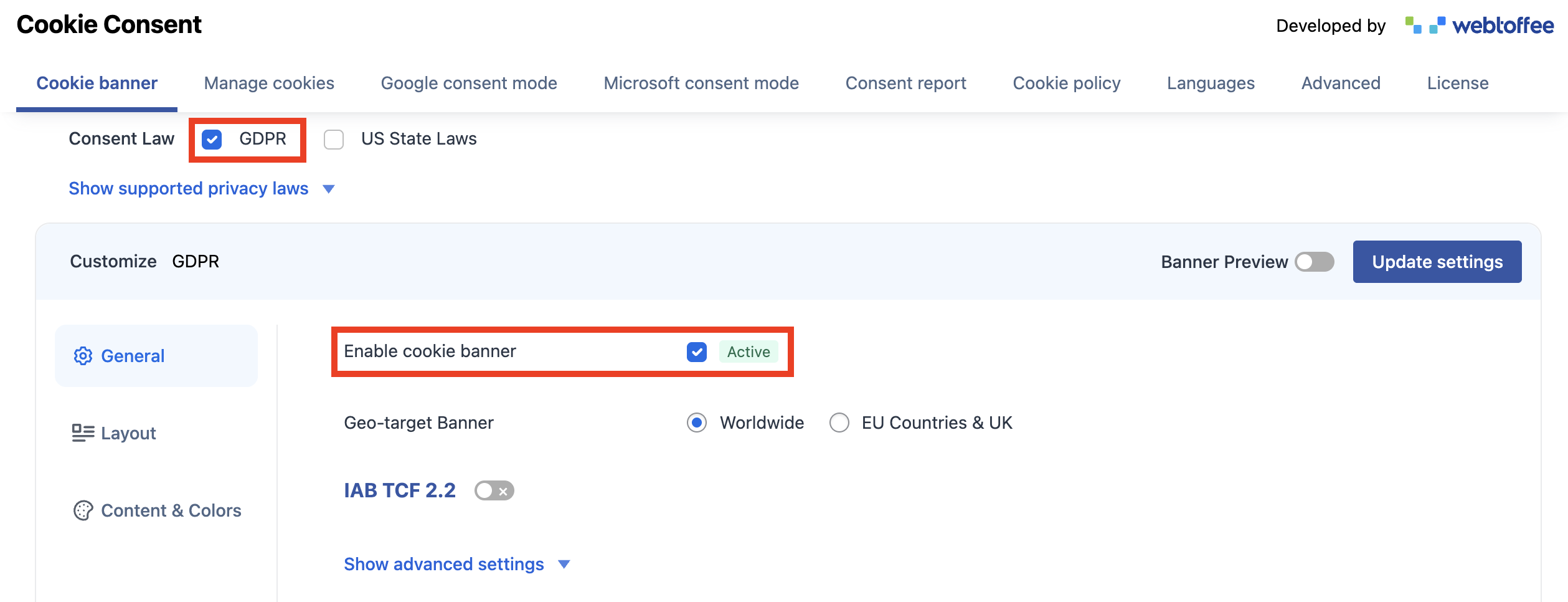
- Click on Update settings to save the settings.
Step 3: Enable UET Consent Mode
- Go to the Microsoft consent mode tab in your Cookie Consent plugin settings.
- Locate the option Support Microsoft UET Consent Mode.
- Toggle the switch to enable this feature.
- Once enabled, the plugin will automatically handle UET consent based on your configured geo-targeting and user preferences.

Step 4: Test and Validate
After configuration, test your setup using the UET Tag Helper extension for Chrome or Edge. Load your website, interact with the consent banner, and inspect the asc parameter for each UET event. Before consent, you should see asc=denied or no UET events at all; after consent, asc=granted should appear on subsequent events. Testing ensures you comply with Microsoft’s requirements and prevents accidental data collection.
Because there is no fallback modelling, mistakes in your configuration can lead to severe data loss. The following tips help ensure reliable tracking:
- Block by default: Always prevent the UET tag from firing until consent is granted. The default state should be “denied,” even outside regulated regions.
- Real‑time updates: Listen for consent changes and update the UET tag immediately so you capture conversions that occur right after consent.
- Persistent storage: Store users’ consent choices across sessions and page loads so that returning visitors don’t see the banner again unnecessarily.
- Document consent: Keep logs of consent decisions and timestamps to demonstrate compliance in the event of an audit.
- Stay updated. Microsoft may evolve its Consent Mode and UET script, so monitor official documentation and adjust your implementation accordingly. Several articles note that Microsoft’s advanced mode is not fully documented.
By requiring advertisers to obtain explicit consent for tracking, Microsoft aligns with international privacy laws and gives users greater control over their data. For marketers, enabling consent mode ensures the continuity of conversion tracking and remarketing in Microsoft Ads, maintains data accuracy, and builds trust with audiences.
Although Microsoft’s framework is simpler than Google’s, it doesn’t offer any fallback modelling; if users don’t give consent, you won’t receive any data. Businesses must therefore implement consent management carefully, block tags by default, and test thoroughly.
If your site has not yet adopted UET Consent Mode, start planning now. Install a CMP, configure your tag manager to listen for consent events, and validate your setup. By taking these steps, you will comply with emerging regulations and ensure your Microsoft Advertising campaigns continue to deliver valuable insights in a privacy‑conscious world.