Share:


Table of Contents
You can easily create printable dispatch labels in WooCommerce using WebToffee’s PDF Invoices & Shipping Labels plugin, the best solution to automate invoice and label printing for a smoother order fulfillment. This dispatch label generator lets you create customizable and printable dispatch labels directly from your WooCommerce dashboard.
Once installed, configure the dispatch labels settings and enable automated label printing for selected order statuses. For bulk printing dispatch labels WooCommerce, go to WooCommerce Orders page, select the required orders, choose “Print Dispatch Label” from the “Bulk actions” dropdown, and click “Apply”.
In this guide, we’ll take you step-by-step through setting up and printing dispatch labels in WooCommerce using a free plugin.
Key Takeaways
- Dispatch labels contain essential information about the customer and products, making the dispatch stage more organized and efficient.
- WooCommerce doesn’t offer print dispatch label feature by default. To add this capability, you’ll need an external solution like a plugin.
- With the WooCommerce Shipping Labels, Dispatch Labels, and Delivery Notes pro plugin, you can not only configure and print dispatch labels but also apply advanced label customizations.
A dispatch label is a document or label that’s attached to an order once it’s ready to leave your store.
When a customer places an order, it sets off a journey from checkout to delivery, including order confirmation, processing, dispatch, shipping, and final delivery. Among these, the dispatch stage is key, marking the point where the order leaves your store. This is where a WooCommerce dispatch label becomes essential for a smooth fulfillment process.
Think of dispatch labels in shipping as a helpful summary that ensures everything is in place before the order hits the road. It plays a key role in the order fulfillment process, helping streamline packing, invoicing, shipping, and even returns.
In simple terms, WooCommerce dispatching means the order has been packed and is ready to be shipped. At this stage, automating printable dispatch label makes the transition smoother by clearly outlining all the essential order details for your fulfillment team or shipping carrier.
A typical WooCommerce dispatch label includes:
- Product details (what’s in the box)
- Customer information, like billing and shipping addresses
- Payment method and total order value
- Store’s return address or sender address (helpful for easy returns)
Did You Know? Including a return address on your WooCommerce dispatch label PDFs can make returns quick and easy for customers, boosting their post-purchase satisfaction and saving you support headaches later!
Dispatch labels in WooCommerce can be set up with the help of a free tool from WebToffee WooCommerce dispatch labels.
This label generator is crafted to bridge the gap that WooCommerce’s default setup leaves behind, as it doesn’t come with built-in support for creating, customizing or printing dispatch labels.
With this handy tool, you can create professional-looking, printable dispatch label PDFs that feature all the crucial order details, such as product information, billing and shipping addresses, payment methods, and even return addresses.
It’s a straightforward yet effective way to simplify your order fulfillment process without incurring any costs.
Let’s see how to create and print dispatch labels in WooCommerce.
Step 1: Install & Activate WooCommerce PDF Invoices Plugin
To install the WebToffee dispatch label plugin:
- Go to Plugins > Add Plugin from your WordPress dashboard.
- In the search bar, type: “PDF invoices, packing slips, delivery notes, and shipping labels”. Find the WebToffee Invoice Plugin in the results.
- Click Install Now, then Activate the plugin.

Step 2: Configure Dispatch Label WooCommerce Settings
From the dashboard, go to Invoice/Packing > Dispatch label.
You have two options to customize your WooCommerce dispatch labels:
- Add a Customer Note: Include a personalized note in the dispatch label documents generated for your store orders.
- Add a Footer to the dispatch label.
Once selected, click Update Settings.

To customize the footer content:
- Go to Invoice/Packing > General Settings > General.
- Scroll to the Footer section and enter your desired footer message.

That’s it, the dispatch labels will now follow the set configuration.
Quick Note: This plugin works right out of the box. Dispatch labels are generated automatically upon installation, with no setup or configuration needed.
For advanced dispatch label customizations beyond adding a customer note and footer, consider using the premium WooCommerce Print Dispatch Label add-on by WebToffee.
To enable advanced personalizations for your dispatch labels, install and activate the premium WooCommerce Dispatch Label add-on.
This combination unlocks enhanced dispatch label customization options in WooCommerce.The available customizations include:
- Sort products by: Use this to sort products on the basis of their name or SKU.
- Show variation data below each product: Use this to add product variation data below the product in the product table.
- Order meta fields: If you want to add additional order-related information such as contact number or email in dispatch labels, you can select it here. If you want to add an additional meta field that is not available here, use the Add/Edit order meta field button.
- Product meta fields: Similarly, use this field to include additional product fields.
- Product attributes: Use this option to add more product attributes to the dispatch labels.
- Set custom return address: Display your preferred warehouse, business, or fulfillment center address on the label, ensuring accurate return handling.
- Show ‘Print Dispatch Label’ button for selected order statuses: Any emails corresponding to the order status selected here will now include a “print” label option that you can use to print the dispatch label.
- Generate dispatch label in: You can choose to generate dispatch labels in either the default site language or the customer’s preferred language.

Once done, click Update Settings to apply the changes.
The print dispatch label option will look like this on the WooCommerce order status email.

The premium add-on of the plugin also offers you the option to change the dispatch label template. To do this,
- Go to Invoice/Packing > Dispatch Label > Customize.
- Click on the “Change template” link and select a template that fits.
- Provide a name for the template.
- Either use the visual editor or the code editor to make changes to the selected template.
- All customizable elements will be available on the right side of the page. Toggle it on or off and make other adjustments as needed. Any changes made can be dynamically previewed from the visual editor preview screen.
- Click Save Template
- If the template doesn’t activate by default, click “Update template.”

Store admins can print dispatch labels either in bulk or individually for each order.
To print WooCommerce dispatch labels in bulk,
- Go to WooCommerce > Orders and select all the orders for which you want to print the dispatch labels.
- Click on the “Bulk actions” drop-down and select the “Print Dispatch Label” option.
- Tap “Apply” and follow the on-screen instructions to complete the printing action.

To print WooCommerce dispatch labels individually for each order,
- Go to WooCommerce > Orders and click on the required order.
- Go to the Invoice/Packing widget and click on the print icon corresponding to the dispatch labels.

Sample of WooCommerce Dispatch Label
This is a dispatch label of a sample store.
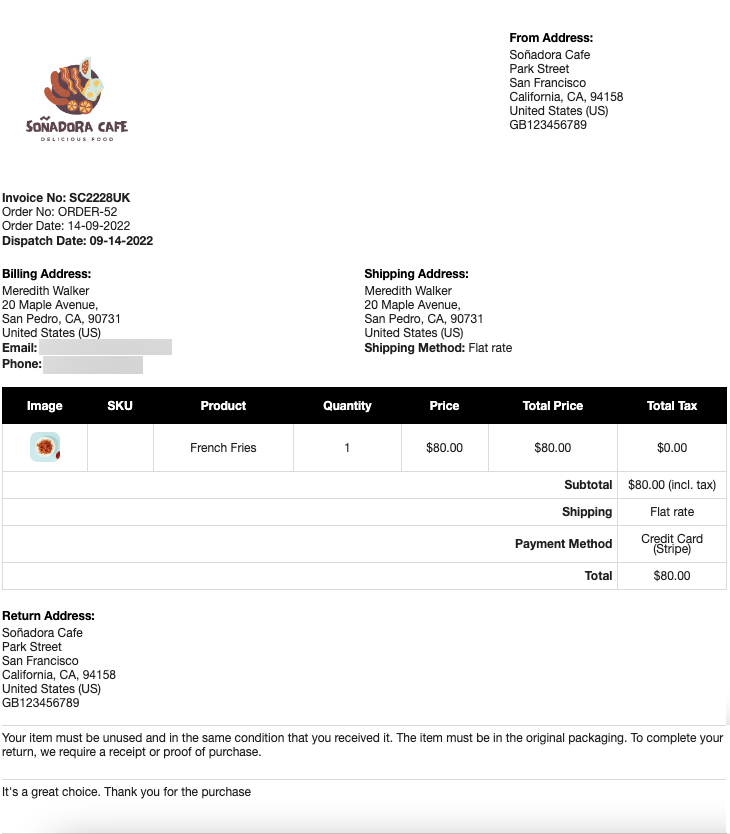
Although dispatch labels are often overlooked, incorporating them into your order fulfillment process can make the process more efficient. One of the key reasons for the hesitance towards making use of dispatch labels is the unavailability of a good tool to set them up.
Fortunately, a free solution like the WebToffee Dispatch Label plugin makes it easy to configure and print WooCommerce dispatch label without hassle. And if you’re looking for more advanced dispatch label customization options, the premium version of the WebToffee WooCommerce PDF invoices plugin offers additional features to scale your labeling process.
Hope you have understood how to set up printable dispatch labels in WooCommerce. Please leave a comment if you enjoyed this article. Your suggestions inspire us.
Stay tuned for more helpful tips.


Subcribe to our newsletter