


Share:


Table of Contents
Resetting WooCommerce order numbers is essential for maintaining an organized and professional online store. By using plugins like Sequential Order Numbers for WooCommerce, store owners can create a clear, sequential numbering system that enhances order tracking and bookkeeping, addressing the gaps caused by WordPress's unique post ID assignment.
- WooCommerce order numbers are not sequential by default, leading to potential confusion in order management.
- The Sequential Order Numbers plugin allows users to reset order numbers into a structured sequence, improving clarity.
- Store owners can customize order number sequences with prefixes, suffixes, and starting numbers for better organization.
- The plugin enables resetting order numbers at specified intervals, such as daily, monthly, or yearly, for efficient tracking.
- Separate sequences for free orders can be established to differentiate them from regular purchases, simplifying management.
- Resetting order numbers can enhance professionalism and streamline bookkeeping, making it easier to track sales and audit records.
WooCommerce order numbers don’t have to stay the way they are by default. Whether you want to add a custom prefix like INV- or 2024-, start your order count from a specific number, or reorganize existing orders into a clean sequential format, changing your WooCommerce order numbers is entirely possible with the right approach.
By default, WooCommerce gives you no built-in way to customize or control order numbers. They’re assigned from WordPress’s post ID system, shared across posts, pages, and products alike — meaning your order numbers can look random, inconsistent, and unprofessional to both customers and your accounting team.
The most reliable way to change WooCommerce order numbers is with a dedicated plugin. The Sequential Order Numbers for WooCommerce plugin by WebToffee, trusted by over 40,000 store owners, gives you full control — add prefixes or suffixes, set a custom starting number, define increment values, and reset order numbers into a clean sequential order. In this guide, we’ll walk you through how to do each of these step by step.
Yes. WooCommerce does not provide a built-in setting to change order numbers, because order numbers are based on WordPress post IDs. To change them, you can use a sequential order number plugin or add custom code. A plugin is the easier option if you want to set a custom starting number, add prefixes/suffixes, make numbers sequential, reset past orders, or auto-reset order numbers by day, month, or year.
You might expect WooCommerce to assign each new order in chronological order, like 101, 102, 103. However, that’s rarely the case.
This is because WordPress generates a unique post ID for every element created on your website, including orders, products, pages, categories, and more. As a result, if you create a post, a page, a category, and an order, the post IDs will be assigned in that sequence.
When orders are placed between the creation of different post types, this leads to irregular purchase numbers in your WooCommerce store.
Here’s how it happens:
- Let’s say two orders come in – WooCommerce assigns them IDs 100 and 101.
- Then, you publish a blog post. WordPress assigns ID 102 to that post.
- After that, two more orders are placed. They get IDs 103 and 104.
Now, your WooCommerce order list shows:
100, 101, 103, 104 — but 102 is missing because it was used for the blog post.
The result? Gaps in WooCommerce purchase order numbers can be confusing, especially when you’re managing bulk orders or trying to track sales volume.
Why You Might Want to Reset WooCommerce Order Numbers
Even though this behavior is normal, many store owners prefer sequential order numbers for practical and professional reasons:
- Starting fresh after testing or a store rebuild: Clean numbering helps remove clutter from test orders and gives your store a fresh start.
- Creating a more professional impression: Large gaps or high numbers can confuse new customers or make a store look inconsistent.
- Resetting at the beginning of a new year: Some businesses prefer to restart numbering annually for simpler accounting and reporting.
- Fixing gaps caused by deleted or test orders: Sequential numbers make it easier to track order volume and maintain internal clarity.
Because of these needs, resetting or customizing WooCommerce order numbers is a common requirement, especially for growing stores.
What is a Sequential Order Number?
While purchase order number is a unique number WooCommerce assigns each time someone places an order, sequential order number let your order numbers go in order, like 001, 002, 003, and so on. It makes things easier to track and manage.
The free Sequential Order Number for WooCommerce plugin allows you to create custom WooCommerce order numbers and make them in sequential order. However, in order to reset WooCommerce order numbers on a recurring basis, you will need the WooCommerce Sequential Order Numbers Pro plugin.
After installing the sequential order plugin on your WordPress website, follow the below steps to reset order numbers on your WooCommerce store.
1. Create New Order Number Sequence
- From the WordPress dashboard, navigate to WooCommerce > Settings > Sequential Order Number Pro.
- Choose a format for the order number. You can combine prefixes, dates, and numbers to create unique order numbers.
- Choose a custom prefix for the order numbers.
- Then, choose the order date format.
- Select the length for the order number and choose the starting number.

2. Reset Order Numbers for Past Orders
- If you want to generate past WooCommerce order numbers in sequential order, enable the Apply for all orders checkbox.
- Then keep the Track orders and Search orders checkboxes enabled to search for and track orders using the new order numbers.

- Click on Save changes to save the settings.

All WooCommerce order numbers, including those from past orders, will be reset to the new sequential order.
3. Track Orders Using Shortcode
To keep track of the sequential order number, enable the track order option. Enter the shortcode provided below for tracking orders.

WooCommerce provides this shortcode to link orders based on the order ID. To track orders, add this shortcode in a custom post.
The screenshot below shows the order tracking page on a website using the shortcode.
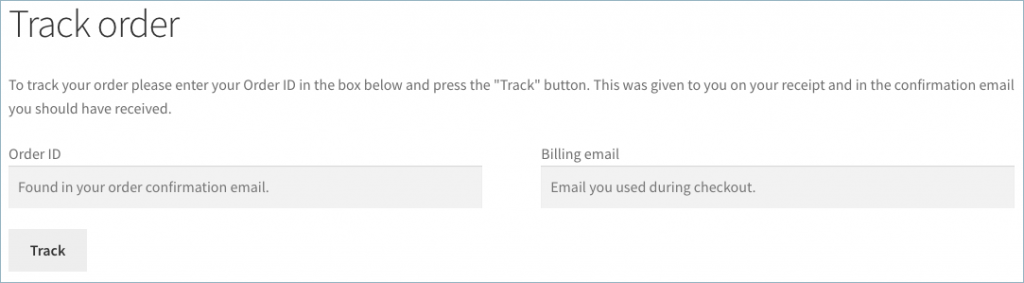
You can view all the order details by entering the order ID and billing email associated with a particular order.
The WooCommerce Sequential Order Pro plugin allows you to reset the order numbers for both old and new orders at specified time intervals.
For example, if you want the first order of each month to start with order number 1, with subsequent orders following sequentially, resetting order numbers monthly is the answer.
After installing the premium plugin, follow these steps:
- Go to WooCommerce > Settings > Sequential Order Number Pro.
- Scroll down to the General settings.
- Choose Increment counter as 1. This will create order numbers with the increment of 1.
- Select Monthly interval from the Reset sequential order number to auto-reset the order number sequence every month.
- Then, choose the starting number for the order numbers.
- Click on Save changes to save the settings.

If your WooCommerce store offers free orders through giveaway campaigns or coupon promotions, these orders will be included in the same order number sequence as your regular orders. This can make it difficult and time-consuming to distinguish free orders from paid ones.
To efficiently manage this issue, you can use the sequential order number plugin to create a separate order number sequence for free orders. This allows you to easily differentiate between free and regular orders.
To organize WooCommerce free orders by number sequentially:
- Go to WooCommerce > Settings > Sequential Order Number Pro.
- Enable the Separate sequence for free orders checkbox.
- Then, choose a start number for free orders.
- Enter the prefix for the free order numbers.
- Click on Save changes.

This will create a separate order number sequence for free orders in your store.
If at any point you want to revert your customized order numbers back to WooCommerce’s default post IDs, the Sequential Order Number plugin makes it easy to do so.
- Go to WooCommerce > Settings > Sequential Order Number Pro > Troubleshooting tools
- Next, scroll down to Reset order number to default option and click “Reset to default.” This step will restore WooCommerce default order numbers.

Why Use Sequential Order Numbers in WooCommerce?
- Quick tracking: Easily locate orders using simple, sequential numbers, ideal for high-volume stores.
- Accurate reporting: Instantly gauge total sales and maintain clean records.
- Audit-friendly: Essential for tax reporting and legal documentation in certain regions.
- Efficient support: Reference order numbers during customer inquiries to resolve issues faster.

The WooCommerce sequential order number plugin helps you simplify bookkeeping and order management on your WooCommerce store. By organizing the non-sequential WooCommerce order numbers in sequential order, you can manage your WooCommerce orders efficiently and error-free.
This WebToffee plugin allows you to generate custom order number sequences with prefixes, suffixes, dates, and numbers. You can choose the length of the order number, your preferred starting number, and your incrementation value.
This sequential order numbers plugin will automatically reset the order numbers at specific intervals. You can also choose to maintain a separate order number sequence for free orders to not mix free orders with standard orders.
In simple words, this plugin can save you from the hassles of random order number sequences and simplify your bookkeeping process.
Key features of this plugin:
- Able to generate custom sequence of order numbers
- Create custom order numbers for free WooCommerce orders
- Customize the prefix, starting number, and length of the order number
- Add a prefix to the order date
- Customize order numbers for all orders or only for new orders
- Auto-reset order numbers in sequential pattern
- Shortcode support for order tracking
- Restore WooCommerce default order numbers
- Update order numbers manually
- You can optionally enable admin order searches by custom order numbers
Frequently Asked Questions
No, the WooCommerce order numbers are not in sequential order because they are assigned from the WordPress post ID. If a new post or product is published on your website between two new orders, the order numbers won’t be in sequential order.
WooCommerce doesn’t provide a built-in option to change order numbers — they’re automatically assigned based on WordPress post IDs. To change them, you’ll need a plugin like Sequential Order Numbers for WooCommerce by WebToffee.
Once installed, go to WooCommerce > Settings > Sequential Order Number, and you can set a custom starting number, add a prefix or suffix, and define the increment value. Changes apply to all new orders immediately, and you can optionally apply them to past orders as well.
It depends on your settings. The WebToffee Sequential Order Numbers plugin lets you reset only future orders or renumber all past orders.
Keep in mind: resetting past orders will change existing order numbers, potentially breaking references in emails, invoices, or accounting systems. It’s best to do this before going live or at the start of a new financial year and update any external records if needed.
By default, WooCommerce assigns order numbers based on WordPress post IDs, so your first order might be numbered 5, 23, or higher, depending on how much other content exists on your site. To start from 1 (or any number you choose), navigate to WooCommerce > Settings > Sequential Order Number, and set your preferred value in the Start number field. If you want existing past orders renumbered as well, enable the Apply for all orders option before saving.
Use the WebToffee Sequential Order Numbers plugin to create a custom sequence of order numbers in WooCommerce. After installing the free WebToffee sequential order numbers plugin, go to WooCommerce > Settings > Sequential Order Number. Then, choose the prefixes for your order numbers and click on Save Changes to save the settings.
WooCommerce has no native options for order number formatting. With the Sequential Order Numbers for WooCommerce plugin, you can build a custom format by combining a prefix, a date pattern, and a sequential number — for example, ORD-2024-0001. In the plugin settings under WooCommerce > Settings > Sequential Order Number, you can choose the date format to embed (year, month, or full date), set the number length with zero-padding, and define a prefix or suffix. The Pro version offers the most flexibility here, including auto-reset intervals so your numbering restarts cleanly each month or year.
Using the WebToffee Sequential Order Numbers for WooCommerce plugin, you can generate separate order numbers for your free orders.
After installing the plugin, go to WooCommerce > Settings > Sequential Order Number (Pro). Then, enable the Separate sequence for free orders checkbox. Choose the preferred number sequence for the free orders and click on Save changes.
To export orders from your WooCommerce store, you can use the free WooCommerce order import export plugin. With this plugin, you can easily export WooCommerce orders to a CSV file.
Refer to this article for more information: How to Export WooCommerce Orders and Products?
Keeping your WooCommerce order numbers in sequential order isn’t just about neatness, it’s about improving your store’s efficiency, accuracy, and customer service.
By default, WooCommerce generates order numbers based on WordPress post IDs, which can cause confusing gaps. But with the Sequential Order Numbers for WooCommerce plugin, you get full control over your WooCommerce order numbers.
- Set custom starting numbers and prefixes
- Reset order numbers daily, monthly, or yearly
- Create separate sequences for free orders
- Improve tracking, auditing, and stock management
For an even more streamlined workflow, pairing sequential order numbers with a WooCommerce PDF invoices plugin can help you generate professional invoices that align perfectly with your custom order sequence, making order management more organized and customer-friendly.
That’s it, folks! We’ve reached the end of this guide on how to reset WooCommerce order numbers in sequential order. We hope this article has helped you reset order numbers on your WooCommerce store. If you have any queries, drop them in the comments section. We’d be happy to help you.
Thank you for reading!

Got any query? Please leave a comment or reach out to our support
Got any query? Please leave a comment or reach out to our support

Subcribe to our newsletter


Comments (6)
ANDREW ALLEN
November 12, 2024
Hi
We have one site where they have gaps in their order numbers – other sites are fine. Is there a reason for having gaps?
Many thanks,
Andrew
Sanjai Valsan
November 14, 2024
Hi Andrew,
Thank you for reaching out!
The gaps in the order numbers appear to be a site-specific issue. To investigate and resolve this, we recommend contacting our customer support team. They will be able to assist you further.
Timothy
October 14, 2024
Hello,
Is it possible to set the pickup-date in the order number?
Best regards,
Timothy
Sanjai Valsan
October 28, 2024
Hi Timothy,
Thank you for reaching out!
With the Sequential Order Numbers for WooCommerce plugin, store owners can customize their order numbers. However, currently, adding the pickup date directly to the order number isn’t supported.
Sunaina
October 5, 2023
Hi, I am wondering if we enable this feature “Apply for all orders – Enable to apply the above format for all existing orders” in Sequential Order Number for WooCommerce, will it trigger sending emails to all the customers associated with the previous orders when the order numbers are changed (we don’t want this to happen)?
Hema
October 17, 2023
Hello Sunaina,
Thanks for reaching out. If you enable the ‘apply for all orders’ option it won’t affect the already generated orders. So no emails will be sent to the customer’s. But if you place a new order, the post id of that email will be replaced by the sequential number (unless the website uses another email customizer plugins).