


Share:


Table of Contents
To create and print WooCommerce address labels, you can utilize a dedicated plugin like WooCommerce Address Labels by WebToffee. By setting up address labels in WooCommerce, you can reduce the risk of misdelivery by ensuring addresses are clear and legible. After activating the plugin, enable address labels in your WooCommerce settings. You can then customize the layout by adjusting label width, height, margins, rows, and columns. Choose the address type you want to display, such as billing or shipping.
With this plugin, you can print address labels for WooCommerce orders either individually or in bulk, making your shipping process faster and more organized.
Here, we’ll walk you through the process of automatically creating and bulk-printing address labels for your WooCommerce orders.
Key Takeaways
- Address labels are crucial in eCommerce, providing essential information about both the sender and the recipient of a package.
- WooCommerce address labels comes in various types, including shipping, billing, return, and sender address labels.
- WebToffee’s WooCommerce address label plugin helps you automatically create and bulk-print address labels for your WooCommerce orders.
What Are Address Labels?
Address labels are labels affixed to packages sent via courier or post that contain essential delivery information, such as the recipient’s address, senders’ address, custom notes, etc. Earlier, people used to manually write down addresses on paper and stick them onto the packages.
But with the help of printers and label generator tools, you can now print personalized address labels, making it more legible, convenient, and less messy.
WooCommerce printable address labels are way more efficient and effective than written ones; there are no two ways about it. Let’s explore the reasons why you need printable address labels for your WooCommerce store.
One of the main issues around hand-written address labels is their legibility. A well-formulated machine-written address, generated using an automated address label maker, would be much easier to read, even by machines. It, therefore, eliminates any potential confusion during shipment and delivery.
Moreover, if you are a store receiving a decent number of orders a day, manually writing down addresses can be a hectic task, and you might need an additional hand just to do it.
A WooCommerce store after receiving an order will have to collect the products, pack them, and ship them out. Additionally, there are a number of processes in between each of these tasks. So you will always try to make the process smoother and faster. Automated address label creation for WooCommerce would take a small load off your back.
Generating address labels with an automated system that enables customization would also help you personalize address labels in the way that you want.
A WooCommerce address label, as the name suggests, should contain the address. The address can vary based on which type of address label you want.
For example, a shipping address label should contain the shipping address and a return address label should indicate the return address of the shipment.
In general, the following are considered the essential components of a WooCommerce address label.
- The name of the sender or receiver
- The address with the street name/number
- Zip code of the address
- The location (city, state, and country)
To create custom address labels with the WebToffee plugin, you should first install and activate the plugin. Let’s first see how to do that before jumping onto creating the label.
Step 1: Install WebToffee PDF Invoice and Address Labels Plugins
As mentioned earlier the address label plugin acts as the extension of the free WooCommerce invoice and packing slip plugin from WebToffee. So you will first need to install that plugin before you can install the address label plugin. Follow the instructions given below to do all these.
- Log in to your WordPress admin account.
- Go to Plugins > Add New from the side navigation bar.
- Search for the Keyword ‘WooCommerce PDF invoices and packing slips’.
- Identify the WebToffee plugin and click on Install Now corresponding to that plugin.
- Once the installation is complete, click on Activate.

This will add the free plugin to WordPress.
You can now go ahead and install the address label plugin. Make sure to purchase and download (WebToffee > My account > Downloads) the plugin from WebToffee.
- From the same WordPress page, click on Upload Plugin.
- Choose the zip file of the WooCommerce print address label plugin you downloaded from WebToffee.
- Click on Install Now and then on Activate Plugin.
This will add and activate the plugin in WordPress.
Step 2: Create and Customize WooCommerce Address Labels
Address labels for each order will be automatically generated once the plugin gets activated. If you want to customize the label you can do so by,
- Navigate to Invoice/Packing > Address label, this will take you to the Customize page.
- Click on Create new template and choose the template in which you want to print WooCommerce address labels.

- On the right side of the page, you will be able to see the layout customization options. Click on Layout Properties.
- Adjust the width and height of the cells, the number of rows and columns, the distance from margins, column spacing, etc., as per your requirements.
- Click on Address Type. Select the type of address that you want on your label. The available options include
- Shipping Address
- Billing Address
- From Address
- Return Address
- Once you are done configuring, click on save and provide a template name for this template.

This will save all the configurations that you made till now to a template and activate that template. All address labels generated after this will use this template.
Note: If you want to print multiple types of address labels, it is ideal to create different templates for each address type. For example, to get both shipping address and return address labels, create two templates ‘A’ and ‘B’ for each address type, respectively. You should then activate the template ‘A’ when you want to print shipping address labels and ‘B’ while printing return address labels.
To change the active template, go to Invoice/Packing > Address Label > click on the icon with three horizontal lines > My templates.
Step 3: Print Address Labels in WooCommerce
Address labels for WooCommerce generated using the WebToffee plugin can be downloaded or printed from the WordPress admin console. Note that you can print the address labels of individual orders or multiple orders in bulk.
To bulk print address labels in the template that you have created, go to WooCommerce > Orders and select the orders for which you want to create address labels.
Click on the Bulk actions drop-down, select Print Address Label and click on Apply.

Here is a sample address label created this way.

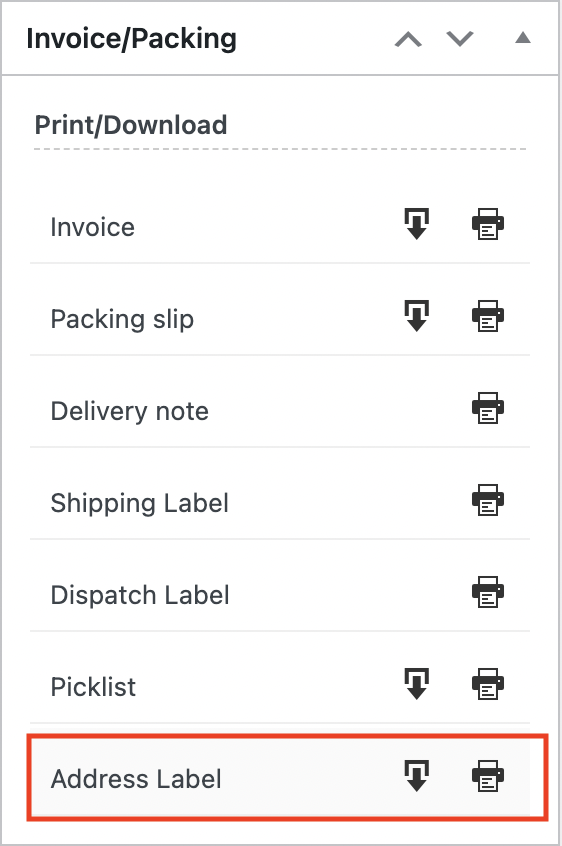
To get the address label of an individual order, open each individual order and click on the download or print icon corresponding to Address Label in the Invoice/Packing widget.

The address label plugin for WooCommerce is a premium add-on to the basic WooCommerce PDF Invoices, Packing Slips, Delivery Notes, and Shipping Labels plugin.
Some of the key features of the print address label plugin for WooCommerce include,
- Supports different types of addresses
- Generate labels with custom sizes
- Add multiple labels on a single page
- Bulk print address labels
- Customizable label layout
- Built-in label templates
- Multilingual support
Frequently Asked Questions
The WebToffee WooCommerce Print Address Labels plugin will help you bulk print address labels from your WooCommerce store.
– After installing and configuring the plugin on your WooCommerce store, head over to the WooCommerce Orders page.
– Select the orders you want to print the labels.
– Then from the Bulk actions dropdown, select Print Address Label.
– Click Apply.
No. Shipping labels and address labels are not the same. Address labels only include the sender’s and recipient’s addresses and are primarily used for directing packages to the correct destination.
Shipping labels include shipping information such as barcodes, tracking numbers, service type, and other details necessary for the carrier to process and track the shipment.
Refer to our detailed guide on shipping labels for more information.
Address labels ensure the recipient’s information is clear and legible, minimizing the chances of misdelivery or delayed deliveries due to incorrectly written addresses.
There are several types of address labels, including shipping, return, billing, and sender (from) address labels, each serving different purposes in the shipping process.
To print a whole page of address labels in WooCommerce, you can use the WebToffee WooCommerce Address Labels plugin.
After installing and activating the plugin, go to Customize tab to configure your label layout, including the number of rows and columns, to fit your page size. Once set up, you can print multiple labels by selecting orders and generating labels in bulk by applying “Print Address label” bulk action.
Wrapping Up
WooCommerce address labels are a time and energy saver for eCommerce businesses struggling to keep up with the orders every day. The WebToffee address label plugin is simple and easy to use and offers all customizations that you might need for generating a professional-looking address label. Also, the support for multiple addresses makes the plugin stand out from the rest.
That’s it, folks! We have come to the end of this guide on how to create and print address labels in WooCommerce using a dedicated label printing plugin. Hope this article was of help to you. Do let us know if you have any concerns and what you think about the article in the comments below.
Thanks for reading!

Got any query? Please leave a comment or reach out to our support
Got any query? Please leave a comment or reach out to our support

Subcribe to our newsletter


Comments (4)
Shawn Lewis
April 14, 2025
Can this plugin be used with WooCommerce Subscriptions to print bulk address labels for all active Subscriptions at a point in time?
Sanjai Valsan
April 15, 2025
Hi Shawn,
Thank you for reaching out.
Currently, the bulk print option doesn’t appear directly under the Subscriptions tab in WooCommerce.
However, if a corresponding WooCommerce order is generated for each active subscription, you’ll be able to bulk print address labels for those orders using the plugin.
Lili
November 17, 2023
Can you drop the label address information to a CSV instead of a formated label?
Sanjai Valsan
November 21, 2023
Hi Lili,
Thank you for reaching out!
Currently, our plugin doesn’t provide the functionality to export information directly to a CSV format.