Share:


Table of Contents
Want to showcase your WooCommerce products directly on Facebook? By connecting your store to a Meta Catalog, you can automatically sync products, run dynamic ads, and turn social traffic into sales.
With billions of active users worldwide, Facebook offers WooCommerce store owners a powerful channel to grow sales, reach new audiences, and run targeted product advertising.
Connecting WooCommerce to Facebook starts with one foundational step: setting up a Meta Catalog (formerly Facebook Catalog) inside Meta Commerce Manager. This is the digital inventory that syncs your products to Facebook and Instagram Shops, powers dynamic ads, and enables product tagging on posts and stories.
So, if you run a WooCommerce store, linking it to the Meta catalog is an effective way to showcase your products on Facebook — helping customers discover them more easily and attracting new visitors to your site.
In this guide, we’ll walk you through exactly how to connect WooCommerce to Facebook, configure your Meta Catalog, and keep your products in sync automatically.
Key takeaways:
- Facebook is setting new standards and opening new horizons for e-commerce and product marketing.
- Showcasing your WooCommerce products on Facebook is a brilliant idea for attracting new visitors to your store and widening reach.
- WebToffee’s Facebook feed for WooCommerce plugin makes it easy and straightforward to integrate WooCommerce store products with Facebook shops.
A Meta Catalog, previously called a Facebook Catalog, is a container inside Meta Commerce Manager that holds all the information about the products you want to promote or sell across Facebook and Instagram. Each product entry includes:
- Product names and types
- Descriptions
- Images
- Price and currency
- Availability and condition
- And more
Once your WooCommerce store is connected and your Meta Catalog is populated, you can:
- Run dynamic product ads that automatically show relevant products to shoppers based on their browsing behavior and interests.
- Improve product discovery by presenting products in shoppable carousels.
- Retarget visitors who viewed a product on your store but didn’t complete a purchase.
- Sell directly through Facebook and Instagram Shops.
This way, you can showcase your WooCommerce store products and promote them to Facebook’s millions of users, significantly increasing your store’s visibility and brand awareness.
Quick stat:
As of 2026, more than 1 million users make purchases on Facebook every month, reinforcing its position as the leading social commerce platform in the U.S.
These two terms often cause confusion. Here’s a clear breakdown:
| Meta Catalog | Facebook Shop | |
|---|---|---|
| What it is | A backend product database in Commerce Manager | A storefront that customers browse on Facebook/Instagram |
| What it does | Stores product data (price, images, availability) | Displays products to shoppers in a browsable interface |
| Who sees it | You (the merchant) and Meta’s ad systems | Your customers |
| Required for | Dynamic ads, product tagging, Shop setup | Selling directly on Facebook/Instagram |
| Relationship | The Catalog powers the Shop | The Shop draws from the Catalog |
In short: You need a Meta Catalog first. The Facebook Shop is the customer-facing storefront that your catalog feeds into. When you “connect WooCommerce to Facebook,” you’re syncing your product data to the Catalog. The Shop then surfaces those products automatically.
Did you know?
Businesses using Meta catalogs often report a significant increase in sales due to expanded reach and targeted advertising.
How to Connect WooCommerce to Facebook: Two Methods
There are two main ways to set up Meta Catalogs for WooCommerce. The right choice depends on your needs.
Method 1: Meta for WooCommerce Plugin
The Meta for WooCommerce plugin is the official option built and maintained directly by Meta and WooCommerce. It’s free, available on WordPress.org, and used by over 500,000 stores.
What it does:
- Connects your Facebook Business Manager, Page, Ad Account, Pixel, and Catalog in a single setup wizard
- Automatically syncs product data when prices, stock, or descriptions change
- Installs the Facebook Pixel for retargeting and ad tracking
How to set it up:
- In your WordPress dashboard, go to Plugins > Add New
- Search for “Meta for WooCommerce” and install the official plugin by Facebook.

- Navigate to Marketing > Facebook and click Get Started.

- Next, log in to your Facebook account and follow the setup wizard to connect or create your Meta assets, including your Business Account, Facebook Page, Instagram account, catalog, ad account, and Meta Pixel.

- Add your store details, such as contact email, return policy, and privacy policy, then authorize the connection.
After setup, Meta may request a few additional store details. Once completed, your shop will be published automatically, which usually takes around 10–30 minutes.
Your products will then automatically sync to Commerce Manager, Meta’s inventory platform.
If the official plugin gives you trouble or if you need more control over your feed, multi-channel support, or advanced category mapping, a dedicated third-party plugin like WebToffee Product Feed for WooCommerce is a solid choice.
While you can create a Facebook product feed manually using a spreadsheet (entering product title, description, availability, price, etc.), this is time-consuming and error-prone. The WebToffee plugin automates the entire process.
Pre-requisites:
- A Facebook Business account with a Facebook Shop set up
- Review the Meta product fields reference to understand what data will be synced
Step 1: Install & Activate Product Feed for WooCommerce Plugin
- Login to your WordPress dashboard.
- Navigate to Plugins > Add New.
- Search for the WebToffee product feed plugin for WooCommerce.

- Install and activate the plugin.
Step 2: Set Up and Connect Your Store With Facebook Catalog
- Go to WooCommerce > FB/Insta Catalog from your WordPress dashboard.

- Under the Manage Connection tab, click on the Connect Facebook button.
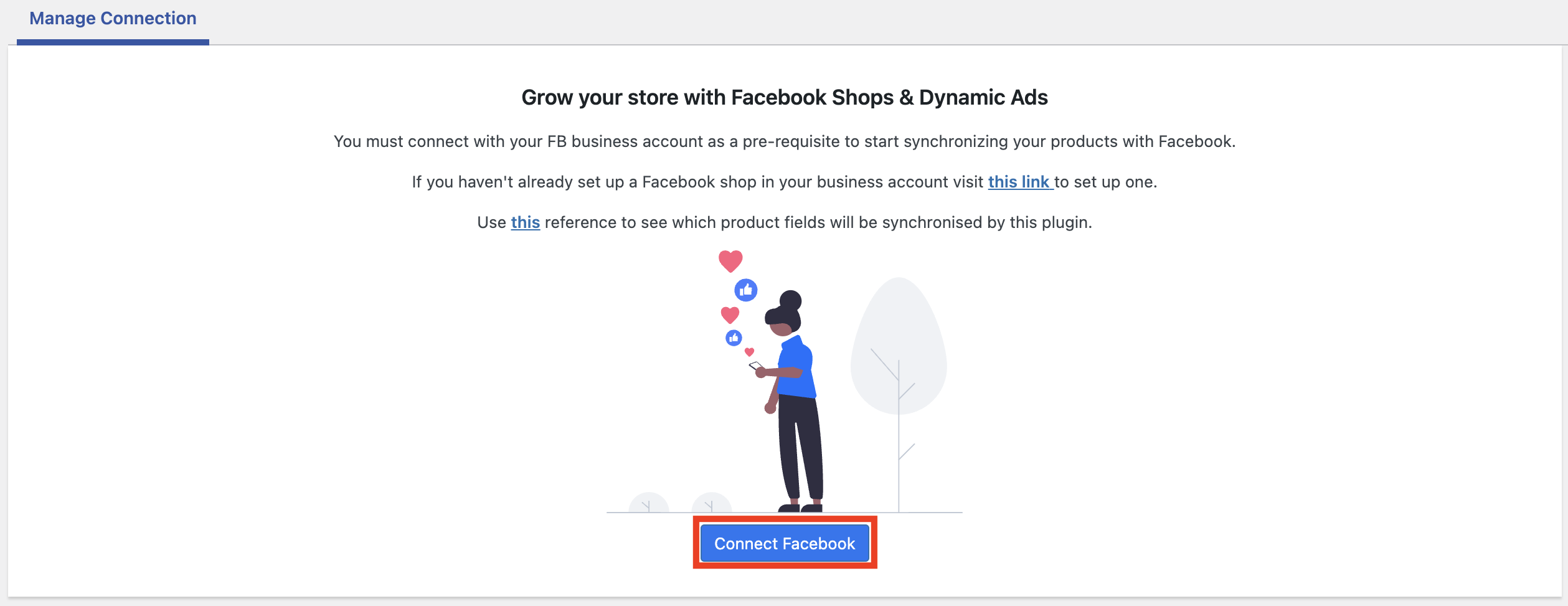
- You will be prompted to log in to Facebook. If you are logged in, continue with the logged-in user account.
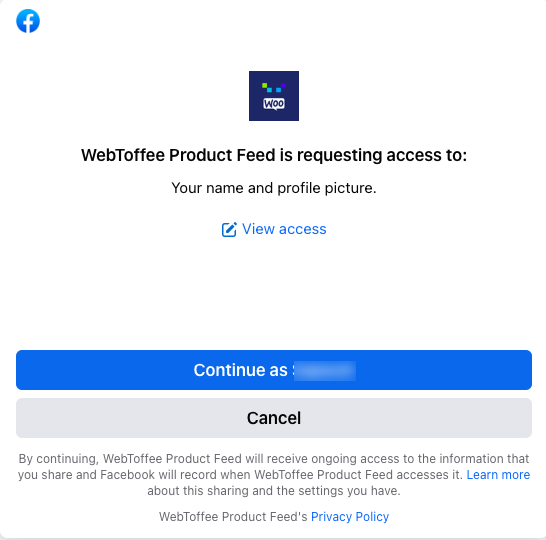
- Click on Choose what to allow to select the Facebook shop that you want to sync with your WooCommerce store.
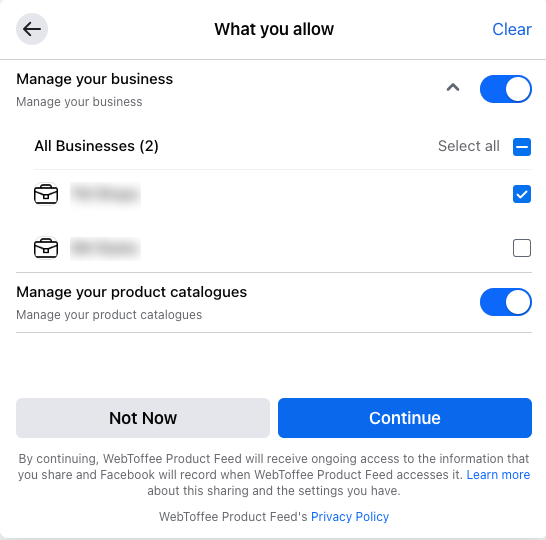
- Then give permission to WebToffee Product Feed to manage your business and product catalogs.
Step 3: Configure Products Sync
- Go to the Sync products tab.
- Select a Facebook Catalog from the dropdown.
- Add any product tags or categories to exclude from syncing with Facebook catalogs.
- Then, enter a batch sync count for product catalog syncing.

- Click on Next to continue to the Next step.
Step 4: Map Store Categories for Facebook catalog
Facebook has a set of predefined categories for product catalogs. It is important that you map your store categories with the available categories on Facebook.
Category Mapping is a one-time process. Moreover, the plugin will auto-detect the saved preferences for future syncs. If the plugin identifies a new category for mapping, you will be notified in the mapping section.
You can see your store categories from here and the option to select a predefined category from Facebook.
- Click on the dropdown menu to choose a category for your store categories.
- After mapping the categories, click on the Map FB categories and Sync button.

- Now click on the Check FB catalog button to view the Facebook catalog.

As you can see, your WooCommerce store products are synced to Facebook shops.
You can view detailed logs for product catalog syncing from the Logs tab.

Which Method Should You Use?
Start with the official Meta for WooCommerce plugin if you want the simplest setup and are comfortable troubleshooting occasional issues. Switch to (or start with) the WebToffee plugin if you need more reliability, multi-channel support, or granular control over what gets synced and how.
Either way, once your Meta Catalog is live and syncing, your WooCommerce products will be visible to Facebook’s massive audience ready to power dynamic ads, Instagram Shopping, and direct sales through Facebook Shops.
No matter which integration method you choose, a few common issues can disrupt your Facebook or Instagram product sync. Here’s how to avoid them and keep your catalog running smoothly.
1. Avoid Duplicate Catalogs
One of the most common problems occurs when multiple plugins or integrations try to sync products to Facebook at the same time. This can create duplicate catalogs, conflicting product data, or repeated items in Meta Commerce Manager.
How to prevent it:
- Use only one Facebook integration method at a time.
- Remove old or unused Facebook feed plugins before setting up a new one.
- Check Meta Commerce Manager to ensure only a single active catalog is connected to your store.
2. Ensure Product Data Is Complete
Meta requires specific product information to approve and display items correctly. Products missing essential fields may be rejected during sync or remain unpublished.
Required product details typically include:
- Product title
- Price
- Availability/status
- Product image
- Product description
- Product link
How to prevent it:
- Review your WooCommerce product pages before syncing.
- Add high-quality product images and accurate descriptions.
- Make sure all products have valid pricing and stock status information.
3. Use Accurate Category Mapping
Incorrect or overly broad category mapping can reduce product visibility and, in some cases, lead to rejected listings. Meta uses product categories to properly understand and display your items.
How to prevent it:
- Match WooCommerce categories closely with Meta’s recommended product categories.
- Avoid assigning unrelated categories just to increase visibility.
- Periodically review category mappings after adding new product types.
4. Keep Automatic Sync Enabled
If automatic syncing is disabled, your Facebook catalog can quickly become outdated. This may result in incorrect prices, unavailable products still appearing in ads, or newly added products not showing up at all.
How to prevent it:
- Enable automatic or scheduled syncing in your plugin settings.
- Verify that sync jobs are running successfully after major store updates.
- Regularly check Meta Commerce Manager for sync warnings or errors.
5. Prevent Feed Conflicts in Multi-Store Setups
Businesses managing multiple stores, regions, or languages often run into feed conflicts when all products are pushed into a single catalog.
How to prevent it:
- Create separate catalogs for different stores, countries, or languages.
- Use dedicated feeds for each audience or storefront.
- Clearly organize catalogs inside Meta Commerce Manager to avoid confusion.

This WooCommerce product feed plugin lets you easily set up your WooCommerce store products on popular sales channels like Facebook, Instagram shops, Google Shopping, and more. Here’s what the plugin offers:
- Multi-channel Compatibility: You can generate WooCommerce product feeds for 15+ sales channels, including Facebook, Instagram shops, Google Shopping, and more.
- Easy Integration: Integrate your WooCommerce product catalogs on Facebook and Instagram shops using product feeds and catalog sync manager.
- Create Dynamic Ads: Promote your products to Facebook and Instagram users through dynamic ads and enable customers to purchase directly from Facebook.
- Enhanced Visibility: Showcase your products on Google Shopping to get more visitors and clicks to your store site.
- Smart Filtering & Category Mapping: Exclude product categories and tags from syncing with the Facebook catalog. Easily map your store categories with Facebook’s predefined categories using dropdown lists.
- Hassle-free Syncing: Enable batch sync options to effortlessly sync thousands of WooCommerce store products with Facebook and Instagram shops.
- Detailed Log History: The plugin also displays log history, which lists detailed logs of product syncing.
Setting up product catalogs on Facebook can help you attract new visitors to your store site. You can make your store more visible to targeted customers. Moreover, it also helps in creating dynamic remarketing and advertising campaigns.
The FB catalog sync plugin we used in this article offers a simple way to integrate your WooCommerce store products with Facebook shops.
If you’re currently using the official Facebook for WooCommerce plugin and running into issues, read our comparison: alternative to the Facebook for WooCommerce plugin.
What questions do you have about connecting WooCommerce to Facebook? Drop them in the comments below.


Subcribe to our newsletter