


Share:


Table of Contents
If your WooCommerce store feels slow, you’re likely losing customers without realizing it. Even small delays can impact conversions, but the right setup can help speed up WooCommerce and keep shoppers engaged.
A slow WooCommerce store directly impacts your bottom line. Research consistently shows that a one-second delay in page load time reduces conversions, and almost half of the visitors abandon websites that take longer than three seconds to load. For online stores, speed isn’t just a technical metric; it’s a sales metric.
This guide covers practical, proven strategies to optimize WooCommerce performance. From selecting appropriate hosting infrastructure to database optimization and image compression, you’ll learn how to diagnose bottlenecks and implement fixes that meaningfully improve your store’s speed.
Key Takeaways:
- Speed directly affects revenue. Even a one-second delay can reduce conversions and increase bounce rates, making performance critical for sales.
- Optimization requires a holistic approach. Hosting, database efficiency, and image optimization all contribute to WooCommerce performance.
- Small fixes can drive big results. Identifying and resolving bottlenecks can significantly improve load times and overall user experience.
WooCommerce transforms WordPress from a content management system into a dynamic eCommerce platform. This transformation comes with performance considerations that don’t exist on standard WordPress sites.
Your WooCommerce store constantly manages product catalogs with variations and pricing rules, real-time inventory tracking across multiple products, persistent shopping cart sessions, secure checkout with payment gateway integration, customer accounts with order history, and tax and shipping calculations based on location and cart contents.
Each product page dynamically generates content based on stock availability, selected variations, and customer-specific pricing. Category pages query databases to display dozens of products simultaneously. The checkout process validates forms, processes payments, and updates inventory – all of which require immediate database transactions.
Unlike content sites where aggressive caching improves performance, WooCommerce pages often display personalized, real-time information. Cart contents, pricing, and inventory status must reflect current data, limiting caching opportunities on critical pages.
Pro Tip: Before implementing changes, establish performance baselines using tools like GTmetrix, Pingdom Tools, or Google PageSpeed Insights. Document current load times, page sizes, and Core Web Vitals scores. This data helps you measure actual improvement rather than relying on subjective assessment.
The hosting infrastructure sets the performance ceiling for your store. Even perfectly optimized code cannot overcome inadequate server resources.
Essential Server Requirements for WooCommerce
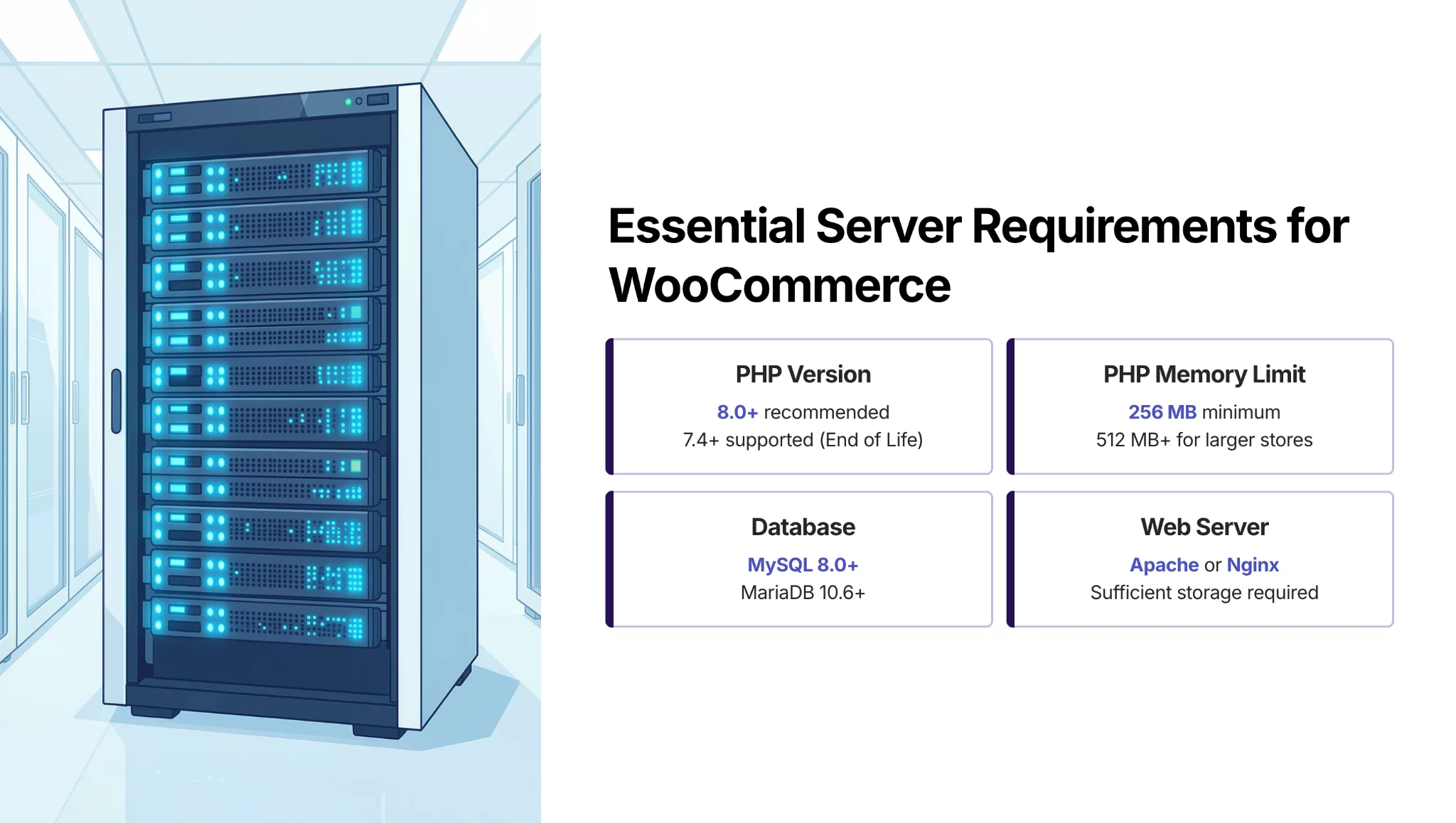
PHP Memory Limit: WooCommerce requires at least 256 MB for small stores. Stores with extensive product catalogs, high traffic, or complex plugins benefit from 512MB or higher. Insufficient memory causes checkout failures and errors on product-heavy pages.
Processing Power: WooCommerce performs continuous calculations for dynamic pricing, tax computation, shipping costs, and inventory management. Adequate CPU allocation ensures these operations complete quickly, especially during traffic spikes or simultaneous checkouts.
Database Performance: MySQL or MariaDB database configuration significantly impacts WooCommerce speed. Product queries, order processing, and customer data retrieval depend on optimized database performance. Look for a hosting offering adequate RAM for database caching and optimized database configurations.
PHP Version: Newer PHP versions deliver substantial performance improvements. PHP 8.0+ executes significantly faster than PHP 7.x, which outperforms legacy PHP 5.6 by considerable margins. Verify your hosting supports current, actively maintained PHP versions.
Storage Type: SSD (Solid State Drive) storage provides dramatically faster read/write speeds than traditional HDD storage. Database queries and file operations benefit substantially from SSD performance, making storage type more impactful than storage capacity for WooCommerce workloads.
Geographic Considerations and Content Delivery
Server location affects latency for visitors. A server in North America adds measurable delay for European customers, and vice versa.
Select hosting with data centers serving your primary customer regions. For international audiences, implement a Content Delivery Network (CDN) to cache static assets (product images, stylesheets, JavaScript files) on servers globally distributed.
CDN services like Cloudflare, KeyCDN, or BunnyCDN integrate seamlessly with WordPress and reduce global load times by serving assets from edge locations nearest to each visitor.
WooCommerce databases accumulate overhead from order histories, customer data, product revisions, transient options, and system logs. This accumulation degrades query performance and increases page generation time.
Removing Database Overhead
WordPress automatically saves post revisions, creating multiple database entries for each product. While useful for content recovery, excessive revisions bloat databases without providing proportional benefit.
Database optimization plugins like WP-Optimize, Advanced Database Cleaner, or WP-Sweep safely remove unnecessary data, including old post revisions (while preserving recent versions), trashed posts and pages awaiting permanent deletion, expired transient options no longer needed, spam and unapproved comments, and orphaned metadata not connected to existing content.
Schedule automated optimization weekly or monthly based on store activity levels. Proactive maintenance prevents accumulation rather than addressing problems after performance degradation occurs.
WooCommerce Table Optimization
Specific WooCommerce database tables require focused attention.
- Session Table
The wp_woocommerce_sessions table stores active shopping cart data. On high-traffic stores, this table grows substantially. WooCommerce includes cleanup routines, but manual intervention during low-traffic periods can address excessive growth (note that this clears abandoned carts).
- Order Tables
Order and order metadata tables expand with transaction volume. Consider archiving orders beyond your required retention period. Export historical orders for record-keeping, then remove from active database tables to improve query performance. Verify legal and accounting requirements before implementing retention policies.
- Product Lookup Tables
WooCommerce 3.6+ introduced dedicated product lookup tables, optimizing common queries. If experiencing slow product page loads, regenerate these tables via WooCommerce > Status > Tools > “Regenerate product lookup tables.”
Each active plugin adds code execution overhead. For WooCommerce stores already processing complex operations, plugin efficiency directly impacts performance.
Strategic Plugin Management
Audit your active plugins critically. Common unnecessary plugins include multiple SEO tools when one comprehensive solution suffices, redundant security plugins that provide overlapping functionality, inactive payment gateways not offered to customers, and decorative plugins that provide minimal functional value at a measurable performance cost.
Use diagnostic tools like Query Monitor to identify resource-intensive plugins. If a plugin significantly impacts load times, evaluate lighter alternatives or determine if the functionality justifies the performance cost.
Selecting Performance-Efficient Extensions
When adding WooCommerce extensions, prioritize code quality and efficiency. Review feedback specifically mentioning performance. Consistent reports of slowdowns or conflicts indicate potential problems.
Test new extensions in staging environments before production deployment. Measure page load times pre- and post-activation to quantify performance impact. This data informs decisions about whether functionality justifies any performance trade-off.
Premium extensions from established developers typically demonstrate better optimization than free alternatives, as commercial development includes resources for code refinement and ongoing maintenance.
Product images are essential for online retail but frequently represent the largest performance bottleneck. Unoptimized images significantly increase page weight and load times.
Image Compression and Format Selection
Compress all images before WordPress upload. Tools like TinyPNG, ImageOptim, or Squoosh reduce file sizes substantially while maintaining visual quality acceptable for web display.
Select appropriate formats based on content: JPEG for photographs and complex product images that offer good compression for photographic content; PNG for images requiring transparency or containing text where quality preservation is critical; and WebP for modern browser support, providing superior compression ratios while maintaining quality.
WordPress 5.8+ can automatically generate WebP versions if the server configuration supports it. Alternatively, plugins like WebP Express or Imagify enable WebP delivery with automatic fallbacks for browsers lacking support.
Configure maximum image dimensions matching your theme’s display requirements. Uploading 3000px images when your theme displays 800px maximum wastes bandwidth and storage while providing no visual benefit.
Implementing Lazy Loading
Lazy loading defers image loading until images approach the viewport, dramatically reducing initial page weight on category pages displaying numerous products.
WordPress 5.5+ includes native lazy loading functionality. Verify your theme doesn’t disable this feature. Plugins like Lazy Load by WP Rocket or a3 Lazy Load provide enhanced control and compatibility for older WordPress versions.
Caching stores pre-generated content, eliminating redundant processing for subsequent visitors. However, WooCommerce’s dynamic functionality requires careful caching configuration.
Page-Level Caching
Full-page caching works effectively for product pages displaying identical content to all visitors, category and archive pages without personalization, and static informational content.
Always exclude from page caching: shopping cart, checkout pages, customer account pages, and any pages displaying user-specific or real-time data.
WooCommerce-aware caching plugins like WP Rocket, WP Super Cache, or W3 Total Cache include pre-configured exclusion rules for WooCommerce. Enable WooCommerce compatibility mode to automatically implement appropriate exclusions.
Object Caching for Database Efficiency
Object caching stores database query results in memory (RAM) rather than re-executing identical queries. This substantially accelerates WooCommerce stores performing frequent database operations.
Implement object caching via Redis or Memcached. Hosting providers like HostArmada offer pre-configured Redis object caching on WooCommerce-optimized plans, eliminating manual configuration complexity while ensuring optimal setup from deployment.
Install the Redis Object Cache or Memcached Object Cache plugin to connect WordPress to your caching backend. Object caching particularly benefits stores with extensive product catalogs, high concurrent traffic, or complex product filtering and sorting.
Pro Tip: After implementing caching, thoroughly test all customer-facing functionality. Verify cart contents update correctly, checkout progression works properly, and payment processing completes successfully. Overly aggressive caching, breaking critical eCommerce functionality, is a common implementation error.
Server-side improvements address backend processing, but frontend optimization reduces data transfer and browser processing requirements.
Asset Optimization
Minification removes unnecessary characters from CSS and JavaScript files (whitespace, comments, line breaks), reducing file size without altering functionality.
Plugins like Autoptimize, WP Rocket, or Asset CleanUp provide minification and file combination capabilities. Test thoroughly after implementation, as aggressive optimization occasionally causes unexpected functionality breaks.
Reducing Resource Requests
Each downloaded resource requires an HTTP request. Reducing total requests improves load performance.
Strategies include combining small images into CSS sprites, using icon fonts or SVG sprites instead of individual icon files, loading only required Google Font weights and styles rather than complete font families, and deferring non-critical JavaScript to prevent render-blocking.
Use browser developer tools to audit all resources loading on key pages. Evaluate whether each resource provides value and justify its performance cost.
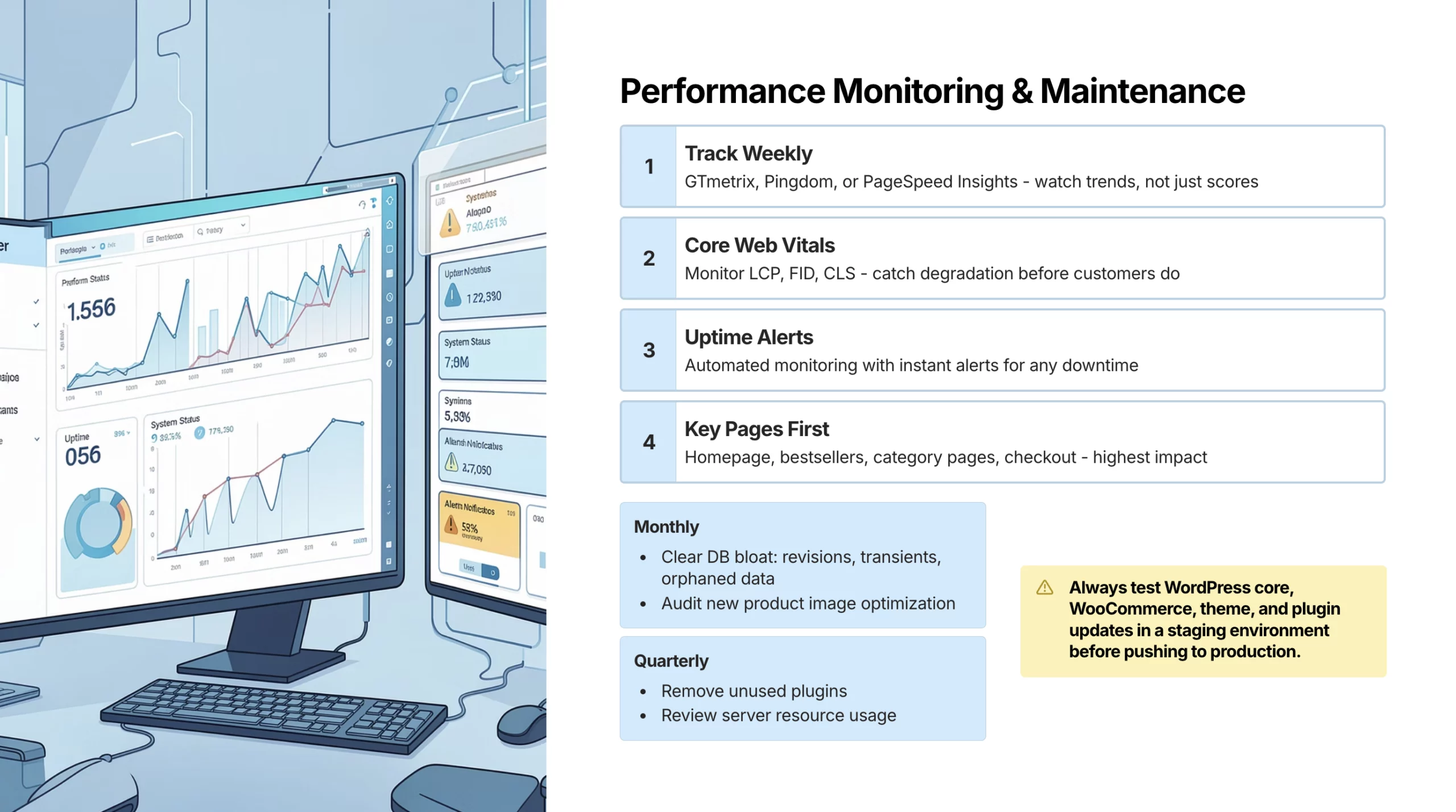
WooCommerce performance requires ongoing attention rather than one-time optimization. Implement these monitoring practices to maintain speed:
- Use GTmetrix, Pingdom, or Google PageSpeed Insights weekly or monthly to track performance trends.
- Monitor Core Web Vitals (LCP, FID, CLS) to catch degradations before they impact customers.
- Set up automated uptime monitoring to receive immediate alerts when issues occur.
- Prioritize monitoring high-traffic pages: homepage, best-selling products, category pages, and checkout flow.
- Keep WordPress core, WooCommerce, themes, and plugins up to date to improve performance and apply security patches.
- Always test updates in staging environments before deploying to production.
- Clear database bloat monthly by removing revisions, transients, and orphaned data.
- Review and remove unused plugins quarterly to reduce overhead.
- Audit image optimization on new product uploads to maintain consistent speed.
- Monitor server resource usage to proactively plan capacity.
WooCommerce performance optimization combines appropriate hosting infrastructure with strategic configuration and consistent maintenance.
1. Start with the right hosting
Begin with hosting providing adequate resources – sufficient PHP memory allocation, current PHP versions, SSD storage, and capacity appropriate for your catalog size and traffic patterns.
2. Optimize core elements
Implement regular database maintenance, optimize product images before upload, and configure caching that respects WooCommerce’s dynamic requirements.
3. Manage plugins efficiently
Audit plugins regularly to remove unnecessary overhead and select efficient, well-coded extensions for required functionality.
4. Monitor performance continuously
Establish ongoing performance monitoring rather than single optimization efforts. Consistent testing identifies issues before they impact revenue. With proper infrastructure and systematic optimization, your WooCommerce store delivers the fast, responsive shopping experience that converts browsers into buyers.
Providers like HostArmada specialize in WooCommerce-optimized hosting environments where server configurations, caching layers, and resource allocation are pre-tuned for eCommerce workloads, giving you a performance-ready foundation from day one.
Target under 3 seconds for desktop and under 4 seconds for mobile on product pages. Homepage and category pages should load within 2-3 seconds. Faster load times correlate directly with improved conversion rates and reduced cart abandonment.
Improved hosting provides necessary resources but doesn’t address optimization gaps. Stores with unoptimized images, database bloat, or inefficient plugins benefit from better hosting but achieve optimal performance by combining infrastructure upgrades with comprehensive optimization.
With proper optimization and adequate hosting, WooCommerce manages tens of thousands of products efficiently. Performance depends more on hosting resources, database optimization, and implementation quality than on absolute product counts.
Well-optimized stores with 10,000+ products often outperform poorly configured stores with minimal catalogs.
Yes. Deactivate any payment gateways, shipping methods, or features not offered to customers. Each active feature loads code and executes checks even when unused.
Navigate to WooCommerce > Settings and disable unnecessary payment methods, shipping options, and extensions to reduce overhead.
Conclusion
WooCommerce performance isn’t just about faster load times; it’s about protecting your revenue and delivering a smooth shopping experience that your customers expect. From choosing the right hosting setup to optimizing your database, images, and plugins, every improvement adds up to a faster, more reliable store.
The key is to treat performance as an ongoing process, not a one-time fix. Regular monitoring, routine maintenance, and smart optimization decisions help you stay ahead of issues before they impact conversions.
With the right foundation and a consistent approach, you can build a WooCommerce store that not only performs well but also scales with your growth, turning speed into a real competitive advantage.


Subcribe to our newsletter


