Share:


Table of Contents
This article explains in detail how to add Klarna payments to WooCommerce for free. We will be using the WooCommerce Stripe Payment Gateway plugin for the purpose. If you aren’t familiar with how does Klarna work, read this article to learn more. By the end of this WooCommerce Klarna payment guide, you will be able to accept payments via Klarna in your WooCommerce store.
Klarna is one of the smoothest and smartest payment processes for online storefronts. It offers interest-free installment options and pay-later options for your WooCommerce store. You can provide a range of payment options for your customers with the Klarna payment method.
Especially with Easy Installments and Pay Later options, you provide your customers with the option to buy their favorite products, even if they aren’t able to pay for them in full. They can take advantage of the Buy Now, Pay Later (BNPL) option and pay the amount later after purchase.
Key Takeaways:
- Integrate Klarna with WooCommerce to offer flexible payment options like Pay in 4, Pay Later, and Monthly Installments.
- You can easily enable the Klarna payment method in WooCommerce with the free Stripe Payment Gateway plugin.
- Offering pay with Klarna option in WooCommerce can increase conversions by providing an interest-free “buy now, pay later” option for customers who prefer not to pay upfront.
Ready to learn how Klarna works in your WooCommerce store? This guide will walk you through everything, from understanding how Klarna works, exploring various Klarna payment options, to finally showing you how to set up Klarna Payments in WooCommerce.
Klarna Payment in WooCommerce is the integration of Klarna’s flexible financing options into your online store’s checkout process. Klarna is a Swedish fintech company that allows customers to pay now, pay later, or pay in installments, offering shoppers the flexibility they want and helping merchants drive more conversions.
When integrated with WooCommerce, Klarna enables your customers to select from several payment options at checkout, such as Pay in 4, Pay in 30 Days, long-term financing, and Pay Now options.

From small businesses to enterprise-level eCommerce platforms, Klarna is becoming an essential tool. And with its global payments partnership with Stripe, adding Klarna to your WooCommerce store has never been easier or more reliable.
With Klarna, your store joins a growing list of stores that accept Klarna, appealing to customers who already use or seek out the Klarna payment option. Whether they want to pay with Klarna now or later, the WooCommerce Klarna integration delivers options.
Klarna works by acting as an intermediary between your WooCommerce store and the customer, offering multiple payment options while handling the risk of non-payment. With Klarna’s APIs, plugins, or through its global payments partnership with Stripe, adding Klarna to WooCommerce is easy.
Here’s a quick overview of how Klarna works:
➞ When a customer chooses to pay with Klarna at checkout, Klarna instantly evaluates their information. This includes verifying identity and assessing creditworthiness.
➞ Once approved, Klarna pays the full purchase amount to your store upfront within 2 to 3 business days via bank transfer or ACH. This way, you’re not waiting for the customer to complete their payments.
➞ The customer then repays Klarna based on the Klarna payment option they selected. Klarna manages the entire collection process, absorbing the risk if the customer doesn’t pay.
Klarna payment offers four payment options for your customers based on the customer’s country and the transaction amount. For each payment option, Klarna pays the full amount to you and handles the collection process from your customer.
Here are the four primary Klarna payment options available through WooCommerce:
Pay in 4 / Pay in 3 (Installments)
Customers can divide their total purchase into 3 or 4 equal interest-free payments, depending on their location. These payments are automatically deducted over six weeks.
Pay Later (30 Days)
With Klarna’s Pay Later option, customers receive the product immediately and have 30 days to complete the payment, giving them time to inspect or try the item before committing financially.
Financing
For high-ticket purchases, Klarna offers a monthly financing plan. Customers can spread the cost over several months with interest applied. Approval requires a credit check, and the terms vary based on the customer’s financial background.
Pay Now
This Klarna payment option enables customers to pay the full amount immediately using their debit or credit card.
Klarna determines which payment options to show at checkout based on the customer’s country, transaction amount, and eligibility. With WooCommerce Klarna integration, your store automatically adapts the checkout experience accordingly, giving customers only the options available to them.
Listed below are the different payment options available in different countries.
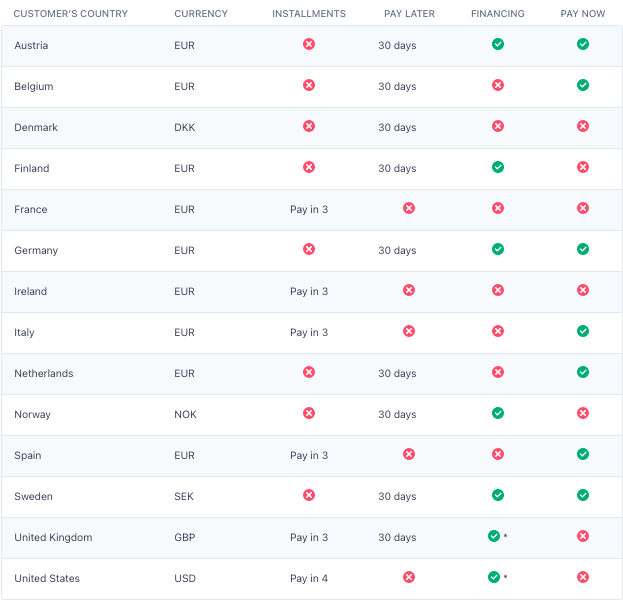
Credits: Stripe documentation
Common Questions Around How Klarna Works
How does Klarna make money?
Klarna earns revenue from merchant transaction fees and interest on financing. While options like Pay in 4 are interest-free to consumers, Klarna charges businesses a small percentage per transaction. On financing plans, Klarna also collects interest from customers who opt for long-term monthly payments.
Are there Klarna late fees?
Yes, Klarna may charge late fees if customers miss scheduled payments. However, Klarna often charges a late fee after a seven-day grace period.
What are Klarna’s credit requirements?
Klarna’s approval process varies by the payment option used. For options like Pay Later or Pay in 4, a soft credit check may be done. However, for long-term financing, Klarna performs a full credit check. Approval depends on factors like spending history, order value, and the user’s financial behavior.
Getting started with Klarna on your WooCommerce store doesn’t require any advanced technical knowledge, especially if you’re using a plugin-based solution like Stripe Payment Gateway for WooCommerce by WebToffee.
This plugin doesn’t just enable Klarna payments; it also lets you accept credit/debit cards, Google Pay, Alipay, and over 15 local payment gateways within your WooCommerce store.
You can also enable Stripe Checkout – a prebuilt payment page hosted by Stripe to deliver a fast, secure, and conversion-optimized checkout experience. Here, instead of building a checkout page, you can enable Stripe Checkout, which comes with features like real-time card validation, address auto-complete, and clear error messaging.
Steps to set up Klarna Payments in WooCommerce:
Step 1: Install and Activate the WebToffee Stripe Plugin
Go to your WordPress dashboard, navigate to Plugins > Add Plugin, and search for “Stripe Payment Plugin for WooCommerce”. Install and activate the plugin developed by WebToffee.
Step 2: Connect Your Store to Stripe
Once activated, go to WebToffee Stripe in the WordPress dashboard, and click on Connect to Stripe. Follow the on-screen steps to link your WooCommerce store to your Stripe account. If you don’t have a Stripe account yet, you can register one during this process.
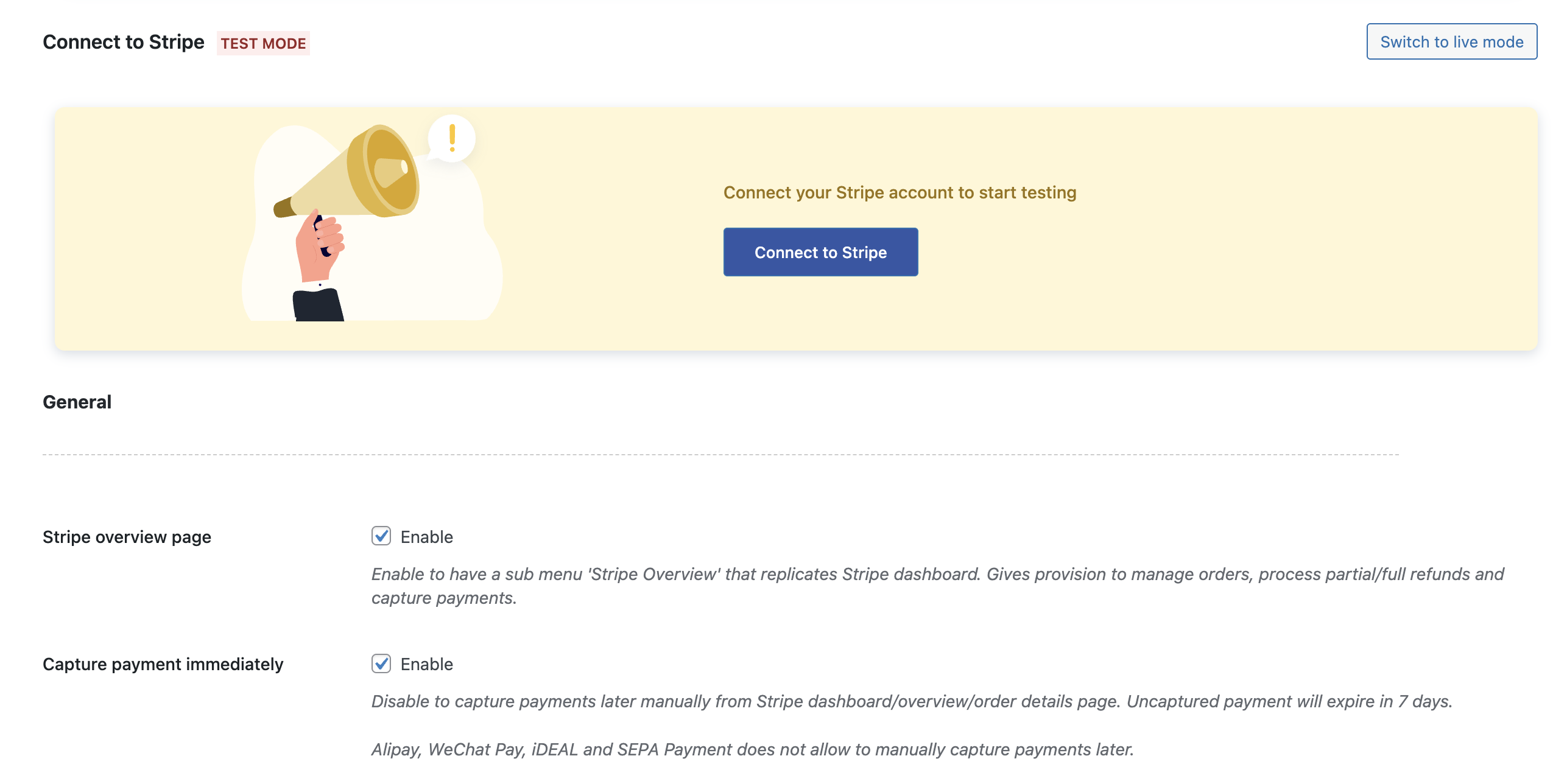
Once connected, you’ll see a screen (like the one shown below), indicating that your store is successfully linked. Keep in mind, you’re in test mode. You can click Switch to live mode at any time from the top right.

Once connected, enabling payments via Klarna in WooCommerce becomes straightforward and just a few clicks away.
Step 3: Enable Klarna Payments in WooCommerce Stripe Settings
Next, in the WebToffee Stripe dashboard, go to Local Gateways and click on Klarna to enable WooCommerce Klarna Payments.
- Check the checkbox to enable Klarna.
- Optionally, edit the title, description, and button text that will appear to your customers during checkout.
- Click Save changes to update the WooCommerce Stripe settings.

That’s it! Setting up Klarna in WooCommerce is as easy as that. Now, let’s see how WooCommerce Klarna is implemented in your store.
Step 4: Test the Klarna Payment Flow
This is an optional, but recommended step when setting up different payment methods in WooCommerce. Before going live, switch your Stripe account to “Test Mode” and simulate a transaction. This ensures everything works smoothly before accepting real payments.
Step 5: Go Live and Accept WooCommerce Klarna Payments
Once you’ve confirmed everything is working, switch back to “Live Mode” and you’re ready to start accepting Klarna payments in WooCommerce. Customers will now see the option “Pay with Klarna” at checkout and be redirected to Klarna to verify the payment process.

As we said, Klarna payment is one of the smoothest and smartest payment options for your WooCommerce store. It lets you give multiple Klarna payment options to your customers. Now let’s see what are the benefits of adding Klarna payment to WooCommerce.
Increase sales: Offering Klarna’s Pay Later, Pay in 4, and monthly installment plans makes high-ticket purchases feel more accessible.
Faster checkout: Klarna payments will simplify the checkout process by reducing the number of clicks. Your customers don’t have to enter any card details during checkout.
Evaluations: With Klarna, you can measure and evaluate improvements in real-time to ensure you get the best conversion from day one.
Wrapping up
Klarna payment enables your customers to purchase products with Buy Now, Pay Later or Easy Installments options. This way, you increase sales in your WooCommerce store. When adding payment options to your WooCommerce store, you should consider your customers.
Please note that Klarna payment is only available in certain countries, and not all payment options are available in these countries.
By following the setup and understanding how Klarna works, you can quickly make your store one of the many that accept Klarna payments. And with its partnership with Stripe, Klarna is now easier and more reliable to implement.
That’s it, folks! We have come to the end of this guide on how to enable Klarna payments in WooCommerce using a free plugin. Now it’s time for you to share your thoughts on WooCommerce Klarna payments in the comments section. Hope you loved the article!
Frequently Asked Questions
Klarna DoorDash payments is a payment option for customers to use Klarna’s financing solutions when ordering food through DoorDash.
Both Klarna and Afterpay offer buy now, pay later services, but Klarna stands out with more diverse payment options like monthly financing and Pay in 30 Days.
Yes. Klarna offers monthly financing plans that allow customers to split large purchases over a longer period.
Klarna Checkout is an all-in-one checkout solution embedded on your site, offering Pay Now, Pay Later, Pay in 3 or 4 installments, and financing in a single flow. It simplifies the buying process and boosts conversions by letting customers choose their preferred payment method.
Klarna supports various methods, including credit cards, debit cards, and bank transfers. Once approved, Klarna automatically deducts future payments on the due dates from the customer’s linked payment method.
Yes. Klarna accepts credit and debit cards for both upfront and installment-based purchases. However, card acceptance may vary by region and payment plan.


Subcribe to our newsletter