


Share:


Table of Contents
You can easily set up quote emails and notifications in WooCommerce using a quotation plugin like WebToffee’s Request a Quote. Quote email notifications help store owners maintain smooth communication with customers who request personalized pricing or custom quotes. These emails keep both sides informed throughout the quoting process.
To configure quote emails in WooCommerce, activate the plugin and go to Quotes > Quote Settings > Email. Here, you can enable the quote statuses that should trigger email notifications for both customers and admins. Once these settings are applied, you can visit the WooCommerce > Setting > Emails to find newly added quote email templates that can be customized. Whether you handle bulk orders, negotiable pricing, or special requests, a structured email flow ensures timely and professional communication.
In this guide, we’ll walk you through the complete process of setting up WooCommerce quote email notifications, from installation to customization and testing, without the need for any complex code.
Key Takeaways
- Quote email notifications help store owners maintain clear communication with customers requesting personalized pricing or custom quotes.
- These emails keep both parties updated at every stage of the quoting process, including new requests, sent quotations, and accepted offers.
- Quote email workflows are especially useful for B2B stores, service-based businesses, and online shops that offer custom pricing.
- The WooCommerce Request a Quote plugin allows customers to submit quote requests directly from product pages, making the process smooth and efficient.
Anyone implementing WooCommerce quotation requests needs a reliable way to track and respond to those requests promptly. Request for quotes are useful for wholesale stores, B2B shops, and businesses that offer custom products where pricing varies based on quantity, specifications, or negotiation. Even retail stores that sell personalized items may want to enable quote requests to offer custom pricing.
Both large and small businesses face the risk of missing quote requests. High-traffic stores may overlook new inquiries simply due to volume, while small store owners who manage multiple tasks may miss requests during busy hours. Delays in acknowledging or responding to quotations can lead to poor customer experience and even lost sales.
To avoid this, WooCommerce can send quote request email notifications to store owners and customers with the help of a dedicated plugin. These alerts ensure that every new request is acknowledged, reviewed, and processed on time.
Now, let’s take a look at how to enable and configure WooCommerce quote request email notifications.

Before you begin configuring quote email notifications, you’ll need a plugin that supports quote functionality. We recommend using WooCommerce Request a Quote plugin by WebToffee, a reliable tool that lets your customers submit quote requests directly from your product pages.
This plugin allows you to hide or replace the “Add to Cart” option with an “Add to Quote” button on selected or all products. Store owners receive these quote requests and can review, modify, or approve them from the backend.
The plugin handles both logged-in users and guest users and supports quote submissions for both simple and variable products. Admins can configure email notifications for each stage of the request, customize the quote button text, and restrict quote options to specific products or user roles.
To get started, log in to your WordPress dashboard and go to Plugins > Add Plugin > Upload Plugin. Install the plugin and then click Activate.
The next step is to configure the email notifications that keep both you and your customers informed throughout the quoting process. Let’s walk through the setup, from accessing quote email settings to customizing emails and testing everything end-to-end.
Now that the plugin is up and running, it’s time to configure how quote emails are triggered and delivered.
Step 1: Access the Quote Email Notification Settings
Navigate to Quotes > Quote settings, then select the Email tab. Here you can configure which quote status changes should trigger email notifications. You can:
- Specify the quote statuses for which admins should receive notifications (e.g., new quote request, quote approval, quote rejection).
- Add multiple backend recipient emails for admin notifications.
- Choose the quote statuses for which customers should be notified (e.g., quote request submitted, quote rejected, quote received, and more).
Once you’ve selected the desired quote email notification options, click Update settings to save your changes.

Each trigger comes with its own customizable email template, so review the options available in your plugin’s settings. If you’re using WooCommerce Request a Quote, most of these are supported by default. Let’s take a look at them.
Step 2: Customize Quote Email Templates
Once you enable the quote email notification in the plugin settings, you will be able to manage and customize them through WooCommerce’s native email configuration panel. In order to do that,
Navigate to WooCommerce > Settings > Emails. Here, you’ll find a list of available email templates. Look for the quote-related email notifications. These include options like:
- New quote request: Sent to the admin when a customer submits a request.
- Accepted quote: Notifies the admin that their quote has been accepted by customer.
- Rejected quote: Informs the store owner if their quote has been declined.
- Quote request submitted: Confirms to the customer that their request has been submitted.
- Quote request rejected: Informs the customer if their quote is declined.
- Email with quote: Sent to the customer when a quote is received from the store owner.
- Quote expired: Alerts the customer that a quote is no longer valid.
- Quote expiry reminder: Sends a quote email reminder before the quote expires.
- Quote pending reminder: Notifies the customer of a quote in pending payment status.

Click Manage beside any of these templates to open the customization options. From there, you can:
- Enable or disable individual quote emails
- Edit the subject line, email heading, and recipient fields (including Cc/Bcc)
- Preview the email layout and content before saving changes
- Send a test quote email
Customizing these templates ensures your quote emails align with your brand’s tone and deliver the right message at each stage of the quoting process.
Step 3: Testing the Quote Email
Once you have set up quote emails, it’s essential to test how quote emails behave in real scenarios.
- Visit your site’s front end and submit a quote request as a customer would. Fill out the form and proceed as a real user.
- Check if the admin receives the “New Quote Request” email. Ensure it goes to the correct inbox and that the message content is clear.
- From your WooCommerce dashboard, respond to the request by sending a quote. Confirm that the email reaches the customer.
- Accept or reject the quote from the customer side, and check if the appropriate emails fire accordingly.
To help troubleshoot or confirm delivery, use a plugin like WP Mail Logging. It records all outgoing emails from your site, making it easier to identify any missing or misconfigured messages.
When a customer places an order on your site, you will receive an email notification saying that a new quote has been received. The email will look something like this.
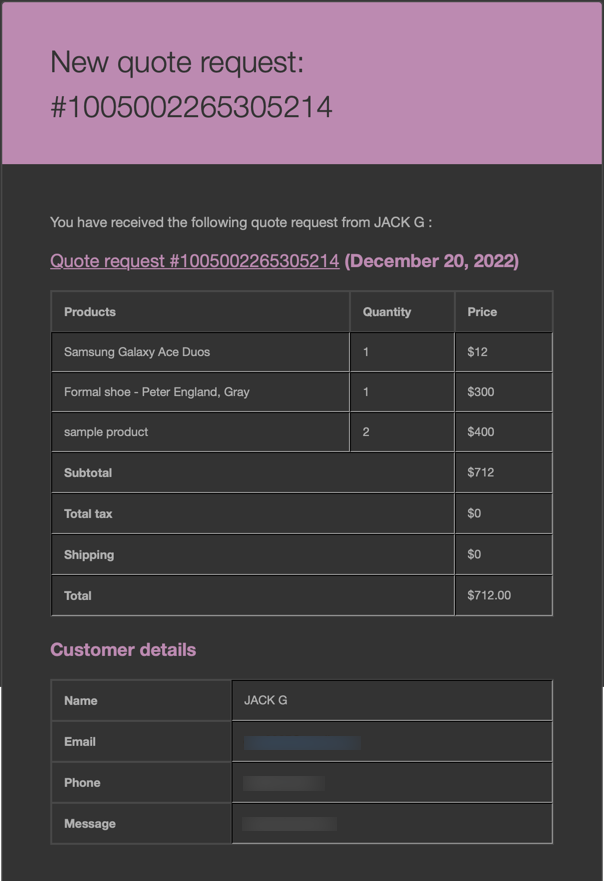
The products in the store were already given a default pricing which the customers were able to see. This is why the price of the products are already added to the quote received in the email.
When you add the price of the product and the quote is sent back to customers, they will get an email like this.
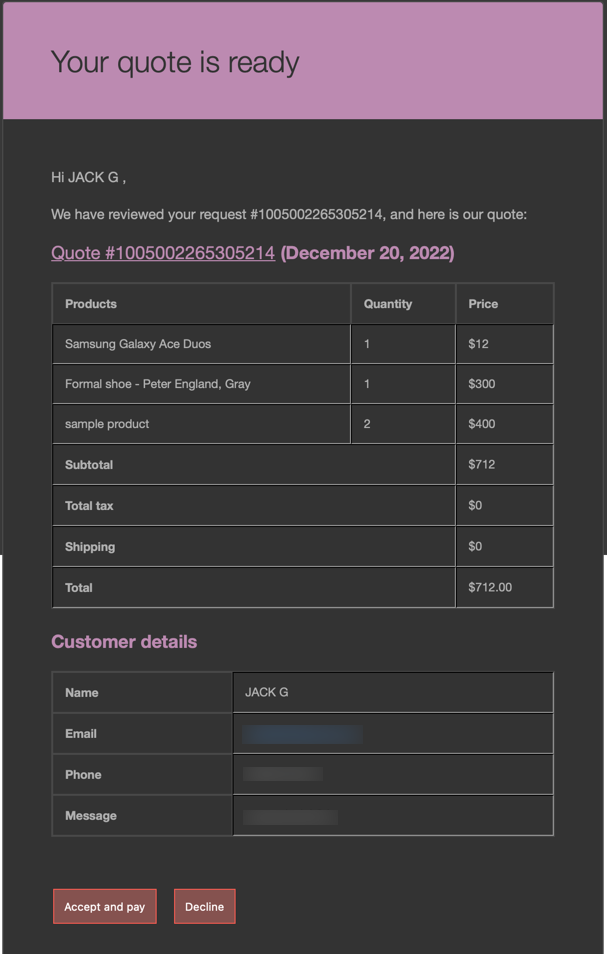
They can either accept the proposal or reject it. If rejected, customers can resend the quote request (if you have configured the plugin to do so).

If your WooCommerce quote email notifications aren’t sending or behaving as expected, here are a few common fixes:
1. Check Email Settings
Go to WooCommerce > Settings > Emails and verify that all quote-related emails are enabled. Make sure the recipient addresses are correct, especially for admin notifications.
2. Confirm SMTP Configuration
WordPress’s default mail function can be unreliable on some hosts. To improve deliverability, set up SMTP using a plugin like WP Mail SMTP. These tools connect your site to an external email server (e.g., Gmail, SendGrid, Mailgun) and reduce the chances of your emails being marked as spam.
3. Use an Email Logging Plugin
Install a plugin like WP Mail Logging to keep track of every email your site sends. This can help you identify which notifications are going out and which are failing.
4. Test with Different Addresses
If you’re not receiving emails at your primary inbox, try a different email address. Sometimes, firewalls or spam filters block automated messages.
Configuring WooCommerce quote email notifications helps you maintain professional communication throughout the quote process. Whether you’re handling one-off custom orders or managing bulk B2B quotes, setting up and customizing these notifications ensures customers stay informed and engaged.
To recap:
- Use a dedicated plugin like WebToffee WooCommerce Request a Quote.
- Customize and test each quote email template from request to approval.
- Use tools like SMTP and email logging to improve reliability.
And if you’re wondering what to do after the quote is sent, check out our separate guide on how to follow up on quote requests, a practical approach to converting more quotes into sales.
Thanks for reading!
Related Article: All-in-One WooCommerce Request a Quote Guide


Subcribe to our newsletter


