
Share:


Table of Contents
To add a request a quote option in WooCommerce, install a dedicated plugin such as WebToffee WooCommerce Request a Quote. After activation, you can replace the Add to Cart button with an Add to Quote button, hide product prices, and allow customers to submit quote requests for specific products or quantities.
Customers can add products to a quote list, submit their requirements through a quote request form, and receive a customized price from the store owner. Store admins can review requests, adjust pricing, and send quotations directly from a centralized quote dashboard.
This setup creates a complete WooCommerce quote workflow, which works well for wholesale stores, custom products, bulk purchases, and negotiated pricing.
Key Takeaways
- WooCommerce does not include a built-in quote request feature, so a plugin is required to enable quote requests.
- Adding an “Add to Quote” button allows customers to request custom pricing.
- Request a quote system is popular model followed by stores selling custom products, wholesale products, or personalized items.
- Store owners can review, approve, decline, or negotiate quote requests from a dedicated dashboard.
- A plugin like WebToffee WooCommerce Request a Quote helps create and manage a complete quote system in WooCommerce.
In this guide, you’ll learn how to add a request a quote option in WooCommerce, configure quote settings, customize the quote button, and manage custom quote requests step-by-step.
A quote request or quotation is a feature that allows customers to ask for custom prices for specific products or services before making a purchase. Customers can submit a request a quote form with a preferred price for a preferred quantity of a product or service.
The store owner reviews the request and sends a quotation with the proposed price. The customer can then accept the quote, negotiate the price, or decline the offer.
The request a quote system is commonly used for bulk purchases, wholesale orders, custom products, or negotiated pricing.
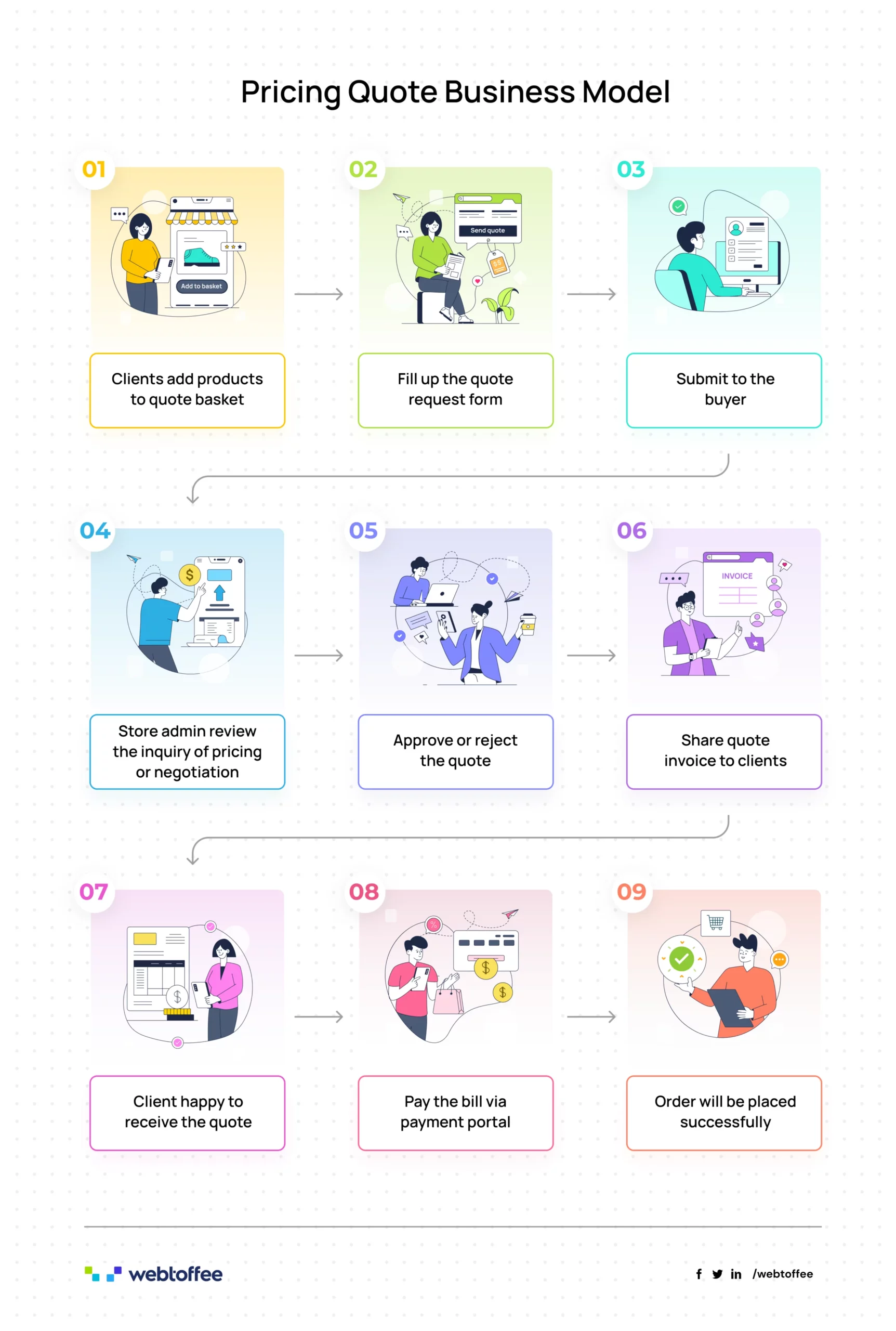
A quote system allows customers to request custom pricing before completing a purchase. The typical process works as follows:
- A customer selects products and adds them to a quote list instead of the adding to cart.
- They submit a quote request form with details such as quantity, requirements, or preferred pricing.
- The store owner reviews the request and prepares a custom WooCommerce quotation.
- The quote is sent to the customer for approval.
- If the customer accepts the quote, they proceed to complete the payment and place the order.
For example, a school ordering custom backpacks with their logo may request a quote for bulk quantities. They fill out a quote request form specifying their preferred price and quantity and then submit it for review. The store owner reviews the request and provides a price based on quantity, customization, and other requirements.
Refer to the below image for a better understanding:
A request a quote is not a common requirement of a B2C business. But that doesn’t mean that no B2C business would need such a feature. In fact, several B2B and B2C organizations selling goods and services, both online and offline, demand it.
We will look into the specific set of businesses that that benefit from adding a WooCommerce quote system.
1. B2B Businesses Selling in Bulk

Wholesale businesses and stores often trade on a large number of products is a common benefactor of the WooCommerce quote request feature. One of the biggest benefits of purchasing in bulk is the reduced prices. So if you are a wholesale business, your customers will anticipate a lesser price than the market rate.
But the reduction in price also depends on several factors like supply and demand, customer loyalty, etc. A robust solution, in such a circumstance, is a quote request. This would allow you to quote different prices for the same products under different conditions.
2. Businesses Selling High-Value or Custom Products

Several high-priced products, such as cars, furniture, or custom bags, would only be manufactured on demand. Moreover, a customer purchasing such a product may want additional customizations, such as a sunroof or an antique design. This would mean – different estimates for different customers. This can be achieved effortlessly with WooCommerce’s ‘Request a quote.’ Moreover, these features leave room for negotiations.
3. Businesses Offering Custom Services

If you are a business offering a custom service, such as education or travel, your clients will be charged based on the service that they need. With quotes, you can overcome the shortcomings of offering a single price and generate targeted offers that are more suited to your clients’ needs.
4. Businesses That Hide Prices (Catalog Mode)

Some businesses might need the ‘catalog mode’ where the price of the items is hidden, and the purchase process is disabled. A shopper can only move forward with the purchase with assistance from the store.
In such situations, the customers ask the store to give them a personalized price estimate for their product/service and if they agree upon the price, the customer can complete the payment and receive the package. If not, they can negotiate the price until they reach an agreement.
The quote request option is not available in WooCommerce. So, we’ll be using our WooCommerce Request a Quote plugin to set up quotation requests. Our WooCommerce Quotes plugin lets you hide the “Add to Cart” button and price fields on your website and shows an “Add to Quote” button instead for customers to quote custom prices.
Now follow the steps below to set up a fully functional request a quote system for your WooCommerce store.
Also Read: 15 Best WooCommerce Quote Request Plugins
Step 1: Activate WebToffee WooCommerce Request a Quote Plugin
The Request a Quote plugin is available as a premium option for $69, including one year of updates and technical support. Once you have purchased the plugin, you will receive an email with the link to download the plugin zip file. You can also download the plugin file from the My Account page.
- After downloading the plugin file, go to Plugins > Add New on your WordPress admin console.
- Upload the plugin zip file and install it. You will be able to activate the plugin once it is installed successfully.
Step 2: Configure General WooCommerce Quote Settings
- Now, go to Quotes > General from your WordPress sidebar menu.
- Select the Show ‘Add to quote’ button for products option.
- Choose where you want to show the Add to Quote button – on the single product page or shop page.
- Choose the position of the Add to Quote button.
- You also have some additional options, such as hiding the add to cart button, showing the add to quote button for out-of-stock products, etc.

Step 3: Set up Price Preferences for WooCommerce Quotes
- Enable the Hide prices checkbox to remove price fields from the product page.
- Choose whether to accept preferred prices from customers.
- Select how to accept the price preferences.
- Choose whether to calculate the shipping fee with the quoted price.

Step 4: Configure Advanced WooCommerce Quote Settings

- Choose the user role to show the quote functionality.
- Enter the URL endpoint for the Quotes section.
- Choose a title for the Quotes page.
- Enable Mini quote support to display a mini quote list on product pages.
- Click on Update settings to save the changes.
Did You Know?
You can specifically include or exclude products from the quote lists. Go to the Inclusion list and add products to show the “Request a Quote” function. Similarly, you can exclude products from showing the “Request a Quote” function by adding it to the Exclusion list.
Step 5: Set up Quote Request Email
- Go to the Quote settings page and choose Email.

- Choose the quote statuses to send emails to the admin.
- Enter the admin emails.
- Choose the emails to send to customers.
- Click on Update settings.
Step 6: Customize WooCommerce Quote Requests
Go to the Customize tab.
- From here, you can customize the appearance of the quote request button, texts, etc.
- Choose a label text for the ‘Add to Quote’ button.
- Select whether to show the ‘Add to Quote’ option as a button or link.

- Click on Save changes to activate the request a quote label customizations.
When a customer submits a quote request, the store admin receives an email notification. To respond to the request, go to Quotes > Dashboard and click on the corresponding request.
You will be able to see the items in the quote request, the current price, the subtotal, and more. To change the current price of an item, click on the pencil icon corresponding to it. You will be able to change the value of the field named Total.
You may change the quote expiry duration from the globally set value from the Quote details if required. Once that is done, you can add any additional messages to customers and click on Send quote.
Any additional details regarding the quote such as the ‘Related quotes’ will also be displayed on the same window.
When the customer receives the quote request, they will be notified of this via email. They can also review the quote from My accounts > Quotes and click on the required quote. This will open up the quote page.

When clicked on Accept and pay, they will be directly taken to the Checkout page. When declined, customers will have another chance to request a quote again.
Frequently Asked Questions on Quote Requests
A WooCommerce quote request allows customers to ask for custom pricing before placing an order. Instead of purchasing products directly, customers can submit a request that includes product details, quantity, or specific requirements.
You must enclose the client’s requirements, such as what they are looking for. For instance,
1. Show the company and client information.
2. Make a unique quote number with an expiry date.
3. Outline the product or service in detail.
4. Deliver transparent pricing and taxes.
5. Include terms and conditions for a quotation.
6. Authorized person signature – it’s optional.
Yes, using WebToffee’s WooCommerce quote plugin you can create an expiry limit for a specific quote. This plugin will help you create time-limit quotes instantly in the WooCommerce store. It creates a sense of urgency and encourages customers to complete their payments quickly.
Install the WooCommerce advanced quote plugin to access the template – edit the quote with a simple drag-and-drop option. You can complete the pricing quote using three simple steps.
1: Create a custom quote button for the online store’s products.
2: Personalize the default quote form page for buyers to escalate inquiries.
3: Set up the follow-up email drive to auto-generate quotes for clients.
One of the best ways to follow up with clients after submitting quotes is to create an auto-trigger email campaign. In that way, it will be much easier to communicate with the clients and so provide timely notifications. You can install WebToffee’s WooCommerce Request a Quote Plugin to activate the automated quote emails for your clients.
Yes. With a WooCommerce quote plugin, you can hide product prices and replace the “Add to Cart” button with an “Add to Quote” button. This allows customers to request custom pricing before purchasing.
Wrapping Up
Adding a request a quote option in WooCommerce helps businesses handle bulk orders, custom pricing, and negotiated purchases more efficiently. Since WooCommerce does not include this feature by default, using a dedicated plugin is the easiest way to enable quote requests on your store.
With the WebToffee WooCommerce Request a Quote plugin, you can replace the Add to Cart button with an Add to Quote button, hide product prices, and manage quote requests directly from your WooCommerce dashboard.
Once configured, customers can request custom pricing for products, and store owners can review, update, and send WooCommerce quotes with ease.
If you want to explore how this plugin compares with other solutions, check out our comparison with YITH Request a Quote for WooCommerce.


Subcribe to our newsletter