


Share:


Table of Contents
You can set up a quote request option for out-of-stock products in WooCommerce by using a plugin that adds a Request a Quote button. This lets customers express interest or request pricing even when products aren’t available. Once activated, you can configure the request a quote for out of stock products by going to Quotes > General > General settings and enable show add to quote button for only out of stock products. You can also hide the Add to Cart button and prices from the same settings page.
Simply showing an “out of stock” message often drives customers away and makes them look elsewhere for the product. A quote request option keeps them engaged and gives you the chance to recover lost sales.
In this article, we’ll explore why this approach works and how you can easily set up quote requests for out-of-stock products in WooCommerce.
Key Takeaways
- Customers often leave your store when a product is marked out of stock, leading to lost sales.
- Store owners can easily circumvent this by enabling request a quote feature for your WooCommerce out of stock products.
- The feature allows shoppers to express interest or request pricing even when items are unavailable.
- The WebToffee WooCommerce quote request plugin lets you add the quote request option for all products, featured items, or only out-of-stock products.
Ready to set up request a quote feature for out of stock products? Let’s get started!
A customer looking for a specific product most probably migrate to another site if they find the product to be out of stock in your store. If this user is a loyal customer, you risk the chance of losing the customer in addition to the sale.
By taking proper measures you will be able to retain the sale and most importantly the customer. To do this, you will need a WooCommerce request quote feature. With it, you will be able to let your customers ask for a custom quote for a particular product.
You can then respond with a reasonable price and delivery estimate. It will give you the opportunity to convey any potential delay in the delivery (due to lack of immediate stock) and offer any discounts (as your token of appreciation for waiting a long period). This would help you retain the customers.
The base logic of enabling WooCommerce quote request for out-of-stock products is similar to what happens in a physical store. If a size or color of a shirt is missing, customers usually ask about it instead of immediately walking away.
This is the same here, with request a quote, you are giving your users a chance to inquire about the product. However, this is just the first step in the process. You will have to reply to the request, restock, deliver and ship the product to make it work efficiently.
The WebToffee WooCommerce quote request plugin can be used to add the ‘Request a quote’ button for all products, featured products, back order items and out of stock items.
If you enable ‘Request a quote’ for out of stock products, the quote request button will only be available for those items. However, you can choose to enable quote requests for all products in your store, including out-of-stock items.
Let’s see how we can set it up with simple step-by-step instructions.
Step 1: Install and Activate the Request a Quote Plugin for WooCommerce
The WooCommerce Request for Quote plugin is available for purchase in WebToffee. Once you complete the purchase you will be able to download the plugin zip file. Check your email inbox or visit your WebToffee account to access the zip file.
Log in to your WordPress admin account and go to Plugins > Add New. Upload the plugin zip file and then install and activate to enable quote management settings in WooCommerce.
As mentioned earlier, you can set up quote requests for out-of-stock products by enabling the option for those items only or by turning on the Request a Quote feature for all products in your store.
Step 2: Set Up WooCommerce Quote Request for Out of Stock Products Only
When the plugin gets activated, a new menu named Quotes will appear on the navigation bar on the left.
- Click on Quotes and you will land on the General page.
- Now, you can choose where to show the Add to quote button. If you want to enable it for out-of-products only, choose Out of stock products under Show ‘Add to quote’ for products button settings.

- If you want it for all products, choose All products under Show ‘Add to quote’ for products. This enables request a quote feature for all of your store products including out-of-stock items.

- Next, choose where you want to add the ‘Add to quote buttons’ and decide on where to position them.
- Hide prices and Add to Cart button for the products if you need them.
- Enable the ‘Ask for quote’ button on the cart page if required.
- Update the settings before proceeding.
Once done, the ‘Add to quote’ button will be displayed instead of the ‘Add to cart’ button for out of stock products.
Configure the other quote settings (such as request a quote page, email settings, and more) to fully configure the WooCommerce quote request functionality. Refer to our complete guide on WooCommerce request a quote for more information.
Note: Say, you want to give your customers a chance to inquire about the out of stock WooCommerce product rather than just asking for the quote, here is a workaround for you.
Change the button labels to ‘Inquire about the product’ (or any custom text) under Quotes > Customize > Buttons > Add to quote.
You may also change the name of the ‘Request quote’ page to ‘Request product information’ (or any custom text) under Quotes > Quote settings > Request quote page.
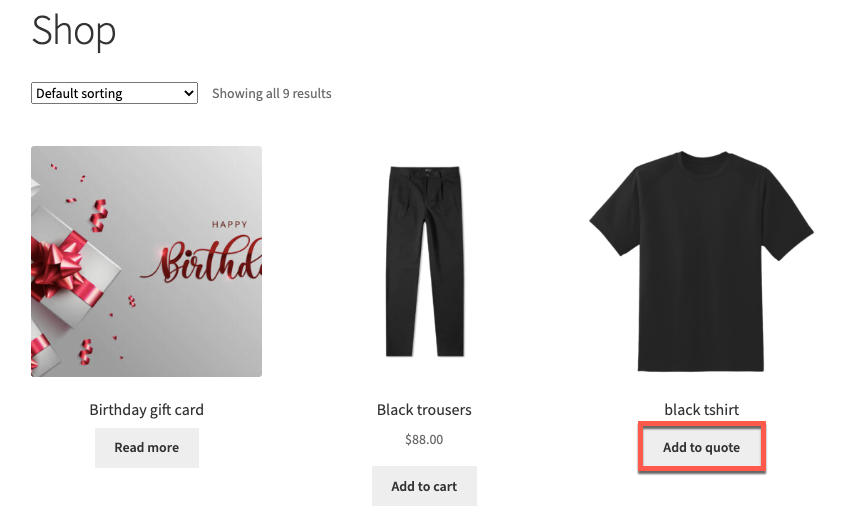
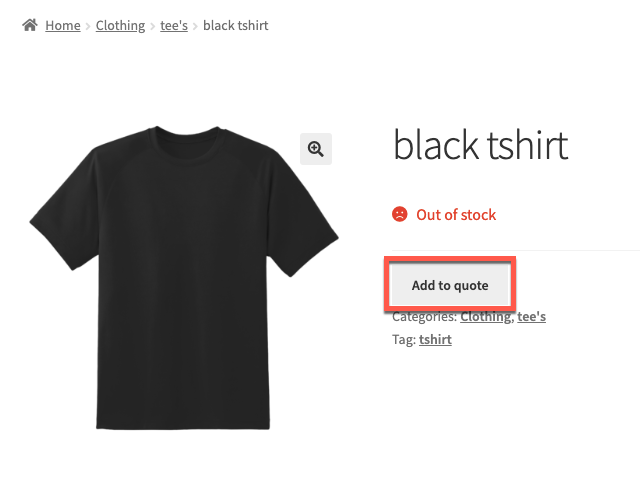
In the case of simple products, the ‘Add to cart button’ will be replaced with ‘Add to quote’ in the shop and individual product page of out of stock WooCommerce products.
Users when clicking on this button will be able to add the items to the ‘Request quote’ page. They will have to visit this page to complete sending the quote request to the store admin.
Add to quote button for out of stock items on the Shop page:
Add to quote button for out of stock items on the product page:
In case of variable products, the add to quote button will be added on the product page of the specific variation that is out of stock. For example, if size 8 of a particular shoe is out of stock, the add to quote button will only be added on the product page when selecting that particular size.
A Request a Quote button is a valuable feature that gives customers the flexibility to ask for an estimate instead of committing to a fixed price right away.
The request for a quote option for out of stock WooCommerce products keeps shoppers engaged and encourages them to wait rather than leave your store, while also giving you the chance to offer custom pricing or special terms.
The WebToffee WooCommerce quote plugin is a dedicated tool tailored to meet all your WooCommerce quote request needs. It facilitates everything from offering automated quotes based on the preset amounts to sending out quote requests that are custom fitted to meet specific organizational requirements. With these tools, you can create a smoother buying experience, retain more customers, and build stronger relationships with shoppers who need a little extra flexibility.
That’s it! Hope this article on setting up WooCommerce quote request for product stockouts was of help to you. Let us know if you have any questions regarding this plugin or its features in the comments below.


Subcribe to our newsletter


