Share:


Table of Contents
Modern WooCommerce coupon strategies extend beyond simple discounts, leveraging a variety of promotional tactics to enhance customer engagement and drive sales. By utilizing advanced tools like Smart Coupons, businesses can implement diverse coupon types such as BOGO offers, store credits, free shipping, and personalized promotions based on customer purchase history, ultimately optimizing revenue and improving customer loyalty.
- Coupons can be tailored to achieve specific business goals, such as increasing cart values or clearing inventory.
- Advanced coupon types include BOGO deals, free gifts, and store credits, which offer more than just percentage discounts.
- Free shipping coupons can effectively convert abandoned carts by removing shipping costs, a common barrier to purchase.
- Purchase history-based coupons allow for targeted promotions that reward customer loyalty and encourage repeat purchases.
- Auto-apply and URL coupons simplify the user experience by eliminating the need for customers to enter codes, enhancing conversion rates.
- Implementing cart value restrictions ensures that discounts are applied strategically, preventing potential revenue loss from low-value orders.
If your store’s coupon strategy begins and ends with “10% off,” you’re leaving a surprising amount of revenue on the table. Modern WooCommerce stores use coupons to do far more than offer discounts. They drive larger cart values, clear slow-moving inventory, reward loyal customers, recover abandoned carts, encourage specific payment methods, and even automate personalized promotions based on purchase history.
The challenge is knowing what’s actually possible. Between WooCommerce’s built-in coupon system and advanced tools like WebToffee Smart Coupons, you can create far more than just percentage and fixed discounts. From BOGO deals and free gifts to URL coupons, store credits, loyalty rewards, cart-based promotions, and highly targeted offers, there are dozens of ways to tailor promotions to your business goals.
In this guide, we’ve rounded up 90+ WooCommerce coupon types you can create, along with when to use each one and where to configure them. Whether your goal is to increase conversions, boost average order value, reward repeat customers, or run smarter promotional campaigns, you’ll find practical coupon ideas you can start using right away.
Every coupon starts with one decision: what the discount actually does to the cart. Get this wrong, and the rest of your configuration works against you, because a per-item discount and a per-cart discount behave very differently once someone adds five products.
Open Smart Coupons → Add Coupon, then use the General tab.

Percentage discount
Takes a percentage off each matching item in the cart rather than off the cart total. This is the type you want for category-wide sales, because the savings scale with the order, and a customer buying six items sees a bigger number than one buying two.
Discount type → Percentage discount
Fixed cart discount
Subtracts a flat amount from the whole cart, regardless of how many items are in it. Better for predictable margin control, since a $20 cart discount costs you exactly $20 whether the customer bought one product or ten.
Discount type → Fixed cart discount
Fixed product discount
Takes a flat amount off each matching product instead of the cart total. Useful when you are clearing one specific SKU and want the discount to multiply with quantity, so $5 off becomes $15 off on three units.
Discount type → Fixed product discount
Store credit discount
Applies the coupon as spendable credit against the order rather than as a discount on products. Because the value sits with the customer rather than the campaign, this is what you use for refunds, goodwill gestures, and anything you want redeemable across more than one visit.
Discount type → Store credit
Also Read: How to Create a Coupon in WooCommerce?
Shipping costs are the most common reason a full cart never becomes an order, and it is often cheaper to absorb than to discount the products. These three types let you use shipping as the incentive instead of margin.
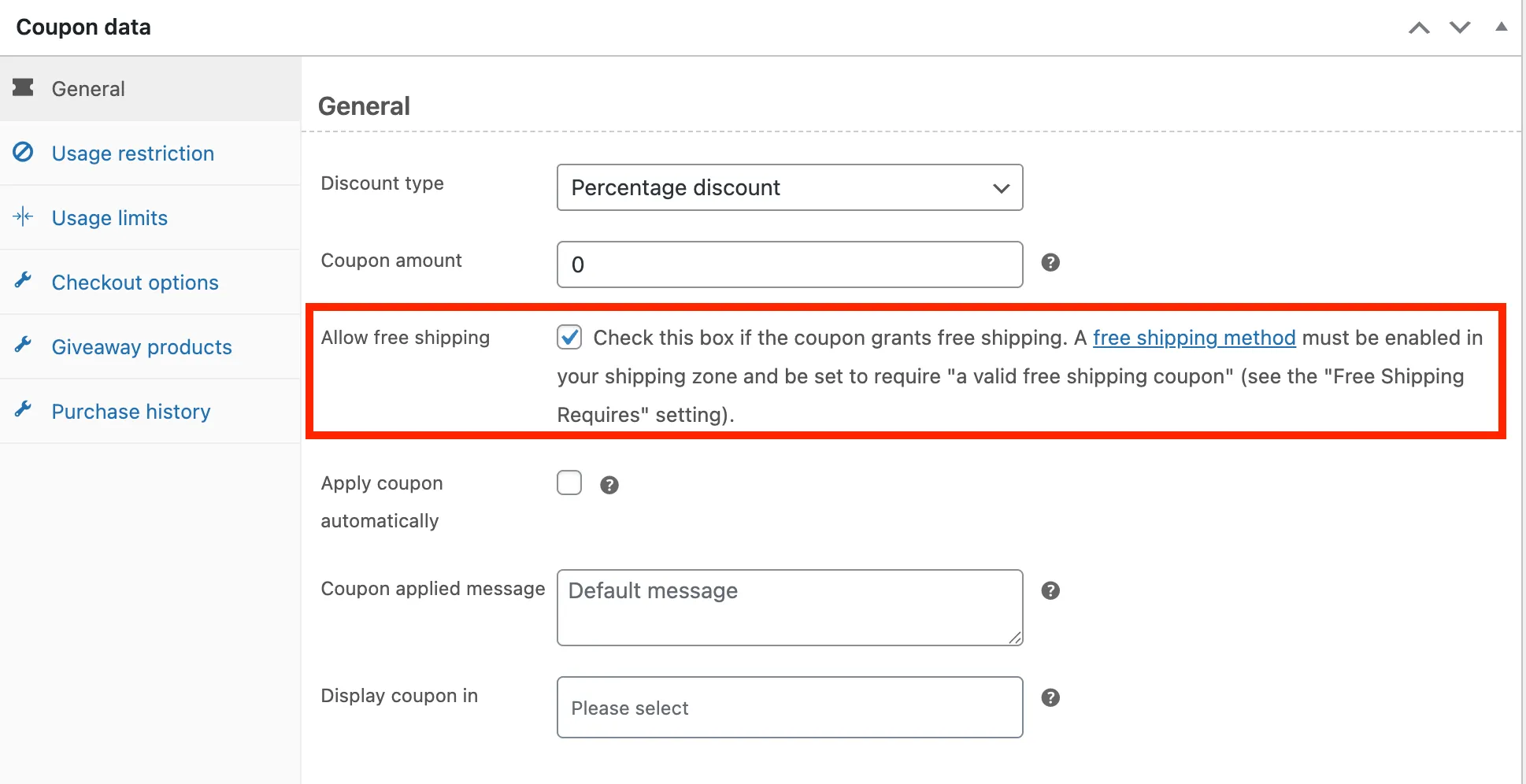
You will need a free shipping method already enabled in your shipping zone, set to require a valid free shipping coupon. Then open Smart Coupons → Add Coupon → General.
Free shipping coupon
Grants free shipping with no discount on the products themselves. Worth testing against a percentage offer of similar cost, because shipping removal often converts better than an equivalent discount while leaving your product pricing untouched.
Allow free shipping → enable
Free shipping above a spend threshold
Unlocks free shipping only once the cart clears an amount you set. This is the cleanest way to lift average order value, since customers who are close to the threshold will usually add an item rather than pay postage.
Allow free shipping → enable, then Usage restriction → Minimum spend
Region-locked free shipping
Restricts the free shipping offer to specific countries or states. Handy when domestic delivery is affordable but international is not, so you can run the campaign where the economics work and leave it off everywhere else.
Allow free shipping → enable, then Checkout options → Country/State restriction → Include
BOGO is where the native WooCommerce coupon system stops being useful. There is no way to express “buy two, get the cheapest free” in a discount field, which is why store owners either write custom code or give up on the mechanic entirely.
Smart Coupons handles BOGO through a separate module. Open Smart Coupons → BOGO → Add new.

The builder gives you four presets and a Custom path, and underneath that, a choice between two engines. That engine choice is what determines how the free item gets picked.
Buy X, get X free

Rewards a repeat purchase of the same product, so two units cost the price of one. The default mechanic for consumables and anything customers buy in multiples, because it moves stock without training people to wait for a percentage sale.
BOGO → Buy product X, get product X/Y, then Customer gets → Specific product(s) → Discount type → Free
Buy X, get X at a percentage off
Discounts the second unit of the same product instead of giving it away. Costs less than a straight freebie and still lifts quantity per order, which makes it a sensible first test if you have never run BOGO before.
Customer gets → Specific product(s) → Discount type → Percentage
Buy X, get X at a fixed amount off
Takes a set amount off the second unit rather than a percentage. Better on high-value products, where 20% off is a bigger giveaway than you intended, and a flat $30 keeps the cost of the promotion predictable.
Customer gets → Specific product(s) → Discount type → Fixed
Buy X, get X at a set final price
Names the price of the second unit outright instead of calculating a discount off it. Reads more clearly in marketing copy, since “second one for $19” lands harder than “38% off your second”.
Customer gets → With a → Final price
Buy X, get Y free
Gives away a different product than the one that triggered the offer. This is the cross-sell version of BOGO, useful for putting a new product in the hands of customers who already trust one of your existing lines.
Customer gets → Specific product(s), select the gift product, then Discount type → Free
Buy X, get Y at a percentage off
Discounts a companion product rather than giving it away. Works well on accessories where the attach rate is already decent and a nudge is enough, like a case with a phone or a filter with a lens.
Customer gets → Specific product(s), select the companion product, then Discount type → Percentage
Buy X, get Y at a set final price
Puts a fixed price on the companion product. The “add a mount for $9” pattern, which converts better than a percentage because the customer does not have to do arithmetic to know what they are paying.
Customer gets → Specific product(s) → With a → Final price
Buy N, get the cheapest free
Finds the lowest-priced qualifying item in the cart and makes it free. The standard three-for-two mechanic, and the fairest-feeling version of BOGO for mixed-price catalogs like apparel, where customers combine items freely.
Engine → Cheapest/Most Expensive, then Apply offer → set quantity → Discount type → Free
Buy N, get the cheapest at a percentage off
Discounts the cheapest qualifying item instead of removing its cost entirely. A cheaper way to run the same offer, and often enough to change behavior when the discount is 50% or more.
Engine → Cheapest/Most Expensive → Discount type → Percentage
Buy N, get the most expensive free
Inverts the usual logic and gives away the highest-priced item in the qualifying set. Expensive, but a strong lever for clearing premium stock at the end of a season when the alternative is holding it another year.
Engine → Cheapest/Most Expensive, set to most expensive → Discount type → Free
Buy N, get the most expensive at a percentage off
Applies a percentage to the highest-priced qualifying item. The controlled version of the above, and the one to use when you want the headline of a premium discount without giving away your best margin.
Engine → Cheapest/Most Expensive, set to most expensive → Discount type → Percentage
Category to category BOGO
Triggers off any product in one category and rewards with a product from another. Lets you run “buy any jacket, get 40% off any scarf” without listing every SKU pairing by hand, which matters once your catalog runs past a few dozen products.

Trigger → Customer buys → Add → select category, then Customer gets → select the reward category
Customer choice giveaway
Offers a list of products and lets the customer pick which one they receive. Better perceived value than a fixed gift, and it doubles as a signal about which products your buyers actually want when you review the redemption data later.
Customer gets → Specific product(s) → add multiple products → Discount type → Free
Spend an amount, get any product at a low price
Triggers on cart subtotal rather than quantity and unlocks a product at a token price. The “spend $100, get any product for $1” offer, which pushes carts toward a threshold while feeling like a reward rather than a discount.
Trigger → Customer → Spends subtotal of → enter amount, then Customer gets → With a → Final price
Subtotal-triggered BOGO
Keys the whole offer to how much someone spends instead of how many items they buy. The right choice when your catalog has a wide price range, because three cheap items and three expensive ones should not earn the same reward.
Trigger → Customer → Spends subtotal of
Quantity-range BOGO
Lets you set both a minimum and maximum quantity for the offer. The maximum is especially useful because it prevents large bulk orders from claiming a promotion you intended for normal retail purchases.
Trigger → Min quantity and Max quantity
Repeating BOGO
Applies the offer again each time the customer hits the threshold, so twelve items earn four free rather than one. Genuinely effective on consumables, though worth capping with a usage limit before you run it on anything with thin margins.

Apply offer → Repeatedly
Tiered BOGO
Uses custom rules to scale the reward with basket size, so buying 2 to 4 items earns one free, and 5 to 9 earns three. Each tier is a separate rule, and this is the closest you get to volume pricing inside a coupon.
Apply offer → Based on custom rules → Buy [min] to [max] items, Get [product] x [qty] → Add rule
BOGO with free shipping bundled in
Combines the free or discounted item with free delivery in a single offer. Stacking the two removes the two most common checkout objections at once, which makes it a reasonable choice for a flagship seasonal campaign.
Customer gets → Include free shipping → Combine free shipping with the offer
Scheduled BOGO
Runs the offer inside a date window and switches itself off at the end. Necessary for anything tied to a sale event, and it saves you from the familiar problem of a Black Friday offer still being live in January.
Right panel → Schedule → enable, then set the date range
You can also gate every BOGO offer above further. The Optional conditions menu in Step 2 adds cart conditions, user restrictions, usage limits, checkout rules, and purchase history filters on top of the offer itself, so you can narrow any of these twenty to wholesale customers, a single payment method, or first-time buyers only.
You can also decide how the offer activates. Set it to apply automatically, in which case the offer name shows in the cart summary, or require a coupon code so it only fires for people you have given the code to.
A gift attached to a purchase costs you one unit of stock and reads as generosity rather than desperation, which is the argument for using giveaways instead of another percentage cut. The giveaway system is separate from BOGO and simpler to configure.
Open Smart Coupons → Add Coupon, then the Giveaway products tab.

Free gift with purchase
Adds a chosen product to the cart at no cost when the coupon applies. Set the giveaway discount to 100% and the item lands free, which makes this the fastest way to bundle a low-cost extra onto an existing campaign.
Free Products → select product → Giveaway discount → 100 → %
Discounted add-on
Adds the product at a percentage off instead of free. Useful when the gift is worth enough that giving it away hurts, and a half-price add-on still moves units that would otherwise sit in the warehouse.
Free Products → select product → Giveaway discount → set percentage → %
Fixed-price add-on
Takes a set amount off the add-on product rather than a percentage. The clearer option on higher-priced items, where a flat $25 off communicates better than a percentage the customer has to calculate.
Free Products → select product → Giveaway discount → set amount → $
Multi-quantity giveaway
Adds more than one unit of the giveaway product at once. Note that all giveaway items go into the cart together, and the customer cannot pick individual ones, so use this for genuine multipacks rather than variety selections.
Free Products → select product → Quantity → set number
Spend an amount, get a free gift
Pairs the giveaway with a minimum spend so the gift unlocks at a cart threshold. One of the more reliable average order value levers, because customers will add an item to qualify rather than miss the gift.
Giveaway products → configure gift, then Usage restriction → Minimum spend
Purchase history-based coupons let you price differently based on what someone has already bought from you. A first-time visitor and a customer on their eighth order are worth different things to your store, and this is where you act on that difference instead of offering everyone the same flat discount.
Open Smart Coupons → Add Coupon, then switch to the Purchase history tab.

First-order discount
Applies only to customers with no previous orders, so your existing buyers can’t quietly claim the new-customer offer. Most stores lose real margin here without realizing it, because a generic welcome code gets shared around and ends up subsidizing people who were going to buy anyway.
Number of orders → equals → 0
Nth-order discount
Rewards one specific repeat purchase, like a bonus on someone’s third order. It’s a good way to push customers past the point where buying from you becomes a habit rather than a one-off, and second and third orders are usually where that switch happens.
Number of orders → equals → 3
Loyalty coupon
Unlocks once a customer crosses an order count you set. This gives you a lightweight VIP tier without running a full points program, and because the condition sits on the coupon itself, there’s nothing to maintain once it’s live.
Number of orders → greater than or equal to → 5
Light-buyer nudge
Targets customers who have ordered once or twice but never came back properly. These people already trust you enough to have paid once, so the cost of converting them again is far lower than winning a stranger.
Number of orders → less than or equal to → 2
Win-back coupon
Reaches customers who bought during a past date range and have gone quiet since. Handy for anniversary campaigns or for reactivating a specific cohort, like everyone who bought during last year’s holiday rush.
Order date → in between → set From and To dates
Replenishment coupon
Works off a rolling recency window instead of fixed dates. Set it once, and it keeps finding customers who bought in the last month. This is useful for consumable products when you know roughly when customers are likely to run out and need to reorder.
Order date → within the last → 30 days
Order-status conditional
Counts only orders that reached the status you choose, usually Completed. Without this, refunded and failed orders can still earn someone a reward, which is an easy gap to leave open when you’re running loyalty offers.
Order status → Completed
Lifetime spend coupon
Ties the offer to the total money spent rather than the order count. Better suited to stores with a wide price range, where ten small orders and two large ones tell you very different things about a customer.
Total amount → enter order total
Cross-sell coupon
Triggers off a specific product someone has already bought. Useful for accessories and consumables, since you can offer a camera buyer a discount on lenses or a printer buyer a deal on cartridges at the point where they’re most likely to need one.
Product purchased → select product
One-time reward
Blocks customers who have already received a reward from claiming another. Worth enabling on anything you run repeatedly, so a single customer doesn’t collect the same offer across three campaigns.
Exclude already awarded customers → enable
Store credit solves two problems that discounts cannot. It gives you a refund mechanism that keeps money inside the store, and it gives you a product you can sell to someone who does not know what the recipient wants. Both run off the same system.
Open Smart Coupons → Store credit.

Predefined denomination gift card
Sells gift cards at fixed amounts you choose, entered as a comma-separated list. Fixed denominations convert faster than an open field because the buyer is picking from options rather than deciding what their gift is worth.
General settings → Credit purchase options → Predefined only, then Set amount → 100,200,300
Custom amount gift card
Lets the buyer type any value they want. The right setting is when your catalog spans a wide price range, and no preset would suit both the customer buying a $15 gift and the one buying a $400 one.
General settings → Credit purchase options → set to the custom amount option
Occasion-themed gift card
Applies a designed template to the card the recipient sees on screen and in email. The bundled set covers birthdays, anniversaries, Christmas, and New Year, and you can add your own templates for occasions your customers actually buy for.
Store credit → Gift card templates → Use templates for store credits → Yes
Also Read: How to Sell Gift Cards in WooCommerce?
How a coupon reaches the customer matters as much as what it does. A code nobody enters is worth nothing, and asking someone to type SUMMER25 at checkout adds friction you can simply remove. This is also where you handle volume, because generating a thousand unique codes by hand is not a plan.
Most of these live under Smart Coupons → Add Coupon → General, with bulk options under their own menu items.
Auto-applied coupon
Applies itself when the cart meets the conditions, with no code for the customer to enter or remember. Removes the single biggest leak in coupon campaigns, which is people who qualify for a discount but never claim it.
General → Apply coupon automatically → enable
Coupon displayed at cart or checkout
Shows the coupon to the customer on the pages you select, so they can see and apply available offers without hunting for a code. Turns your coupon list into a merchandising surface rather than something only email subscribers know about.
General → Display coupon in → select the pages
URL coupon
Gives every coupon a shareable link that applies it automatically and sends the visitor to the cart. Drop it into email buttons, ads, or social posts, and the discount is already live by the time the page loads.

General settings → URL coupon tab, format is {site_url}/?wt_coupon={coupon_code}
Bulk-generated codes added to the store
Creates a batch of unique codes with shared settings and saves them straight to your store. The starting point for affiliate codes, influencer campaigns, or anything where every recipient needs a code that only they can use.
Smart Coupons → Bulk generate → Number of coupons to generate, then Generate coupons and → Add to Store
Bulk-generated codes exported as CSV
Produces the batch as a downloadable file instead of saving it in the store. This is useful when the codes need to be sent for printing, imported into a partner’s system, or shared in a spreadsheet managed by someone else.Bulk generate → Generate coupons and → Export as CSV
Bulk-generated codes emailed to recipients
Generates the batch and sends the codes out directly. Skips the export and import round trip entirely, which is the difference between a five-minute job and an afternoon of copy-paste.
Bulk generate → Generate coupons and → Email to the recipients
Bulk generation also gives you control over the code format itself. Set a prefix, a suffix, and a code length, so a partner campaign can produce codes like wtPARTNER26 rather than a random string nobody can read over the phone.
Two coupons that each look reasonable can combine into an order you lose money on. Cart value rules are where you set the floor, the ceiling, and what is allowed to stack, and they are the least glamorous part of any advanced coupons WooCommerce setup that actually stays profitable.
Open Smart Coupons → Add Coupon, then the Usage restriction tab.

Minimum spend coupon
Requires the cart to reach a certain amount before the coupon applies. The most direct average order value lever you have, and the one to set on almost every campaign, so a 20% discount is not being claimed on a $12 order.
Usage restriction → Minimum spend → enter amount
Maximum spend coupon
Blocks the coupon once the cart goes above a ceiling. Sounds backward until you are trying to move small items or clear low-value stock, where you specifically do not want the discount landing on a large order.
Usage restriction → Maximum spend → enter amount
Spend-band coupon
Uses a minimum and maximum together so the coupon only fires inside a range. Lets you build genuine tiers, with one coupon covering $50 to $100 and another taking over above that, each with its own discount.
Usage restriction → Minimum spend and Maximum spend
Individual use only coupon
Prevents the coupon from being combined with any other. The right default for anything aggressive, because a 40% offer stacking with free shipping and a store credit is how a promotion turns into a loss.
Usage restriction → Individual use only → enable
Selectively stackable coupon
Names the specific coupons this one is allowed to combine with. More useful than a blanket block, since you can let a free shipping coupon stack with a product discount while keeping both away from your clearance codes.
Usage restriction → Coupon can be used with → select coupons
Selectively blocked coupon
Names the coupons this one must never combine with. The inverse approach, and the easier one to maintain when most of your coupons stack fine and only two or three specific combinations need to be blocked.Usage restriction → Coupon can’t be used with → select coupons
Full-price only coupon
Stops the discount applying to items already on sale. Worth knowing how this behaves: per-item coupons will discount full-price products and skip the sale ones, while per-cart coupons refuse to work at all if any sale item is in the cart.
Usage restriction → Exclude sale items → enable
Catalog targeting is what separates a coupon from a blunt instrument. A store-wide 20% discount treats your best-margin product the same as your worst, and these thirteen types are how you stop doing that.
Open Smart Coupons → Add Coupon → Usage restriction, then enable Product restrictions to reveal the condition fields.

Single-product coupon
Restricts the discount to one specific product. The workhorse for launches and for clearing a single SKU, and it keeps the promotion from bleeding into products that were selling fine at full price.
Product conditions → Products → search and select product
Category coupon
Applies the discount across an entire product category. Saves you from listing SKUs individually and keeps working when you add new products, since anything you file in that category inherits the offer automatically.
Category condition → Products categories → select category
Tag-based coupon
Targets products by tag rather than category. Useful for cross-category groupings that your catalog structure does not capture, like everything tagged “waterproof” or “beginner-friendly”.
Usage restriction → Products tags → select tags
Attribute-based coupon
Restricts the coupon to products carrying a specific attribute. This is how you discount a single size or color without creating a separate category, which matters at the end of the season when only certain variants are left.
Usage restriction → Products attributes → select attributes
Brand coupon
Limits the discount to one brand you carry. Necessary for co-funded promotions, where a supplier is paying for the discount, and it needs to apply to their products only.
Usage restriction → Product brands → select brand
Product-excluded coupon
Blocks the coupon whenever an excluded product is in the cart. Protects your thin-margin or contract-priced items from a store-wide campaign without you having to build the campaign as an allowlist.
Usage restriction → Exclude products → select products
Category-excluded coupon
Keeps the discount away from an entire category. The efficient way to run a site-wide sale that spares gift cards, new arrivals, or anything under a minimum advertised price agreement.
Usage restriction → Exclude categories → select categories
Brand-excluded coupon
Removes a specific brand from the offer. Some suppliers contractually prohibit discounting, and this is the setting that keeps you compliant while still running a broad promotion.
Usage restriction → Exclude brands → select brands
Attribute-excluded coupon
Excludes products with a given attribute. Practical for protecting limited editions or a premium finish while the rest of the same product line goes on sale.
Usage restriction → Exclude attributes → select attributes
Bundle coupon
Requires every listed product to be in the cart before the discount applies. This is how you build a genuine bundle offer, rewarding the customer only when they buy the full set rather than any one piece of it.
Product conditions → All from the selection below
Any-of coupon
Applies the discount if any one of the listed products is present. The looser and more common setting, and the right choice when you are promoting a group of alternatives rather than a set.
Product conditions → Any from below selection
Quantity-threshold coupon
Requires a minimum or maximum quantity of matching products in the cart. Lets you run “3 or more shirts” offers on a product group without touching the BOGO builder at all.
Usage restriction → Minimum quantity of matching products / Maximum quantity of matching products
Matching-subtotal coupon
Keys the offer to the subtotal of qualifying products rather than the whole cart. The important distinction when a customer’s cart is mostly full-price items, and you only want to reward what they spent inside the promoted range.
Usage restriction → Minimum subtotal of matching products / Maximum subtotal of matching products
You can also tighten how quantity limits are read. Enable Individual quantity restriction and the minimum and maximum apply per product or category rather than across the whole cart, which stops a customer from meeting a five-item threshold with five different products when you meant five of one.
A discount that everyone can claim is a price change, not a promotion. Customer targeting is what makes an offer feel personal and what keeps wholesale pricing away from retail buyers.
These sit across two tabs. Email restrictions are under Usage restriction, role controls under Checkout options, and signup coupons have their own menu item.
Email-restricted coupon
Locks the coupon to specific email addresses. The mechanism behind genuinely personal offers is the only reliable way to stop a VIP code from being posted to a coupon aggregator within a week.
Usage restriction → Allowed emails → enter addresses
User-role coupon
Makes the coupon available only to chosen WordPress user roles. This is how wholesale pricing works in practice, with a permanent role-restricted discount replacing a separate price list you would otherwise maintain by hand.
Checkout options → Applicable Roles → select roles
Role-excluded coupon
Blocks specific roles from using the coupon. Necessary when your wholesale customers already receive a standing discount and should not be stacking a retail promotion on top of it.
Checkout options → Exclude roles → select roles
Signup coupon with a shared code
Sends every new registrant the same code automatically. Simplest setup, and fine for a standard welcome offer where you are not worried about the code circulating beyond the people who registered.
Smart Coupons → Signup coupons → enable, select a Base coupon template, then Use same coupon code → enable
Signup coupon with a unique code per user
Generates a different code for each new registrant, based on a template coupon. Worth the extra step when the offer is generous, since a unique code cannot be shared and gives you clean per-customer redemption data.
Signup coupons → enable, select Base coupon template, then Use same coupon code → disable
Checkout conditions are the most underused part of the plugin, and the most directly tied to margin. Payment processing costs differ, delivery costs differ by region, and a coupon that accounts for both is a coupon you can afford to run.
Open Smart Coupons → Add Coupon, then the Checkout options tab.

Payment-method coupon
Applies only when the customer pays with a method you choose. Directly useful if one gateway costs you less than another, since you can pass part of that saving back and shift volume toward the cheaper option.
Checkout options → Payment methods → select methods
Shipping-method coupon
Ties the coupon to a chosen shipping method. Lets you discount the delivery option that suits your operation, nudging customers toward standard shipping instead of an express service that eats the discount and more.
Checkout options → Shipping methods → select methods
Country or state coupon
Restricts the offer to selected countries or states. The starting point for regional campaigns, and for running a promotion in a market where your delivery costs and competition actually justify it.
Checkout options → Country/State restriction → Include → select locations
Country-excluded coupon
Removes specific countries or states from the offer. Cleaner than building an allowlist when you want a broad campaign that skips two or three markets with poor shipping economics.
Checkout options → Country/State restriction → Exclude → select locations
Postal code coupon
Narrows the coupon to specific postal codes. Genuinely hyperlocal, which makes it the tool for local delivery zones, a new store opening, or testing an offer in one city before rolling it out.
Checkout options → Postal code restriction → Include → Enter pincode
Address-source coupon
Decides whether location rules are checked against the billing or the shipping address. Matters more than it looks: a customer ordering a gift to another country will pass or fail your regional rule, depending entirely on this setting.
Checkout options → Identify restriction based on → Billing Address or Shipping Address
Urgency is the cheapest conversion lever available, and it costs you nothing but a date field. Scheduling also saves you from the more embarrassing failure mode, which is a seasonal offer still running months after the season ended.
Scheduling sits under Smart Coupons → Add Coupon → General, in the Schedule block.

Date-range coupon
Runs between a start and end date and switches itself off at the end. The baseline for any seasonal campaign, and the setting to configure before you write the promotional email rather than after.
Schedule → Coupon start date and Coupon expiry date
Flash sale coupon
Uses the time fields alongside the dates to open and close the offer within a single day. Real deadlines convert better than implied ones, and a coupon that expires at 23:59 does not need a countdown graphic to feel urgent.
Schedule → Coupon start date with time, Coupon expiry date with time
Day-of-week coupon
Activates only on the weekdays you select. Good for smoothing demand into quiet periods, whether that is a midweek offer for a slow Tuesday or a weekend-only promotion tied to your delivery schedule.
Schedule → Coupon active on → select days
Rolling expiry coupon
Expires a set number of days after issue rather than on a fixed calendar date. This is what you want for anything automated, since a signup or cart recovery coupon should give every recipient the same window regardless of when they received it.
Schedule → Enter coupon expiry in days → enable → set number of days
Usage limits are your ceiling on exposure. Without them, a code that leaks costs you until you notice, and “until you notice” is usually longer than you would like.
Open Smart Coupons → Add Coupon, then the Usage limits tab.

Limited-redemption coupon
Caps total redemptions across all customers. Doubles as a scarcity mechanic when you say so publicly, since “first 100 orders” gives people a reason to act now rather than think about it.
Usage limits → Usage limit per coupon → enter number
One-per-customer coupon
Limits how many times a single customer can use the coupon. The setting that stops a welcome discount becoming a standing discount, and worth applying to anything you intended as a one-off.
Usage limits → Usage limit per user → enter number
Once-per-product coupon
Blocks the coupon if it has already been used to buy the same product before. Narrower and more precise than a per-user cap, which makes it the right choice for a trial offer that should apply to each product once, not to the customer once.
Usage limits → Restrict usage to, once per product → enable
The coupons worth the most are the ones you never touch again. Both of the moments below are predictable and recoverable, which is why automating them beats remembering to run a campaign.
Abandoned cart settings live under Smart Coupons → Abandoned cart.

Abandoned cart recovery coupon
Sends a discount to customers who left items in the cart. Recovers orders you had already lost, and because it only reaches people who demonstrably wanted the product, it converts better than most campaigns you could run to a cold list.
Abandoned cart → Abandoned cart recovery → enable, then Send cart recovery coupon email → enable
Reminder-only recovery sequence
Sends a reminder without a discount attached. Always try this first, because a meaningful share of abandoned carts are distractions rather than price objections, and those customers will return without you giving away margin.
Abandoned cart → Send cart reminder email → enable
Reminder-then-discount sequence
Sends the reminder first and follows with a coupon only if the cart is still sitting there. The sequence that protects your margin properly, since the discount reaches only the customers who needed one.
Abandoned cart → enable both Send cart reminder email and Send cart recovery coupon email
Order-status triggered store credit
Releases a store credit or gift card email when an order reaches a chosen status. Setting this to Completed rather than Processing means the credit only goes out once payment has cleared, which closes an obvious gap on a product that is effectively currency.
Store credit → General settings → Email store credit for order status → Completed
Coupons shouldn’t be treated as occasional discounts. When used strategically, they become one of the most effective tools for increasing conversions, growing average order value, rewarding loyal customers, and bringing shoppers back to your store. The key is choosing the right type of promotion for the goal you’re trying to achieve instead of relying on the same percentage discount every time.
Whether you’re running simple cart discounts, sophisticated BOGO campaigns, personalized loyalty rewards, free gift promotions, or automated recovery offers, the right coupon strategy can make every campaign more profitable and engaging.
Use this list as a reference whenever you’re planning your next promotion, experiment with different coupon types, and measure what resonates most with your customers. With the right approach, coupons stop being a cost of doing business and become a reliable driver of long-term revenue growth.


Subcribe to our newsletter