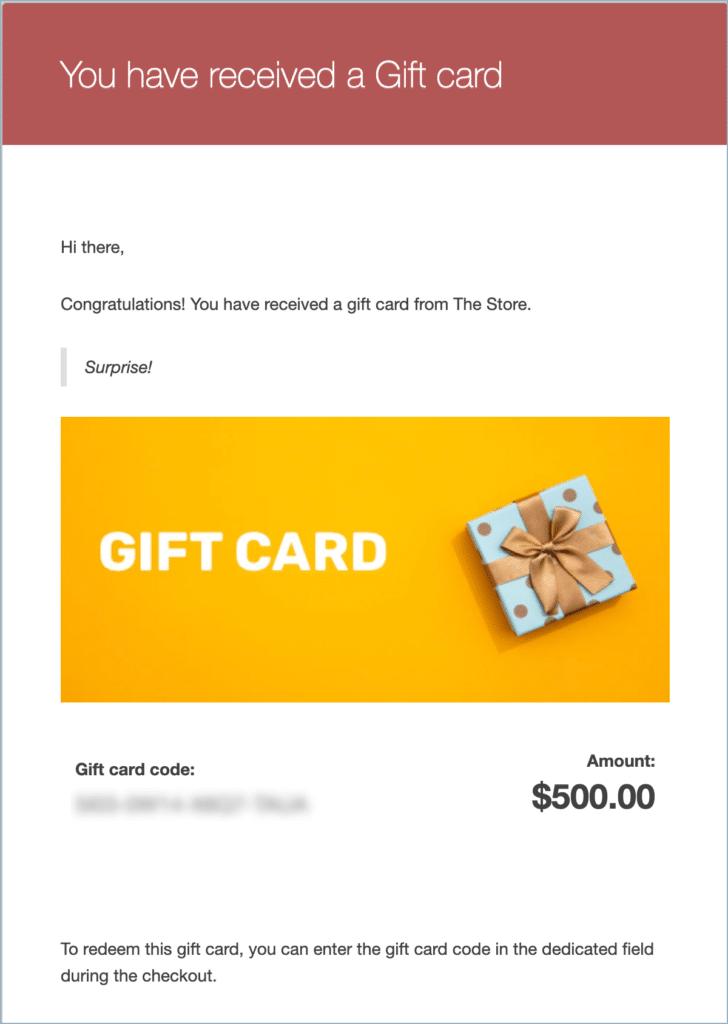
The WebToffee WooCommerce Gift Cards plugin by WebToffee is a tool that enables store owners to easily integrate gift card functionality into their online store. With this plugin, you can add gift cards as products in your store, offering an excellent way to boost sales and provide a convenient gifting option for your customers.
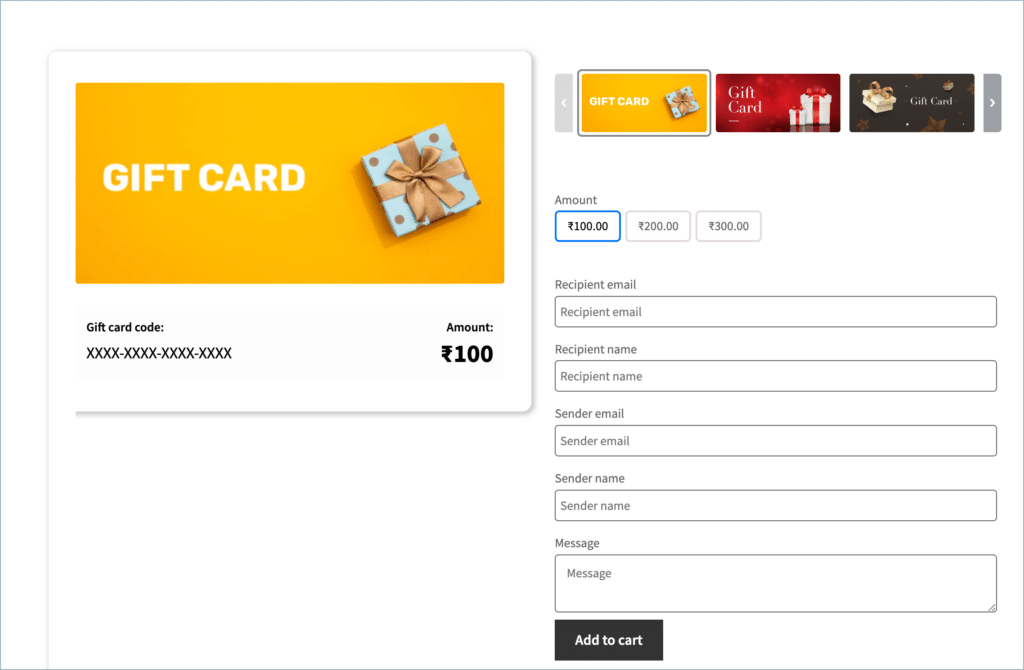
The image below provides a visual representation of how a gift card product page will appear within your store.
Getting started
- To begin, start by installing and activating the plugin.
- When installing as a stand-alone plugin, click on Gift cards directly from the WordPress dashboard to access the settings.
- When installed as an add-on to the Smart Coupons for WooCommerce plugin, the settings page can be accessed from Smart Coupons > Gift cards.
The configurations are split into 3 main categories:
- General settings
- Gift card products
- Send gift card

General Settings
This page lets you configure gift card settings such as gift card generation, email templates, and gift card templates.

General
- Enable gift card product – Enable this option to add a gift card product and allow customers to purchase gift cards from your store. Even when this option is disabled, the store owner can still send and manage store credit from the backend.
- Order status to generate gift cards – Select the order status that should trigger gift card generation and delivery to the recipient. The available options are:
- Processing – Generates the gift card when the order reaches the Processing status.
- Completed – Generates the gift card when the order reaches the Completed status.
- Disable email restrictions for gift cards – Enable this option to allow gift cards to be redeemed regardless of the buyer’s email address.
- Coupon format – Customize the format of automatically generated gift card codes by adding a prefix or suffix. The prefix appears before the generated gift card code, while the suffix appears after it. Leave either field empty if you don’t want to add a prefix or suffix.
- Length of the coupon code – Set the length of the generated portion of the gift card code between 6 and 16 characters. The specified length does not include the prefix or suffix. If you leave the field empty, the plugin uses 12 characters.
- Configure gift card email – Click Configure email to open the WooCommerce gift card email settings. Use Additional text in email to customize the additional information displayed in gift card emails. Changes made to this field are reflected in both the email and the attached PDF.
- Customize product page titles – Customize the labels displayed for the gift card fields on the product page. Use this option to change the default field titles shown to customers while they purchase a gift card.
Templates
This section provides a list of all accessible gift card templates. Users can purchase gift cards with the selected templates on the front end, allowing them to choose their preferred design.
Gift card products
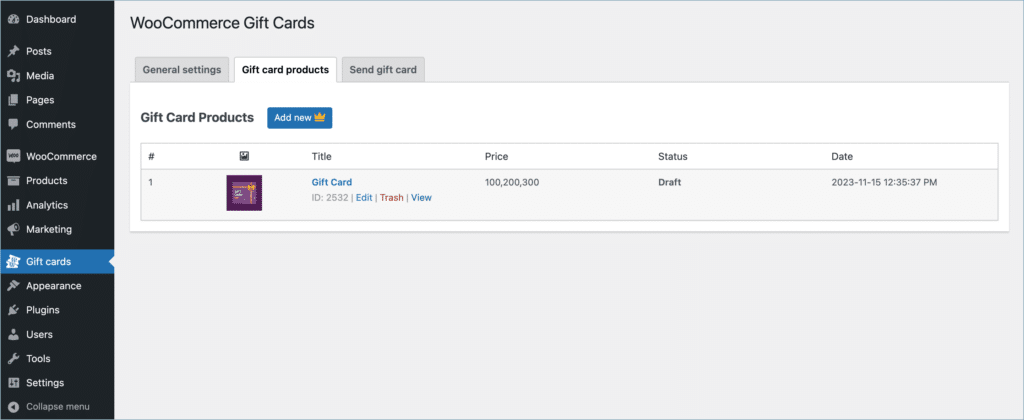
This page displays the gift card product in Draft state. Click on edit to customize and publish the Gift card product.
This opens the Edit Product page window with the following options. All catalog and product visibility statuses are similar to regular WooCommerce products.
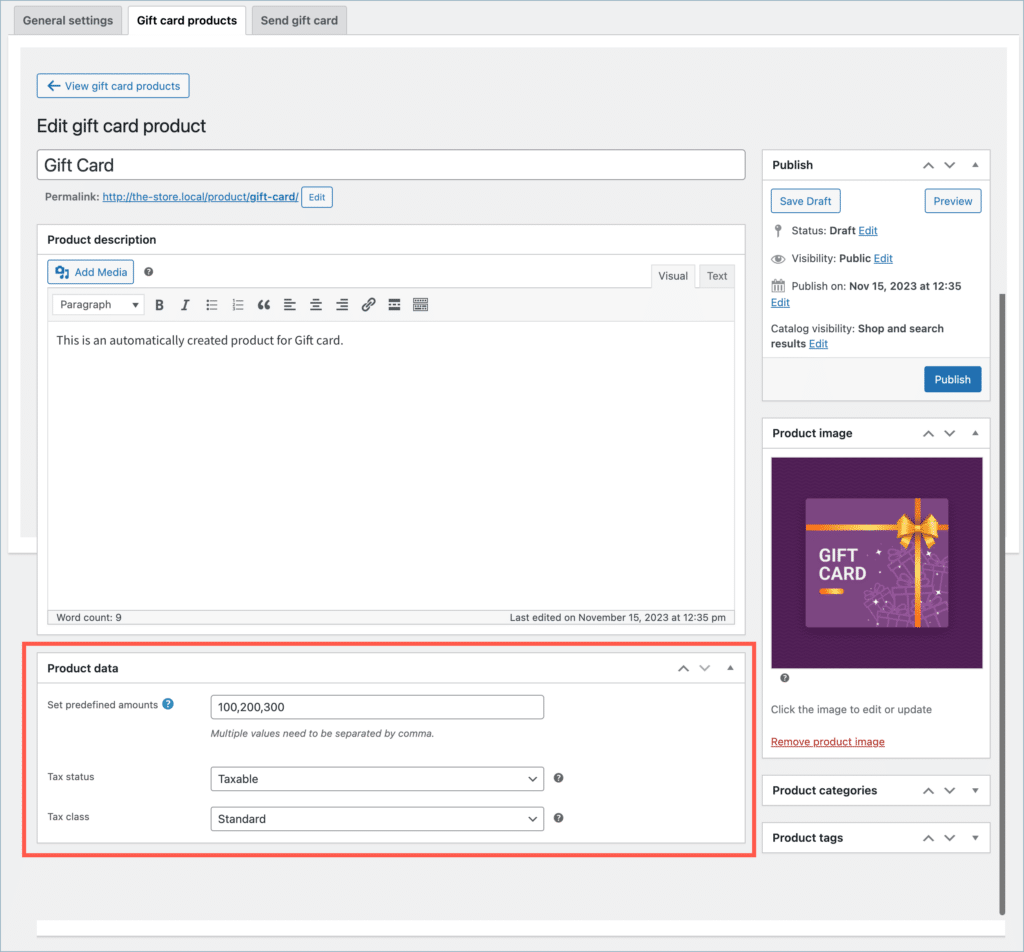
- Product name – Product title that appears in the front end.
- Product description – Gift card product description.
- Product image – Product image to display on the shop page.
- Product category and tags – WooCommerce default categories and tags.
Product data meta-box
The section provided options to customize the gift card.
- Set Predefined amount – Allows settings of predefined gift card purchase values.
- Tax status – Select tax status (basic WooCommerce tax status feature enabled on gift card product page) from the drop-down.
- Tax class – Select tax class (basic WooCommerce tax class feature enabled on gift card product page) from the drop-down.
Send gift card
On this page, the store admin can customize gift cards and email them directly to users from the backend.
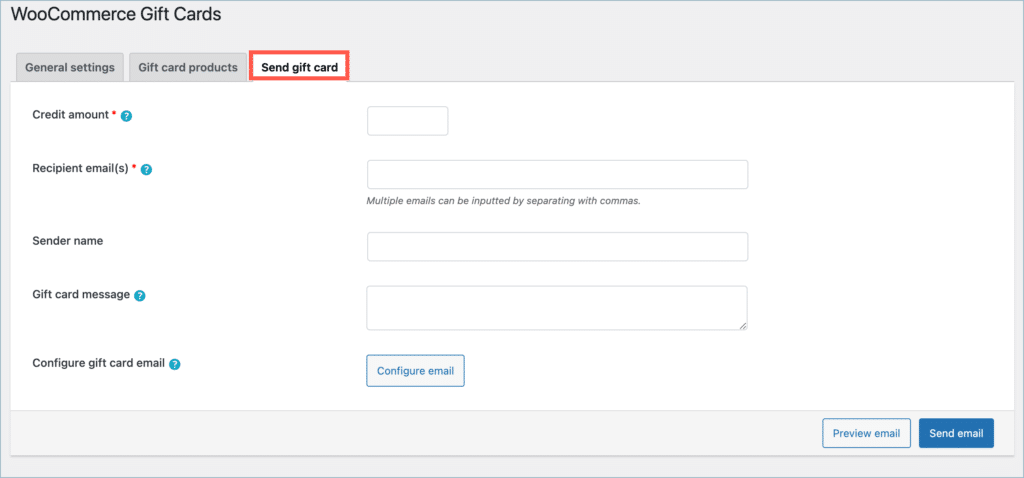
- Credit amount – A store credit coupon with an equivalent amount will be created.
- Recipient emails – Recipient list to send the gift card. Input multiple email addresses by separating them with commas.
- Sender name – Name of the sender, and it is typically the store name that is utilized most frequently.
- Gift card message – Add a personal message for the recipient. Line breaks in the message are preserved in the email, PDF attachment, and email preview.
- Configure gift card email – Opens the WooCommerce gift card email settings. Use Additional text in email to customize the additional information displayed in the recipient’s email and PDF.
- Preview email – Preview the gift card email before sending it. The preview preserves the line breaks added to the gift card message.