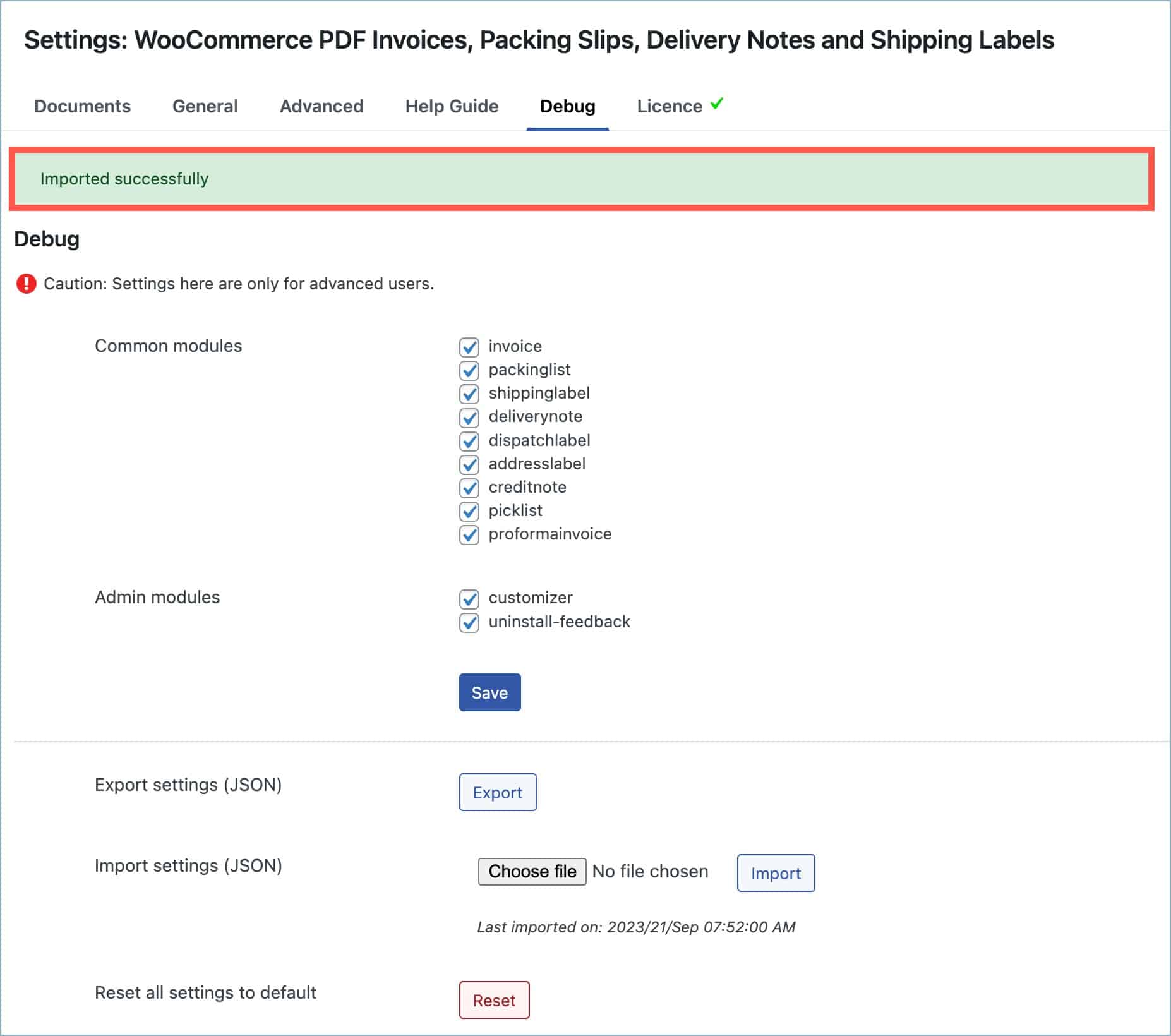
With WebToffee’s WooCommerce PDF Invoices, Packing Slips, and Credit Notes plugin, importing plugin settings allows users to restore their configurations and settings in case of accidental data loss, system crashes, or other unforeseen events. Using the debug module, users can import general plugin settings, document type settings, and templates. To import the plugin settings:
- Activate the Debug module
- Import settings
Step 1: Activate the Debug module
To activate the debug module:
- Navigate to Invoices/Packing > General Settings.
- Append ‘&debug‘ to the general settings URL as shown below.

- Refresh the page.
The debug module will appear as a new tab as shown below:

Step 2: Import settings
To import the plugin settings:
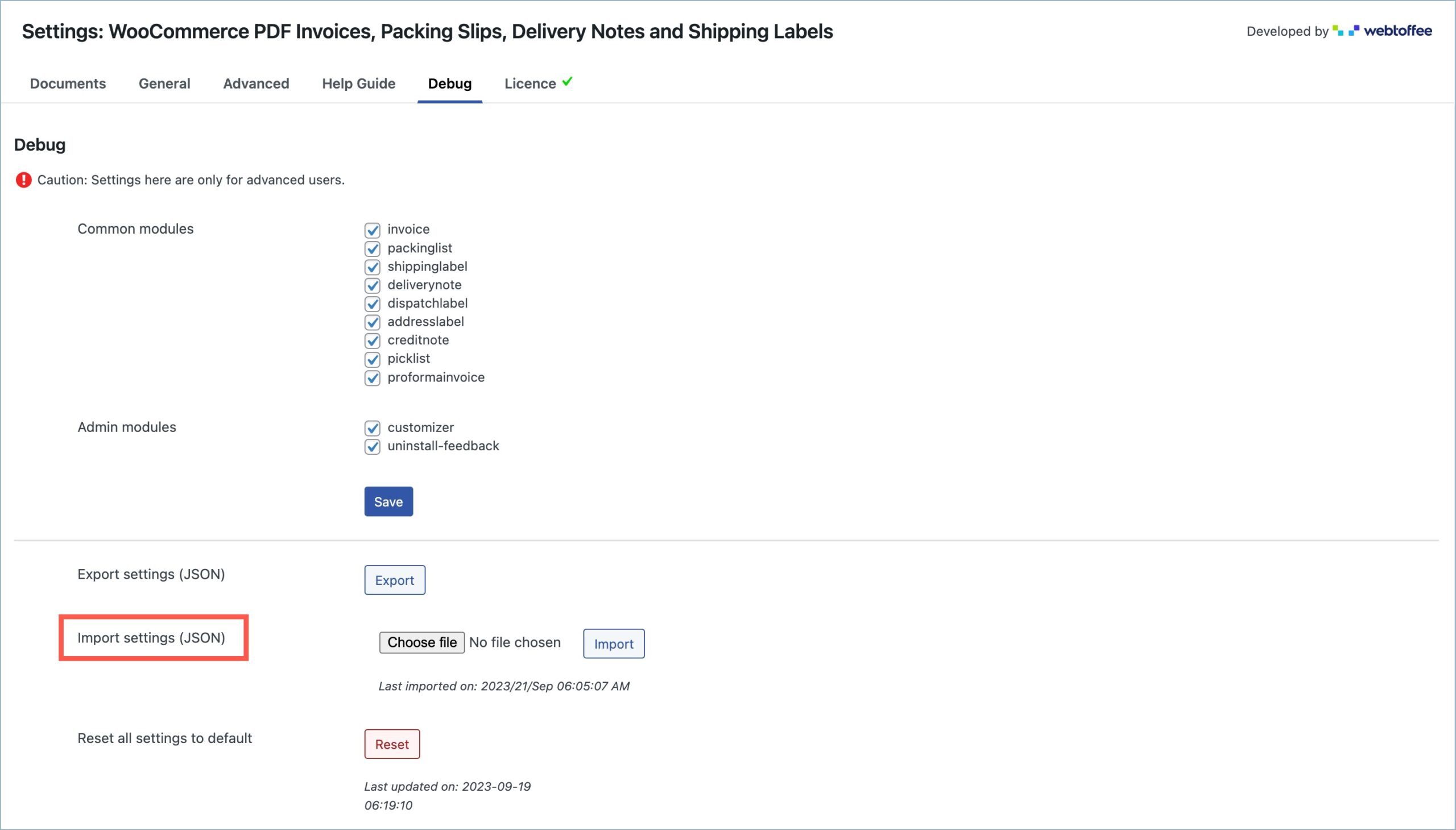
- Navigate to the newly created Debug tab.
- Under the Debug tab, head to Import settings (JSON).
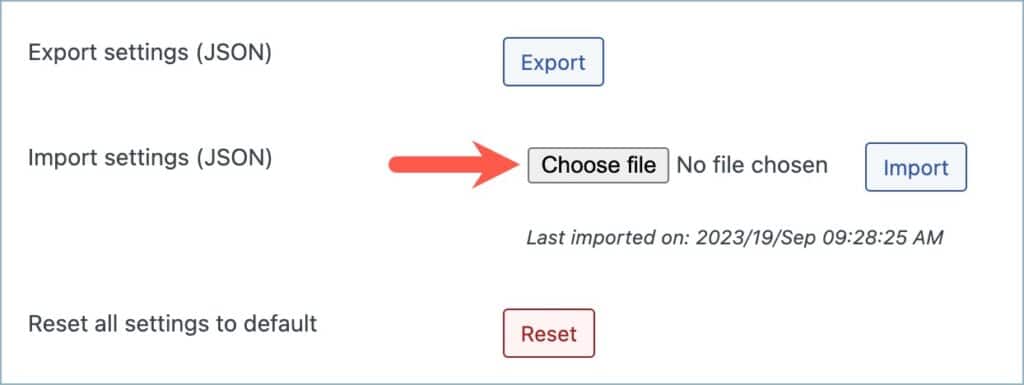
- Click on Choose File and select the desired JSON file to import.
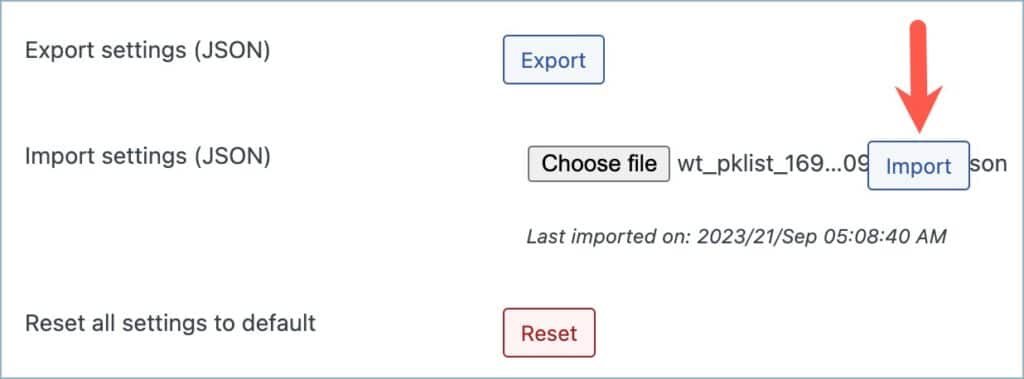
- Click on Import.
Upon clicking the ‘Import’ button, a dialog box will appear, presenting two options for selection along with a designated text box for entering a confirmation message.
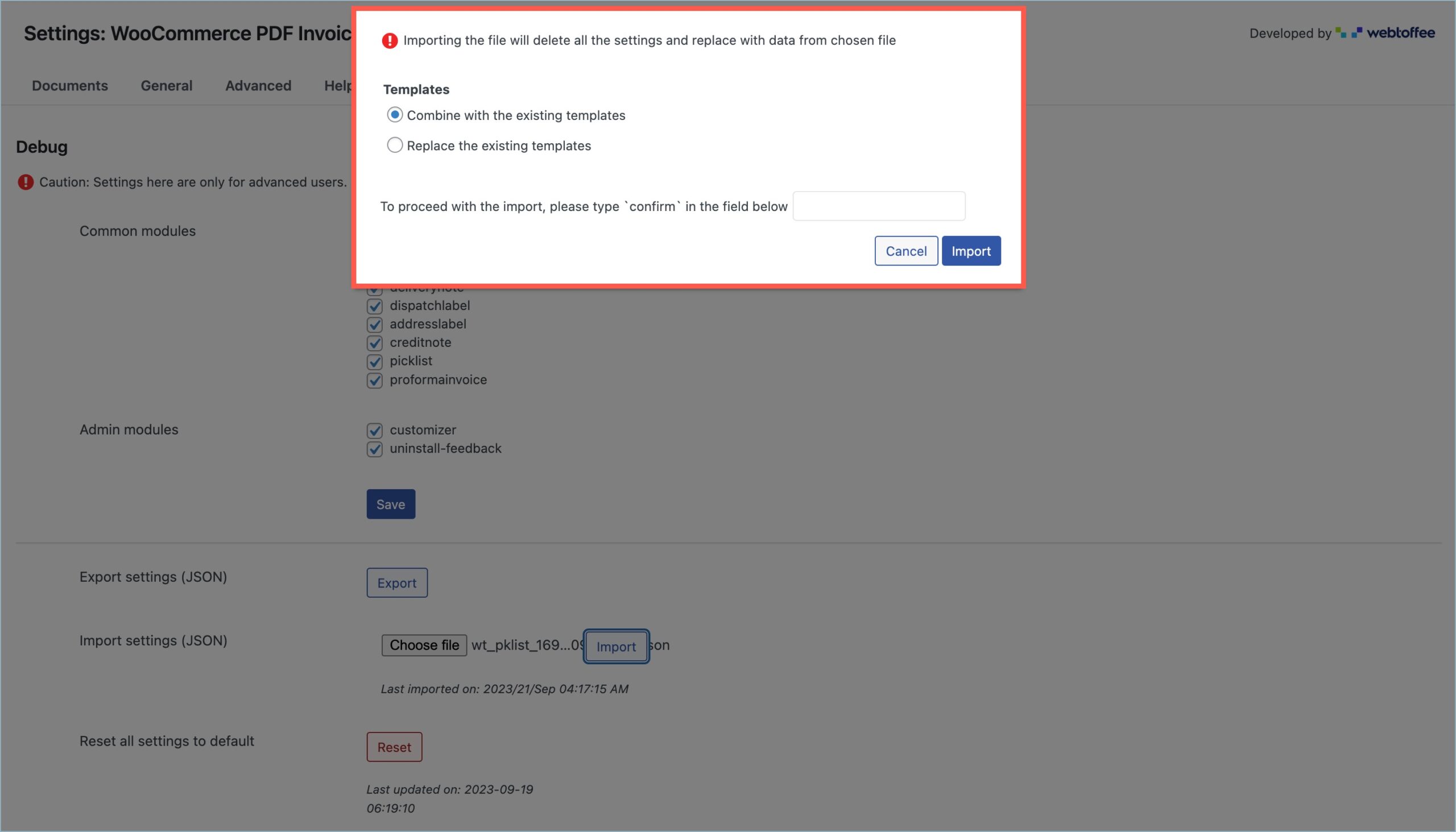
- Select the preferred Templates option from the two options available.
- Combine with the existing templates: Merge new ones with those already in use.
- Replace the existing templates: Replace current templates with the ones imported from the file.
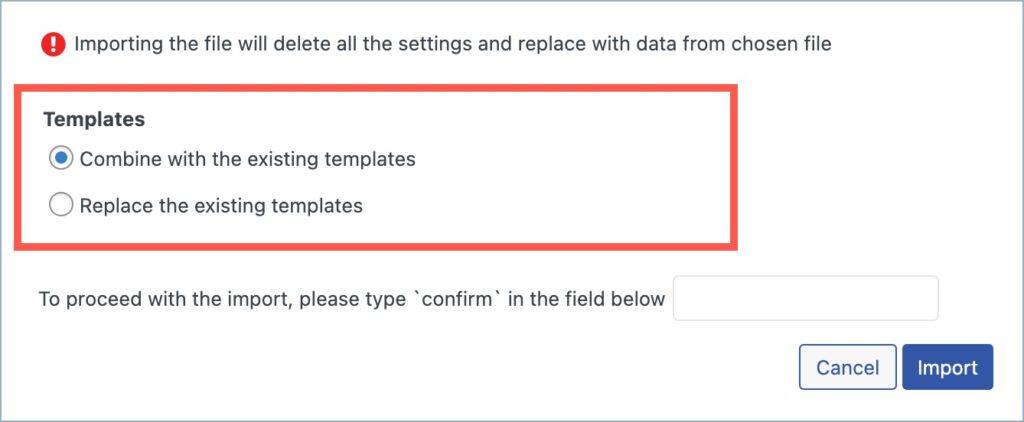
- Type ‘confirm’ in the text field provided.
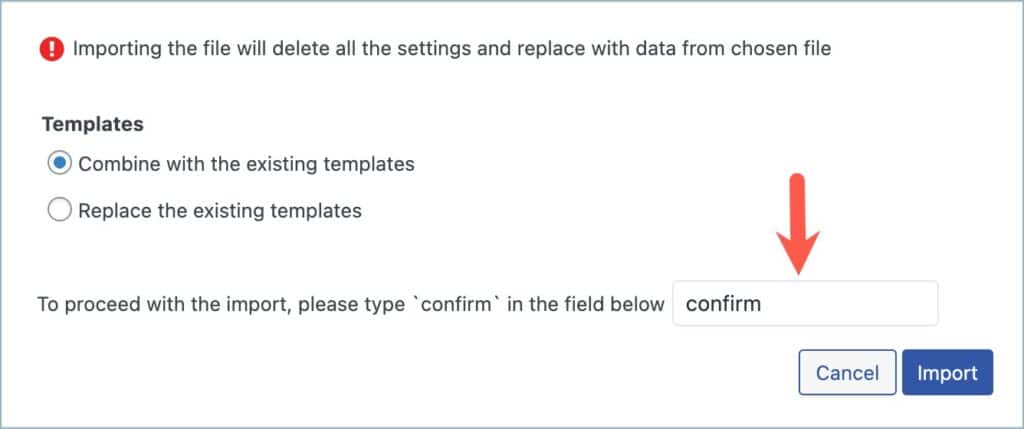
- Click on Import.
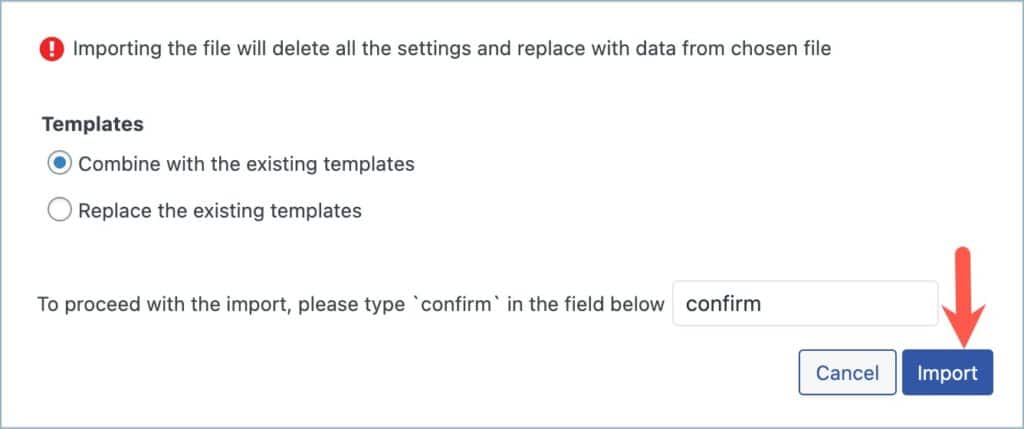
After a successful import, the plugin will show an ‘Imported successfully‘ message.