


PayPal Express Checkout Payment Gateway for WooCommerce plugin by WebToffee allows you to accept payments using PayPal Express Button. However, you will need an API Username, API Password, and API Signature from your PayPal Business Account to integrate the PayPal Express Button on your site.
Steps to get API Username, API Password, and API Signature
Follow the below-mentioned steps to get the API Username, API Password, and API Signature:
- Log in to your PayPal business account.
- From the Activity tab, Click on API Access to land on the API credentials page.
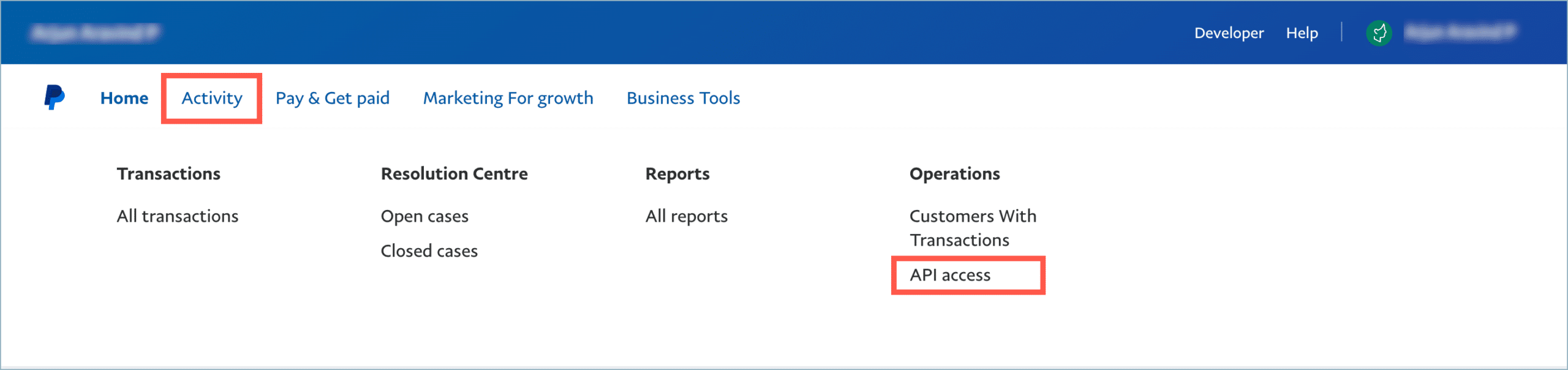
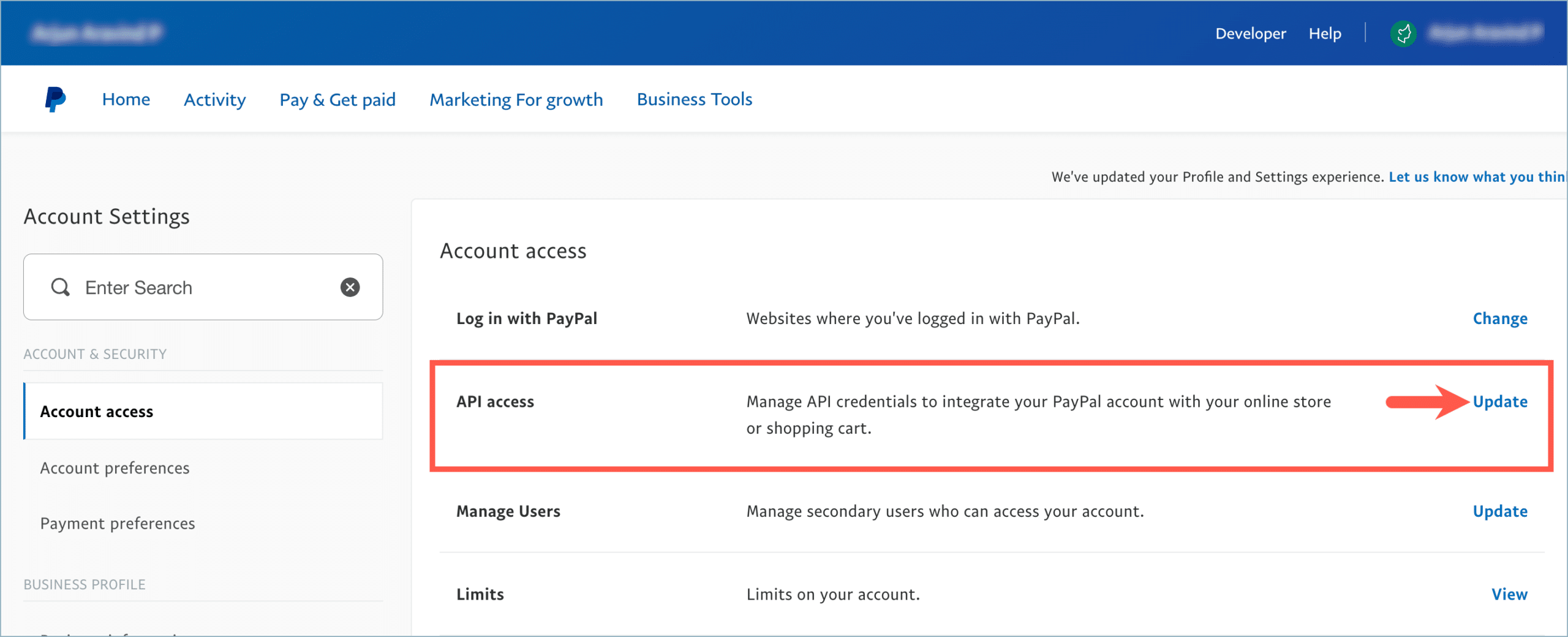
- Alternatively, to access the API credentials page, navigate to the Account settings from the profile tab.

- From Account settings, click on the Update link in the API access bar.
- From the API credentials page, scroll down and click on NVP/SOAP API integration (Classic).

- On the Request API credentials – PayPal popup, select API signature and click Agree and Submit.
- The API Username, API Password, and API Signature will be generated as shown below.

- Copy and paste the credentials within the PayPal Credentials section of the plugin.

- Finally, click on Save changes to save the configurations.
📚
Discover More:
