


Mod_security is a server-side error. Error Message: “Not acceptable! An appropriate representation of the requested resource could not be found on this server. This error was generated by Mod_Security.”
Looking for ways to fix the Mod_Security Error? Here are a few quick fixes you can do to fix it.
What is mod_security?
ModSecurity is an open-source web application firewall (WAF) supported by web servers like Apache, Nginx, and IIS. WAFs ensure the security of web-based software programs by detecting and preventing attacks before they reach them.
Mod_security comes with a Core Rule Set (CRS) with different rules for protecting your website from attacks, such as cross-website scripting, bad user agents, SQL injection, Trojans, session hijacking, etc.
Why does the mod_security error happen?
Following is a screenshot of the mod_security error on a website.
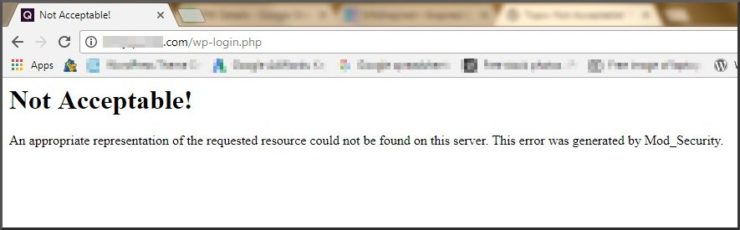
Image credit: Infoinspired.com
The error simply states that you do not have permission to access the server or that your hosting company is blocking certain requests to its servers.
Why does it happen?
As a security practice, every page request from your website is checked against various rules to filter out malicious requests. Sometimes, due to poor website coding, mod_security may incorrectly determine that a certain request is malicious and disable its access while it is legitimate.
This is when you get the error.
Now, let us see how you can fix the error for your website.
How to fix the mod_security error?
You can choose one of the three ways to get the error fixed.
1. Contact your Host
As you have already learned, it is a server-side error and the easier and safer fix for the error would be contacting your hosting provider. You can contact their support team and explain your issue. They will most likely solve the issue by disabling certain security rule(s) or by whitelisting the requested page.
2. Disable mod_security by using the .htaccess file
This method is not highly recommended as it will turn off the whole mod_security Apache module for your site, which might not be good for your site’s security.
To disable the mod_security error by using the .htaccess file do the following.
- Back up your .htaccess file in the ‘wp-admin’ directory.
- Create a ‘.htaccess’ file with the following content (by using any text editor).
- Upload it to the ‘wp-admin’ directory.
later upload the .htaccedss file to your server.
  <IfModule mod_security.c>
  SecFilterEngine Off
  SecFilterScanPOST Off
  </IfModule>
If the solution above doesn’t work, try the one below.
- Backup your .htaccess file if you have one in the public_html directory
- Open the .htaccess file with any text editor
- Update the file with the below content
- Upload it to the ‘public_html’ directory
   <IfModule mod_rewrite.c>
   RewriteEngine On RewriteBase /
   RewriteCond %{REQUEST_FILENAME} !-f
   RewriteCond %{REQUEST_FILENAME} !-d
   RewriteRule . /index.php [L]
   </IfModule>
3. Disable mod_security for specific URLs
With this method, you can disable mod_security only on specific URLs rather than your entire site, which is a better option in terms of security. You can specify which URLs to match via the regex in the <If> statement below.
<IfModule mod_security.c>
<If "%{REQUEST_URI} =~ m#/admin/#">
SecFilterEngine Off SecFilterScanPOST Off
</If>
</IfModule>
Final Note
Although disabling mod_security is a solution to fix the error, it is best to consult your host and ask their opinion before you go with the fix.

Hildegarde
August 13, 2024
Usually I do not learn post on blogs, however I wish to say that this write-up very
pressured me to try and do so! Your writing style has been amazed me.
Thank you, very great article.
Franieboy
December 26, 2023
I have eror one 1 of my page Eror 403 what do you think the solution to fix this eror.
Arjun
January 3, 2024
Hi Franieboy,
Thank you for reaching out to us. After reviewing the situation, it appears that the Error 403 may not be directly related to the plugin you are using. Instead, it is possible that the issue lies with the PayPal integration itself. We recommended you to reach out to the PayPal support for further assistance.
marks
August 23, 2022
I’m using CyberPanel OLS, how can this rule work with OpenLiteSpeed?
Mark
August 26, 2022
Hi Marks,
We are sorry that we are a little out of depth on your query. Kindly try contacting your hosting support. They will surely be able to provide better insight in the matter.
Mary Teyssier
September 9, 2021
Cannot log into my Lake Ashton Living account. Keep getting error comment.
Mark
September 13, 2021
Hi Mary,
If you are having an issue with the account in webtoffee.com, please submit a ticket here.
Fredy Andino
July 20, 2021
Excelente explicación. Saludos