


The Payment Gateway Plugin for PayPal WooCommerce empowers online store owners using WooCommerce to integrate secure payment processing into their websites effortlessly. This guide will walk you through the entire setup and configuration of the plugin in your WooCommerce site.
Installation
You can install the plugin from the WordPress plugin directory or as a zip downloaded from the WordPress.org website. To know more about installing a free plugin, refer to the following article: Installing a Free Plugin from WordPress.
Features offered
- Checkout through PayPal Smart Buttons or Express Buttons.
- Wide range of customization for PayPal Smart Payment Buttons.
- Auto-detects customer’s country and displays available payment.
- You can swiftly checkout with the PayPal Express Button, utilizing stored shipping and funding information from the user’s PayPal account.
Getting started
Once the plugin is installed and activated:
- From the WordPress dashboard, navigate to WooCommerce > Settings > Payments > PayPal Express.
- Click on the Manage button.
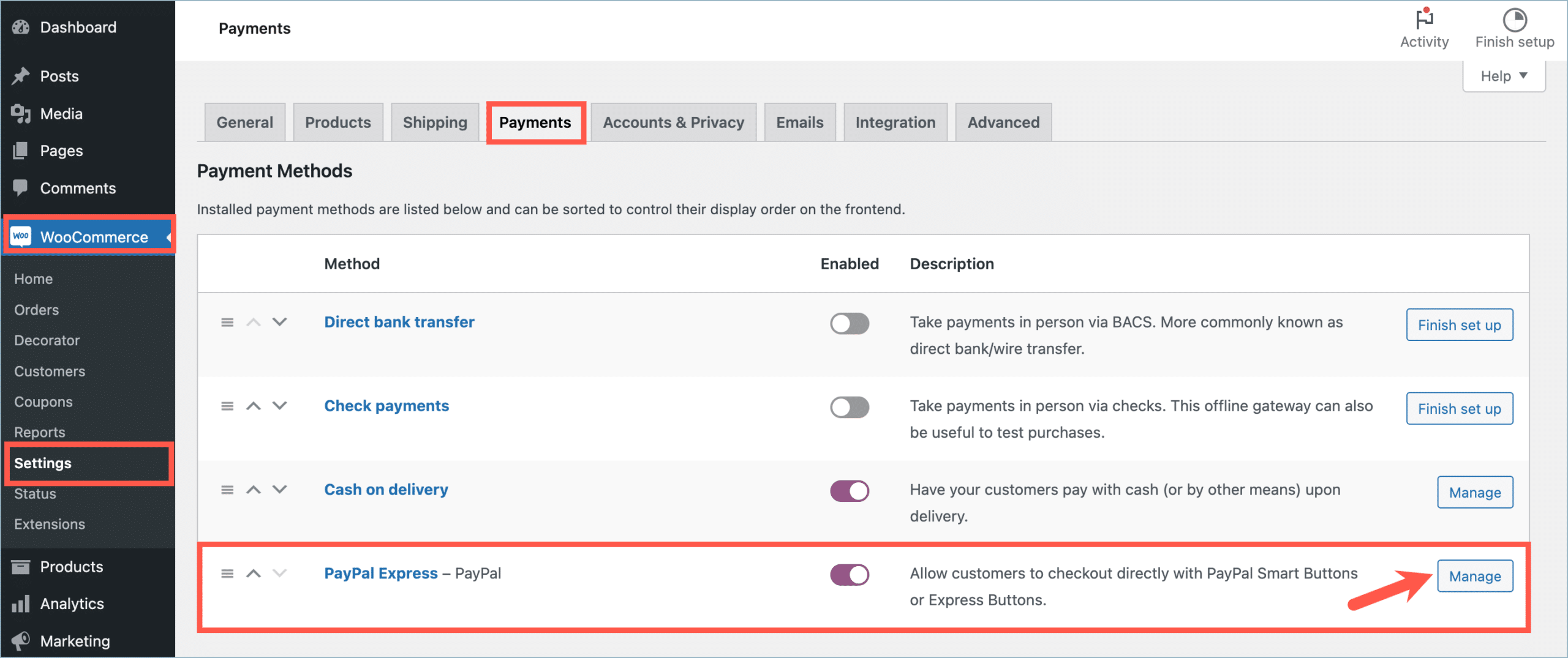
- Alternatively, from the WordPress dashboard, navigate to Plugins > Installed Plugins > Payment Gateway Plugin for PayPal WooCommerce ( Free ) > Settings.

Choose the PayPal payment method
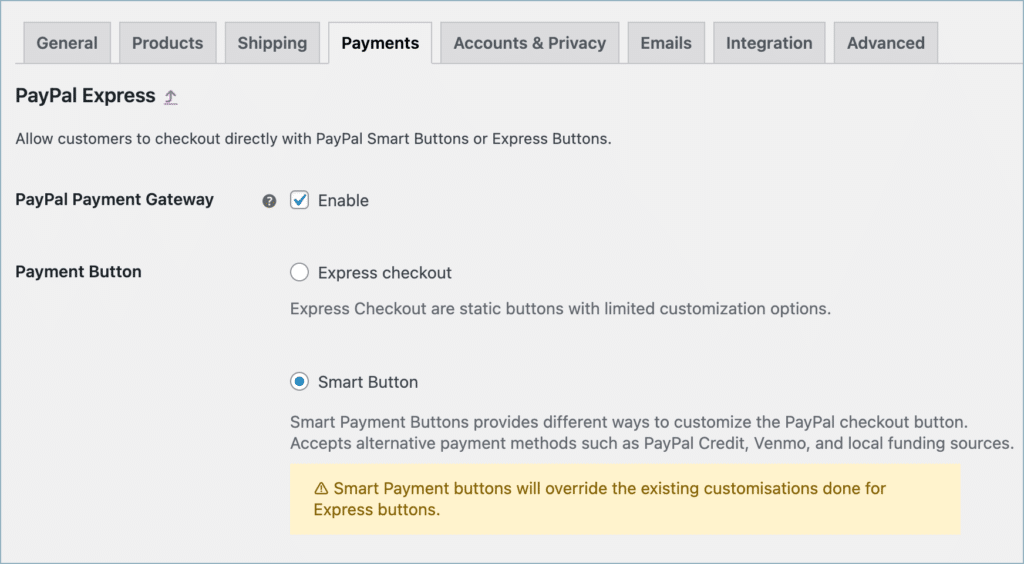
With the plugin, you can accept PayPal payments in two ways:
| Payment types | Steps to set up |
|---|---|
| PayPal Smart Buttons |
|
| PayPal Express Buttons |
|
The whole plugin configuration will change based on the payment button selected.
Configuring PayPal Smart Button
1. Enable the PayPal Payment Gateway and Smart Button
PayPal Smart Payment Buttons are rendered using the PayPal API. It allows customizing the smart buttons in different ways. The alternative payment methods accept payments by using local funding sources based on the country.
- Smart Payment buttons will override the existing customisations done for Express buttons.
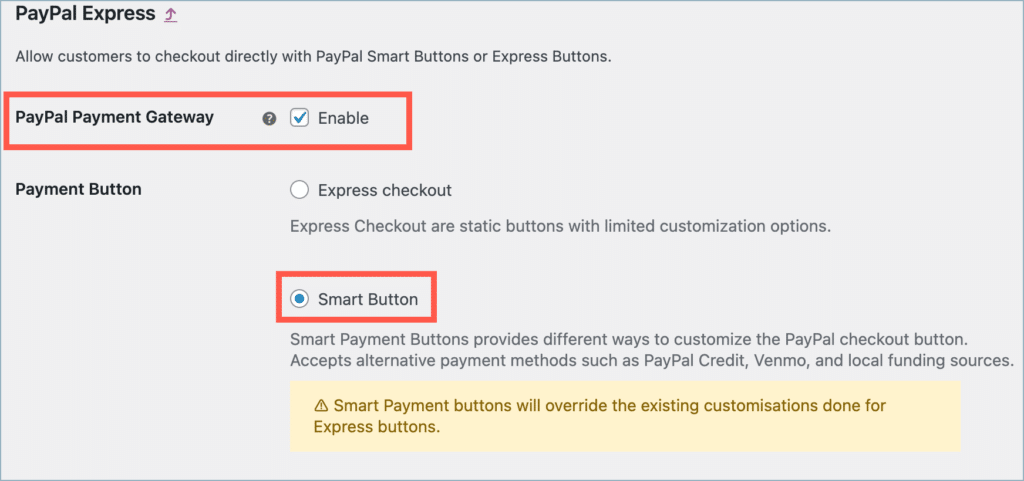
PayPal’s Smart Button accepts payment from customers using multiple Alternative Payment Methods (APM). With alternative payment methods, customers can pay with their bank accounts, wallets, and other local payment methods based on country or device, such as:
2. Add PayPal Credentials
To use the WooCommerce PayPal Smart Payment Button, you must have a PayPal business account. You can open a Live or Sandbox account free of charge.
Obtain the client ID and secret from your PayPal account and enter them in the plugin fields as shown below:

For more details on getting the client ID and secret, refer to the article “Get Client ID and Secret from a PayPal Business Account.”
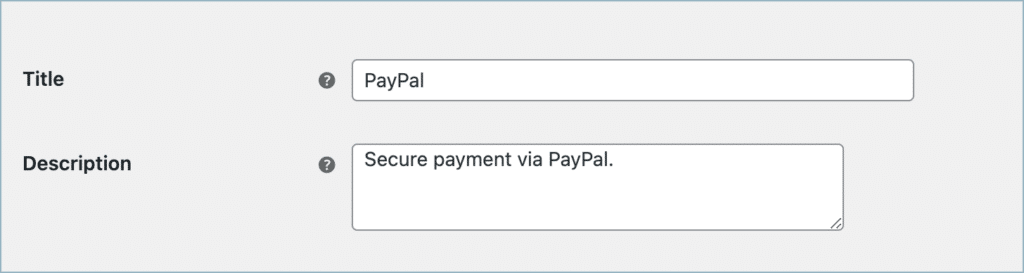
- Title – Title for the payment gateway displayed at the checkout.
- Description – Description of the payment gateway displayed at the checkout.
3. Smart Payment Buttons – Customization
The following are the available customization options:
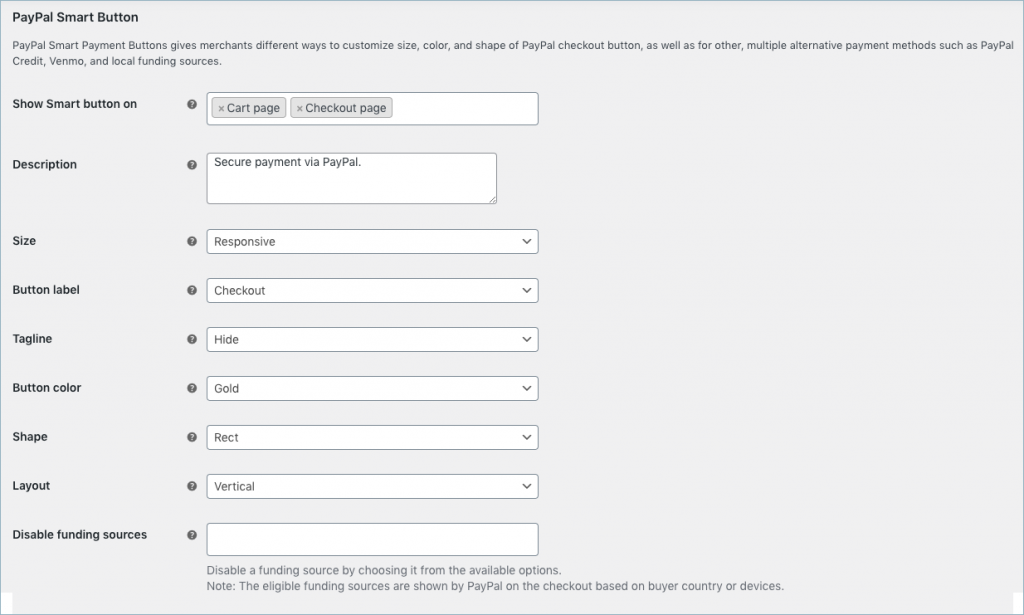
- Show Smart button on – Lists available pages where you can display the smart button. The available options are:
- Cart page
- Checkout page
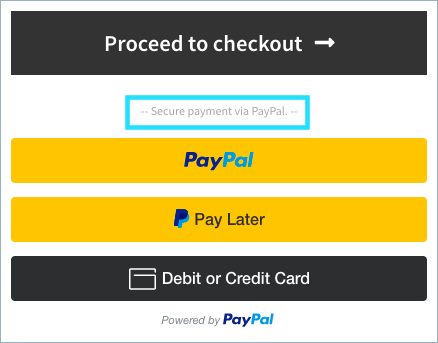
- Description – Text displayed above the Smart button.
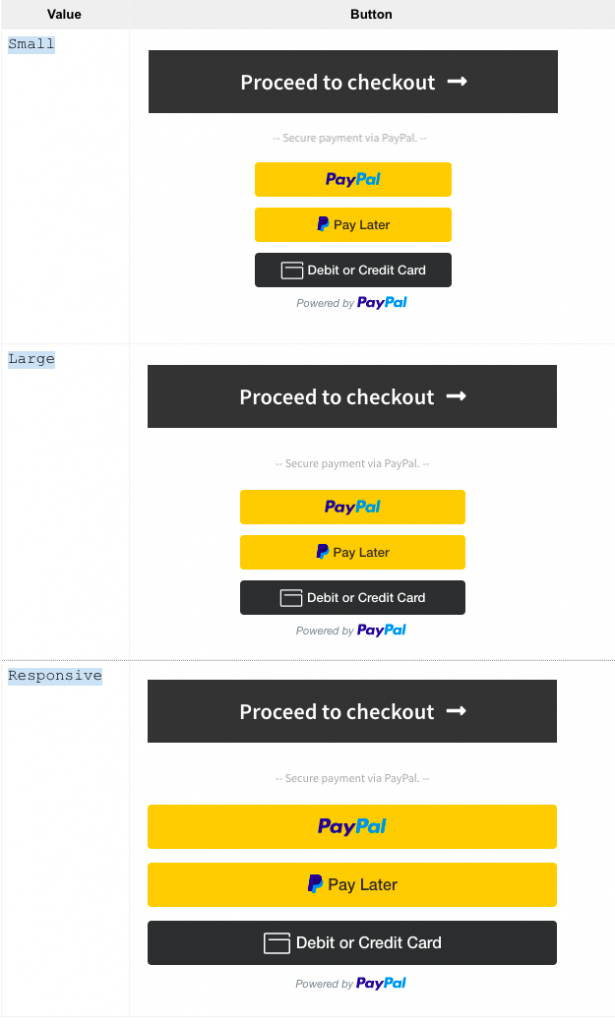
- Size – Lists the available button size for the Smart button. Available options are:
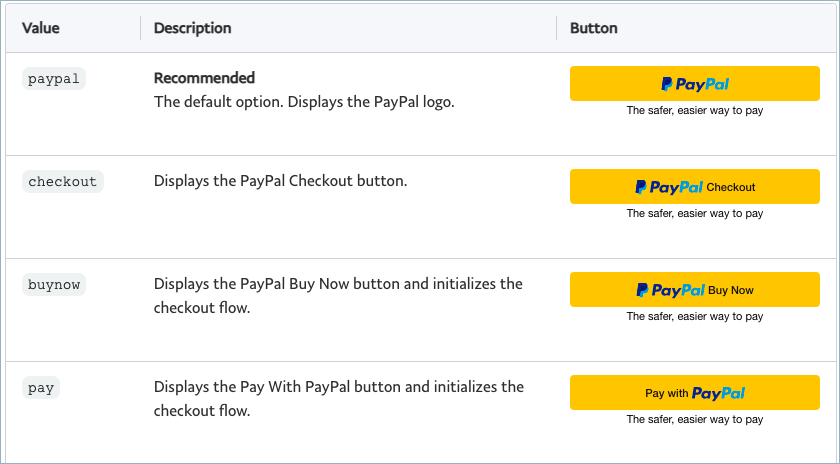
- Button labels – Lists predefined labels from PayPal that appear as Button labels. The available options are PayPal, Buy Now, Pay, and Checkout.
- Tagline – You can choose to show or hide the tagline. Note that It will be hidden for the Vertical layout.
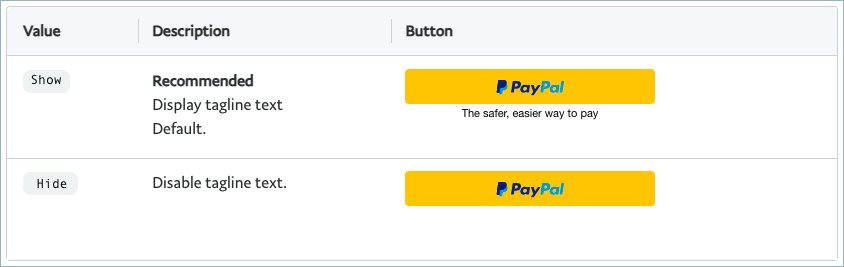
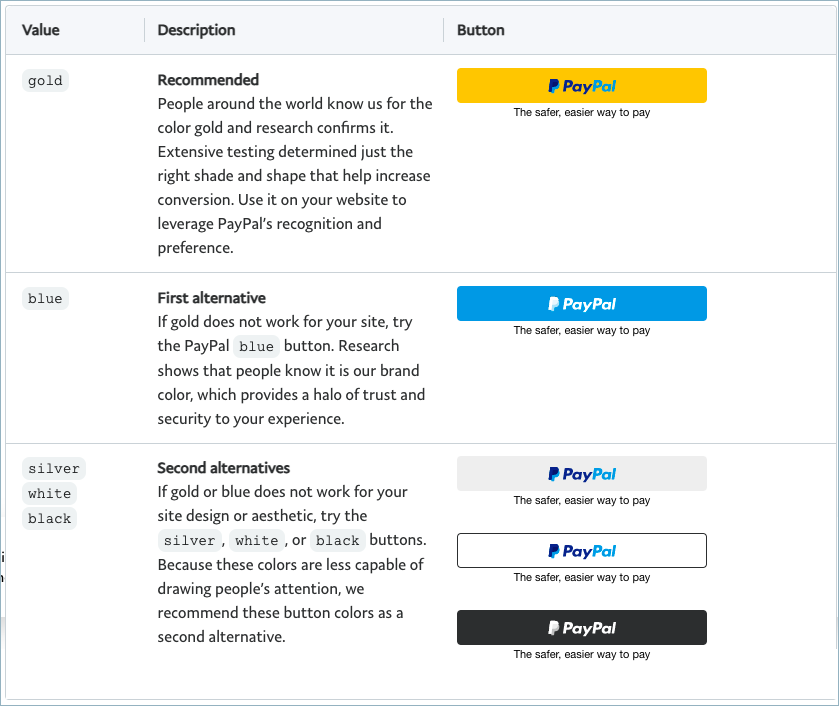
- Button color – Lists available color options for the Smart button. Available options are Gold, Blue, Silver, White, and Black.
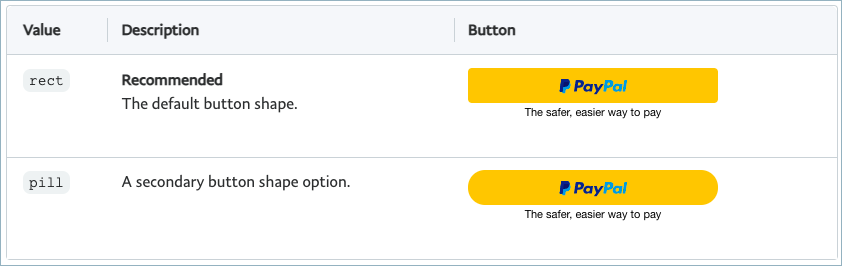
- Shape – Lists available shape options for the Smart button. Available options are Pill or Rect.
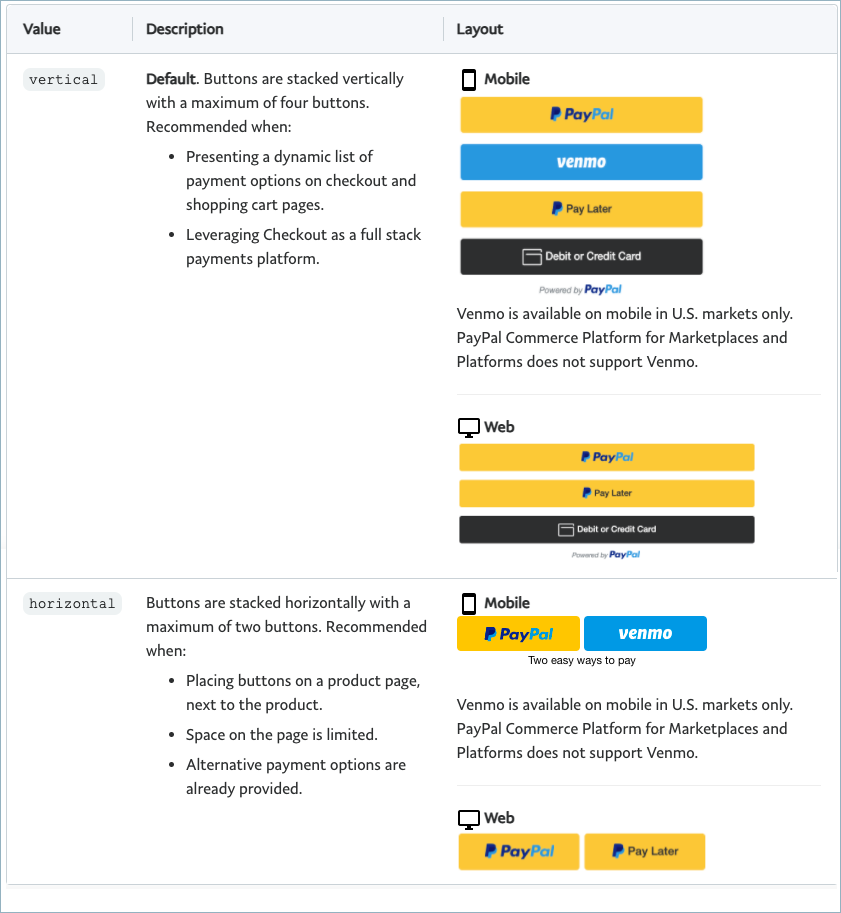
- Layout – Lists available layout options for the Smart button.
- Disable a funding source – List available payment options in your PayPal account. The selected payment option will be disabled. Note: The checkout shows the funding sources based on country or device type.
Checkout using the PayPal Smart Button
For the Alternative Payment Method to render, the cart currency must be in the supported currency. PayPal supports currency codes for the buyer countries unless otherwise stated.


Payment workflow:
- The buyer clicks on an alternative payment option from the cart, product, or checkout page as per the settings. In the above example, for the United States – PayPal Pay Later, Debit and Credit Card; for Germany – SEPA, Debit and Credit Card; and for the Netherlands – Online betalen, Debit and Credit Card appear as alternative payment methods.
- This will prompt the buyer to provide their personal information.
- PayPal transfers the buyer to an alternative payment provider (bank, wallet) to confirm the purchase.
- Authorizes and confirms payment by the buyer.
- Upon returning to the merchant’s site, the buyer completes the transaction.
- The merchant initiates payment completion. Following the payment, PayPal will send funds to the merchant.
Configuring the PayPal Express Checkout Button
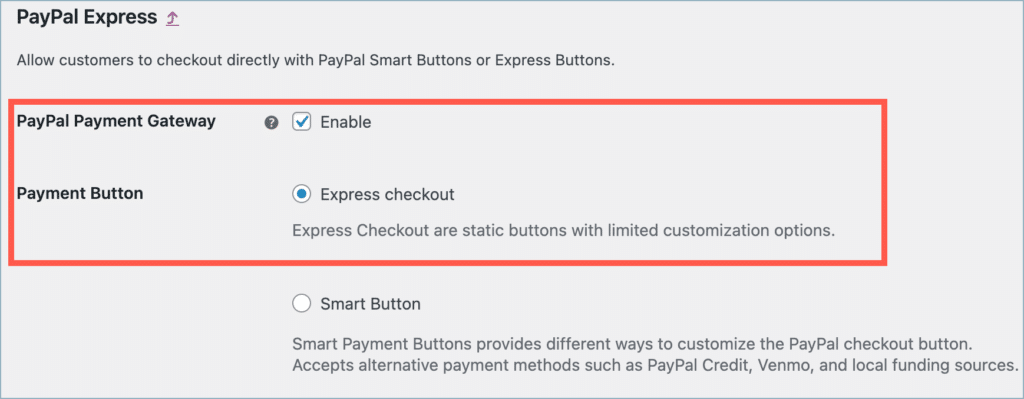
1. Enable the PayPal Payment Gateway and Express Button
When you integrate the PayPal Express Checkout Button, your buyers can quickly checkout using the shipping information and funding source already stored in their PayPal accounts. They don’t have to re-type any information— saving them time and reducing shopping cart abandonment.
2. Add PayPal Credentials
To use the WooCommerce PayPal Express Checkout Button, you must have a PayPal business account. You can open a Live or Sandbox account free of charge.
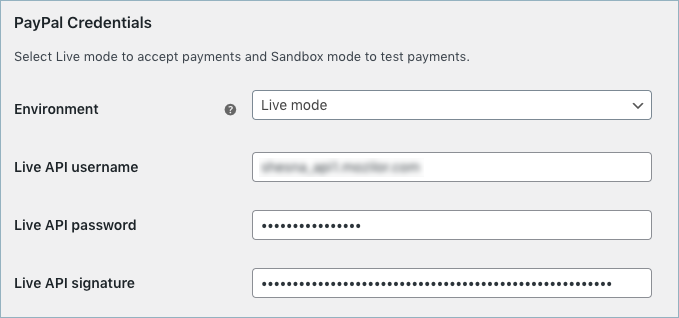
For more details on adding the API credentials, check out the following article: Collect API Username, Password, and Signature from PayPal Business Account.
3. Paypal Express Checkout Buttons – Customization
The following are the available customization options:
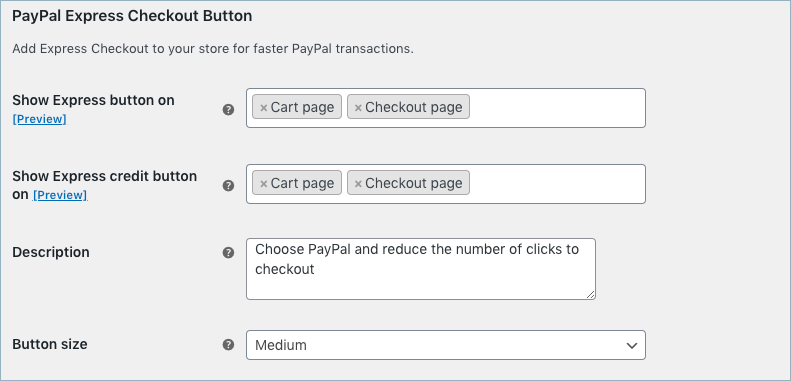
- Show Express button on – List of pages where you can display the PayPal Express button.
- Show Express Credit button on: Displays a PayPal Express Credit button on selected pages. By using PayPal Credit, store owners will receive the payment upfront, but customers can opt for financing and pay over time.
- Description – Description displayed above the PayPal Express button.
- Button Size – Button sizes available for the PayPal Express/Credit Card Button. The available options are:
- Small
- Medium
- Large
Checkout using the Express button
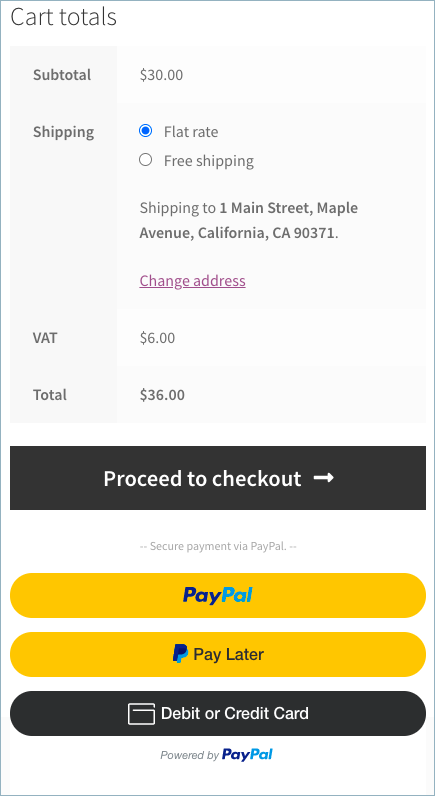
The PayPal express button on the cart page will appear as shown below:
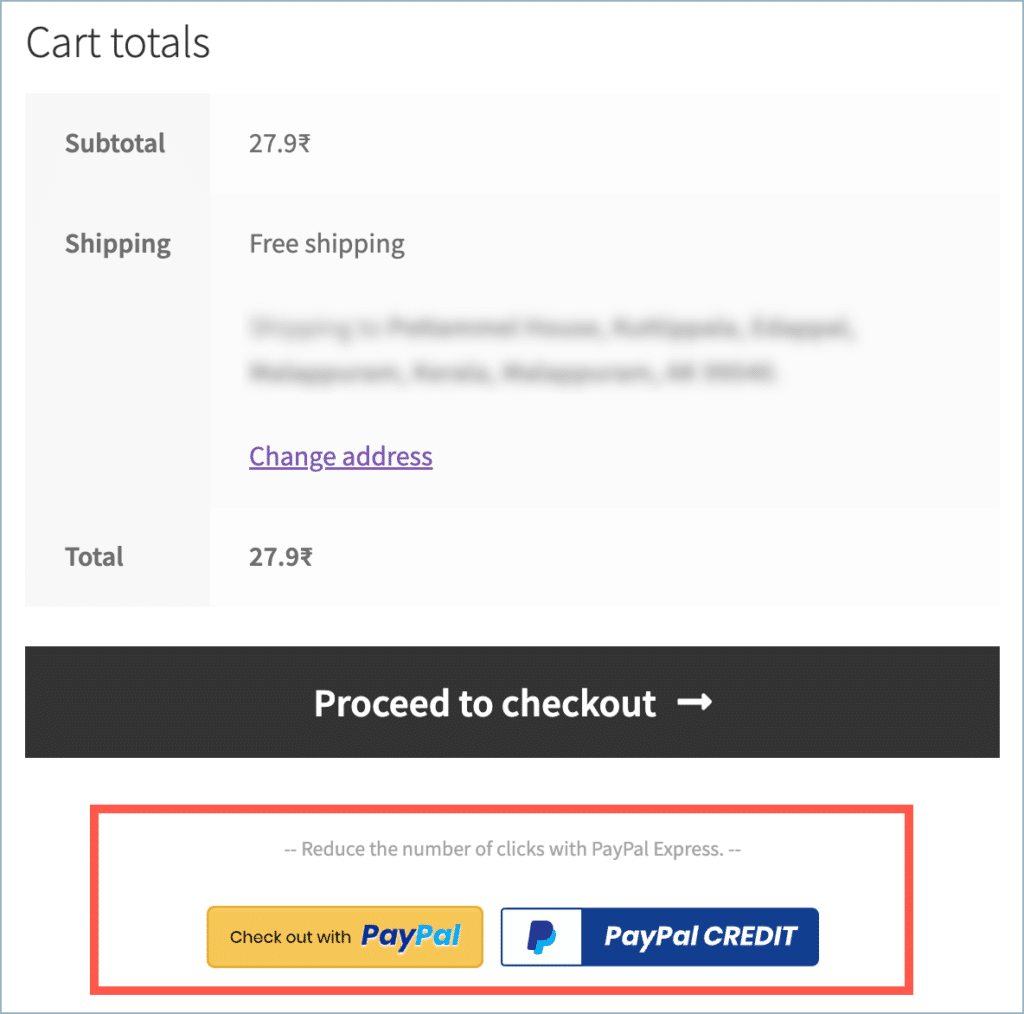
- The buyer can checkout directly from the product or cart pages.
- Then, the buyer can choose to pay using either Checkout with PayPal or the PayPal Credit button.
- This will redirect the buyer to the PayPal Login page.
- The buyer must enter the PayPal login credentials and pay the order amount. If the customer checks out with PayPal Credit Card, the customer needs to enter the credit card and billing details. Finally, the customer is taken to the Review page(if not skipped in settings).
- The buyer can Place / Cancel the order by clicking the respective buttons.
Common settings
Branding
Set your brand identity at the PayPal end by providing a brand name, logo, banner, etc. Customers who choose to pay via PayPal will see this on the PayPal site.
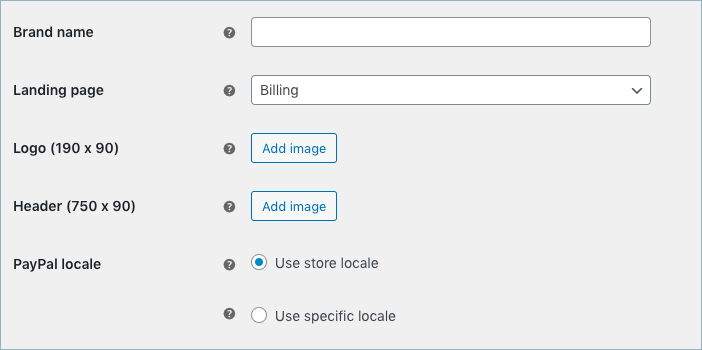
- Brand name – Store name which will be displayed at the PayPal end.
- Landing page – The user will be redirected to the select page on clicking the payment button. By default, redirected to the billing page.
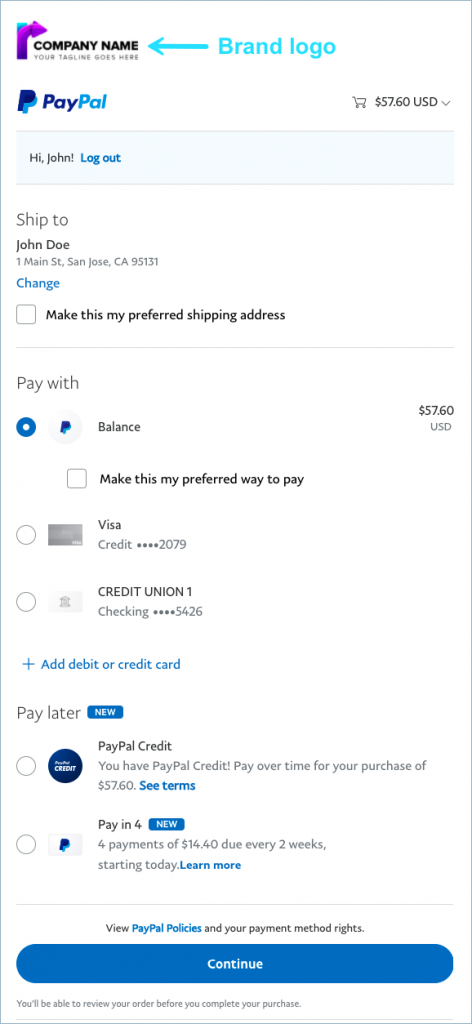
- Logo(190×90) – Option to upload a company logo that will appear on the PayPal end. The image requires an SSL host.
- Header(750×90) – Option to upload a header image that will appear on the PayPal end. The image requires an SSL host.
- PayPal locale:
- Use Store Locale: Choose to set the PayPal locale the same as the store locale.
- Use Specific Locale: Choose to set a different locale other than store locale for the PayPal locale. (Drop down lists down the languages supported by PayPal)
The logo will appear at the PayPal end as shown below:
Advanced Settings

- Invoice prefix – Invoice prefix to identify transactions from your site. Suppose, you have added EH_ in this field, then the Invoice Number will be EH_12098.
- Disable address override – Enabling this will prevent the checkout address from being changed at PayPal’s end. It will affect express checkout, and PayPal will strictly verify the address.
- Send shipping address instead of billing – Enable to send shipping details to PayPal instead of billing. PayPal allows us to send only one among shipping/billing addresses. We advise you to validate PayPal Seller protection to send shipping details to PayPal.
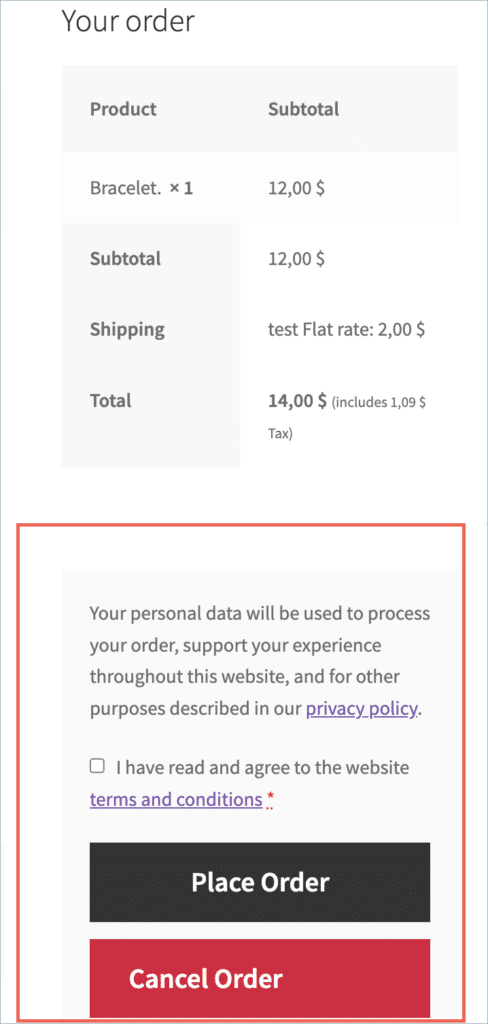
- Hide order review page – Enable to skip the review page and move to the site directly. The plugin provides you an option to review the order before completion of the order. On the review page, the customer gets the option to place or cancel the order.
- On placing an order, the buyer is directed to Review Page of Order ( if not skipped in Admin settings) as shown below.
- The buyer can Place / Cancel the order by clicking the respective buttons.
- Save abandoned orders – Enable to save pending orders when payment is canceled by PayPal.
- Manage subtotal mismatch – Enabling this option will adjust the order by adding or removing a line item to fix any differences between the order total and subtotal before sending it to PayPal.
- Seller policy – This field appears if you disable the Hide order review page option. Enter Seller Policy or any customized text you want to display on the Review page for the customer.
Debug Logs
Records PayPal payment transactions into the WooCommerce status log.
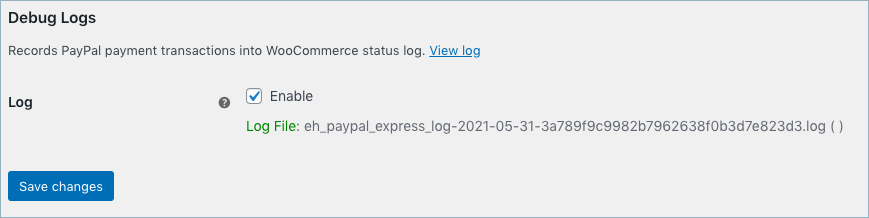
- Log: Enable to record PayPal payment transactions in a log file.
Save Settings
Once you’ve configured all the necessary options, click Save Changes to apply the settings.
This way, you can securely accept payments via PayPal. Check out the premium version: PayPal Express Checkout Payment Gateway for WooCommerce.

Jan
October 26, 2023
We are getting same error all the time. We are using valid credential which are copied directly from paypal. We even try to creat new app and always same error appears. Here is error :
Invalid PayPal Credentials. Please check and enter valid credentials in the plugin settings here.
Arjun
October 27, 2023
Hi Jan,
Thank you for reaching out to us. Sounds like you need some technical assistance. Kindly reach out to our technical support team.
Jack
April 14, 2023
Button display position Incorrect!
button displaying top of the checkout page,
I want the PayPal button to show below the checkout page my Theme button,
How setup ?
Can upload a screenshot png here? I using the free version
Hema
April 17, 2023
Hello Jack,
Thanks for reaching out to us. This is a premium feature. You have to upgrade to the premium version of the plugin to change the buttons position.
Tejas
October 11, 2022
Hello,
I am using Smart Button option and on checkout page, when any customer try to pay using Debit card option,
It is always returning “YOUR CARD WAS DECLINE” error.
I checked the error log but there is no specific issue listed with it.
Can you please help?
Mike
November 8, 2022
Hi Tejas,
The issue with the Debit card option seems to be account specific. We need to see your PayPal log to get a better understanding of the issue. As the Debit card sections are managed by PayPal itself, it is better to contact PayPal support directly.
If you need any assistance from our side, you can always reach out to our support team through this link.
Abhi
August 14, 2022
My Default THANK YOU PAGE overrides while the Customer pays with PayPal only. How to set it back to cart flow?
Mike
August 28, 2022
Hi Abhi,
Your case seems like a site-specific issue. Please contact our support through this link so that we can take a better look at the issue and possibly provide you with a solution.
jany
June 16, 2022
hi, why my customer said he /She can not pay with credit card. at checkout page we have set the credit card payment options. thanks
Alan
June 22, 2022
Hi,
Can you please check if any error messages are displayed? If yes then please share the screenshot of the error message and share the import log via support.
Lee
June 8, 2022
Is this plugin going to be updated for compatibility with WP 6.0?
Shesna
June 9, 2022
Hi Lee,
Yes, we will be soon releasing a plugin version that is compatible with WP6.0. Thanks for bearing with us.
Ladha
June 2, 2022
I want to know if Payin4 Paypal button is available without upgrading to premium or we need to upgrade to premium for Payin4 button to come ?
Shesna
June 2, 2022
No. You don’t have to upgrade. It is available in our free version plugin itself.
Ladha
June 3, 2022
Hey Shesna, I don’t see Payin4 button, is Payin4 button appears based on country wise.
I don’t see enable-funding=paylater being passed in the script – https://www.paypal.com/sdk/js?client-id=AdoyKKHe80QvsYiR7Db3IMZwYwucm3vaPjttC8ze-PAewk0qNZwJN4BSIjswdj46k2l9HpHH0cLtrSRB&intent=capture¤cy=AUD&locale=en_US&commit=true&components=buttons&debug=false
Ladha
June 3, 2022
I am ready for the Teams call to discuss on this. Are you available anytime ?
Ladha
June 3, 2022
Is it available for country specific or for all eligible countries ? Because I don’t see Payin4 in my local.
Shesna
June 3, 2022
Yes. Depending on the country and the amount of purchase, the ‘Pay later’ options may vary. For eg, in US- ‘Pay in 4’, in UK- ‘Pay in 3’. We would request you to please go through the PayPal article on Pay Later offers for a better understanding. Also, please get in touch with our technical support team for direct assistance.
Ladha
June 7, 2022
Hey, for AUSTRALIA, we need to pass the parameter in the Paypal script tag as “enable-funding=paylater” and if the amount is >30 paylater button would appear but I DONT SEE even after amount is >30$ and also could not see the parameter getting passed. Earlier we saw button appearing but not now. I am ready for quick TEAMS call if you don’t understand.
Khalil
May 31, 2022
HEY ALAN, today I installed the webtoffee plugin “https://wordpress.org/plugins/express-checkout-paypal-payment-gateway-for-woocommerce/” but I could see there was no PayPal Payin4 button visible in my checkout when I enabled Paypal Express and also I could not see PayPal yellow button and could see only “Pay with PayPal” option. Has there been any changes or this plugin default don’t support Payin4 and PayPal yellow button in context ?
Khalil
May 31, 2022
In the document, it was mentioned PayPal in context yellow button and Payin4 PayPal button before without premium but has this been added lately to premium version ?
Shesna
May 31, 2022
Hi Khalil,
Sorry, we couldn’t understand your query. You may please reach out to support team for further technical assistance.
Khalil
May 31, 2022
My query is simple, I am not able to see PayPal Payin4 yellow button ?
Shesna
May 31, 2022
Hi Khalil,
If your account is eligible, ‘Pay later’ button will be shown on your site and ‘Pay in 4’ at the PayPal side. You may please refer to this article for better understanding.
Khalil
June 1, 2022
I tested with sandbox account but could not see Payin4, is it mandatory to upgrade to premium to view Payin4 ?
khalil
June 1, 2022
hey Shesna, my doubt is simple- will we get PayPal Payin4 button even if we don’t upgrade to premium ? Because I dont see Payin4 even my account is eligible, do I need to upgrade to premium ?
Shesna
June 2, 2022
Sorry for the delay in responding. You don’t have to upgrade. It is available in our free version plugin itself.
mateh
March 20, 2022
Hi there,
When I enable Express Checkout button, PayPal does not open as an pop up but instead sends customer off my page to PayPal page. Is there any way to set express checkout button so that customer stays on my page and PayPal opens just as an pop up?
Thanks, Matej
Alan
March 23, 2022
Hi,
Completing payment without redirecting the checkout or cart page is one of our premium features. Please make sure that you are using the pro version plugin to open PayPal in a new window from the cart or checkout page. Please refer here.
Anne-Laure
March 9, 2022
Hello,
I sell digital products. How can I prevent the “pending payment” of this plugin?
Thank you
Mark
March 10, 2022
Hi Anne,
Greetings from Webtoffee!
You may please disable the Save abandoned order option under PayPal plugin settings to stop saving incomplete order.
Steve G
February 1, 2022
How do I get the Pay Later and the Venmo buttons on my cart and checkout pages. I can see them in the examples above but I don’t know how to enable these. Are these buttons only available with the paid version?
Alan
February 8, 2022
Hi,
Please use the smart button option in the plugin settings to add the Pay Later and the Venmo buttons on your site. If you are eligible the buttons will be displayed.
Mimthu
January 23, 2022
Hi
Alan
January 25, 2022
Hi,
Please let us know about the issue you are facing so that we can help you.
Miguel Huerta
January 17, 2022
Is this plugin compatible with All Products for WooCommerce Subscriptions?
Alan
January 25, 2022
Hi,
Yes, you can use the express checkout option of the plugin to purchase subscription products from your Woocommerce site.
Khalil
April 27, 2022
Do we need any external plugin for subscription or it will directly work if we create subscription product ? Please share the subscription plugin details if any which is compatible with this ?
Alan
April 27, 2022
Hi Khalil,
You will have to create a subscription product using a subscription plugin. Our plugin is compatible with Subscription for WooCommerce by WebTofee and WooCommerce subscriptions.
Khalil
April 27, 2022
So either of these plugin Subscription for WooCommerce by WebTofee OR WooCommerce subscriptions right ?
Alan
April 28, 2022
Hi Khalil,
Yes, you can use any one of the above mentioned plugins.
Khalil
April 27, 2022
Hey Alan, what plugin you suggest for subscription that will be compatible with this plugin ?
Alan
April 28, 2022
Our plugin is compatible with Subscription for WooCommerce by WebTofee and WooCommerce subscriptions.