Share:


Table of Contents
Testing Stripe payments before launching your WooCommerce store is one of the easiest ways to avoid checkout errors, failed orders, and payment-related customer complaints.
Stripe Test Mode lets you simulate real transactions without charging actual cards. You can place dummy orders, test successful and failed payments, check 3D Secure authentication, and confirm that your WooCommerce checkout flow works correctly before accepting live payments.
Our Stripe Payment Gateway plugin is a great choice for WooCommerce store owners who want to add Stripe Payments to WooCommerce. In this article, we will show you how to enable Stripe Test Mode in WooCommerce using our Stripe payments plugin.
Key takeaways:
- Stripe Test Mode lets you test WooCommerce payments without processing real money.
- You can use Stripe test card numbers to simulate successful payments, failed payments, authentication flows, and 3D Secure checks.
- WebToffee Stripe Payment Plugin helps you add Stripe payments on your WooCommerce store and test payments using Stripe Test Mode.
What Is Stripe Test Mode?
Stripe Test Mode is a testing feature provided by Stripe that simulates testing payments on a website without transferring real money. Using Stripe Test Mode, you can use test credit cards to simulate transactions to make sure that your integration works correctly. It helps you identify any bugs or issues when integrating Stripe payments before you make it live with actual payments.
For example, you can test:
- A successful card payment
- A declined payment
- An insufficient funds error
- A 3D Secure authentication flow
- Failed authentication
- Order status updates in WooCommerc
Once you create a Stripe account, you can switch on the Test Mode and obtain test API keys from the Stripe Dashboard. After testing payments, you can switch back to normal mode to accept actual payments from your customers.
Stripe Test Mode vs. Stripe Sandbox: What’s the Difference?
Stripe has traditionally offered Test Mode, where every Stripe account has a test environment connected to its live account. This is the environment most WooCommerce store owners use when testing Stripe payments with test API keys and dummy card numbers.
Stripe has also introduced Sandbox environments, which are newer, more isolated testing environments designed for more advanced testing workflows. A sandbox can be used to test Stripe features, API upgrades, payment flows, and team workflows without affecting live data.
Stripe also lets users create and manage sandboxes from the Dashboard, and a Stripe account can have multiple sandbox environments, depending on the account setup
Stripe Test Mode helps you make sure your checkout works before customers use it.
You can use it to check whether:
- Stripe appears correctly on the WooCommerce checkout page
- Test payments are completed successfully
- Failed payments show proper error messages
- WooCommerce order statuses update correctly
- Taxes, shipping, coupons, and checkout totals work as expected
- 3D Secure authentication works properly
- Webhooks and payment confirmations are working
This is especially useful if you recently installed a Stripe payment plugin, changed your checkout settings, added new payment methods, or moved your store from staging to production.
How to Set Up Test Mode in WooCommerce?
We will be using the WooCommerce Stripe Payment plugin by WebToffee to set up Test mode in WooCommerce.
Follow the below steps to set up Test mode in WooCommerce:
Step 1: Install WebToffee Stripe Plugin for WooCommerce
- From your WordPress dashboard, navigate to Plugins > Add New.
- Search for Stripe Payment Plugin for WooCommerce by WebToffee.
- Click on Install Now to install the plugin.

- Then, activate the plugin on your WordPress website.
Step 2: Enable Test mode in Stripe
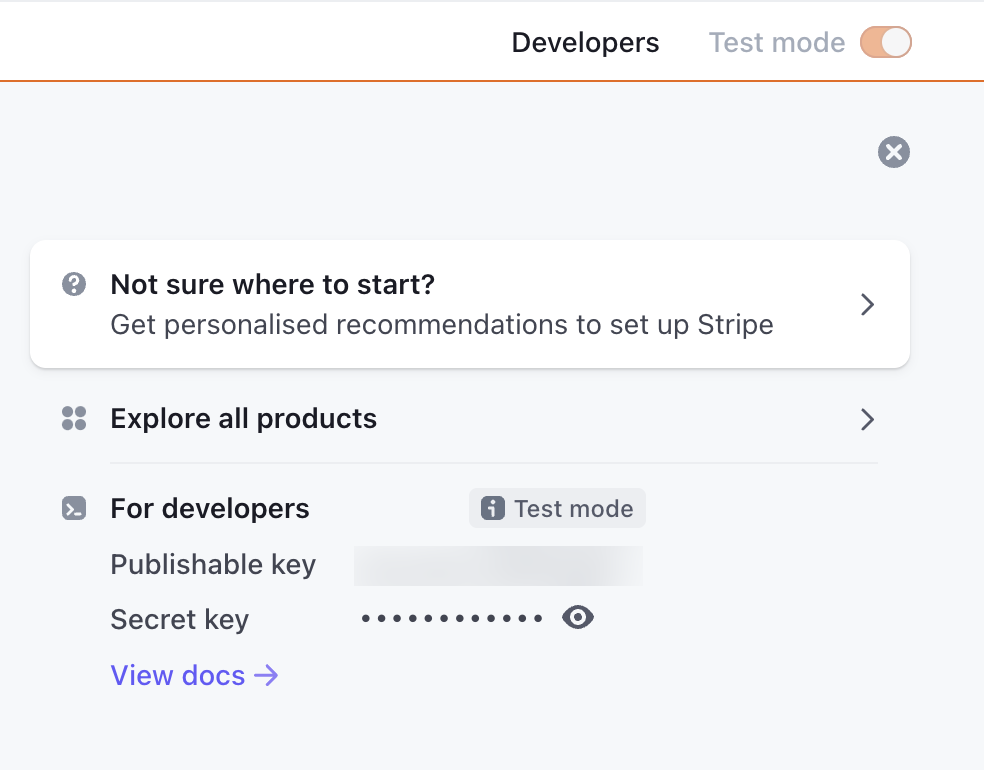
- If you have a Stripe account, log in or create one. Then, go to the Stripe dashboard and enable the Test mode.
- Now, obtain the test API keys from the Stripe dashboard page.
Step 3: Enable Stripe Test mode in WooCommerce
- After installing the plugin, go to WebToffee Stripe menu and select General Settings.
- Choose Transaction mode as Test mode and paste the API keys in the corresponding fields.
- Now, click on Save changes to save the settings.

Step 4: Make Test Purchase
Now comes the easy part. Add something to your shopping cart and go to the checkout page as if you were a customer. You should see your checkout page as usual, with a few minor adjustments.
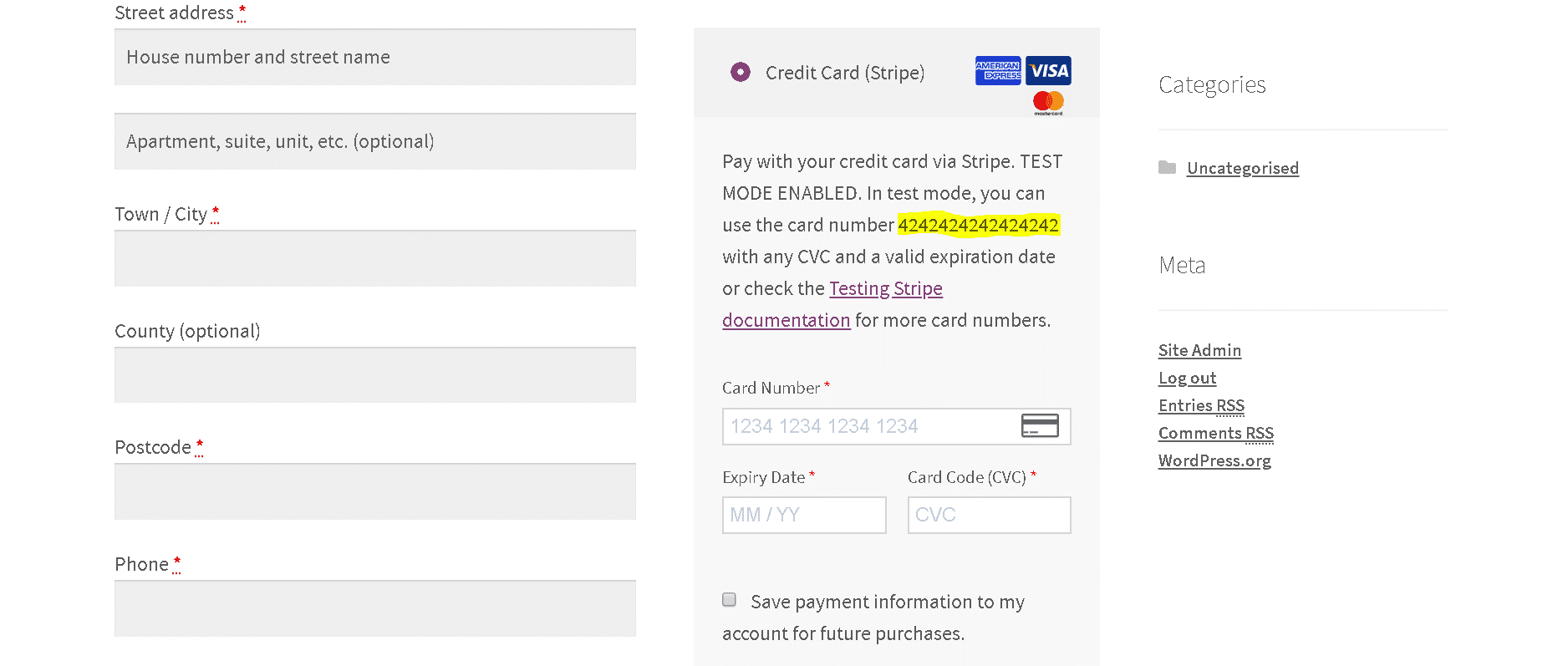
The Stripe checkout box should indicate that it is in test mode and request you to enter the test card number – 4242424242424242. You can use any expiration date beginning with the current date and any security code.
If the settings are accurate, you have just made a test payment. Once the order has been confirmed, the transaction will be executed.
Stripe Test Card Numbers for WooCommerce
Stripe provides dummy card numbers that let you test different payment scenarios. These cards only work in Stripe’s test environment and cannot be used for live payments. Stripe’s official testing documentation includes test cards for successful payments, declined payments, fraud scenarios, disputes, and 3D Secure authentication.
Here are the most useful Stripe test card numbers for WooCommerce store testing:
| Scenario | Card Number | What to Test |
|---|---|---|
| Successful Visa payment | 4242 4242 4242 4242 | Basic successful checkout |
| Successful Mastercard payment | 5555 5555 5555 4444 | Mastercard checkout flow |
| Successful Visa debit payment | 4000 0566 5566 5556 | Debit card payment |
| Successful American Express payment | 3782 822463 10005 | Amex card checkout |
| Generic declined payment | 4000 0000 0000 0002 | Failed payment handling |
| Insufficient funds | 4000 0000 0000 9995 | Insufficient funds error |
| Lost card decline | 4000 0000 0000 9987 | Lost card decline message |
| Stolen card decline | 4000 0000 0000 9979 | Stolen card decline message |
| Incorrect CVC | 4000 0000 0000 0127 | CVC validation error |
| Expired card | 4000 0000 0000 0069 | Expired card error |
| 3D Secure authentication required | 4000 0025 0000 3155 | Authentication challenge |
| 3D Secure optional / supported | 4000 0000 0000 3220 | 3DS flow handling |
For most basic WooCommerce tests, start with 4242 4242 4242 4242. After that, test at least one decline scenario and one 3D Secure scenario to make sure your checkout handles errors and authentication correctly.
The test card is only valid for use with Stripe; it is still required to test alternative payment gateways, such as PayPal. This is achieved by employing dummy credit card numbers or a Credit Card Number Generator.
Credit card numbers and sandbox/test mode choices are provided below for testing purposes. Some of the most prominent WooCommerce payment processors have supplied these.
- PayPal FAQ for test Card Numbers
- Get Credit Card Numbers
- net Test Card Numbers
- FirstData / Payeezy Test Credit Card Numbers
- Klarna Test Credit Card (note: only one test card is provided)
Now, let’s have a quick look at our premium payment plugins:
WooCommerce Stripe Payment Gateway Plugin and PayPal Express Checkout Plugin for WooCommerce.
Common Issues When Testing Stripe Payments in WooCommerce
Testing Stripe payments is usually straightforward, but a few common setup issues can prevent test orders from working properly.
1. Stripe Is Still in Live Mode
If real card details are being requested or test cards are not working, check whether your WooCommerce Stripe settings are still in Live Mode.
Go to the WebToffee Stripe plugin settings and make sure the transaction mode is set to Test Mode.
2. Wrong API Keys Added
Stripe live keys and test keys are different.
Test keys usually begin with pk_test_ and sk_test_. If you accidentally add live keys while your plugin is in Test Mode, payments may fail.
Copy the correct test keys from your Stripe Dashboard and save the settings again.
3. Test Card Is Used in Live Mode
Stripe test card numbers only work in test environments. If you use a test card while your store is in Live Mode, the payment will fail.
Before testing, confirm that both Stripe and WooCommerce are using test settings.
4. 3D Secure Authentication Does Not Appear
If you want to test 3D Secure, make sure you are using a card number that triggers authentication.
Use a 3D Secure test card such as:
4000 0025 0000 3155
Then place an order and complete the authentication step when prompted.
5. Orders Are Created but Payments Do Not Appear in Stripe
If WooCommerce creates an order but the payment does not appear in Stripe, check the following:
- Test Mode is enabled
- Correct test API keys are saved
- Stripe connection is active
- Webhooks are configured correctly
- No caching or checkout optimization plugin is interfering with checkout
6. Payment Method Does Not Appear at Checkout
If Stripe does not appear on the checkout page, confirm that:
- The WebToffee Stripe plugin is active
- Stripe payment method is enabled
- WooCommerce checkout page is assigned correctly
- Your store currency is supported by Stripe
- Required billing fields are enabled
WooCommerce Stripe Payment Gateway Plugin – An Overview

Stripe Payment Plugin for WooCommerce is a free plugin that allows you to set up Stripe Payment gateway in WooCommerce. Accept credit and debit card payments, as well as AliPay, Apple Pay, Google Pay, and other methods.
Key features:
- Customers can save their credit card information.
- Accept SEPA, Afterpay/clearpay, WeChat Pay, Klarna, Sofort, and iDEAL payments.
- Provides a dashboard for reviewing transactions.
- Allows for full and partial returns
- Customers should receive email receipts automatically after payment.
To access the advanced features of the WooCommerce Stripe gateway, you can install and activate the premium version of this plugin.
PayPal Express Checkout Plugin for WooCommerce – An Overview

WebToffee PayPal Express Checkout Payment Gateway for WooCommerce is similar to the Stripe Payment Plugin for WooCommerce, but it works with PayPal instead of Stripe. It enables users of WooCommerce to integrate PayPal Express Checkout/PayPal Smart Checkout with their websites.
WebToffee PayPal Express Checkout Payment Gateway for WooCommerce includes the following features:
- Customers can pay with credit cards, debit cards, PayPal Credit, Pay later offers, and PayPal money.
- PayPal smart button lets clients make payments using the chosen payment methods in their country/region, which are automatically identified by PayPal Supports.
- PayPal’s Alternative Payment Method, allows customers to pay using their bank accounts, wallets, or other local payment methods.
- Intelligent checkout button personalization.
By installing and activating the premium version of this plugin, you will have access to the advanced features of the WooCommerce PayPal plugin.
If you would like to know how to set up PayPal checkout on your WooCommerce store using PayPal express checkout plugin, refer to this article.
Stripe test mode is a sandboxed environment that lets you simulate payment transactions on your website without processing real money. Stripe provides separate test API keys and a library of test card numbers that replicate every payment outcome — successful payments, declined cards, 3D Secure authentication, and more.
The most commonly used Stripe test card is 4242 4242 4242 4242 (Visa, always succeeds). For testing declined payments, use 4000 0000 0000 9995 (insufficient funds) or 4000 0000 0000 0002 (generic decline). For 3D Secure testing, use 4000 0025 0000 3155. Use any future expiry date and any 3-digit CVC with all test cards.
Yes. Use Stripe test card 4000 0025 0000 3155 to trigger a 3DS authentication popup at checkout. The authentication succeeds, and the order processes normally after completion. To test a failed 3DS authentication (payment rejected), use card 4000 0082 6000 3178.
Yes. Complete a test order, then go to WooCommerce → Orders, open the order, and click Refund. The refund will appear in your Stripe Dashboard under the test payment. You can test both full and partial refunds in test mode.
Wrap Up
The most popular eCommerce plugin is WooCommerce, but it is only as good as you make it. You will be able to sell to the best of your ability if you continue to test your WooCommerce shop to ensure that everything is working properly. We hope this article has helped you on how to enable Stripe test mode in WooCommerce.
Additionally, we urge you to read how to enable smart checkout in WooCommerce, which offers valuable suggestions for smart people just like you.
Have you found this article useful? Please provide your opinions in the comments section.


Subcribe to our newsletter