


Share:


Table of Contents
Managing WooCommerce subscriptions is an excellent way to increase revenue and strengthen customer loyalty. However, managing subscription products can be quite challenging. This is where the Product Import Export for WooCommerce plugin becomes essential. This article explains how to streamline your WooCommerce subscription product management.
Subscription-based businesses have seen huge growth over the last decade. Market research forecasts an exponential growth amounting to $2227.63 billion by 2028.
Just like any other product, WooCommerce subscription products sometimes need to be moved or updated. While WooCommerce allows you to import and export WooCommerce products, it doesn’t have a built-in feature specifically for handling subscriptions. Managing these, especially in bulk, can be quite tricky without the right tools.
The WebToffee Product Import Export for WooCommerce plugin simplifies the process of selectively importing and exporting subscription products. Whether you’re rolling out a new subscription model, migrating your store, or refreshing your catalog, this plugin makes everything smoother. In this article, we’ll guide you through the steps to get it done.
Key Takeaways
- Subscription-based businesses are on the rise, presenting a great opportunity for WooCommerce store owners.
- Although WooCommerce allows for importing and exporting products, it lacks a built-in feature for selectively managing subscription products, which can make it difficult to handle large volumes.
- Plugins such as Product Import Export for WooCommerce can streamline the management of subscription products, allowing for efficient imports, exports, and updates, which is crucial for store migrations.
Subscription products refer to items or services that are sold repeatedly, enabling customers to receive them automatically at set intervals. They allow customers to automatically receive items or services at regular intervals, such as weekly, monthly, or yearly, without reordering each time.
It’s like a “set it and forget it” system that provides advantages for both the buyer and the seller.
Types of WooCommerce Subscription Products
WooCommerce subscription products are products that customers purchase on a recurring basis. Instead of placing a new order each time, customers subscribe once and are billed at regular intervals such as weekly, monthly, or yearly.
These products are commonly used for memberships, digital services, subscription boxes, recurring donations, and ongoing support plans.
WooCommerce supports two main types of subscription products:
Simple Subscription Products
A simple Subscription is a single, fixed subscription product with no variations. It has one price and one billing schedule, making it easy to set up and manage.
Since there are no options such as size, color, or plan type, simple subscriptions are best suited for straightforward offerings like monthly memberships, annual service plans, or digital subscriptions.
Variable Subscription Products
A variable subscription, on the other hand, allows customers to choose from multiple subscription options within the same product. Each option is created as a variation and can have its own price, billing interval, billing period, and trial length.
This type is ideal for offering tiered or flexible plans under one product listing.
Importing and exporting WooCommerce subscription products becomes essential in several real-world scenarios, especially when managing recurring products at scale.
Migrating to a New Store
When moving to a new WooCommerce site or domain, exporting subscription products ensures that all recurring product configurations – billing cycles, trials, and fees are recreated accurately on the new store without manual setup.
Bulk Editing Subscription Pricing or Term
If you need to update prices, billing intervals, trial periods, or sign-up fees for multiple subscription products, exporting them to a CSV/XML file allows you to make changes in bulk and re-import them quickly, saving significant time.
Backing Up Subscription Products
Regular exports act as a safety net. Keeping backups of your subscription products helps protect against data loss caused by plugin conflicts, failed updates, or accidental deletions.
Moving Data Between Staging and Live Sites
Subscription products are often tested on a staging site before going live. Exporting tested subscription products from staging and importing them into the live site ensures consistency and reduces deployment errors.
Syncing Products Across Multiple Stores
If you manage multiple WooCommerce stores (for different regions, currencies, or brands), importing and exporting subscription products helps keep pricing, billing rules, and product structures consistent across all stores.
WooCommerce and WordPress, by default, offer you some general tools and settings to help you import and export WooCommerce subscriptions. However, these settings have some drawbacks that inhibit your ability to move the desired data.
This is where the Product Import Export plugin from WebToffee can help.
You can accomplish this in two ways: using WooCommerce’s built-in export feature or specialized import-export plugins. So, without further ado, let’s see how to import and export your products in WooCommerce.
Method 1: Import Export Subscriptions Using WooCommerce Built-in Feature
You can both import and export your WooCommerce subscriptions using the WooCommerce plugin in WordPress. The only drawback here is that this setting lacks filters and customizations that you may require to filter out the exact products you may need.
First, let’s see how you can export WooCommerce subscription products with these settings,
- Go to Products > All Products in your WordPress menu bar.
- Click on Export.

- Select Simple subscription or Variable subscription from the Which product types should be exported? option.
- If required, you may also configure the other customization options available on the page.
- Once the configuration is completed, click on Generate CSV.

This will initiate the download of a CSV file for WooCommerce subscription products.

Now, to import WooCommerce subscription products to your store,
- Navigate to Products > All Products and click on Import.

- Choose the CSV file with the subscription products. You may alternatively enter the path to the file on your server.
- Configure the other required settings and click on Continue.

Now, map the CSV fields to the products. If the file has column names similar to those in WooCommerce, the selections will be made internally.
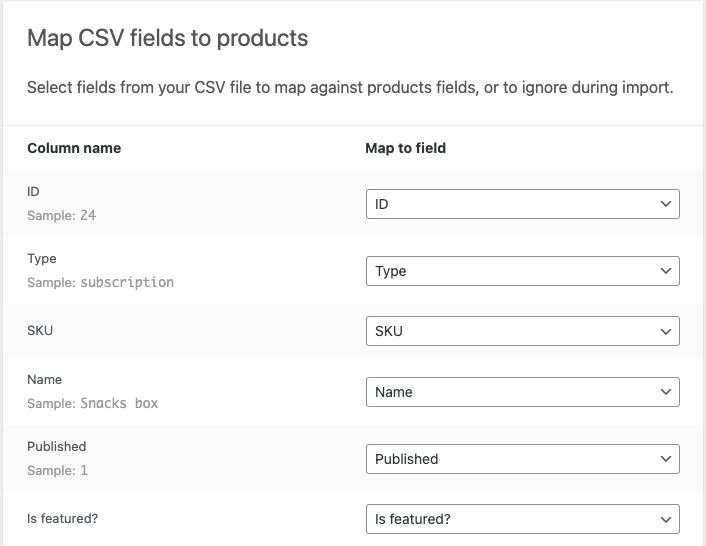
- Click on Run the importer to import the products.
This will import the WooCommerce subscription products to the store.
Method 2: Import and Export Subscription Products Using WebToffee Product Import Export Plugin
You can also use a plugin like the Product Import Export for WooCommerce to move your WooCommerce subscriptions. The plugin will offer you features such as importing/exporting only the subscription products and selecting the required products and fields.
To access all the available customizations, you may need to use the plugin’s premium version. So, let’s see how you can import and export WooCommerce subscriptions with the premium version of the product import export plugin.
Check this article on exporting specific WooCommerce products to learn how to export products using the free plugin.
Prerequisites: You should purchase the premium version of the Product Import Export plugin to import and export WooCommerce subscription products.
After purchasing the plugin, follow the steps below to install it.
- On your WordPress admin console, navigate to Plugins > Add New.
- Click on Upload Plugin and choose the zip file of the plugin.
- Click on Install Now and then activate the plugin.

How to Export WooCommerce Subscription Products
To export your WooCommerce subscriptions,
Step 1: Select Product as Post Type for Export
- Go to WebToffee Import Export (Pro) > Export.
- Select the post type as Product.

Step 2: Select Advanced Export Method
- Select the export method as Advanced export.

Step 3: Filter Product Export Data
Here, filter data to export as per the criteria.
- Choose the Product types as Simple and/or Variable subscription.
You may also select other filters if found necessary. For instance, to export subscription products that are out of stock, select the stock status as out of stock.

Step 4: Map and Reorder Export Columns
Now, select, rearrange, and rename the product fields you want to export. However, if you are happy with the current setup, you may ignore this step.

Step 5: Configure Advanced Export Options
- Now, provide a name for the export file and choose the required file format. You can choose between CSV, XML, TSV, XLS, and XLSX.
- Click on Export.

This will download a file with all subscription products satisfying the selected criteria. In our example, all subscription products currently out of stock will be added to the export file. You can directly share it with the respective authorities to take actionable steps.
How to Import WooCommerce Subscriptions Products
Importing WooCommerce subscriptions follows the same steps as importing other products. But let’s quickly look at how to import WooCommerce subscriptions using the product import export plugin.
Step 1: Select Product as Post Type for Import
- Go to Import under WebToffee Import Export (Pro).
- Select the post type as Product.

Step 2: Choose Advanced Import Method
- Choose the import method as Advanced import and select the file you want to import. The file can have XML, CSV, TSV, XLS, or XLSX formats.

Step 3: Map Import Columns
- Now, map the import columns with the fields in WooCommerce.

Step 4: Configure Advanced Import Options
This is the final step in importing subscription products.
- Select the import options and click on Import/Schedule > Import.

This will import the products in the file to your WooCommerce store.
To export WooCommerce subscription products, go to Products > All Products > Export and choose subscription product types such as Simple subscription or Variable subscription. For more control, use WebToffee’s Product Import Export plugin, select Product as the export post type, choose Advanced export, filter by subscription product type, map the required columns, and export the file.
If you want to download WooCommerce subscription products, export them as a CSV or supported file format from WooCommerce or a product import-export plugin. If you want to download customer subscription records or subscription orders, that is a different process and should be handled using an order or subscription order export tool.
To migrate membership-related products, first export and import the related subscription or membership products. Then migrate users, orders, memberships, and subscription records separately, depending on how your membership plugin stores data. Always test the migration on a staging site before applying it to your live store.
WooCommerce subscription products are stored as WooCommerce products in the WordPress database, with product details saved in product-related tables and subscription settings stored as product metadata. Customer subscription records and subscription orders are stored separately from subscription products, so they require a different migration process.
Conclusion
Handling WooCommerce subscription products doesn’t need to be difficult. The plugins from WebToffee, such as the Subscription for WooCommerce, WooCommerce Product Import Export, and Order, Coupon, Subscription Import Export will help you to add and deal with WooCommerce subscriptions effectively, saving time and reducing mistakes.
Whether expanding your product range, moving your store, or refreshing your catalog, these plugins streamline the process and ensure your operations run smoothly.
Start taking advantage of smart solutions today and maximize the potential of your WooCommerce store with easy subscription product management!


Subcribe to our newsletter


