Share:


Table of Contents
Have you ever needed to migrate your WordPress users from one website to another? This article will show you how to import and export your users, making the migration process smooth and hassle-free.
Managing a WordPress site often means handling lots of users, whether they’re customers, subscribers, or team members. At times, you may need to move these users to another site, create a backup, or keep your data organized. That’s where exporting and importing WordPress users becomes incredibly useful.
Manually adding each user one by one can be slow and error-prone. But what if you could migrate all your users in just a few clicks? That’s precisely what the Import Export WordPress Users and WooCommerce Customers plugin helps you do.
So, here we will guide you through importing and exporting your WordPress users using this free plugin. Let’s get started.
Key Takeaways:
- Migrating users to a new site manually is challenging and requires performing import export of many users without any errors or data loss.
- Dedicated plugins like WebToffee’s Import Export WordPress Users plugin enable you to import and export your users’ data to a new site swiftly and without hassles.
- The migration process is done via a two-step process of exporting the WordPress users and then importing them to the destination site using the same plugin.
Whether you run a blog, an online store, or a membership site, your users are at the heart of your WordPress website. But as your site grows, you may need to move, back up, or share user data. This is where importing and exporting WordPress users becomes incredibly useful.
- Migrate to a New Website: When moving your WordPress site to a new domain or server, you’ll want to transfer all existing users, such as customers, subscribers, and admins, without asking them to re-register. Exporting WordPress users with passwords and importing them to the new site helps ensure a seamless migration while preserving user access.
- Set Up a Staging or Development Site: Developers often work on staging sites before pushing updates live. Importing existing users into a staging environment helps test functionality and customer flows without disrupting your main site.
- Manage Multiple Stores or Sites: If you operate more than one WordPress site (for example, multiple WooCommerce stores), exporting and importing users makes it easy to share customer accounts across platforms. This saves users from having to create separate logins for each site.
- Backup and Security: User data is sensitive and valuable. By exporting your WordPress users, you always have a backup copy of your database that can be restored in case of accidental data loss or a security breach.
- Simplify User Management: Bulk exporting and importing users allows you to handle hundreds or even thousands of accounts at once, saving hours of manual work and reducing the chances of errors.
This will be a two-phase process.
- Firstly, we will export WordPress users from a source website to a CSV file.
- Then, we will import WordPress users from the CSV into the destination website.
Before we begin, ensure you have installed the free WordPress User Import Export plugin by WebToffee.
Step 1: Install the WebToffee Import Export WordPress Users Plugin
- From your WordPress dashboard, navigate to Plugins > Add New Plugin
- Search for ‘Import export WordPress Users’ by WebToffee.
- Install and Activate the plugin.

Step 2: Select User as Post Type for Export
Once you have installed the plugin,
- Go to WebToffee Import/Export(Basic) > Export.
- Here, you can select User/Customer as the post type.

Step 3: Select an Export Method
Normally, you can see three options in this window. Since this is probably your first time, you might not see all of them.
- Quick export: Export data as per default specifications.
- Advanced export: This process involves filtering, column selection, and advanced options that you can customize to obtain your required CSV file.
- Based on a pre-saved template: Export data according to your previously saved specifications.
Note: This option will only be visible if you saved a template in your previous exports. You can save a template by going to Step 5 through the Advanced export. Once you save the template, you can select it from the Based on a pre-saved template option to obtain your custom-made CSV file without going through the steps again.

Step 4: Filter WordPress User Data
Customizing your data has never been easier. Want to limit the number of users? Want to skip a couple of users you don’t want on your new site? Or are your requirements rather specific and explicit? No worries.
You can filter data that needs to be exported by choosing from the available criteria.

Step 5: Map and Reorder User Export Columns
Here, you can see the plugin column name on the left and its corresponding CSV column name on the right. By default, both are the same. However, you can customize the CSV column names by editing the right text field.
Note: Once you assign a different name to any CSV column name, you must manually map it to its corresponding plugin column name during import. This ensures the data matches correctly when re-importing users.
You also have the freedom to reorder the columns as you like. This can be helpful if you want to align the export file with a specific structure required by another system or for easier readability in spreadsheets.

Pro Tip: You can ignore this step as you are using the same plugin for importing.
Step 6: Advanced Options/Batch Export
- Enable the Export guest users checkbox to include guest customers in the export file and choose the number of records processed in one batch.
- Enter a file name for the exported file.
- Set the delimiter to differentiate the columns in the CSV file. (Comma will be set as default)
- Click on Save Template to save the configurations you have made for future use (optional).
- Click on Export to export users/customers to a CSV file.

Tip: You can save your current export configurations as a template for future use.
A pop-up will appear saying Export file processing completed.
- Click the Download file to download the CSV file to your local storage.

Now that you’ve successfully exported your users, let’s move on to the next step: import them to your new site with the same plugin.
With just a few easy clicks, you can smoothly transfer your entire user base, ensuring no data is lost. Let’s go through the process to ensure this transition is handled correctly.
Already have your user CSV ready? See our complete guide to importing WordPress users from CSV.
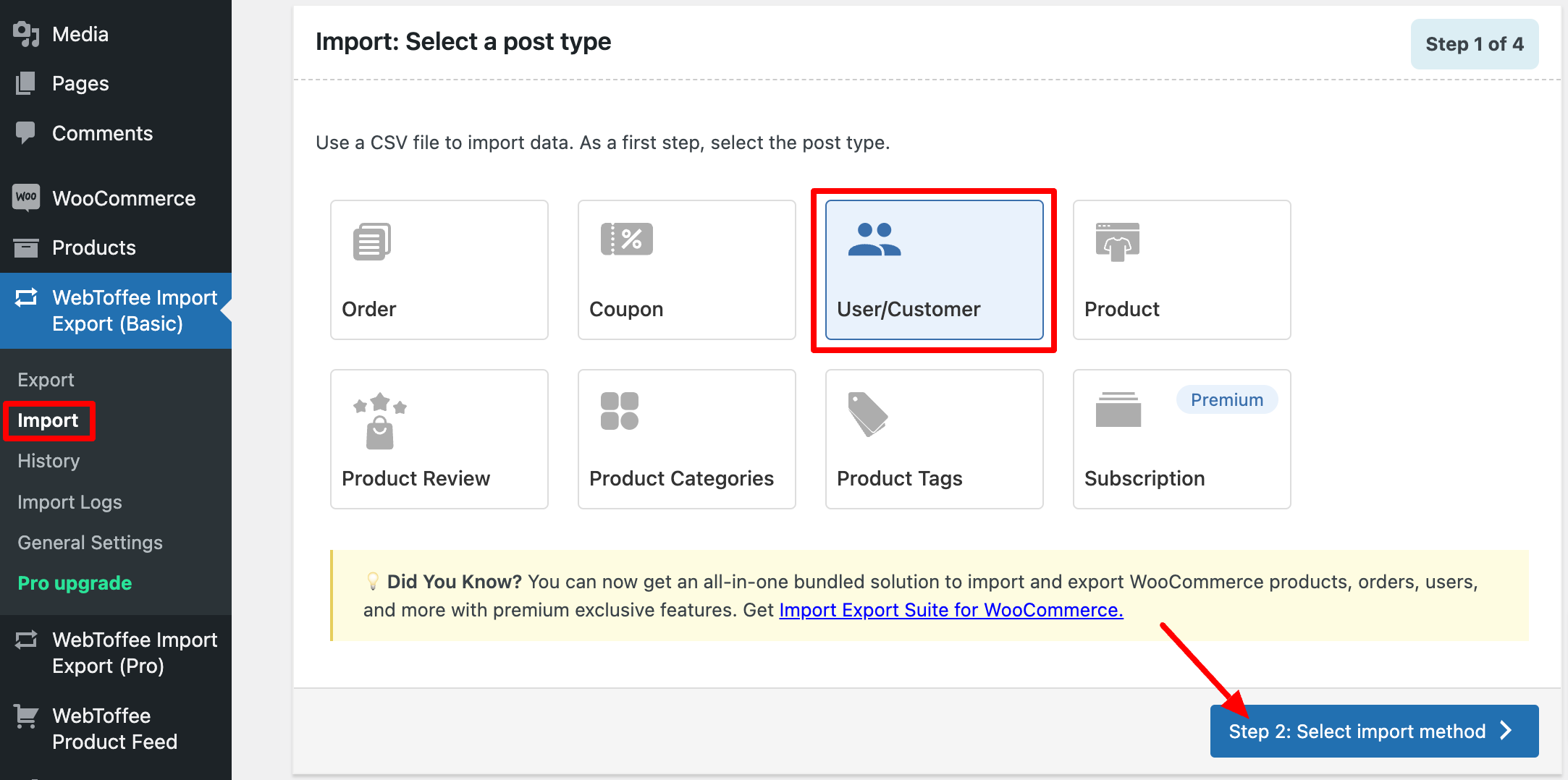
Step 1: Select User/Customer as Post Type for Import
- Go to WebToffee Import/Export(Basic) > Import.
- Here, select Users/Customers and click the Select import method button.
Step 2: Select an Import Method
The options are similar to the export method, such as quick and advanced imports. Let’s proceed with the Advanced import option.
But there are additional fields as well, which we will discuss.
- Choose File for Import – You can drag and drop the CSV file you want to import, or simply click anywhere on the dotted rectangle box to upload the file from your local storage.
- Delimiter – Set the character used to separate columns in the export file.

Then, proceed to Step 3.
Step 3: Map Import Columns
If you provide the columns’ default names, the plugin automatically identifies the required fields.
You can also manually set the column names as per the CSV file.

Do you want to make some quick changes to your data without going through the CSV file? The simplest way is to use the Evaluate field. You can access it by clicking the pen icon near the required column name.

It takes the input data from the CSV, computes it using the given expression, and then creates the output. The best part is that you can see the sample calculation in real-time. Leave no room for errors.
- Expression: Any operators +*/-()&@ or string constants can be used along with the attributes to obtain your desired result.
- Output: Sample output will be displayed here based on the first record from the input file.
- Input: Select the column you want to modify from the dropdown window.
Note: Columns with no values in the input file may cause syntax errors if used in an expression.

Proceed to the next step.
Step 4: Advanced Import Options
What do you want to do if the user already exists on the site? Do you want to skip that user import or update it using the data from the current CSV file?
There are several advanced export options. We will examine each in detail.
- If user exists: One can either Skip or Update the entry.
- Retain user passwords: WordPress stores passwords in an encrypted format. If you want to Retain the password of an old user, you will have to choose Yes. However, if you manually add user details to the CSV, they will be in plaintext format, so you should select No in those cases.
- You can also set the import in batches of options.
Note: The batch import is set to 10 by default. If the export fails due to a timeout, try reducing the batch count and rerunning it.

- Click Save Template to save your current user import configurations as a template for future use.
- Click on Import to proceed.

After importing, a pop-up will appear with a Finished message and the number of failed imports (if any).
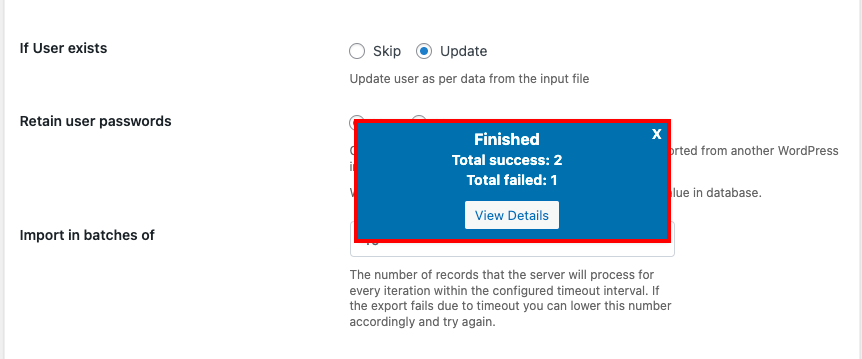
A confirmation message alone isn’t enough; you should always verify the import.
Start by going to Users > All Users and check that the correct number of users have been added with accurate usernames, emails, and roles. Next, open a few profiles to confirm that any custom fields, such as phone numbers, company names, or membership levels, are populated correctly.
Finally, if your site displays user data on the front end, such as in a directory or forum, confirm that the imported details appear as expected.
You can export users from WordPress using the WordPress Users Import Export plugin. Here’s how:
– Go to WebToffee Import/Export (Basic) > Export and select User/Customer.
– Choose your preferred export method (Quick or Advanced).
– Apply filters if needed to export specific users.
– Map and reorder the export columns as required.
– Configure advanced options such as batch export settings (optional).
– Click Export to download the user data file.
You can import WordPress users using the WebToffee Import Export plugin:
– Go to WebToffee Import/Export (Basic) > Import and select User/Customer.
– Choose the import method and upload your CSV file.
– Map the CSV columns to the appropriate WordPress user fields.
– Configure import options – existing users (skip or update) and batch processing
– Click Import to begin the process.
Yes. The WebToffee Users/Customers Import Export plugin allows you to filter users by role before exporting. This makes it easy to generate targeted user lists.
The plugin provides options to manage duplicates during import. You can:
– Update existing users based on email or username
– Skip duplicate records
– Review field mapping before running the import
This helps ensure clean and accurate user data without creating duplicate accounts.
Wrapping Up
This plugin lets you import and export WordPress users from CSV with a few clicks. If you are looking for advanced features, try the premium version of this import export WordPress users plugin. It has additional customization options, support for multiple file types, automated import-export scheduling, frequent updates, and support from a team of experts.
Do you find this article helpful? Please share your feedback in the comments.


Subcribe to our newsletter