


Share:


Table of Contents
Migrating WordPress users, including their passwords, to a new site is essential for maintaining user access and data integrity. By leveraging plugins that handle hashed passwords, the migration process can be executed securely and efficiently, ensuring a seamless transition without requiring users to reset their passwords.
- WordPress stores user passwords as hashed values, allowing for secure migration without exposing sensitive information.
- Dedicated plugins, such as WebToffee's User Import Export, automate the export and import process, preserving hashed passwords.
- The migration process involves exporting user data from the source site and importing it into the destination site while ensuring password hashes remain intact.
- Security best practices include using encrypted transfer methods, deleting migration files post-import, and maintaining compliance with privacy regulations.
- Testing user logins after migration is crucial to confirm that password hashes were imported correctly and that users can access their accounts seamlessly.
Moving your WordPress site to a new host, domain, or server? The number one concern is almost always the same: will my users still be able to log in? The short answer is yes, and it’s simpler than you’d expect.
WordPress does not store passwords in plain text. Instead, it stores each password as a hashed value. When you export users correctly, these hashed passwords can be transferred to the new site and continue to work as they did before. This means users can log in with their existing passwords without forced resets, lockouts, or extra support requests.
This guide walks you through exactly how to export your WordPress users with their hashed passwords intact, import them cleanly to the new site, and verify that every account works before you go live.
Before you start migrating users, it helps to understand how WordPress actually stores passwords both conceptually and at the database level. This explains why migration works without forcing password resets.
No Plain Text – Only Hashed Passwords
WordPress never saves actual passwords. When a user sets their password, WordPress runs it through a hashing algorithm (phpass, with bcrypt on newer installations) that converts it into a long, scrambled string before storing it in the database. This process is one-way — the hash cannot be reversed back into the original password, even by someone with direct database access.
When a user logs in, WordPress hashes what they typed and compares it to the stored value. If they match, access is granted. The original password is never stored or retrieved.
What This Looks Like in the Database
User passwords are stored in the wp_users table under the user_pass column. A typical hashed value looks like this:
$P$BVbptZxEBfCbxpNMRoLYlxpJnIygKR1
When you import this customer CSV to the destination site, WordPress treats the user_pass value as a pre-hashed password and stores it directly — no re-hashing, no modification. Users can log in immediately with their original password, as if nothing changed.
Why Hashed Passwords Are Safe to Migrate
- No sensitive data exposure: Hashed passwords don’t reveal the original password
- Safe to transfer: You’re only moving encrypted values between sites
- No user disruption: Users can log in normally if hashes are migrated correctly
Tools like WebToffee’s WordPress Users Import Export plugin handle this automatically, so hashed passwords transfer correctly without any manual database work.
Now that you understand how WordPress handles passwords, here’s the full migration process at a glance. A detailed walkthrough with screenshots follows below:
- On the source site, go to WebToffee Import Export > Export, select User/Customer.
- Choose Quick Export and download the CSV.
- Open the CSV and verify the user_pass column contains hashed values.
- On the destination site, install WordPress Users Import Export plugin.
- Go to WebToffee Import Export > Import, select User/Customer.
- Choose Quick Import and upload the CSV.
- Set “If user exists” to Update in advanced import options.
- Under Advanced Options, set “If user exists” to Update.
- Click Import. Users can now log in with their original passwords
Let’s go through each of these steps in detail, starting with the export on your source site.
Using a migration plugin is one of the easiest and safest ways to export WordPress users while preserving their hashed passwords. Unlike manual database exports, plugins automate the process and ensure that all the required fields, especially user_pass, are included without you having to dig into the database.
Below is how you can do it using a user migration plugin like WebToffee’s WordPress Users Import Export plugin, which supports exporting hashed passwords automatically.
To successfully migrate your WordPress users, you must first export all user data along with their hashed passwords, and then import that data into the new site without altering those original password hashes. This ensures that every user can log in normally after the migration, without needing to reset their password or take any additional steps.
Step 1: Install & Activate the WordPress User Import Export Plugin
From your WordPress admin page,
- Go to Plugins > Add New.
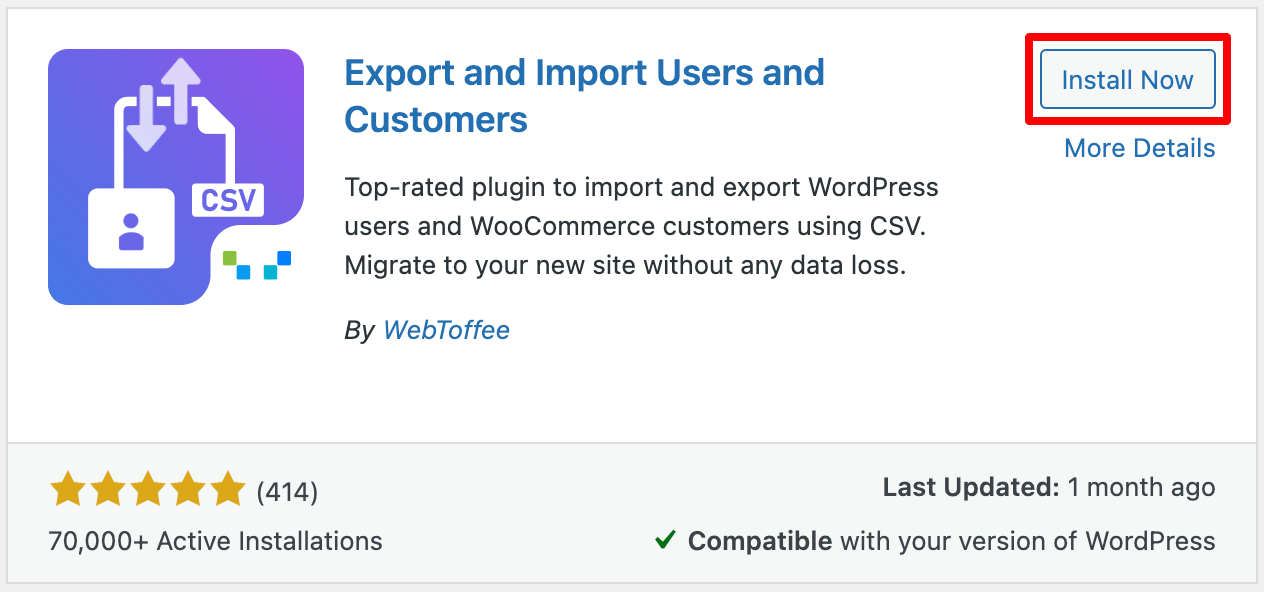
- Search for the WordPress User Import Export plugin by WebToffee.
- Once you find the plugin, click Install Now and then Activate the plugin.
Step 2: Select User as Post Type to Export
After installing the plugin,
- Go to WebToffee Import Export (Basic) and select Export.
- Select User/Customer as the post type to export from the dropdown.
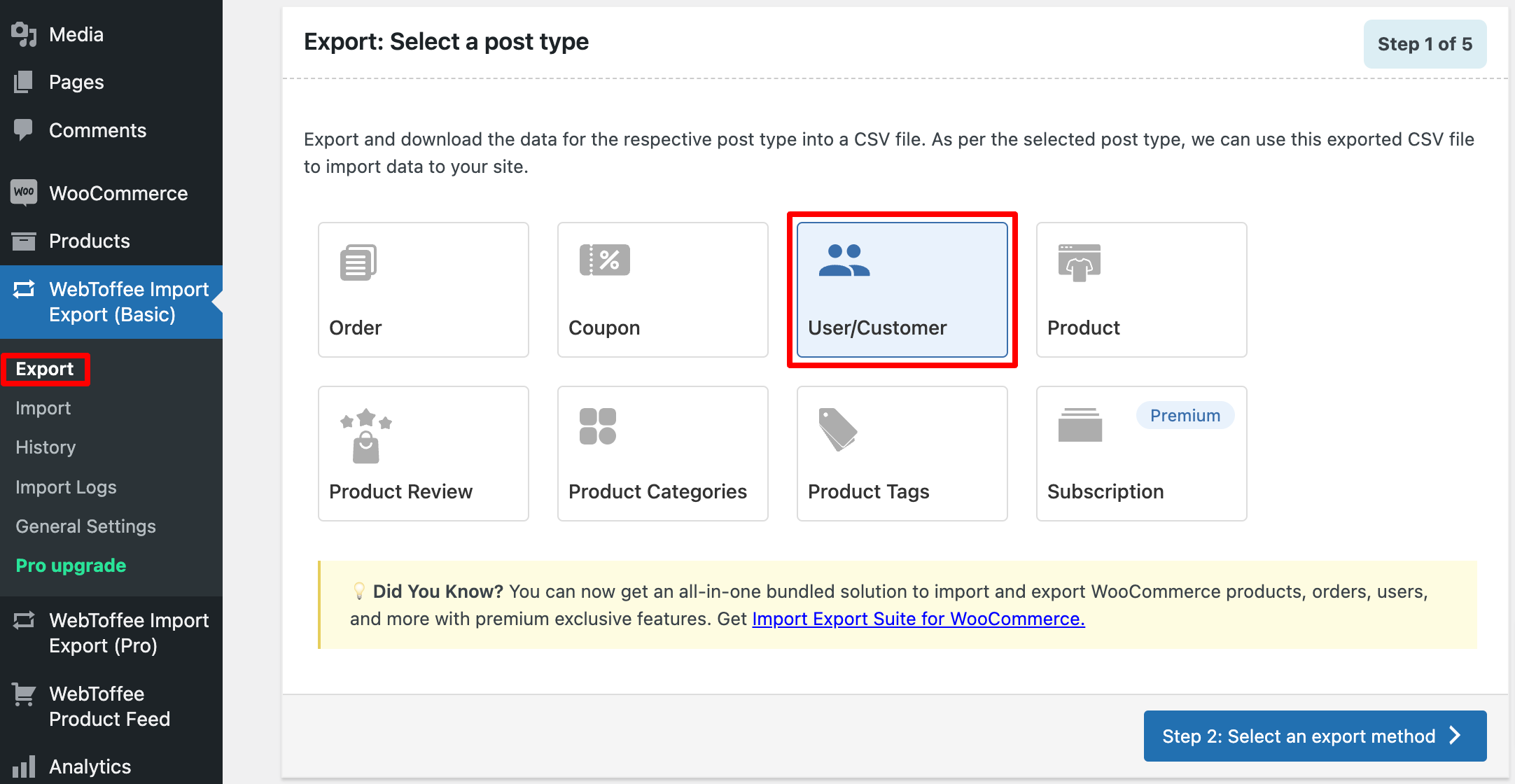
Then, proceed to the next step.
Step 3: Select Quick Export Method
Here, you have different methods to export data. You can choose either the Quick export method or the Advanced export method.
If you don’t want to choose any filters or advanced options, you can proceed with the Quick export.
- Select the Quick export option and click the Export button to export the user data with passwords.

Once the export process is complete, click the Download file button to download the CSV file containing the user data.
Step 4: Verify Exported Passwords in the CSV
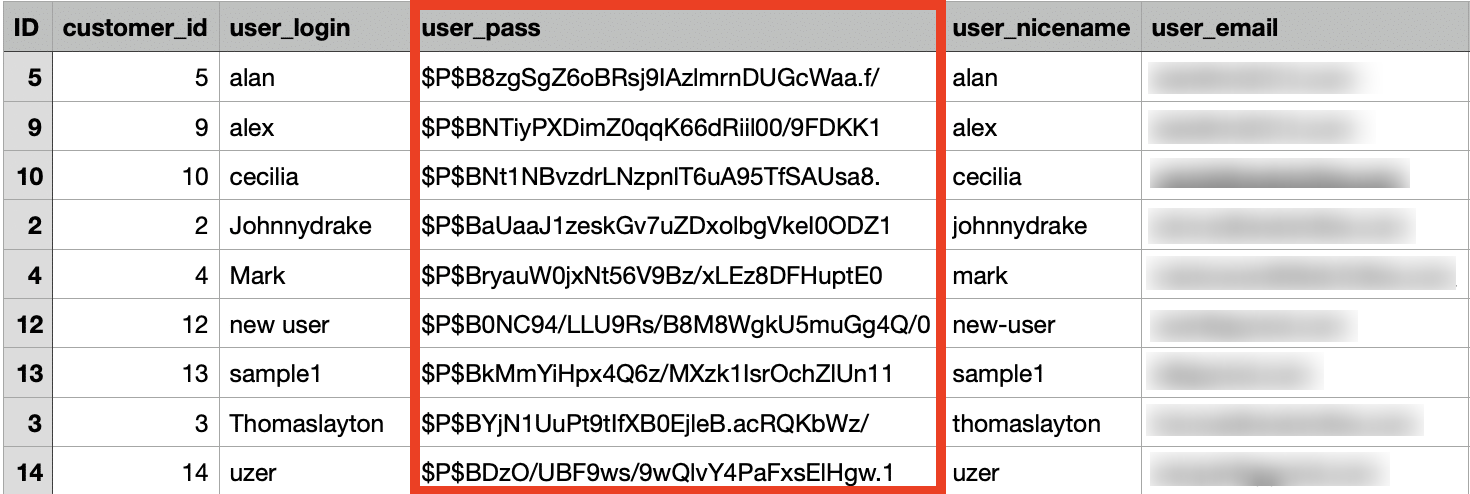
Open the downloaded CSV file in a plain-text editor such as Notepad or any other tool that won’t try to auto-format the contents. Once the file is open, locate the user_pass column. Each entry in this column should contain a hashed password, typically a long string
As you can see, user passwords are kept in a hashed format. This means the original passwords are transformed into a scrambled, unreadable string of characters through a cryptographic hashing function. This also means the export was successful and your users’ login credentials are preserved exactly as WordPress expects.
By keeping passwords in their hashed format during migration, you preserve the integrity of user data and ensure a secure authentication system.
Now, you need to import the file to your second website. Let’s examine how to do this.
Now that you’ve verified your export file and confirmed that all hashed passwords are intact, you’re ready to import the users into the new WordPress site. The key here is to ensure that the import tool preserves the original password hashes exactly as they appear in the CSV, so users can continue logging in without interruption.
Step 1: Install & Activate the WordPress User Import Plugin on New Site
On your destination WordPress installation, install and activate the same plugin you used for the export – the WordPress Users Import Export plugin.
From your WordPress dashboard,
- Go to the Import page of the WebToffee User Import Export plugin.
- Select User/Customer as the post type to import and proceed to the next step.

Step 2: Select Quick Import Method
- Select Quick import as the import method and upload the CSV file you downloaded earlier.
You can directly import the user data from here or click on the Advanced options to view the advanced import options. Let’s proceed with the Advanced options.
Note: WebToffee’s User Import Export plugin can handle both plain text and WordPress hashed passwords in the same import file, automatically identifying and securely processing each type during migration.
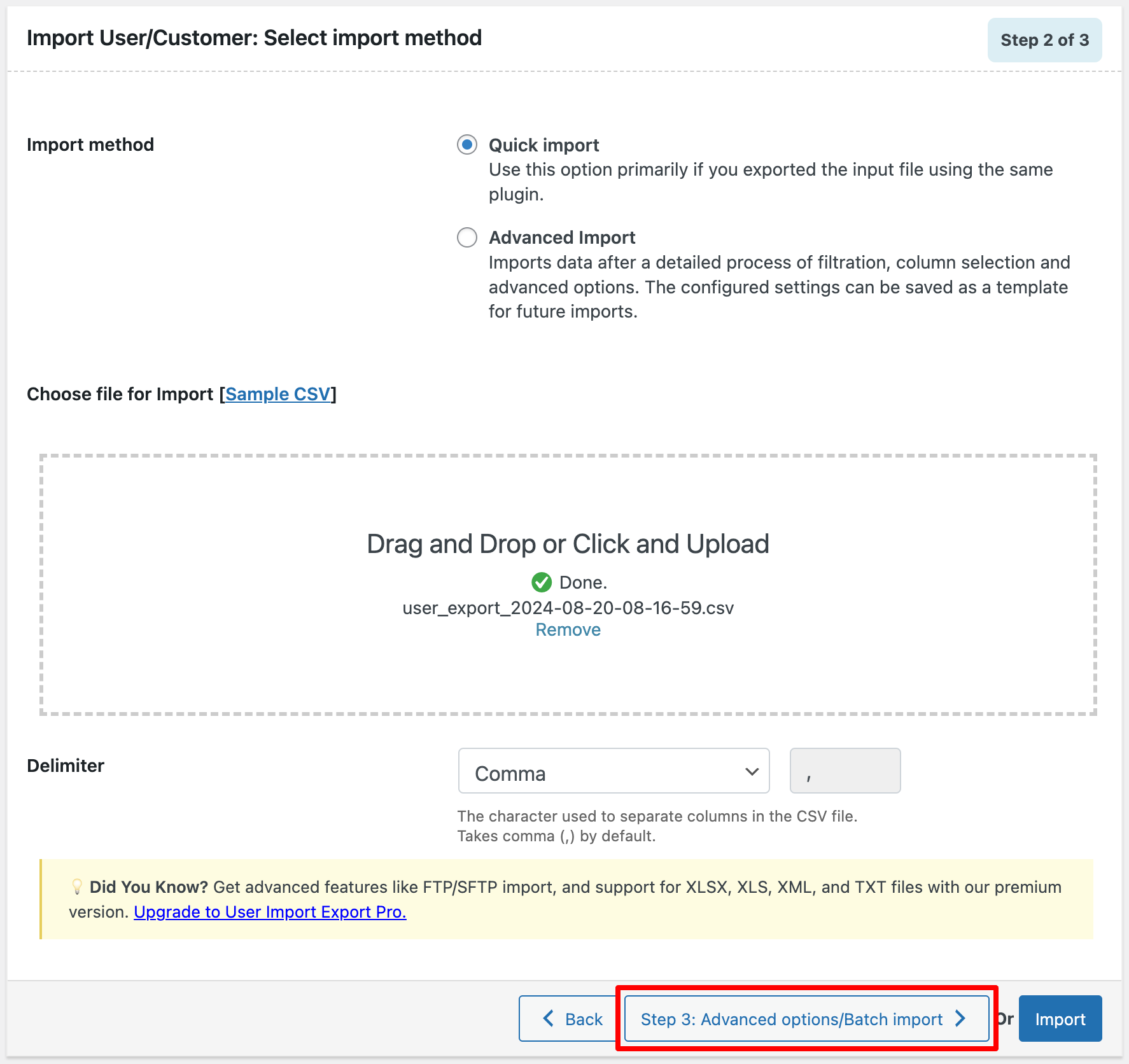
Step 3: Configure Advanced Import Options
- If the user already exists in your store, choose to Update the user data.
- Then, click on Import to initiate the import process.
The plugin will process the CSV file line by line and create or update users on your new site. This may take a few seconds to several minutes depending on how many users you’re importing.

Once the user data has been successfully imported into your new WordPress site, the plugin will generate a detailed log report summarizing the entire import process. This report lets you review which users were added or updated, identify any skipped entries, and confirm that all fields, including password hashes were processed correctly.
It’s a helpful way to verify that the migration went smoothly and that no user data was missed or corrupted.

If the import completes without errors, you can be confident that the users’ hashed passwords have been transferred securely. Because the plugin preserves the original password hashes exactly as they were, users will be able to log in normally on the new site without needing to reset their passwords.
This ensures a seamless transition for your users and maintains full security throughout the migration process.
Step 4: Verify the Imported Users
After the import process finishes, it’s important to double-check that everything was transferred accurately.
- Start by going to Users > All Users in your WordPress dashboard. Check that every user from your export file appears in the list.
- Next, click into a few sample user profiles, Check the correct user role (Subscriber, Customer, Administrator, etc.), that their email addresses are intact, and that any important metadata such as WooCommerce billing or shipping information has carried over properly.
- Test a user login: For extra reassurance, it’s a good idea to test the login process using one of the migrated accounts. Choose a normal user (not an admin), log out of your site, and try signing in with their existing username and password.
If the login succeeds, it means the hashed password was imported correctly and WordPress accepted it without requiring a reset.
Also Read: How to Import Users to WordPress Quickly
One of the most common issues during user migration is that imported users are unable to log in with their existing passwords. This is a critical pain point and often stems from how password data is handled during export and import.
Here are the most likely causes and how to fix them:
1. Users Can’t Log In After Migration
Passwords were not retained during import
- The option to retain existing (hashed) passwords may not have been enabled
- As a result, WordPress generates new passwords or invalidates the old ones
How to fix:
- Re-run the import with the correct option enabled
- Ensure the user_pass field is included and mapped properly
- Verify that password retention settings are turned on
2. Passwords Work on Source Site but Not on Destination
Hashed password handling was skipped or misconfigured
- The import process may not have preserved the original password hashes
- In some cases, the plugin setting to treat passwords as already hashed was not selected
How to fix:
- Enable the option to import passwords as hashed values
- Avoid modifying or reformatting the user_pass field in the CSV
- Double-check field mapping during import
3. Imported Plain Text Passwords Don’t Work
Passwords came from a non-WordPress system
- WordPress uses its own hashing method
- Plain text passwords (or hashes from other systems) are automatically rehashed or rejected, making them unusable
How to fix:
- Alternatively, use a password reset email flow post-import
- Ask users to reset their passwords after migration
Migrating user data, especially passwords, requires extra care to keep your website and its users safe. Here are the key security practices you should follow during any WordPress user migration.
1. Never Export Plain-Text Passwords
WordPress stores passwords as hashed, encrypted strings for a reason: plain-text passwords are extremely unsafe. Make sure your export tool preserves hashed passwords exactly as they are and never attempts to decode or display them in plain text.
If a plugin ever shows actual passwords, treat it as a major security red flag and avoid it immediately.
2. Transfer Migration Files Securely (Use SFTP or Encrypted Backups)
Migration files contain sensitive user data, so always use secure transfer methods. Instead of regular FTP, which is unencrypted, use SFTP or FTPS, which encrypt the connection and protect your files from interception. If you’re transferring full site backups, choose a backup tool that supports encrypted archives to keep your data safe in transit.
3. Delete Migration Files After Import
Once the import is complete and you’ve verified everything, delete the CSV/XML files from your server and local machine. These files contain sensitive information (including hashed passwords and user emails), and leaving them on your server creates unnecessary risk.
Clearing temporary plugin folders and trash bins is also a good practice.
4. Maintain GDPR and Privacy Compliance
If you’re dealing with user data from the EU, UK, or other regulated regions, ensure your migration process follows privacy laws like GDPR or CCPA. This may include:
- Handling user data only for legitimate purposes
- Securing data transfers
- Deleting exported files when no longer needed
- Avoiding unnecessary data storage
- Informing users only if your policies require it
Compliance helps you avoid legal issues and protects your brand’s reputation.
5. Use Maintenance Mode During Migration
To avoid data conflicts and ensure a clean migration, put your site in maintenance mode while importing users. This prevents users from updating their profiles or creating new accounts mid-migration, which could result in missing or overwritten data.
A simple maintenance mode plugin ensures your site is temporarily inaccessible to visitors but still fully accessible to administrators.
Before we wrap up, it’s worth noting that the Import Export WordPress Users plugin also offers a premium version with more powerful capabilities. Let’s take a closer look at what the upgraded version can do.

The WordPress Users & WooCommerce Customers Import Export plugin is a reliable solution for facilitating easy and quick transfer of user and customer data between different sites. The plugin enables you to import and export WordPress users and WooCommerce customers effortlessly from one store to another, saving you the hassle of manually transferring the data.
It is a highly preferred tool to import user data along with their hashed passwords, enabling you to maintain password encryption. The premium version of the plugin provides several additional features besides those offered in the free version, such as:
- Support for multiple file formats – CSV, XML, and Excel (XLS, XLSX).
- Extensive filtering options for exporting customers and users.
- Bulk update existing customers/users data.
- Import and export customers and users to/from a remote server via FTP.
- Schedule one-time or periodic import-export actions of users.
Yes. You can migrate users without resetting passwords by exporting and importing the hashed passwords (user_pass field) correctly. As long as the hash remains unchanged, users can log in normally on the new site.
No. WordPress does not export plain-text passwords. Instead, it exports hashed values, which appear as long, encrypted strings and cannot be reversed into the original password.
Not directly. Most non-WordPress platforms use different hashing methods, so passwords won’t work in WordPress. Users will usually need to reset their passwords after migration unless the hashes are compatible.
WordPress user passwords are stored in the wp_users table, specifically in the user_pass column. However, WordPress does not store the actual password in plain text. It stores a hashed version of the password.
When a user logs in, WordPress checks the entered password against the stored hash. If the exported and imported hash remains unchanged, the same password will continue to work on the destination site.
Yes, WooCommerce customers can be migrated with their existing passwords. WooCommerce customers are WordPress users with the customer role, so their login details are stored in the same WordPress user tables.
To migrate WooCommerce customers properly, export both the core WordPress user data and WooCommerce customer metadata, such as billing and shipping details. As long as the hashed password is preserved during migration, customers can log in to the new store with their existing passwords and access their accounts without resetting them.
No, users do not need to reset their passwords if the migration is done correctly. As long as the original hashed password values are exported and imported without being changed, users can continue logging in with their existing passwords.
Users may need to reset passwords only if the password field is not exported, is mapped incorrectly, or is treated as a new plain-text password during import.
We hope this article has provided a clear understanding of how to securely import and export WordPress users, including their hashed passwords, using the WebToffee plugin. Migrating user data can be complicated, but with the right tools, you can ensure it’s done effectively and safely.
If you have any questions or need additional help, feel free to leave a comment below.
Also Read: How to Bulk Update WordPress Users?

Got any query? Please leave a comment or reach out to our support
Got any query? Please leave a comment or reach out to our support

Subcribe to our newsletter





Comments (6)
Kevin Doussaint
June 19, 2025
Hi, like Geert I tried several times but hashed password are not working and all users have to renew the password
Hema
July 11, 2025
Hello Kevin,
Thanks for reaching out. This issue is addressed in the latest release. Kindly update to the latest version resolve this.
Geert Plovie
April 17, 2024
Hi,
I’ve done the user migration as explained above but it looks that all users have to renew their passwords. They can not login with their ‘old’ details.
I read in your explanation the following:
-> At first, you have to export user data with hashed passwords and then import it with the original password.
But the tutorial says to import the export file with the hashed passwords.
Should it work with hashed passwords imported?
Thanks
Hema
May 15, 2024
Hello Geert,
Thanks for reaching out. Migrating users with hashed password is now automated and is taken care of by the plugin itself. This feature is no longer available in the plugin. The article will soon be updated to reflect the changes.
VivaWeb
June 19, 2025
To give you more information : users have to type the hashed password, it is like the hashed password is not decrypted and putted a it is
Hema
July 11, 2025
Hello VivaWeb,
Thanks for reaching out. This issue is addressed in the latest release. Kindly update to the latest version to resolve this.