Share:


Table of Contents
When migrating your WooCommerce store to a new platform, customer data is one component that cannot be overlooked. Every interaction a customer has with your site leaves behind a trail of data, providing a glimpse into their behavior, preferences, and purchase history. However, learning how to export WooCommerce customers and import them to another store effectively can be challenging, as the process often comes with its own set of hurdles.
The process demands cautious handling to ensure security, accuracy, and compliance with relevant data privacy laws. Other aspects, like data quality issues, platform compatibility, and technical limitations, can complicate the process.
This is where specialized data migration plugins come into play. These tools can help you successfully migrate customer data from your WooCommerce store while maintaining data integrity, security, and compliance.
In this article, we will guide you through the specific process of transferring WooCommerce customers from one store to another. For this, we will use the free version of the WooCommerce Customer Import Export plugin by WebToffee.
Key Takeaways:
- Migrating customer data is crucial when scaling up your business and transitioning to a new website.
- Specialized plugins, such as WebToffee’s WooCommerce Customer Import Export, ensure a secure, compliant, and effortless transfer of customer data from one store to another.
- The free version of the plugin provides an easy and reliable way to transfer WooCommerce customer data between stores.
Why Customer Data Transfer Matters
When you’re moving your WooCommerce store to a new platform or domain, it’s easy to focus on products and design, but customer data is just as important. Here’s why:
1. It’s More Than Just Names and Emails
Your customer data holds valuable insights: purchase history, saved addresses, preferences, and account activity. This isn’t just info—it’s the foundation of how your business understands and serves its customers. Losing this data would mean starting from scratch.
2. It Keeps Your Customers Happy
Imagine your regular customer logs into your new store and finds their order history gone, or their account doesn’t exist. Frustrating, right? Preserving customer data ensures a seamless experience—no password resets, no re-entering shipping info, no confusion. Everything just works.
3. It Supports Your Business Continuity
Data like past orders, customer types (new vs. repeat), and lifetime value help you plan marketing and support strategies. Without it, you lose valuable context and insights that drive smart business decisions.
4. Manual Migration Can Be Risky
Sure, you could try copying and pasting or uploading a CSV manually, but it’s easy to make mistakes—duplicate entries, missing fields, or worse, security mishaps. A poorly executed transfer can break logins, corrupt records, or even violate privacy laws if not handled securely.

This is one of the most advanced import-export plugins for WordPress websites for transferring WordPress users and WooCommerce customer data. The plugin lets you easily migrate WordPress users and WooCommerce customers from one website to another.
Key Features
- Custom Data Export – Export customer data based on registration date, user role, or by email.
- Bulk Editing – Bulk edit WordPress user or WooCommerce customer data during import.
- Advanced Filtering – Utilize powerful filters for the custom export of user data.
- Secure Password Migration – You can securely migrate user passwords and other data.
Free vs. Premium
Free Version: Import-export of customer data is supported for CSV files only.
Premium Version:
- Supports multiple file formats like CSV, XML, Excel, and TSV.
- Schedule importing and exporting user data using Server Cron.
- Offers advanced filtering options.
- Multiple methods for importing and exporting data.
Quick Info: WebToffee’s Users and Customers Import Export plugin boasts an incredible 5/5 rating on wordpress, powering over 70,000 active customers.
Now, let’s focus on transferring WooCommerce customers from one store to another using the free plugin.
As you may know, there are two processes involved when transferring WooCommerce customers from one store to another.
One is to export WooCommerce customers from the source store, and the second is to import the data into the new store. If you use the same plugin for both functions, things will be a lot easier.
Export WooCommerce Customers Data
Let’s export WooCommerce customer list from the old store (source). Before we begin, ensure you have installed and activated the user import-export plugin on the source and destination store sites.
Refer to this documentation for more information on installing the plugin.
Step 1: Select User/Customer To Export
- Navigate to WebToffe Import Export (Basic) > Export
- Select User/Customer as the post type to export

Step 2: Select the Advanced Export Option
- You can choose either Quick export or Advanced export options for exporting WooCommerce customer data.
The quick export option lets you export all the basic fields, and the advanced export options will give you more control over the export data with some advanced filtering options.
Let’s choose Advanced export here. Then, click to proceed to the third step.

Step 3: Filter User Data for Export
The third step is to filter data for the export process. There are different options to filter data for transferring WooCommerce customers.
Let’s see the options in detail.
- Total number of users to export: Choose the total number of users or customers you want to export.
- Skip first n users: Enter the number of users you want to skip. Entering five will skip the first five users from exporting.
- User email: Add an email address to export the user data of that specific user. You can add multiple email addresses.
- User role: Choose a user role to export user data for that specific role.
- Registered date from and to: Select a from date or to date to export user data based on the registered date.
- Sort columns: Select a field to sort columns accordingly.
- Sort by: Select how you want to sort, ascending or descending columns.
After choosing the advanced filtering options, proceed to the fourth step.

Step 4: Reorder Columns for Export Data
This step allows you to reorder columns in the export file. Use the drag-and-drop icon near the column name to reorder or rearrange the columns. You can also change the column name if you wish.
After making the necessary changes, proceed to the fifth and final step for exporting WooCommerce customer data.

Step 5: Export User Data
Here are some advanced options for exporting WooCommerce customer data.
- Enable the Export guest users checkbox to export guest users on your WooCommerce store.
- Set the export batch count for exporting WooCommerce customer data in batches. If the export fails due to timeout, reduce this number and try again.
- Select a delimiter for separating columns in the CSV file. By default, ‘comma’ will be selected as the delimiter.
You can save these settings as a template for future exports.
- Click the Save template button and enter a template name to save these settings.
- Now, click on the Export button to begin the export process.

After completing the process, a prompt message is displayed to download the exported file.
- Click the Download file to save the exported customer data to your local storage.

Here is a preview of the CSV file exported.

Now that you have exported customers from your source site, let’s see how we can import them to our new website.
Import WooCommerce Customer Data
Follow the steps below to import customer data to your new store site (destination).
Make sure you have installed the plugin on the destination site.
Step 1: Select Import User/Customers
- Go to WebToffe Import Export (Basic) > Import and select User/Customer as the post type to import.

Proceed to the next step to choose an import method.
Step 2: Choose an Import Method
Here, you can choose an import method for importing customer data to your website.
- If you have exported the customer data using the same plugin, you can go for Quick import.
- You can choose Advanced import if you want filtering options when importing customer data to your new website.
Let’s go with Advanced import.
- After choosing the import method, upload the customer data file you exported from your old website.
- Choose the delimiter accordingly and proceed to the next step.

Step 3: Map Import Columns
In this step, you can edit the columns and fields during import.
- You can change the column name by clicking on the pen icon. Disable any column you don’t want to import.
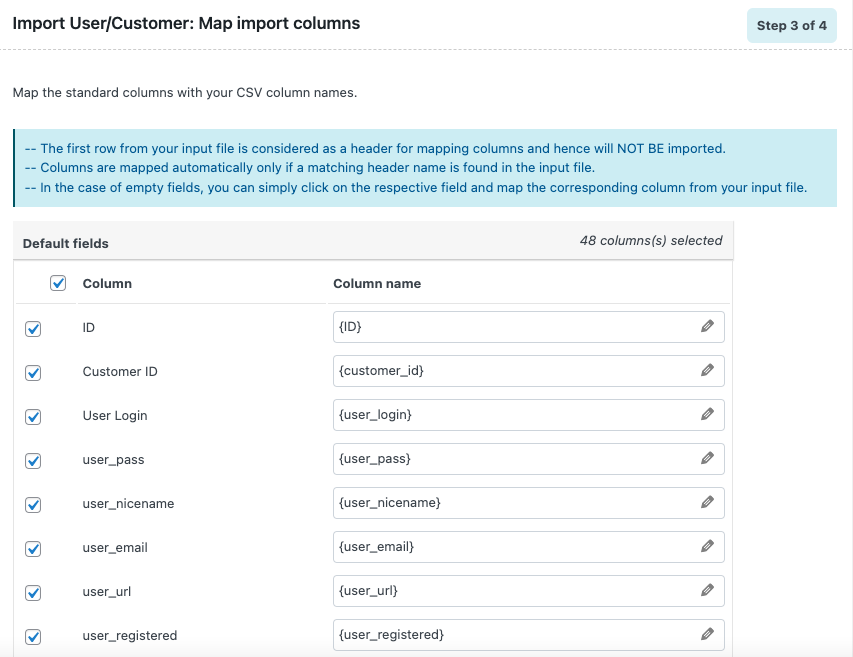
After making the necessary changes, proceed to the final step.
Step 4: Import Users to WordPress
Here, you can see some advanced options for importing WooCommerce customer data to your new store site.
- Choose whether to skip or update if the user already exists.
- Select whether to retain user passwords by enabling or disabling password retention.
- You can also set the batch count for importing user data.
- Click on the Import button to initiate the import process.

After completing the import process, you can view an import progress log with the number of successful imports.

That’s it. You have successfully transferred your WooCommerce customers to your new store.
Best Practices for a Smooth Transfer
Moving your customer data from one WooCommerce store to another doesn’t have to be stressful, especially if you follow a few best practices. Here’s what we recommend to make the process smooth and safe:
1. Always Back Up Both Stores First
Before doing anything, make sure you have a full backup of both your source and destination stores. This includes your files and database. Think of it as your safety net—if something goes wrong, you can easily restore everything to normal.
2. Test on a Staging Site
Instead of making changes directly on your live site, try everything on a staging (test) version of your store first. This lets you test the migration steps in a safe space without affecting your real customers or orders. Once you’re happy with the results, you can confidently apply the same steps to your live site.
3. Let Your Customers Know (If Needed)
If the migration could impact how customers log in, access their accounts, or view their order history, it’s a good idea to notify them ahead of time. A quick heads-up email or banner on your site can go a long way in maintaining trust and avoiding confusion.
4. Handle Sensitive Data Carefully
Customer data, especially passwords, emails, and personal info, must be protected. Use secure tools and follow data privacy best practices to ensure that everything is handled responsibly. If your migration tool supports encryption or secure file transfers, be sure to enable those features.
Conclusion
The WordPress user import export plugin discussed in this article has a premium version with advanced features like multiple scheduling options for importing and exporting, and support for file formats like XML, TSV, and Excel.
If you’re planning to migrate your entire WooCommerce store to a new website, we recommend using our premium WooCommerce Import Export Suite. With this tool, you can seamlessly transfer all types of WooCommerce data. Whether you need to export WooCommerce customers, move products, orders, coupons, or other store information, the suite makes it easy to export data from your old site and import it into your new one. This ensures a smooth and hassle-free migration.
Hopefully, this article has helped you transfer WooCommerce customers from one store to another. If you find this to be helpful, leave us a comment.


Subcribe to our newsletter