


Share:


Table of Contents
Exporting WooCommerce customers to CSV is a vital process for store owners needing to manage customer data efficiently. This capability is crucial for tasks such as migrating to new platforms, syncing with CRM tools, or analyzing customer behavior, and it can be accomplished using both built-in options and specialized plugins for greater flexibility and control.
- The built-in WooCommerce customer export feature allows for quick downloads of basic customer data but lacks advanced filtering and customization options.
- Specialized plugins, like WebToffee's Customers Import Export, provide enhanced functionality, enabling users to filter, select specific fields, and automate exports.
- Customer data that can be exported includes personal information, billing and shipping details, order history, and custom fields added by plugins.
- Best practices for exporting customer data include adhering to GDPR regulations, securely storing files, and regularly backing up databases.
- The premium version of customer export plugins offers additional features like multiple file formats, advanced filtering, and automated scheduling for exports.
- Testing imports and exports before full migrations is essential to ensure data integrity and compatibility with new systems.
Exporting customers from a WooCommerce store is often required for various reasons. This article will explore these scenarios and explain how to efficiently handle them using a simple WooCommerce export customers process with minimal effort.
Need to export WooCommerce customers for a specific task? You may be moving your store to a new platform, migrating customers to another WooCommerce site, syncing customer lists with an email or CRM tool, or analyzing customer data for segmentation and reporting.
Depending on the task, a basic customer list may not be enough. You might need names and email addresses, billing and shipping details, order summary data, guest customer records, user roles, custom fields, or metadata added by other plugins.
WooCommerce does offer a basic customer export option, which is useful for quick CSV downloads. However, it doesn’t provide plugin-level control for advanced filtering, custom field selection, reusable templates, or automated exports.
In this guide, we’ll walk through the available methods to export WooCommerce customers, from the built-in option to more flexible plugin-based exports, so you can choose the right approach for your store.
WooCommerce gives store owners a quick way to download basic customer data directly from the Customers section. This is the simplest method if you only need a general customer list for basic reporting, manual review, or a one-time backup.
To export customers using the default WooCommerce option:
Step 1: Navigate to the Customers Section
- From your WordPress dashboard, go to WooCommerce > Customers.
This opens the Analytics-powered customer list, which shows all registered customers who have placed at least one order on your store.

The customer list displays the following columns by default:
- Name and email address
- Date of last order
- Total number of orders
- Total amount spent
- Average order value
- Country
You can adjust which columns are visible using the column toggle icon at the top right of the table. Note that toggling columns on or off here changes what you see on screen, but not necessarily what appears in the exported file, which always includes its own fixed set of fields regardless of your column view.
Step 2: Apply Filters to Narrow Export
What you see on screen is what gets exported, so filtering before you download is important. WooCommerce provides a few ways to narrow the list:
- Search bar: Type a customer name or email address to look up specific customers. Useful for verifying individual records but not for bulk filtering.

- Advanced filters: Click the Advanced filters option from the Show dropdown to access more granular controls.

Step 3: Export the CSV
Once your filters and sorting are set, click the Download button at the top right of the Customers screen. WooCommerce will generate a CSV file and download it to your computer.

The exported file will include: customer name, email address, username, registration date, last order date, number of orders, total spend, average order value, and country. This set of fields is fixed; you cannot add or remove columns from the native export.
Limitations of the Built-in WooCommerce Customer Export
The built-in WooCommerce customer export is useful for quick downloads, but it offers limited control. You cannot select specific fields, filter customers by segment, export custom customer meta, schedule automated exports, or customize the export format for advanced use cases.
This means it may not be suitable if you need targeted customer lists, custom checkout fields, recurring reports, or structured files for third-party tools.
If you need more than a basic customer list, such as filtered segments, selected fields, custom meta, or automation, use the plugin method below.
To export WooCommerce customers, install the WebToffee WordPress Users & WooCommerce Customers Import Export plugin, go to WebToffee Import Export > Export, select User/Customer, choose Advanced Export, filter the user role as Customer, map the required columns, and click Export to download the customer CSV file.
Using a dedicated customer export plugin, such as the WebToffee Customer Import Export Plugin, is the most convenient, efficient, and scalable way to export customer data from WooCommerce and bulk update WordPress users. These plugins offer advanced filtering, support for custom fields, and flexible export formats, making them ideal for stores of all sizes.
What Customer Data Can You Export from WooCommerce?
When exporting customers from WooCommerce, you can extract a wide range of data depending on your store setup and the export method used. This allows you to manage customer relationships, analyze purchasing behavior, and integrate with external tools like CRMs or email marketing platforms.
Typically, you can export:
| Customer data type | Details you can export |
|---|---|
| Personal information | Customer name, email address, phone number, and full address details |
| Billing and shipping details | Separate billing and delivery addresses, company name, and contact information |
| Order history | Total orders, purchase frequency, and lifetime value via plugins or reports |
| Customer roles | User roles such as Customer, Subscriber, or Wholesale user |
| Guest customer data | Information from non-registered users who placed orders |
| Custom fields and metadata | Additional data added via plugins, such as VAT number or customer preferences |
Below is a step-by-step guide on how to export customers using such a plugin.
Step 1: Install & Activate WooCommerce Customers Import Export Plugin
- From your WordPress dashboard, go to Plugins > Add New.
- Search for ‘WordPress users and WooCommerce customers import export’ plugin by WebToffee.
- Install and Activate the plugin.

Step 2: Select User/Customer as Post Type for Export
After the plugin activation,
- Go to the dashboard and navigate to WebToffee Import Export > Export.
- Select User/Customer as the post type.

Step 3: Select Advanced Export Option for Customers
Here, select Advanced Export. With Advanced Export, you can:
- Apply detailed filters to narrow down your customer list.
- Choose specific columns and data fields to include in the file.
- Add or map custom fields.
- Configure additional export preferences, such as file format, column order, and data formatting.
Once done, proceed to the next step.

Step 4: Select ‘Customer’ from User Roles
This step allows you to narrow down your export to only those users who are actual customers.
- In the User Role field, select Customer from the drop-down.
By doing this, you ensure that only customer data, such as their names, email addresses, and order details, is included in the export, excluding other user roles like administrators or shop managers.
You can also export customers based on their email and registration date.

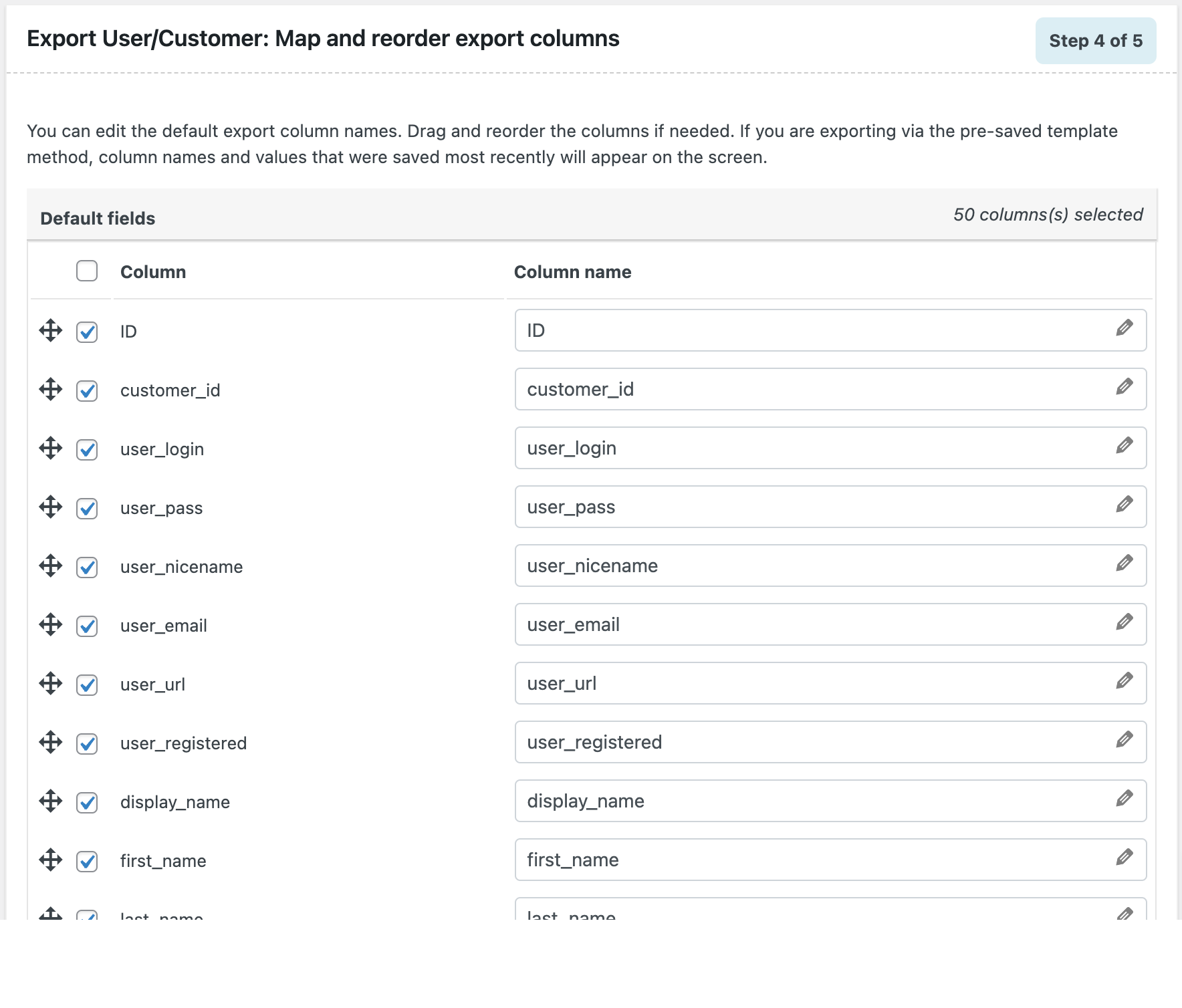
Step 5: Map & Reorder Export Columns
In this section, you can edit the column names if needed.
The drop-down menu allows you to customize the headers for your export CSV file and even rename them. Additionally, you can rearrange the columns by moving them to adjust the order.
Step 6: Export Customers
In this final step, you can configure a few options.
- In Export guest users, you can mark Enable to include guest users (customers who checked out without creating an account) in your store, along with the export.
- Specify an export file name. This helps you easily identify and organize the file for future reference.
- Next, you can set the number of records the server will process in each batch during the set timeout period.
- Click on the Delimiter drop-down and choose a separator (comma, semicolon, tab, or space) to differentiate columns in the CSV file.
- After reviewing your settings, click Export to generate and download your customer data file.
Note: If your export fails due to a time-out, you can lower this number and try again.

The plugin will generate and download your customer data in a CSV file. You’ll now have a neatly organized list of all your customers, including their details and any additional information you selected — ready for use.
Whether you want to analyze purchasing patterns, import the data into another system, or launch targeted marketing campaigns, your exported file provides a convenient and efficient way to manage customer information outside your WooCommerce store.
The following is a screenshot of an exported CSV file generated by the plugin.

Likewise, the plugin lets you import customers/users as well. You can simply import users by uploading the CSV file containing all the user/customer data that needs to be imported.
Best Practices for Exporting Customer Data
Exporting customer data requires careful handling to ensure accuracy, security, and compliance. Here are some essential best practices to follow:
1. Follow GDPR and Privacy Regulations
Always ensure you export, store, and use customer information in accordance with data protection laws, such as GDPR. Only collect and process data that you have permission to use, and inform customers how their data will be handled.
2. Use Secure File Storage
Once exported, customer data should be stored in a secure location. Use encrypted folders, password-protected storage, or trusted cloud services to prevent unauthorized access.
3. Export Only the Fields You Need
Avoid exporting unnecessary information. Limiting data to only what is required helps reduce security risks and keeps your workflow clean and efficient.
4. Regularly Back Up Your Customer Database
Maintain routine backups of your customer data to prevent loss due to system crashes, server issues, or accidental deletion. Regular backups ensure you always have access to the most up-to-date information.
5. Test Imports/Exports Before Migrating to Another System
If you’re moving customer data to a CRM, email marketing tool, or new store platform, always run a test export and import first. This helps identify formatting issues, field mismatches, or missing data before you perform the full migration.
With these best practices in place, you may find that advanced import and export capabilities can further streamline your workflow. The premium version of the plugin offers powerful enhancements to help you do just that. Read on to learn more.
Also Read: How to Import WordPress Users from CSV?

The WooCommerce Customers Import Export plugin discussed in this article has a premium version for migrating user and customer data. It features several advanced options, such as:
- Supports Multiple File Formats: Export customer data in XML, TSV, or Excel (XLS/XLSX) for seamless integration with other tools, easier analysis, and greater flexibility beyond standard CSV files.
- Advanced Filtering Options: Filter customers by role, registration date, location, order count, or custom fields to export only the data you need, saving time and improving accuracy.
- Customer Metadata Export: Include additional details such as billing information, shipping addresses, and custom fields to build a complete customer profile and gain better insights.
- Automated Scheduling via FTP/SFTP: Set up automatic exports to run at regular intervals and send files to FTP/SFTP. Keep your data up to date without manual effort.
- Export Guest Customers: Easily export guest customers along with registered users to ensure no valuable data is left behind.
The premium version of the WooCommerce Customers Import Export plugin offers advanced features that streamline the migration of user and customer data, making it more efficient, customizable, and easy to manage.
Whether managing large imports, automating exports, or working with specific customer information, this plugin provides all the necessary tools for a smooth migration experience.
After you have installed the plugin,
• Go to WebToffee Import Export > Export and select User/Customer as the post type.
• Choose Advanced Export to access filters, column selection, custom field mapping, and file formatting options.
• Set User Role = Customer to export only actual customers. You can also filter by email or registration date.
• Rename column headers or rearrange the order as needed for the CSV file.
• Optionally include guest users, name your export file, set batch count, choose a delimiter, and click Export to download your customer CSV file.
WordPress users are people who have registered on your WordPress site. Their details are stored in the wp_users table, and they may have roles such as Administrator, Editor, Subscriber, or Customer. However, being a WordPress user does not always mean they have placed an order.
WooCommerce customers are people who have purchase-related data in your store. They may be registered users with the Customer role, or they may be guest customers who placed an order without creating an account.
The key difference is that WordPress users are based on account registration, while WooCommerce customers are based on purchase activity. When guest checkout is enabled, customer details are stored in the order records rather than the WordPress users table.
The free version supports basic export/import features suitable for small stores, while the premium version adds advanced filtering, automation, multiple file formats (XML, Excel), and metadata exports, ideal for larger stores and detailed data management.
Yes. Most customer export plugins, including WebToffee’s WooCommerce Customers Import Export plugin, allow you to select specific columns or fields you want to export. You can exclude unnecessary details and download only the data you need.
If your export fails due to server limits or timeouts, you can reduce the batch size or adjust the timeout duration in the plugin settings. This ensures the export completes successfully without overloading your server.
Yes. Both the free and premium versions of the plugin let you include guest customers in your exports, capturing data from users who checked out as guests.
To export WooCommerce customers to Google Sheets:
– Export customers as a CSV file using the WebToffee export method.
– Go to Google Sheets > File > Import.
– Upload the exported CSV file.
– Choose how you want the data inserted and click Import.
Your WooCommerce customer data will now be available in Google Sheets for sorting, filtering, and analysis.
Customer data is a crucial asset for your store. Sometimes, exporting this data becomes necessary – for backup, migrating to a new site, or for analysis and auditing.
Plugins like WooCommerce Customers Import Export simplify the process, offering various features that make exporting your customer data secure and efficient.
We hope this article has made exporting customer lists from WooCommerce clear and straightforward. If you have any questions or need further clarification, please comment below, and we will be happy to assist you!

Got any query? Please leave a comment or reach out to our support
Got any query? Please leave a comment or reach out to our support

Subcribe to our newsletter





Comments (5)
Ryan
January 25, 2022
How can I get the last active, signup, orders, total spend, aov of customers?
Alan
February 2, 2022
Hi,
The signup, orders, and total spend data of the customers are not stored with the user details in the user table. Hence these data cannot be exported using the User export plugin.
To export the last active data of the user you can use the pro version of the plugin. The last active data will be exported to the meta:wc_last_active column.
Pelumi
January 14, 2022
How can I get the email and phone number of guest customers?
Alan
January 17, 2022
Hi,
The email and phone number will be exported to the billing_email and billing_phone columns. Please check those columns in the exported CSV.
Dave Evans
September 30, 2022
Hi, does this export the first line of the customer’s address ?