


Share:


Table of Contents
Thinking about a Magento to Shopify migration? Making the move can simplify store management, reduce costs, and give you access to powerful tools that help your business grow.
Running an online store is all about making life easier for you and your customers. Many store owners who began with Magento eventually seek out a platform that’s simpler to manage, more cost-effective, and has fewer technical headaches. That’s where Shopify comes into play. It’s user-friendly, reliable, and comes packed with tools that make scaling your business significantly easier.
However, transitioning from one platform to another isn’t just about swapping software; it’s about ensuring that your store data is transferred safely. Your products are the core of your business, and a smooth product import means no missing items, no broken links, and no frustrated customers. When done correctly, the transition feels seamless, and your store can keep selling without a hitch.
In this guide, we’ll walk you through the step-by-step process of importing your products from Magento to Shopify. You’ll learn how to prepare your data, export it from Magento, and import it into Shopify the right way. Let’s get started.
Key Takeaways:
- Shopify simplifies store management. It’s user-friendly, reliable, and designed to help you scale your business with less technical effort compared to Magento.
- Migrating correctly ensures that no products are missing, no broken links exist, and no disruptions occur, keeping your store running smoothly without issues.
- You can use Shopify’s built-in import tool for a quick start or the StoreRobo Import Export app for more control and flexibility.
Before diving into the migration process, it helps to understand what sets Magento and Shopify apart.
Magento

Magento, now known as Adobe Commerce, was acquired by Adobe and has evolved into a robust eCommerce platform for enterprises. At its heart, it’s open-source and offers a ton of customization options, but that flexibility can make things a bit complicated.
If you’re running a Magento/Adobe Commerce store, you’ll typically need some developer know-how, regular upkeep, and reliable hosting. While it’s an excellent fit for large companies with tech teams, it can feel a bit daunting and expensive for smaller businesses.
Shopify

Shopify, in contrast, is a fully hosted platform built for simplicity and growth. Everything from hosting and updates to security is handled for you. Its intuitive interface, drag-and-drop editor, and vast app ecosystem make it easy to launch and manage a store without technical skills.
For most growing businesses, Shopify strikes the right balance of ease, scalability, and affordability.
Magento (Adobe Commerce) vs Shopify: A Quick Comparison
| Feature / Aspect | Magento (Adobe Commerce) | Shopify |
|---|---|---|
| Ownership & Hosting | Self-hosted, requires server setup & maintenance | Fully hosted; Shopify handles hosting & updates |
| Ease of Use | Complex, often needs developer support | Beginner-friendly, no coding required |
| Customization | Highly flexible with full code access | Customizable through themes & apps, limited core code changes |
| Cost | Higher (hosting, dev team, extensions add up) | Transparent subscription pricing, predictable costs |
| Scalability | Great for enterprise-level needs | Scales easily with growing business plans |
| Support | Community-driven, limited direct support (unless an enterprise license) | 24/7 dedicated Shopify support |
| Security & Compliance | Store owner is responsible for patches and PCI compliance | PCI-compliant and security handled by Shopify |
| Ecosystem | Marketplace for extensions, many paid and dev-dependent | App Store with thousands of plug-and-play apps |
| Best For | Large enterprises with in-house tech teams | Small to medium businesses and fast-growing brands |
Shopify isn’t the only alternative worth weighing here. If what drew you to Magento in the first place was flexibility and control over your store’s code and data rather than pure ease of use WooCommerce might be a closer fit for your next platform. It’s worth comparing both before you commit; see our guide on migrating a Shopify store to WooCommerce to understand what that alternative path looks like.

For those of you running your store on Magento, you know it’s a powerful tool, but it often brings along a tough learning curve and continuous maintenance costs. This is why many store owners are opting for Shopify, as it delivers a more seamless and straightforward experience.
Let’s explore some of the main reasons for this shift:
1. Ease of Use and Lower Maintenance
Shopify is built for simplicity. You don’t need to be a coding expert or have a developer on hand to manage your store. The interface is easy to navigate, updates are automatic, and you can forget about hosting, patches, or server management.
This gives you the freedom to concentrate on sales and growth rather than getting bogged down by technical issues.
2. Cost-Effectiveness and Scalability
Magento can become expensive when you factor in hosting, development, and maintenance. Shopify, on the other hand, runs on a subscription model with transparent pricing. As your business grows, you can easily upgrade your plan or add new features without worrying about infrastructure or extra maintenance costs.
3. Rich Ecosystem of Apps and Integrations
Shopify’s App Store is brimming with thousands of apps and integrations designed to assist you with everything from marketing and SEO to shipping, inventory, accounting, and beyond.
If you’re aiming to link your store with social media, email marketing tools, or payment gateways, you’ll probably find an app that fits perfectly, helping you save both time and effort.
4. Strong Support and Security
With Shopify, you get round-the-clock customer support and a platform that’s secure and PCI-compliant right from the start. You won’t have to stress about handling security updates or compliance requirements on your own, which means you can relax knowing both you and your customers are protected.
Preparing for Magento to Shopify Migration
Before moving your products from Magento to Shopify, it’s important to prepare properly. A little planning at this stage can save you from big headaches later.
1. Back Up Your Magento Store Data
Always remember to start with a full backup of your Magento store. This step is crucial because it gives you a safe copy of your data, everything from products and customers to orders and settings, that you can easily restore if anything goes wrong during the migration.
Most hosting providers offer backup solutions, or you can utilize Magento’s handy export tools.
- Create a full backup of products, customers, orders, and settings.
- Save copies of images, themes, and custom files separately.
2. Review and Clean Your Product Data
Go through your product catalog carefully. Remove duplicate entries, correct errors, and make sure product details like SKUs, descriptions, and images are accurate. A clean dataset ensures a smoother migration and reduces the risk of issues in Shopify later.
- Remove duplicate products or SKUs.
- Fix errors in product names, descriptions, or images.
- Standardize data formats (e.g., prices, weights, dimensions).
3. Decide What Needs to Be Migrated
Think about what data you want to bring over. Do you need only products, or do you also want to include customers, orders, collections, discounts, and other store records? Being clear on this helps you choose the right migration method and tools.
- Products (with variants, images, attributes).
- Customers and their details.
- Order history and discounts.
- Collections (Magento categories → Shopify collections).
4. Understand Shopify’s Product Structure
Shopify organizes data differently from Magento. Familiarize yourself with Shopify concepts like:
- Variants (different sizes, colors, or styles of a product)
- Collections (similar to categories in Magento)
- Tags (used to organize and filter products)
Understanding how Shopify structures products will help you map your Magento data accurately and prevent confusion during the import process.
Exporting Products from Magento
Before you can move your products into Shopify, the first step is exporting them from Magento (Adobe Commerce). Magento comes with a built-in Data Export tool that allows you to download your store’s product information in a CSV file. This CSV file is what you’ll later clean up and use for importing into Shopify.
Exporting may sound technical, but it’s actually a straightforward process once you know where to look in the Magento admin panel. You’ll be able to choose which data to export, for example, your entire product catalog or only specific products filtered by type, category, or stock status.
When you generate the export, Magento compiles all the product details like names, SKUs, prices, descriptions, stock levels, and image references into a single CSV file. This ensures you have all the essential information ready for the next step.
👉 If you prefer step-by-step visuals, you can refer to this detailed guide that walks you through each stage of exporting products. This includes navigating to the right settings, applying filters, selecting CSV format, and downloading the final export file.
Importing Products into Shopify
Using Shopify’s built-in import tool is a quick and cost-free way to bring your products into Shopify, making it ideal for smaller catalogs or one-time migrations. Although the tool is quite helpful, it has its share of limitations. It doesn’t provide advanced features such as scheduling, filtering, or flexible field mapping. Additionally, managing extensive catalogs can be a hassle and lead to errors.
This is where apps like StoreRobo Import Export truly make a difference. They give you the ability to schedule your imports and exports, apply sophisticated filters to move only the data you want, and easily map fields between Magento and Shopify.
Also, StoreRobo provides direct connections via FTP, Google Sheets, or the WooCommerce API, enabling you to save hours of tedious manual work and ensure a more seamless and precise migration. If you have an extensive catalog, custom data, or need more control, an app like StoreRobo Import Export is a better choice.
Once you’ve exported and cleaned up your Magento product data, the next step is getting it into Shopify. Here, we will be using the StoreRobo Import Export app to import Magento products into Shopify.
Step 1: Install StoreRobo Import Export App

Log in to your Shopify source store admin account.
- Go to Apps and search for StoreRobo Product Import Export App.
- Locate the WebToffee app, then click Install.
- Activate the app on your store.
For detailed instructions, check Shopify’s app installation guide.
StoreRobo comes in free and paid versions.
Free Plan: Best for small stores or trial migrations with limited products, collections, or customers. Comes with restrictions on the number of records you can import/export.
Paid Plans (Basic, Pro, Premium, Enterprise): Higher limits, with the Enterprise plan offering unlimited records. Includes advanced features like scheduled imports/exports, FTP/SFTP and API transfers, custom CSV handling, and import column mapping for greater flexibility.
Go with the Free plan if you’re testing functionality or handling a few items. Choose a Paid plan if you have thousands of SKUs, need regular bulk updates, or want to save time with automation and scheduling.
Step 2: Import Magento Data into Shopify
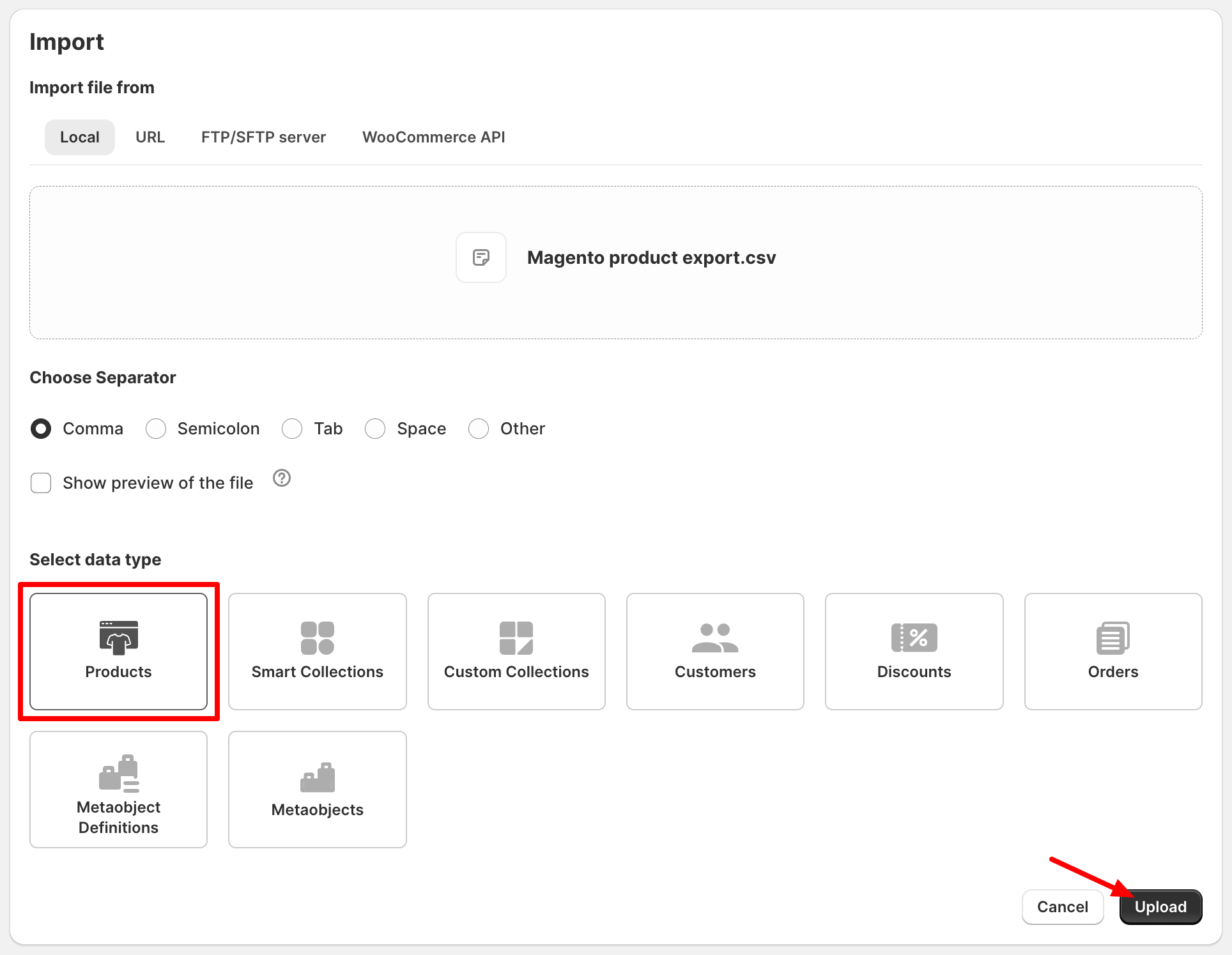
- Open the StoreRobo app and choose Import.
- Upload your CSV file.
- Once you’ve picked your import method, head to Choose Separator and select the delimiter (such as a comma or semicolon) that matches the one used in your CSV file.
- Next, under Select data type, choose Products, and then click Upload to proceed.
Step 3: Select Your Import Template
After uploading your Magento CSV, StoreRobo will try to detect its format automatically. If the detection isn’t correct or you’re working with a custom export, you can manually select the right template from the dropdown.
For Magento-to-Shopify transfers, choose Custom CSV.

Step 4: Use the Column Mapping Feature
When migrating from Magento to Shopify, the data fields in your CSV may not line up perfectly with Shopify’s product fields. This is where StoreRobo’s column mapping feature makes the process much easier.
After uploading your Magento CSV, StoreRobo displays all the columns from your file alongside Shopify’s required fields. You can then simply match each Magento field to its Shopify equivalent.
Example:
| Magento Field | Shopify Field |
|---|---|
| Magento name | Shopify Title |
| Magento sku | Shopify Variant SKU |
| Magento description | Shopify Body (HTML) |
| Magento price | Shopify Variant Price |
| Magento special_price | Shopify Compare at Price |
| Magento media_gallery | Shopify Image Src |
| Magento category_ids | Shopify Collection |
This step ensures your products import correctly, with details like SKUs, prices, and images placed in the right spots. If you’re using custom attributes in Magento (like size, material, or brand), you can map those to Shopify’s Options or Metafields, depending on how you want them displayed.

Pro Tip: Double-check the mappings for critical fields like SKU, price, and inventory. These are the backbone of your product catalog and must be accurate for smooth store operations.
Step 5: Select Advanced Import Options
Fine-tune how StoreRobo handles your data during import:
- Update if products already exist in the store: Update existing products instead of creating duplicates. Leave unchecked for a first-time transfer; check when re-importing to update details.
- Skip import of new products: Only update existing products, ignoring any new ones in the CSV. Handy for quick updates.
- Publish new product: Choose whether new products go live right away or stay in draft mode for review.

Once you’ve set up all your preferences, such as column mapping, filters, and advanced import options, you’re all set to kick off the migration process. Just hit the Import button to get started. StoreRobo will take care of processing your Magento CSV, pulling in the product details, and transferring them into Shopify based on the rules you’ve set up.
As the transfer happens, the app meticulously aligns your Magento fields with Shopify’s product structure, making sure that essential data like SKUs, prices, descriptions, stock levels, and images are accurately moved over.
Once everything is wrapped up, StoreRobo will give you a detailed import log. This report will show you which products made it through the migration successfully, point out any items that were skipped or updated, and flag any potential issues (like missing fields or broken image links).

You’ll also get a notification when everything is finished, so you can check out the results right away.
Post-Migration Checklist for Magento to Shopify
Once your products are imported into Shopify, it’s important to review and fine-tune your store to make sure everything works smoothly. Here’s what to check:
1. Verify Imported Products
- Go through your product catalog in Shopify and confirm that key details like titles, descriptions, prices, SKUs, inventory levels, and images are correctly imported.
- Double-check product variants (sizes, colors, etc.) since Magento’s attributes may map differently in Shopify.
- Look for missing images or broken links, especially if they were stored in Magento’s media folders.
2. Rebuild Collections, Categories, and Menus
- Magento uses categories, while Shopify uses collections. Review your categories from Magento and set up corresponding collections in Shopify.
- Organize products into manual or automated collections to mirror your old structure.
- Update your navigation menus to point to the correct collections, ensuring customers can browse your catalog easily.
3. Test the Checkout Flow
- Place a few test orders in your new Shopify store to confirm that products, variants, shipping rates, taxes, and payment gateways all work properly.
- Make sure email notifications (order confirmations, shipping updates) are being sent correctly.
- Verify that inventory updates correctly when test purchases are made.
4. Ensure SEO Redirects Are Working
- Magento and Shopify use different URL structures. Set up 301 redirects in Shopify so old Magento URLs point to the correct Shopify product or collection pages.
- Test important product and category links from your old site to confirm they redirect properly.
- Check your Google Search Console for crawl errors after the site is live to fix any missed redirects.
5. Review Store Settings & Integrations
- Reconfigure tax settings, shipping rules, and payment gateways to match your business needs.
- Reinstall apps or integrations (email marketing, analytics, accounting tools) that were connected to your Magento store.
- Update your store design and theme to ensure a smooth customer experience.
Wrapping Up
Migrating from Magento (Adobe Commerce) to Shopify may seem daunting, but with the right preparation and tools, it can actually be a straightforward and stress-free process.
We’ve taken you through every step from getting your data ready in Magento, exporting it to CSV, and mapping the necessary fields, to importing it into Shopify using the StoreRobo Import Export app. It’s crafted to save you time, cut down on errors, and provide flexibility at every stage of the migration.
Remember, your products and data are the heart of your online store. By meticulously backing up, cleaning, and validating your Magento data before the import, you can minimize errors and ensure a seamless transition. With Shopify’s user-friendly platform, you’ll also enjoy a system that’s more adaptable, budget-friendly, and easier to scale as your business expands.
Hope this article helps. Feel free to comment for any queries or feedback.


Subcribe to our newsletter


