


Share:


Table of Contents
Efficiently managing product metadata is key to maintaining a well-organized WooCommerce store. Learn how to import it and save hours of manual work.
As a store owner, you already know how much effort it takes to keep your product details accurate and up to date. Beyond the basics like product names and prices, there’s a lot of behind-the-scenes data. Things like brands, materials, colors, SEO titles, and descriptions that make your store look polished and perform better.
This extra information, called product metadata, helps improve your search rankings, enhances customer experience, and keeps your store data consistent. But updating or adding this metadata manually for every product can be time-consuming, especially when you’re managing hundreds or even thousands of products.
Thankfully, WooCommerce lets you import product metadata in bulk from a CSV file, making it easy to update existing products or add new ones efficiently. And if you want a faster, more flexible way to handle this, the Product Import Export Plugin for WooCommerce by WebToffee can help.
In this guide, we’ll show you exactly how to import product metadata in WooCommerce from a CSV file using the plugin, whether you’re updating existing products or adding new ones.
Key Takeaways:
- Product metadata matters. Details like brands, materials, colors, and SEO information play a major role in improving your store’s appearance, performance, and search visibility.
- Updating metadata for hundreds of products individually is time-consuming and error-prone.
- Using the Product Import Export Plugin for WooCommerce by WebToffee, you can quickly import or update product metadata in bulk from a CSV file, saving time and ensuring data consistency.
Product metadata is an additional layer of information stored alongside your WooCommerce products. It goes beyond standard details like product name, price, and image, and adds valuable context that helps both search engines and customers better understand your products.
Metadata can include things like:
- Custom fields – such as _brand, _sku_alt, or _product_material, which store brand names, alternate SKUs, or product materials.
- SEO data – like meta titles and descriptions that help improve your product visibility in search results.
- Advanced attributes or specifications – such as dimensions, weight, or compatibility details that make product listings more informative.
- Third-party plugin data – information added by other tools, like product badges, shipping details, or advanced custom fields (ACF).

In simple terms, product metadata is the background information about your WooCommerce store products. It helps you organize your catalog, improves product discoverability through search, and enhances the overall shopping experience by displaying richer and more relevant details on product pages.
Also Read: What Is Metadata in WooCommerce
Why Import Product Metadata via CSV?
Importing metadata via a CSV file gives you a much faster, more efficient way to handle bulk updates and keep your product data consistent across your store.
Here’s why it’s helpful:
- Bulk edit or update product details in one go: Instead of opening each product one by one, a CSV import lets you modify hundreds of product records instantly. Whether you’re updating SEO metadata, adding custom fields, or changing attributes, it all happens in a single import process.
- Maintain consistent product data: A centralized CSV file helps ensure accuracy and consistency. You can review and edit your product information in one place before uploading it, reducing the risk of typos or missing data.
- Migrate data between stores or staging sites: If you’re redesigning your store, switching themes, or testing updates in a staging environment, CSV imports make it easy to move your product metadata safely between sites without data loss.
- Integrate with other systems (e.g., ERP or PIM software): Many external systems, such as inventory management systems, ERPs, and Product Information Management (PIM) tools, can export data in CSV format. By importing that CSV into WooCommerce, you can keep all your platforms in sync automatically.
Before you start importing, you’ll need to create a properly structured CSV file that contains all the product data and metadata you want to upload. Think of this file as the blueprint WooCommerce uses to understand which product details go where.
At a minimum, your CSV should include the following:
- Product ID or SKU: This acts as a unique identifier for each product. With proper SKU mapping in WooCommerce, the store can use the product ID or SKU to accurately match and update existing products instead of creating duplicates during import.
- Custom metadata keys: These are the internal field names that WooCommerce or plugins use to store additional product data. For example, _brand, _color, _material, or _seo_title. Each of these should be added as a separate column header in your CSV file.
You can then fill in the corresponding data for each product under these columns. For instance, if you’re adding a” _brand” column, list the brand names for each product in that column.
Here is a sample CSV file containing WooCommerce product metadata fields, such as _brand, _material, meta_title, and meta_description, prepared for import.

Tip: Use a spreadsheet tool like Google Sheets or Excel to organize your data, then export it as a CSV (UTF-8) file for the best compatibility with WooCommerce.
Before importing, make sure your CSV file is clean and properly formatted to avoid errors. Save it in UTF-8 encoding, use commas as separators, and keep all column headers consistent with your WooCommerce setup.
Double-check for duplicate SKUs or IDs, ensure metadata columns match your WooCommerce or plugin field names, and confirm that numeric fields (like weight or dimensions) don’t include extra characters. Finally, always export a backup of your existing products before importing, so you can restore your data if needed.
Note: Before importing your full product catalog, run a test import using a small sample CSV, such as a few products. This helps you verify that all metadata fields map correctly and appear as expected on your product pages before doing a large-scale update.
How to Import Metadata Using the Product Import Export Plugin
If you’re looking to import advanced product metadata, such as custom fields, hidden meta, or data from other eCommerce platforms, the Product Import Export Plugin for WooCommerce by WebToffee makes the process faster and more flexible.
Here’s how you can import product metadata step by step:
Step 1: Select Product as Post Type
First, download and install the product import export plugin. Then from your WordPress admin panel:
- Go to WebToffee Import Export (Pro) on the sidebar.
- Click Import, then select Product from the list of post types.

Step 2: Choose Import Method
The plugin gives you two flexible options:
- Quick Import: Choose this method when your CSV file was previously exported using the same plugin.
- Advanced Import: Use this to upload a new CSV and manually map fields before import.
Select the Advanced Import method and click the Map import columns button to continue to the mapping screen.

Step 3: Map Product Metadata Fields
On the mapping screen, you’ll see all the CSV columns listed on the left and their corresponding WooCommerce fields on the right. Standard product fields such as name, price, and SKU are usually automatically mapped.
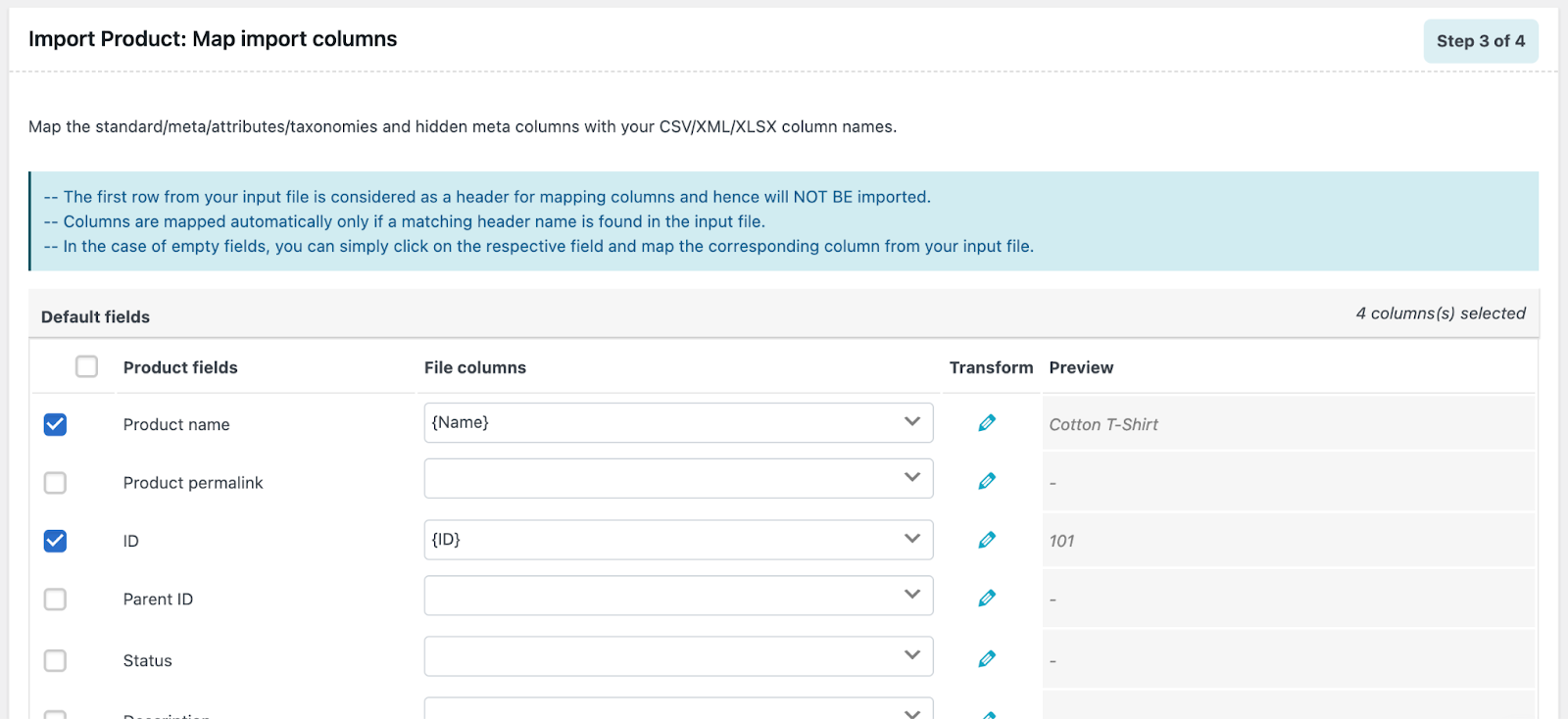
Meanwhile, custom metadata fields like _brand, _color, _warranty_period, or _total_sales will appear under the sections labeled Meta (custom fields) or Hidden Meta.
This is where you can map each custom field from your CSV to its matching WooCommerce meta key, ensuring all metadata is imported accurately.

Step 4: Apply Advanced Options and Run the Import
Here, review the Advanced Options before starting the import.
Use these settings to decide whether to update existing products, set the batch import count, or schedule an import. You can also save your mapping template for future use.
Once everything is ready, click Import/Schedule > Import to begin and let the plugin populate your store with the updated metadata.

Step 5: Verify Imported Metadata
Once the import is complete, verify that all your product metadata has been imported correctly. This quick review ensures everything appears as expected before you proceed with further updates.
Start by checking a few products from your catalog:
- Go to WooCommerce > Products and open a few of the items from your import.
- On the product edit page, look for the metadata fields you imported, such as brand, SEO title, color, or any other custom fields you included.
- Confirm that the data matches what you had in your CSV file.

If your CSV included a field like _total_sales or another custom meta key, you’ll find it listed under the Custom Fields section of the product edit page. This confirms that your metadata was successfully mapped and imported.
Note: If you don’t see the expected fields right away, double-check your mapping settings or ensure that hidden meta fields are visible on the product edit screen.
Common Issues and Fixes
Even with a well-prepared CSV, you might occasionally run into small hiccups during import. Here are some common issues WooCommerce store owners face and how to fix them quickly:
1. Metadata Didn’t Import or Is Missing
- Cause: The meta key name in your CSV doesn’t match the one used by WooCommerce or the plugin.
- Fix: Double-check that the column headers in your CSV (like _brand or _total_sales) exactly match the meta keys used in your store or plugins.
2. Duplicate or Unwanted Products
- Cause: The CSV didn’t include a unique Product ID or SKU, so WooCommerce created new entries instead of updating existing ones.
- Fix: Always include a unique identifier (ID or SKU) in your file and enable the “Update existing products” option when importing.
3. Encoding or Special Character Errors
- Cause: The file wasn’t saved in the correct character format.
- Fix: Save your CSV using UTF-8 encoding before uploading to prevent broken characters or unreadable data.
4. Metadata Appears in the Wrong Field
- Cause: Incorrect mapping between your CSV columns and WooCommerce fields.
- Fix: During the mapping step, double-check each column, especially under Meta (Custom Fields) or Hidden Meta, to ensure all data aligns properly.
5. Import Takes Too Long or Times Out
- Cause: Very large CSV files or server time limits.
- Fix: Reduce the batch import count under Advanced Options or split your CSV into smaller files before re-importing.
Conclusion
Importing product metadata in WooCommerce is an easy and efficient way to keep your store data organized and up to date. It saves you hours of manual work when updating product details, SEO data, or custom fields.
Using the Product Import Export Plugin for WooCommerce by WebToffee makes the process even smoother. It lets you import complex metadata, map fields accurately, schedule automatic imports, and reuse templates, giving you complete control over your store data with minimal effort.
With the proper setup, managing your product metadata becomes quick, reliable, and hassle-free.
Hope you found this article useful. If you have any questions, feel free to comment below, and we’ll be happy to help.


Subcribe to our newsletter


