


Share:


Table of Contents
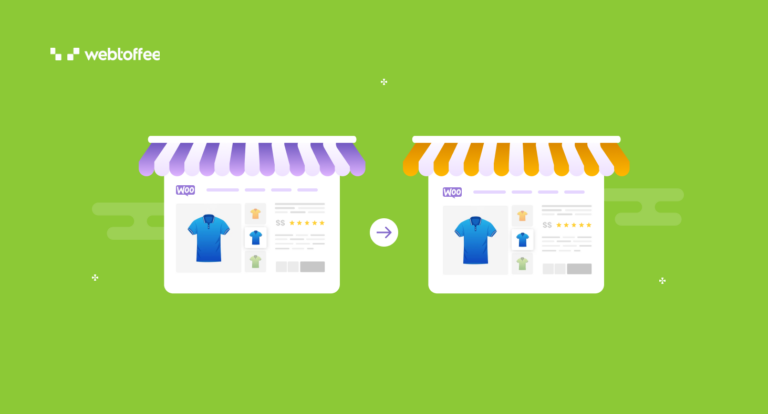
Migrating WooCommerce store data to a new site is a critical process that ensures continuity in business operations by transferring essential data such as customer information, product listings, and order histories. A successful migration requires careful planning, the right tools, and adherence to best practices to prevent data loss or operational disruptions.
- WooCommerce migration involves transferring vital store data, including products, customers, orders, and settings, to maintain business functionality.
- Selecting a reliable migration tool is crucial, as it must handle complex data relationships and ensure accurate data transfer.
- Best practices include creating backups, verifying data integrity post-migration, and following a structured import sequence to avoid errors.
- Dedicated migration plugins offer advanced features and greater control compared to WooCommerce's built-in tools, especially for larger stores.
- Common migration issues include missing custom meta fields, stock discrepancies, and the need to manually transfer WooCommerce settings, which are not included in data migrations.
- Testing the migration process on a staging site can help identify potential issues before executing the transfer on a live store.
A successful migration involves more than just transferring product details and images; it also involves maintaining all related data, such as customer purchase histories, order statuses, and inventory levels. Overlooking any aspect of this process could lead to downtime, broken links, or a loss of customer trust due to discrepancies.
In this article, we will guide you through the complete WooCommerce migration process, step by step. We will highlight best practices, tools, and tips to help you achieve a seamless transition without any issues.
🧭 Quick navigation: Only need to move customers and orders, not products? Skip to Step 1: Import and Export WordPress Users and Step 3: Import and Export WooCommerce Orders. You can skip Step 2 entirely if your products already exist on the new site.
Before you begin, it’s important to understand the difference between WooCommerce data transfer and full website migration, as the terms are often used interchangeably.
- WooCommerce data transfer (covered in this guide) involves moving store data such as products, customers, orders, coupons, and subscriptions from one WooCommerce store to another. Both websites already have WordPress and WooCommerce installed, along with any required themes and plugins.
- Full website migration involves moving your entire WordPress website, including its files, database, themes, plugins, and hosting environment, typically when changing hosting providers or domains.
If you’re transferring only your store data for example, from a staging site to a live store or when merging two WooCommerce stores this guide covers everything you need. If you’re moving from a different platform, such as Shopify or Magento, to WooCommerce, the process goes beyond transferring store data. A broader eCommerce replatforming project may also involve rebuilding your storefront, replacing apps and integrations, preserving SEO, and adapting platform-specific data before launch.
Following a structured, systematic approach is crucial to avoiding common pitfalls in WooCommerce data migration and ensuring a smooth, successful migration. Here’s a detailed breakdown of the critical steps you should take:
1. Create a Backup
Before you start, you must back up your current WooCommerce store. This backup should encompass your database, media files (like product images), themes, and plugin settings. A backup gives you a safety net if anything goes wrong during the migration.
Consider using trusted backup and data migration plugins like WebToffee’s Import Export Suite for WooCommerce.
2. Choose a Reliable Migration Tool
Migrating to WooCommerce can be challenging because of the intricate relationships among different data types, such as products, orders, and customer details. Therefore, it is crucial to select a trustworthy migration tool that can handle the complexities of WooCommerce data structures, including variations, attributes, and categories.
Look for tools that provide automation, can manage large data sets, and offer smooth import/export capabilities.
3. Check Data Integrity Post Migration
After completing the migration, it’s essential to check that all data has been transferred correctly and that the connections between various data sets are preserved. This involves ensuring that all products, variations, images, customer information, and order history are properly placed.
By following these structured steps, you can ensure a smooth WooCommerce data migration with minimal risk and downtime, preserving the integrity of your store’s data and relationships.
Comparing Your WooCommerce Data Transfer Options
Not every method suits every store. Here’s how the three common approaches stack up:
| WooCommerce Built-in Export/Import | Dedicated Data Migration Plugins (e.g., WebToffee) | Full-Site Migration Tools | |
|---|---|---|---|
| Best for | Small stores, simple one-off transfers | Stores of any size needing accurate, relational data transfer | Moving an entire site to a new host/domain |
| Data types covered | Products, orders, coupons (basic) | Products, orders, customers, subscriptions, coupons, custom meta | Everything — files, database, theme, plugins, settings |
| Handles data relationships (products ↔ orders ↔ users) | Limited | Yes, by design | Yes (whole database moves as-is) |
| Custom fields / meta support | Minimal | Yes, with field mapping | Yes (moves as-is) |
| Filtering options (by date, status, role, etc.) | None | Advanced filtering | Not applicable |
| Formats supported | CSV only | CSV, XML, TSV, Excel | Proprietary archive format |
| Technical skill required | Beginner | Beginner–Intermediate | Beginner |
| Preserves hosting/domain settings | N/A | N/A | Yes |
| Best when store already exists on destination | Yes | Yes | No — overwrites destination |
Takeaway: If your destination WooCommerce site is already set up and you only need to transfer store data such as products, customers, and orders, a dedicated data migration plugin offers greater control, flexibility, and reliability than WooCommerce’s built-in tools, without the complexity of a full website migration.
When moving a WooCommerce store to a new website, you typically have two main options for transferring your store data: utilizing WooCommerce’s built-in export/import tools or using specialized plugins that offer more advanced features.
The ideal choice will depend on how complex your store is and how much data you need to migrate.
Method 1: Using WooCommerce’s Built-in Export/Import Tools (Free)
The best and easiest way to migrate these data is to export it to a CSV file and then import it to the target site. WooCommerce has an inbuilt feature that allows you to export products, orders, coupons, subscriptions, etc., from your existing site and then import the CSV file to the target site.
To export your products and product data using the built-in WordPress export tool,
- Navigate to Products > All Products from your WordPress dashboard.
- Choose the Export option.
- Select Columns, Product Types, and Product Category.
- Choose whether to Export custom meta.
- Once done, click Generate CSV.

However, the options it provides are limited. When importing using the WooCommerce plugin, there is less flexibility and control over the product data that are exported or imported into a CSV file.
This is where dedicated plugins are preferred. For larger stores with thousands of products and their variations, customers, orders, custom fields, and datasets, dedicated migration plugins are the best option. They automate the process, save time, and ensure that all relationships between data elements are preserved.
The order in which the data are imported is key when importing and exporting to a new or existing site.
Quick Info: First, import either the CSV file containing user data or product data. After both files have been successfully imported to the website, move on to import the orders. This sequence ensures that all essential order data is already available on the destination site during the import process.
Follow the steps and the order while importing the data to a newly created site.
Step 1: Import and Export WordPress Users
Read the documentation on setting up WordPress Users and WooCommerce Customers Import Export Plugin to help you get started.
Export Users
Using the WordPress Users Import Export Plugin, export the user data from the source website in a CSV file to the destination site where they will be imported.
- Install and activate plugin on source and target website.
- Select Users as the post type to export.
- Choose the Advanced import method.
- Filter user data for export.
- Map and reorder user export columns.
- Configure advanced export options.
- Download the exported CSV file.

Import Users
On the destination site, import the CSV file and map the CSV fields to the corresponding fields in the WooCommerce store.
- Select User as post type for import.
- Choose Advanced import method.
- Map import columns.
- Set up advanced import options.

Since no other posts exist for a new website, the user data will retain the original user ID. You don’t have to worry about users being imported to be assigned a different ID or skipped from importing.
Step 2: Import and Export WooCommerce Products
The Product Import Export Plugin for WooCommerce is ideal for a smooth product migration between WooCommerce sites. This robust plugin simplifies exporting products and their associated data easily and accurately.
Export WooCommerce Products
You can export all your products into a CSV file with just a few clicks. The plugin provides numerous customization options, allowing you to specify exactly which product data you wish to include.
- Install and activate the plugin.
- Select Product as post type to export.
- Choose Advanced export method.
- Filter product data for export.
- Map and reorder product export columns.
- Set up advanced export options.
- Download the exported CSV file.

Import WooCommerce Products
After all the required products and their metadata have been exported to a CSV file, they can be imported to the other site. Install and activate the Product Import Export Plugin on the site where the CSV will be imported.
- Select Product as post type to import.
- Choose Advanced import option.
- Upload the CSV file.
- Reorder product import columns.
- Configure advanced import options.
After importing the file, you will get all the products and their metadata in the new WooCommerce store.

Also Read: How to Export Products from WooCommerce?
Step 3: Import and Export WooCommerce Orders
After all the users and products have been imported into the new WooCommerce store, it is safe to transfer the orders to the store. The Order/Coupon/Subscription Export Import for WooCommerce plugin will help you export and import orders from one site to another.
Export WooCommerce Orders
Export all the required orders from one site to another. The plugin allows you to export orders depending on their status and start or end date. You can also specify the number of orders you want to export to CSV or XML format.
- Install and activate the plugin on the source and target websites.
- Select Orders as post type for export.
- Choose an export method: Quick or Advanced export.
- Filter order export data.
- Map and rearrange export columns.
- Configure advanced export options.
- Download exported orders as a CSV file.

Import WooCommerce Orders
Next, install and activate the Order Import Export plugin in the new site into which the orders must be imported. Then, import the CSV with the order details.
- Select Order as post type to import.
- Choose Advanced import method.
- Map order import columns.
- Set import options and begin importing.

This will create all the orders on the new site and connect with the corresponding products and users if they already exist on the new website.
You can also use the same plugin to migrate your WooCommerce subscriptions and coupons from your store.
Note: The order in which products and users are imported can be flexible since they aren’t directly connected. However, it’s essential to import both before importing orders, as orders are associated with specific users and products.
Method 3: Manual Database Export (Advanced)
If you’re technically comfortable and want to move data at the database level rather than through CSV files, you can export your WooCommerce tables directly via phpMyAdmin or a SQL dump, then import them into the new site’s database.
- Log in to phpMyAdmin (or your host’s database manager) for the source site.
- Select the database and export the relevant WooCommerce tables (wp_posts, wp_postmeta, wp_woocommerce_order_items, wp_usermeta, etc.).
- Import the resulting SQL file into the destination database.
- Update any serialized data references (URLs, IDs) using a serialization-aware search-replace tool — a plain find-and-replace on raw SQL will corrupt serialized arrays and break your store.
This method is best suited for experienced developers. It requires a strong understanding of the WooCommerce database structure and serialized data, and errors can be difficult to reverse. For most store owners, the CSV-based plugin approaches covered in Methods 1 and 2 are safer, faster, and less prone to errors. Consider Method 3 only when migrating very large datasets for which CSV processing would be too slow or impractical.
Troubleshooting Common WooCommerce Data Transfer Issues
WooCommerce data transfers may not go perfectly on the first attempt. Below are some of the most common issues store owners encounter and how to resolve them.
Custom Meta Fields Are Missing After Import
Custom metadata from products, users, or third-party plugins can be transferred, but the fields must be mapped correctly during import.
In the mapping step, locate the custom field under File Columns and match it with the appropriate Field Column. Any columns left unmapped will be skipped during the import.
Stock Quantities Do Not Match
If a product already exists on the destination site, check how the import settings handle stock values. Depending on the configuration, the imported quantity may be added to the existing stock instead of replacing it.
For example, if the destination product has 3 units and the import file contains 10 units, the final stock may become 13.
Review the stock update settings before importing, especially when transferring data between staging and live stores.
Product Categories, Tags, or Attributes Are Missing
Product categories, tags, and attributes are supported during both export and import.
If any of these are missing, check whether the relevant columns were excluded or left unmapped during either the export or import process. Run a small test import to confirm that the fields are mapped correctly before transferring the full catalog.
Only Recent Customers or Orders Need to Be Transferred
You do not need to export the entire customer or order database.
Use the available date filters to export only users or orders created after a specific date. Order exports can also be filtered by status. Applying these filters before generating the CSV is safer and more efficient than manually editing a large export file.
Subscriptions Are Double-Charged or Customers Receive Unexpected Emails
A properly configured import should transfer subscription and order records without triggering payment processing or transactional emails.
However, custom hooks, automation plugins, or WooCommerce email settings may respond to imported records. Test the process on a staging site first and confirm that payment gateway actions, renewal processes, and email notifications are not triggered during the import.
WooCommerce Settings Were Not Transferred
This is expected. Data migration plugins transfer store content, such as products, customers, orders, coupons, and subscriptions. They do not usually transfer WooCommerce configuration settings.
Handle these settings separately:
- Tax rates: Go to WooCommerce > Settings > Tax and use the built-in Export CSV and Import CSV options in the Standard Rates table.
- Shipping zones: Recreate them manually on the destination site.
- Payment methods: Reconnect and configure each payment gateway.
- Email templates: Reapply any custom email settings or template changes.
For a migration that includes all files, database tables, plugins, themes, and settings, use a full-site migration tool instead.
Product Images Are Missing or Broken
Product exports usually include image URLs in dedicated columns. During import, the plugin retrieves the images from these URLs and attaches them to the corresponding products.
If the images are missing, verify that:
- The source URLs are still publicly accessible.
- The source domain has not changed.
- Hotlink protection is not blocking access.
- The image files have not been deleted or moved.
- The destination server can make external requests.
Keep the source site and its media library accessible until the import is complete.
The Source Site Uses an Older WordPress or WooCommerce Version
Built-in export tools may be limited or unreliable on outdated websites. A dedicated WooCommerce export plugin may still be able to retrieve the required data directly from the WordPress and WooCommerce database structure.
Before starting, create a complete backup and test the export with a small dataset. Older plugin versions, custom database structures, or unsupported product types may still require additional troubleshooting.
WebToffee’s WooCommerce Import Export plugins enable seamless, efficient bulk transfer of products, users, customers, orders, coupons, and subscriptions across stores, with options for advanced filtering, automated mapping, and support for CSV, XML, TSV, and Excel formats.
- Product Import Export Plugin For WooCommerce
The WooCommerce Product Import Export plugin allows for easy transfer of different product types such as simple, variable, grouped, and affiliate between stores. It supports multiple formats, including CSV, XML, TSV, and Excel. This plugin simplifies bulk tasks like importing images, reviews, categories, and tags, featuring advanced filtering and automatic column mapping for more efficient data management.
- WordPress Users & WooCommerce Customers Import Export
The WordPress Users & WooCommerce Customers Import Export plugin allows for easy transfer of user and customer data between sites. It allows batch processing and filtering by roles, emails, and dates. In addition, the plugin also offers support for CSV, XML, and Excel formats, advanced filtering options, field mapping, and bulk updates for better data management.
- Order, Coupon, Subscription Export Import for WooCommerce
Order, Coupon, Subscription Export Import for WooCommerce allows you to easily migrate orders, coupons, and subscriptions in bulk, along with any custom metadata, using formats like CSV, XML, TSV, and Excel. It provides various import/export methods, advanced filtering options for selecting custom data, and the ability to perform bulk updates during the import process.
Yes. Custom meta fields can be exported and imported by mapping them correctly. Select the custom metadata under File Columns and map it to the corresponding Field Column during import.
The stock quantity gets updated during import by adding the imported amount to whatever is already on the destination — for example, 3 existing units plus 10 imported units results in 13 units after import.
Yes. A dedicated export plugin reads product data directly from the database structure, so it isn’t limited by an outdated theme or a stripped-down built-in export screen.
Yes, product categories, tags, and attributes are supported and transfer along with the core product data.
Yes. Both the user and order plugins let you filter exports by date range (and orders by status too), so you can pull just the records you need rather than the full history.
No. These plugins move store content (products, users, orders), not store configuration. Taxes can be handled via WooCommerce’s built-in tax import/export; other settings need to be configured manually or moved via a full-site migration tool.
Product export files include the image URLs for each product. On import, the plugin downloads the images from those URLs and attaches them to the corresponding products automatically.
No, provided you’re moving data to a new or staging site rather than overwriting your live store mid-transfer. Since this process doesn’t touch hosting, DNS, or your live domain, there’s no inherent downtime risk the way there is with a full-site migration.
Even the thought of migrating a WooCommerce website can be challenging. There’s a chance that something will go wrong, potentially ruining your website and making all your hard work in vain.
An average store owner might need a WordPress expert for site migration. However, with the correct set of plugins and proper steps, website migration can be done without the help of an expert.
We hope this article has given you a detailed understanding of performing WooCommerce store migrations using a plugin. Please share any queries or feedback as comments, and we will get back to you as soon as possible.

Got any query? Please leave a comment or reach out to our support
Got any query? Please leave a comment or reach out to our support

Subcribe to our newsletter




Comments (21)
Marco
January 30, 2025
Hello,
Will also custom meta data be exported and imported, for products and users?
Hema
February 21, 2025
Hello Marco,
Thanks for reaching out. Yes, the custom data can also be exported and imported by properly mapping them. Choose the custom metadata in the File columns and map it with proper Field column.
Kássin
April 26, 2022
Hi team,
How the plugin handle product stock?
For example:
In my staging site I have a product with 10 units, but in the production site the same product have 3, how the plugin will cross this information for same product in different website?
Thanks in advance.
Alan
May 12, 2022
Hi Kássin,
The product stock of the same product will get updated during import. In your case, the product stock will get updated to 13.
Jawad Ali
April 23, 2021
How I can export my all product from old version website that is not showing m much more future related this… do you know any plug-in that help me to download my all product to import them on new website.. waiting for response .
Alan
April 23, 2021
Hi,
You may please check our Import export suite plugin using which you can migrate all the products, orders, and users from one Woocommerce site to another Woocommerce site. Here is the link to the plugin: https://www.webtoffee.com/product/woocommerce-import-export-suite/
Ian
October 23, 2020
Reading comment below this seems ideal … I can take a staging copy and then develop the site … new theme etc. to speed things up. After development I can copy new data to staged site before launching it. Question you seem to cover key pluging Product Bundles and Wholesale but do you cover ‘ELEX DHL Express/DHL Paket WooCommerce Shipping with Print Label’? … perhaps with order meta?
Mark
November 3, 2020
All data stored by any plugins as custom meta with order or products will be migrated using the plugin.
Darlene
July 20, 2020
Products are already set up on new website. Only need to transfer buyers and orders. Can I use only the two plugins? Also, clone of website was made in Feb. so can I specify to only transfer data after a date certain, e.g. 2/22/20? rather than replace all customers, their data and the orders? I assume this would all be done before new website is live, correct?
PS the new site is a totally different theme and updated to current WC version. Old website is very old.
Alan
August 7, 2020
Hi,
Yes, using the Order import-export plugin and User import-export plugin you can filter the export of orders and users based on date so that only the data after a certain date will be exported to the CSV. Later you can use this exported CSV to import data in the new site.
skype essay
May 6, 2020
obviously like your web-site but you need to test the spelling on several of your posts.
A number of them are rife with spelling problems and I in finding it very troublesome to inform the
truth however I will definitely come again again.
Vikas Bendha
March 24, 2020
Hello
First of all, thank you so much for this detailed explanation.
I am also going to move one existing woo-commerce website.
So I have 2 websites right now.
One has woocommerce with simple and subscription product data with all users.
Another one has all the course content data which can be accessed after purchasing the course subscription from the first website.
Now I want to use only one domain which will be the second one and for that I wan to move all of my customers, Orders, subscriptions and products to the second website.
So I am afraid that how can I move all those woocommerce content from one to another without sending any unexpected emails nad without making any double charge while exporting subscriptions and orders.
I think I have explained my situation properly here, so can you please help to give some proper guidelines on this that how can I start my whole process?
If there is any plugin or anything else that you can suggest please do.
Thanks a lot in advance.
Alan
March 24, 2020
Hi,
You may please use our three Woocommecre plugins namely Product import-export plugin, User import-export plugin, and Order/Subscription import-export plugin to migrate the Customers, Orders, subscriptions, and products from one site to another site.
We can assure you that the subscriptions will not be double charged and email will not be sent to the users during the export-import process. You may go ahead and purchase the plugin.
Please reach us via support if you have any more queries.
Jason
March 1, 2020
What about product categories? Do these plugins export the data from product categories?
jason
March 1, 2020
Or content for the tags and attributes?
Mark
March 1, 2020
Yes. It supports export and import of categories, tag and attributes along with the product data.
ดูหนังออนไลน์2019
February 11, 2020
magnificent submit, very informative. I’m wondering why the other experts of this sector don’t understand this.
You should continue your writing. I am confident, you’ve a huge readers’ base already!
Neal
April 23, 2019
how does the set up of woo-commerce like emails, taxes, selling areas, etc get transferred?
Alan
April 24, 2019
Hi,
Our plugins import/export the products, reviews, orders, subscription, and users to/from the Woocommerce. The Woocommerce settings like email, taxes, selling areas, etc are not handled by the plugins.
You can import/export Taxes using the default Woocommerce option under the Tax settings.
John
November 27, 2018
Very interested in this. How are images handled for the products?
Mark
November 27, 2018
Hey John,
While exporting the products, the CSV will have the product image URLs in a column against each product row. Importing the CSV will download the images from the corresponding URLs and will be attached to the products.
Read this documentation for more information.