


Share:


Table of Contents
Yes — PayPal Pay Later works with WooCommerce. You can enable it through the WebToffee PayPal plugin, which adds Pay in 4 (four interest-free payments) and Pay Monthly options to your WooCommerce checkout. This guide walks you through exactly how to set it up.
Buy Now Pay Later (BNPL) is one of the most effective payment options you can add to a WooCommerce store. Customers get the flexibility to split purchases into manageable installments without paying up front — and you, as the merchant, receive the full payment immediately from PayPal. It’s a genuine win on both sides.
Beyond the payment flexibility, enabling PayPal Pay Later is also a conversion strategy. Shoppers who hesitate at a full-price checkout often complete the purchase when they see an installment option. It removes the upfront cost barrier, simplifies the checkout process (no card details required — customers authenticate through their existing PayPal account), and naturally supports higher order values and conversion rates. Customers can also choose interest-free Pay in 4 installments or apply for a longer-term Pay Monthly plan, depending on their order total and eligibility.
Ready to enable PayPal Pay Later on your WooCommerce store? Let’s get started.
Key Takeaways:
- PayPal Pay Later allows customers to shop now and pay later with PayPal for online payments with interest-free payments.
- WooCommerce Pay Later with PayPal enables eCommerce merchants to accept Pay Later payments, increase customer loyalty, and generate more sales.
- WebToffee’s PayPal plugin allows you to add PayPal Pay Later in WooCommerce and accept payments through Credit/Debit cards, Venmo, etc.
Ready to accept payments via Pay Later PayPal in WooCommerce? Let’s get started!

PayPal Pay Later is a flexible payment option that allows customers to utilize PayPal buy now, pay later. Shoppers can choose to split their purchase into four interest-free payments (Pay in 4) or select a longer-term financing plan, depending on eligibility and the total purchase amount.
PayPal Pay Later helps increase WooCommerce conversion rates by giving buyers more financial flexibility.
The PayPal Pay Later offers two main payment options:
- Pay in 4: Customers make an initial down payment at the time of purchase, followed by three interest-free, bi-weekly payments to cover the remaining balance.
- Pay Monthly: Customers can apply for monthly installment payments.
Here is a quick overview of how Pay Later PayPal works:
- At checkout, the customer selects WooCommerce PayPal Pay Later as their payment option.
- They’re shown eligible plans.
- Once approved, PayPal handles the payments on their behalf.
- Merchants receive the full payment upfront from PayPal, just like any other PayPal transaction.
- Customers can manage their payments and view upcoming due dates directly in their PayPal account.
This service is available in the US, UK, France, and Australia and can be used for online purchases. To use PayPal Pay Later, applicants must be at least 18 years old, have a PayPal account in good standing, and reside in an eligible country.
That said, let’s examine the step-by-step process for enabling PayPal Pay Later on your WooCommerce store.
Before we begin, you should be aware that PayPal Pay Later is restricted to the following countries: Australia, France, Germany, Italy, Spain, United Kingdom, and United States. Make sure you meet the requirements of your country to be eligible for Pay Later.
Let’s see what the eligibility requirements are for the United States.
- Should be a US-based PayPal merchant
- Have a US-based website.
- All transactions should be in US dollars (USD).
- Have one-time payment integration.
- Abide by the PayPal Acceptable Use Policy.
- Shouldn’t edit Pay Later messages with additional content, wording, marketing, or other materials.
Now that you are aware of the eligibility requirements, let’s proceed:
Step 1: Install WebToffee PayPal Plugin
- Open your WordPress dashboard.
- Go to Plugins > Add New.
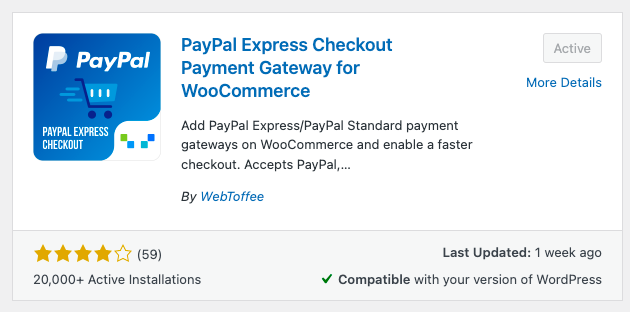
- Search for the PayPal Express Checkout Payment Gateway plugin.
- Install and Activate the plugin.
Step 2: Connect WooCommerce to PayPal
Go to Paypal.com and log in to your business account.
If you don’t have a business account, click Sign up to create one.
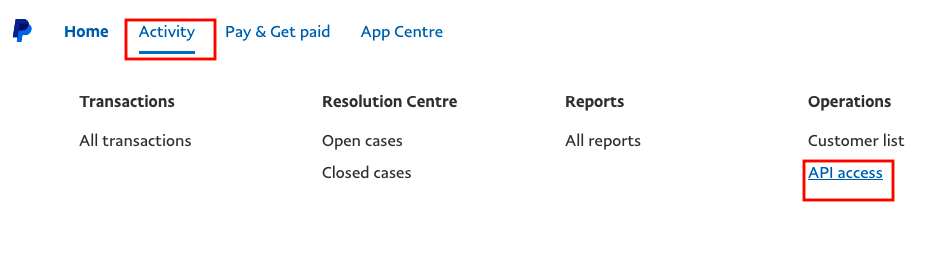
After logging in, select API Access under the Activity tab.
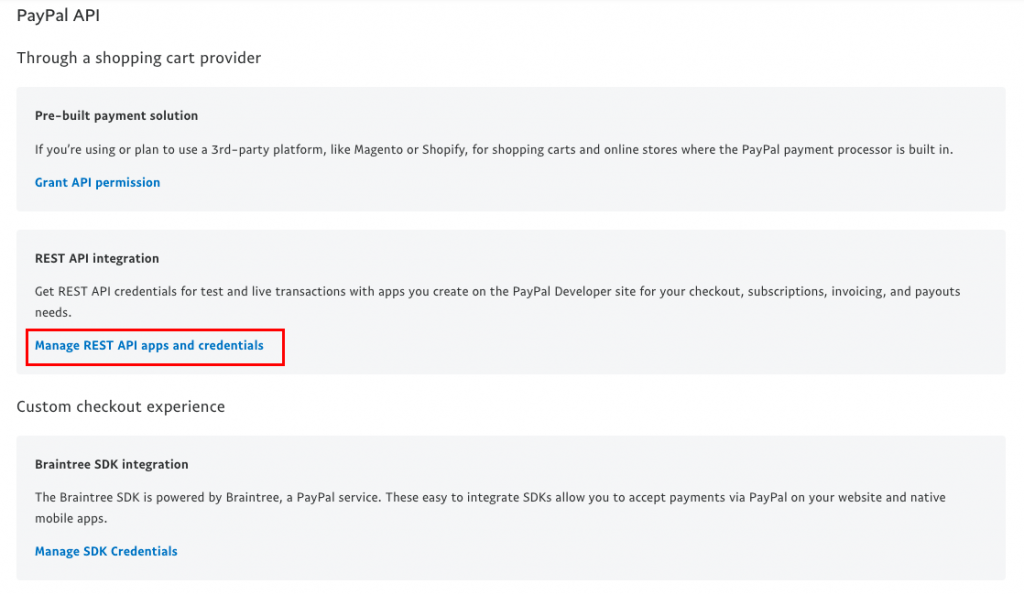
Scroll down to REST API integration and click Manage REST API apps and credentials option from PayPal API options.
- Click on PayPal Developer experience to connect your shop with PayPal.

- Choose from Sandbox mode or live mode. For this article, I will be using a Sandbox account.
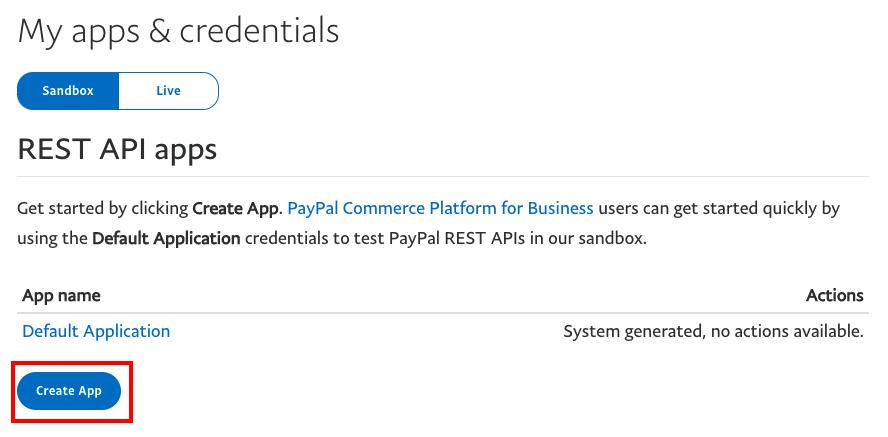
- Click Create App to proceed.
- Enter an App Name.
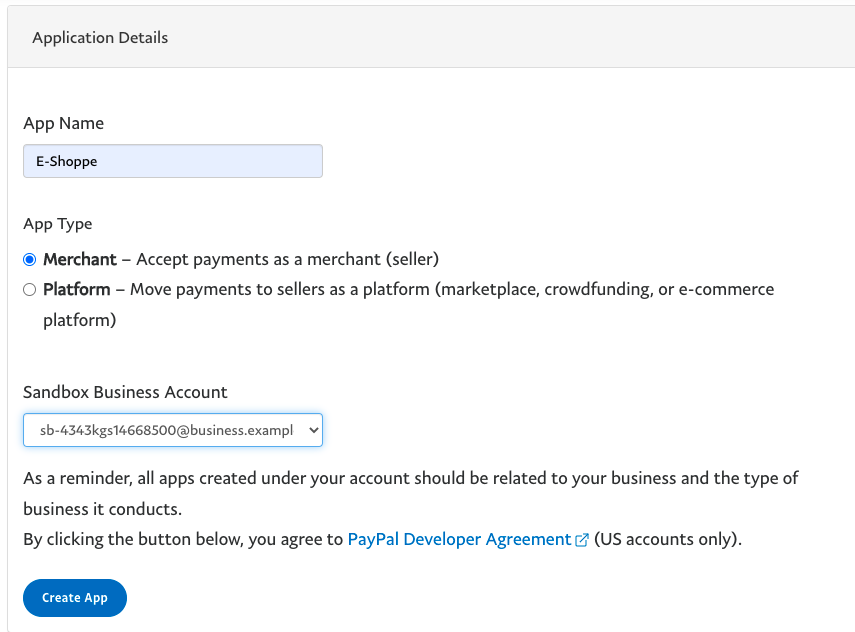
- Select Merchant as App type to accept payment as a seller.
- Click Create App to complete the setup.
- You will be taken to the Sandbox API credentials page. There you can see your Sandbox account along with Client ID and Secret.
- The secret key is hidden click on Show to reveal.
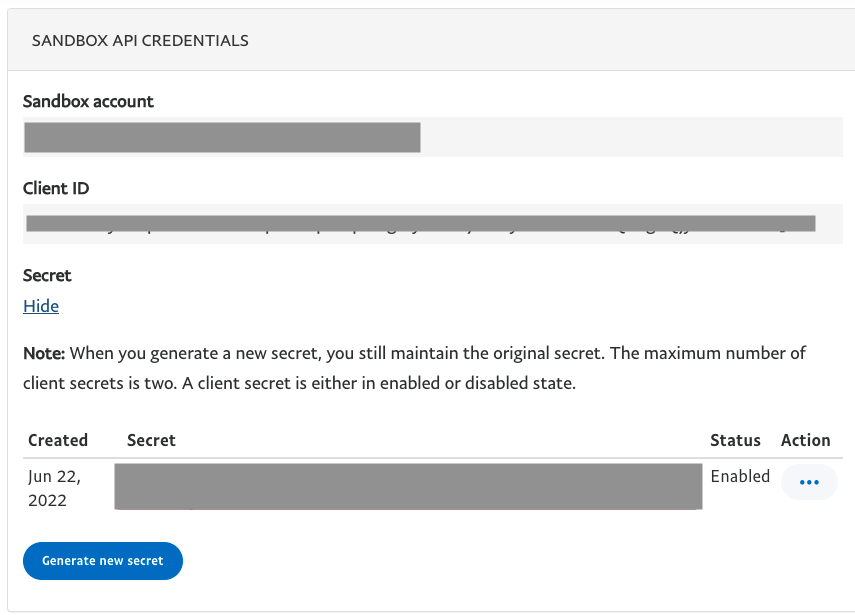
- Copy the Client ID and Secret, we need to add these credentials to our WooCommerce payment options.
Step 3: Enable PayPal Payments in WooCommerce
- Go to WooCommerce > Settings on your WordPress dashboard.
- Select the Payments tab and enable PayPal Express.
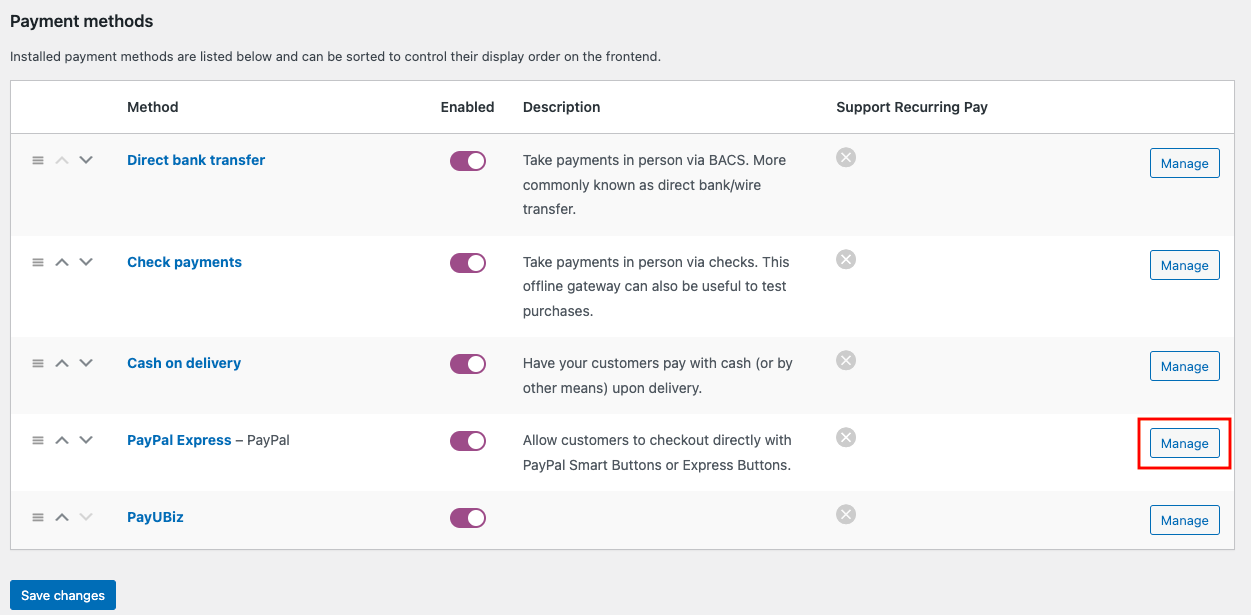
- Click on Manage to configure the PayPal payment gateway on your WooCommerce store.
- Enable the PayPal Payment Gateway checkbox.
- Select Smart button as the Payment Button.
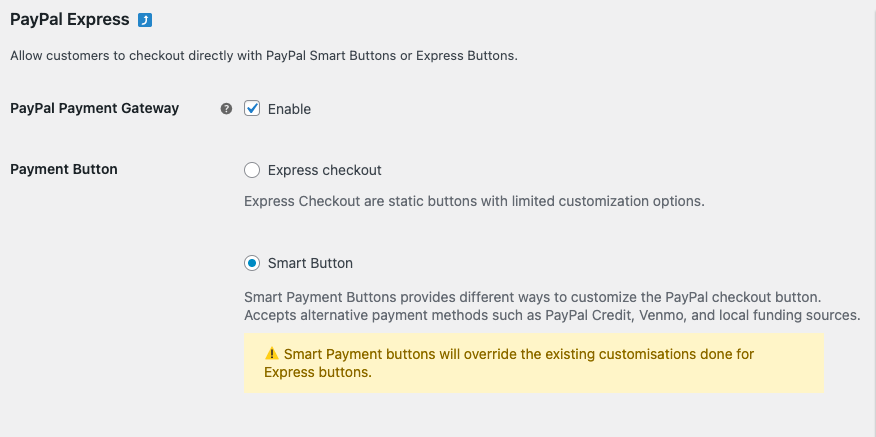
- Scroll down tothe Environment optionand select Sandbox mode for testing the payment and Live mode for accepting the payment.
- Enter the Client ID and Secret in the provided fields.
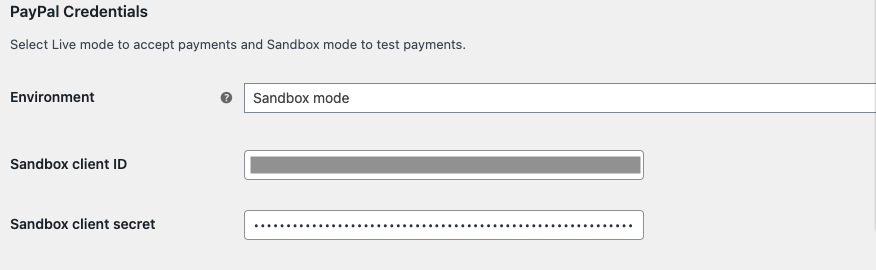
Scroll down to the bottom and click Save changes to apply the settings.
Step 4: Test PayPal Pay Later in WooCommerce
Go to any product page on your WooCommerce store and proceed to checkout.
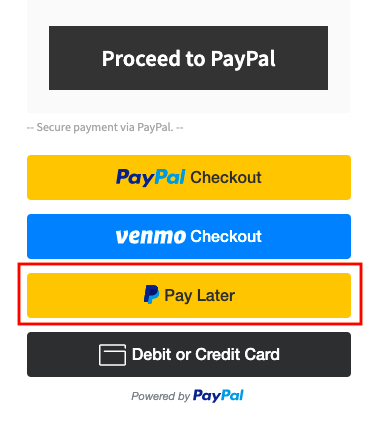
You can see the Pay Later button on the checkout page.
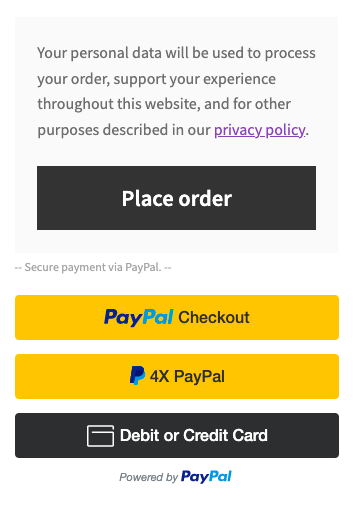
In some countries, users can see a 4x PayPal button that allows them to pay the bill amount in four equated installments.
- On clicking Pay Later you will be directed to the PayPal login page.
- Log in with your credentials.
- Select the Pay Later option and choose your Pay Later method.
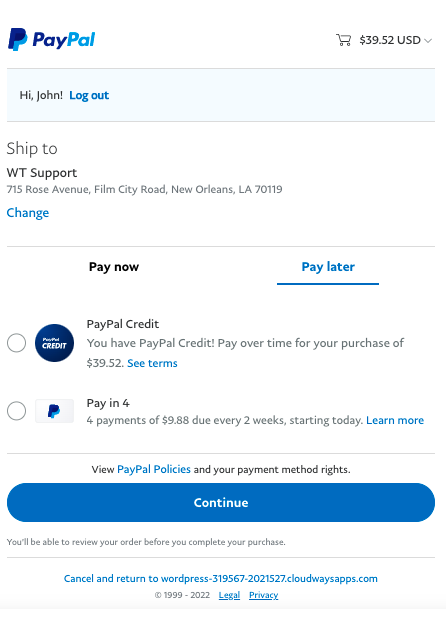
- You can choose from PayPal Credit or Pay in 4 installment options.
- Click Continue.
- The total amount will be divided into 4 payments.
- Click Continue to proceed.
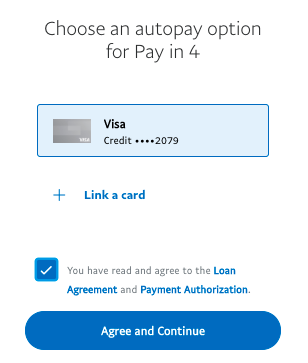
- Link your card for enabling the auto-pay option for installments.
- Click Agree and Continue.
- Confirm your billing address and Click Agree and Apply.
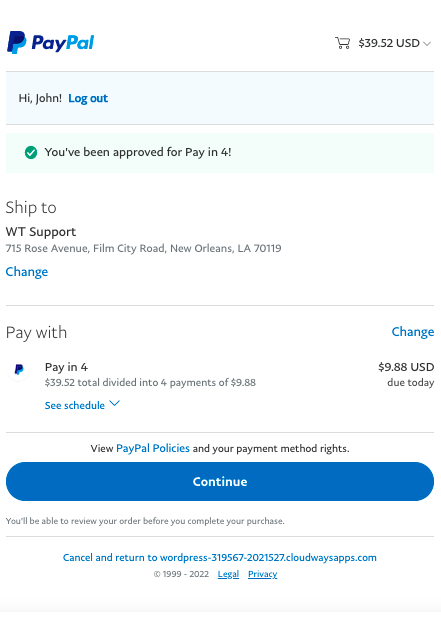
Click Continue to confirm the order.
Your order will be placed and you will be directed to the confirmation page.
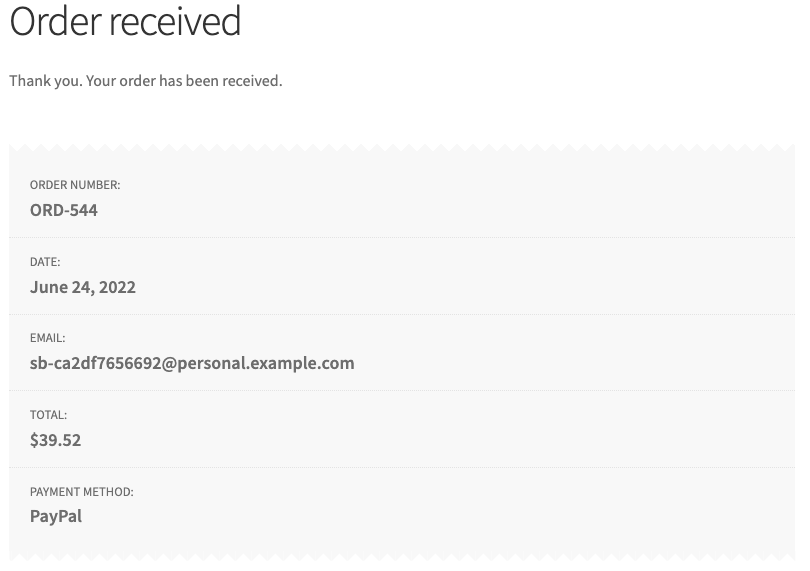
Now let’s see in detail what are the major benefits of having PayPal Pay Later on your WooCommerce store.
Improve Sales
Enabling Pay Later with PayPal on your WooCommerce store will increase sales and conversion rates. You can extend your services to more customers by letting them shop now and pay later in partial amounts or EMIs. This helps those customers who can’t afford to pay the full amount upfront, especially when you are selling expensive products.
Faster Checkout
WooCommerce PayPal Pay Later also helps enable a faster checkout process. Customers need not enter any credentials, which simplifies the checkout process and results in faster checkout. The faster the checkout process is, the lower the chance of cart abandonment. So, enabling Pay Later PayPal in WooCommerce can also help reduce cart abandonment.
Upsell
You can upsell products on your store by enabling PayPal Pay Later on WooCommerce. Let’s say you are selling Apple AirPods and AirPods Pro on your WooCommerce store for $99 and $199, respectively. When someone comes looking for the $99 regular AirPods, you can push them to purchase the more superior AirPods Pro for $199 with PayPal Pay Later options. This way, you can double the cart value.
Reduce Payment Fraud Risk
Integrating PayPal Pay Later in your WooCommerce store can reduce the payment fraud risk. Customers do not have to pay or enter payment information to place an order. This reduces the payment-related security risks on your eCommerce store. Also, PayPal is a secure payment gateway using the SSL protocol with 128-bit encryption.
Build Customer Loyalty
You can build customer loyalty by making them eligible for Pay Later options. This builds trust among your customers, and they keep buying products from your store. They will often use the Pay Later PayPal option to reduce the burden of paying a huge amount upfront.
Attracts New Customers
Enabling Pay Later not only keeps your existing customers satisfied but also attracts new customers to your store. WooCommerce Pay Later with PayPal gives you an edge over your competitors, as customers love credits and EMI options. This way, you can attract new customers to your store and keep them satisfied.
Yes. PayPal Pay Later is fully compatible with WooCommerce and can be enabled through the WebToffee PayPal Express Checkout plugin or the official WooCommerce PayPal Payments plugin. Once configured, the Pay Later button appears automatically at checkout when the order total is within the eligible range for your region.
PayPal does not charge any additional cost for Pay Later. You’ll only incur the standard PayPal transaction fee when customers use PayPal Pay Later to make a payment.
Yes. With the WebToffee WooCommerce PayPal Plugin (Pro), you can accept recurring payments for WooCommerce subscriptions on your store.
The WebToffee WooCommerce PayPal Plugin is one of the best PayPal plugins for WooCommerce stores. It lets you set up a PayPal payment gateway easily and secure your online store’s checkout and payments.
By integrating PayPal with WooCommerce, you can offer 10+ payment methods on your store. Common payment methods in PayPal include: Credit/Debit card. PayPal Digital Wallet, PayPal Pay later, Venmo, and more. Refer to this guide to learn more about PayPal payment methods.
Summing Up
There are many other payment gateway options available for WooCommerce that support Pay Later. However, PayPal has global acceptance and accepts international payments seamlessly. The PayPal Payments plugin mentioned in this article also helps you to enable smart checkout options like location-based payment methods and other user-specific payment options.
Hopefully, this article has helped you set up PayPal Pay Later options on your WooCommerce store. Do let us know your thoughts below.

Got any query? Please leave a comment or reach out to our support
Got any query? Please leave a comment or reach out to our support

Subcribe to our newsletter





Comments (2)
Stan
August 2, 2022
How can I get the estimated payments, broken into 4 installments, to show on the product page above the “Add to Cart” button? (We have WP, Woocommerce and Elementor installed on our site.) Thanks!
Mark
August 29, 2022
Hi Stan,
We understand your requirement. However, since the Pay in 4 options is provided by PayPal itself after verifying user eligibility, it cannot be show on the product page. It is loaded by PayPal itself once redirected into the PayPal page.